Viewing and Editing a Requisition
Note that Requisitions can be any of the following types:
-
Standard
-
Standing Order
-
Blanket Order
See Saved Requisition
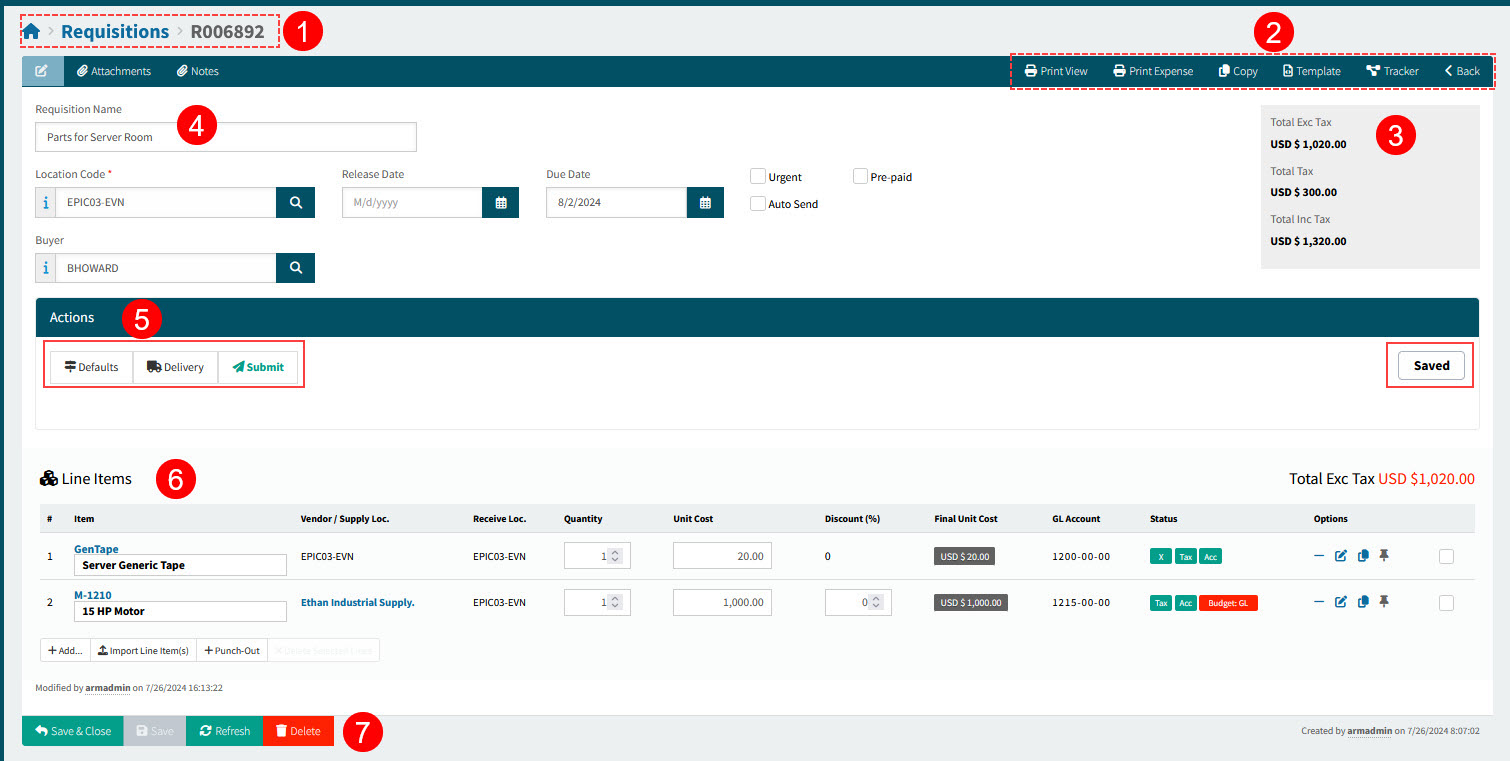

|
The breadcrumb shows the Requisition Number. You can use this when Searching for a Requisition. |

|
Use the buttons on the Header Menu for features that include adding Attachments, or viewing the Tracker. |

|
The Requisition Totals are displayed in this panel. |

|
The Requisition Header includes the Requisition Name, Location, and Dates. See Requisition Header. |

|
The Actions section has menu buttons for setting or viewing Defaults and Delivery details when creating or editing the Requisition. This is also where you Submit or Approve the Requisition, depending on its current status. Requisitions requiring approval can also be Rejected, Revised, or Reviewed. The Actions section also displays the Requisition Status, on the right. Examples are Saved, Approval In Progress, Approved. |

|
A Requisition has one or more Line Items. Depending on the Requisition status, you have various Options, such as denying approval, viewing the workflow of a line item, or copying a line item. You can also edit a line item, depending on its Status. See Editing Requisition Line. |

|
Use the buttons on the Footer Menu to Save & Close, Save, Refresh. You can also Delete a Requisition that is not in the Approval In Progress status. |
Requisition Header Menu
On the Header Menu Bar you can perform additional functions:
Header Menu Bar

 Attachments
-
Use this function to upload files. See Adding Attachments to Header.
The Global Setting Attachment Upload File Filter stores the file types that can be uploaded as Attachments.
- Notes
-
Use this function if you want to add multiple Internal notes, or a single External note. Notes can be deleted if you have the permission Can Delete Own Internal Notes or Can Delete Any Internal Note. See Adding Notes.
 Print View
-
Downloads a copy of the document that can be printed off. Only enabled once the document has one or more lines.
- Print Expense
-
Use this to download a copy of the Expense Docket. This is enabled if the document has an Expense line item.
 Copy
Copy-
Click this button to copy this document.
 Template
-
Click the Template button to create a template from this document.
 Tracker
-
Click to view the Tracker for this document. Read more about Trackers.
 Back
Back-
Click Back to return to the search page.
Requisition Footer Menu
Footer Menu

The options here depend on the document status. For example, a Requisition with the Approved status does not have a Delete button.
| Save & Close |
Save the current changes and return to the previous page. |
| Save |
Click this button to apply the changes and keep the form open. |
| Refresh |
Click this button to refresh unsaved data. |
| Delete |
Delete the document. |
Editing Requisition Line
If the Requisition is in the Saved or Approval in Progress status, you can edit the Requisition Lines. See Editing Requisition Line Items.
Requisition Page Navigation
When you navigate away from a Requisition page, any catalogue items added to the page will:
-
Either be automatically saved to the Requisition OR
-
Removed OR
-
You are prompted to save the page.
The behavior depends on the chosen Global Setting Add from catalogue behaviour on change page in the Catalogue group.