Validation Rules
Validation Rules can be applied to Custom Forms, in Custom Form Designer (see Custom Form Designer). When a custom form is used, validation rules are applied. For example, if a custom form has the Attachment is mandatory validation rule, then an attachment must be included with that form.
The validation rule only takes effect if the document type and the document’s company are selected for that validation rule.
Permissions
You require a role with the Maintain Settings permission to access Validation Rules.
See Permissions in ARM.
See below how to select documents and companies for a validation rule.
Maintaining Validation Rules
This section describes how to select document types and companies for a validation rule.
-
Select the Validation Rules menu item on the Administration Page. See Administration Page.
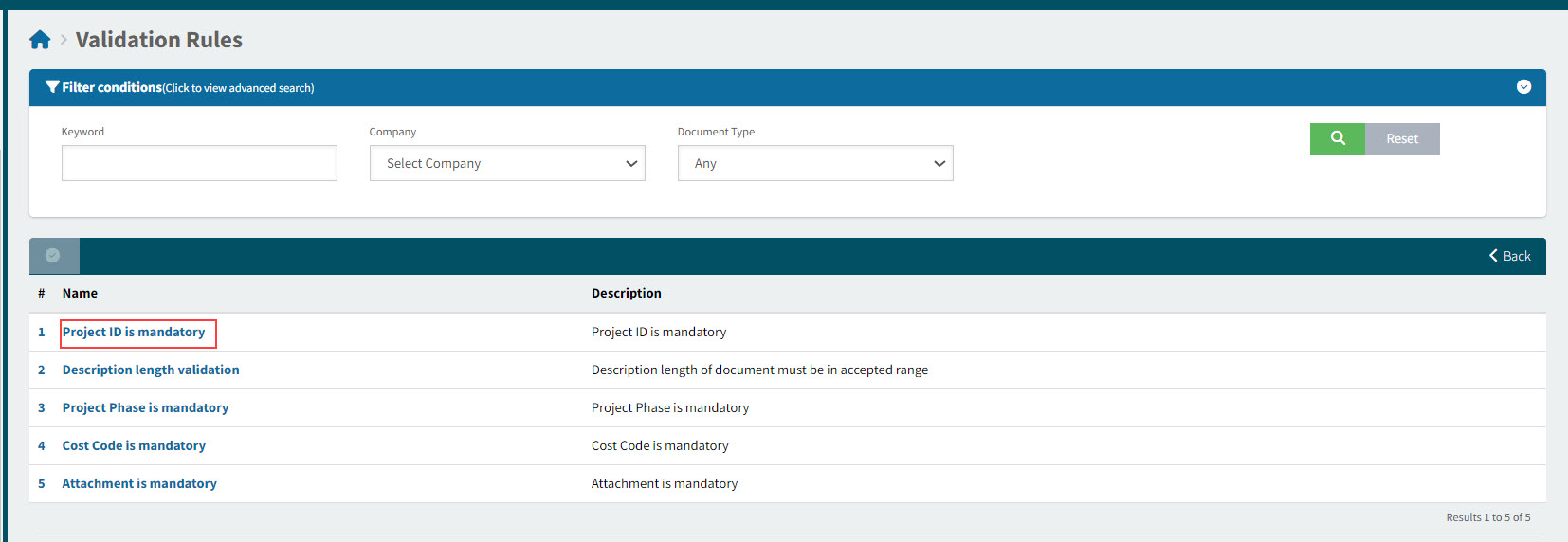
The Validation Rules page displays.
The following validation rules are available:
# Name Description 1
Project ID is mandatory
Project ID is mandatory
2
Description length validation
Description length of document must be in accepted range
3
Project Phase is mandatory
Project Phase is mandatory
4
Cost Code is mandatory
Cost Code is mandatory
5
Attachment is mandatory
Attachment is mandatory
6
Attachment is Mandatory for non-catalogue items
Attachment is Mandatory for non-catalogue items
-
Click on a Name to open a Validation Rule.
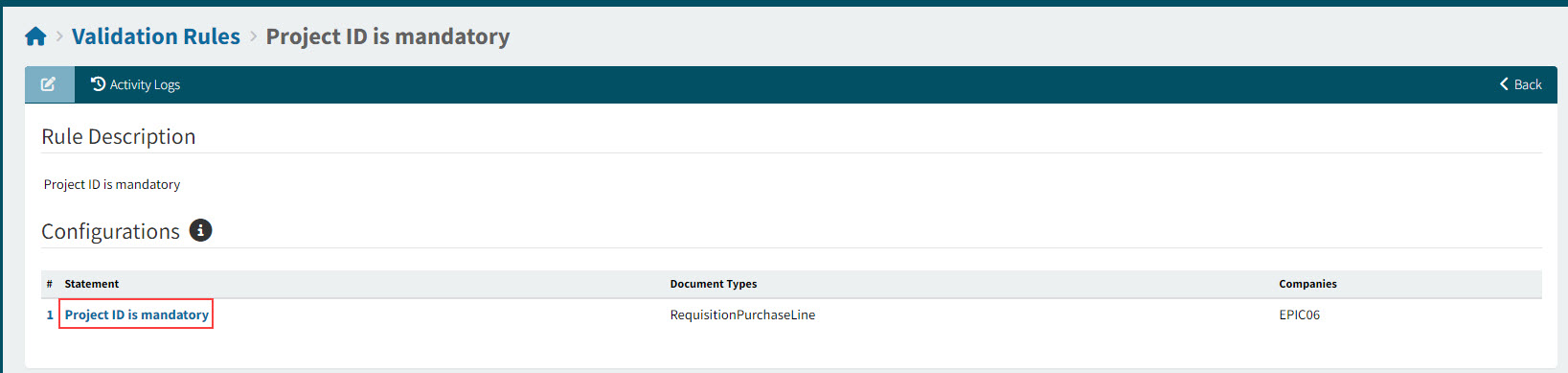
The selected Validation Rule displays in the page: Validation Rules > [Validation Rule Name].
The following fields are displayed:
-
Statement: The statement of the validation rule.
-
Document Types: Document types to which the validation rule applies.
-
Companies: Companies to which the validation rule applies.
-
-
To update Document Types and Companies for the validation rule configuration:
-
Click on the Statement.
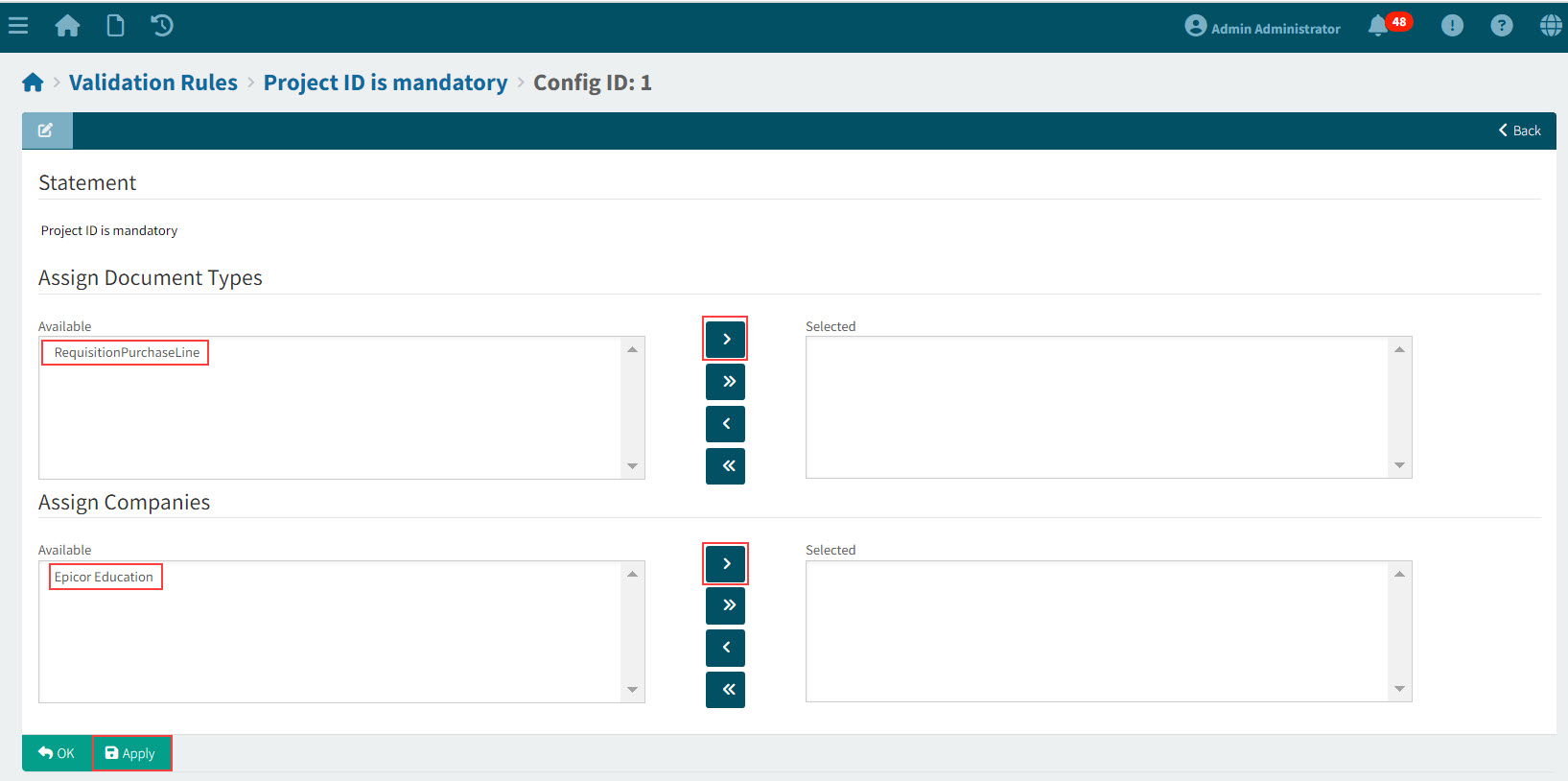
The selected Configuration displays.
-
Assign a Document Type by selecting it from Available then clicking the right arrow. You can unassign a Document Type by selecting it from Selected and clicking the left arrow.
-
Assign a Company by selecting it from Available then clicking the right arrow. You can unassign a Company by selecting it from Selected and clicking the left arrow.
-
Click Apply to save the changes.
-