Copying Draft Invoices to the Worklist
If your system is set up for AP Invoice Automation, you can copy or download Invoice PDFs to the Worklist as a first step to generating Draft Invoices. ARM moves the invoices out of the Worklist and generates Draft Invoices from these.
| Alternatively, you can upload Invoices from the Draft Invoices page. See Uploading Invoice Files. |
To set up ARM for AP Invoice Automation, see Setting up for AP Invoice Automation.
| Note: The Worklist location is defined in Global and Company Settings. Read Define the Worklist and OCR Root Folder Path and Create the Folder Structures for the Worklist to see where the Worklist is located. |
-
Place the [Invoice file name].pdf file into the Worklist folder.
View Details
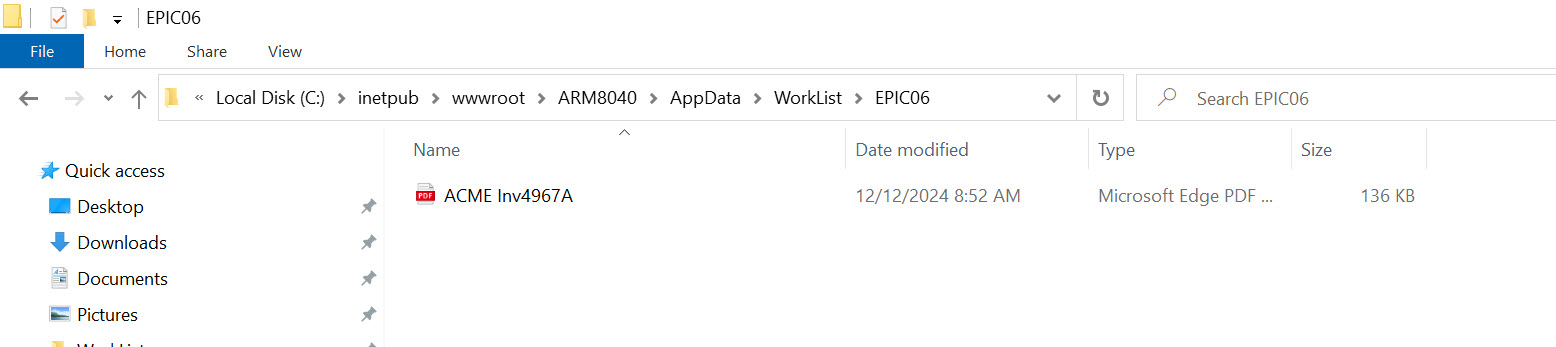
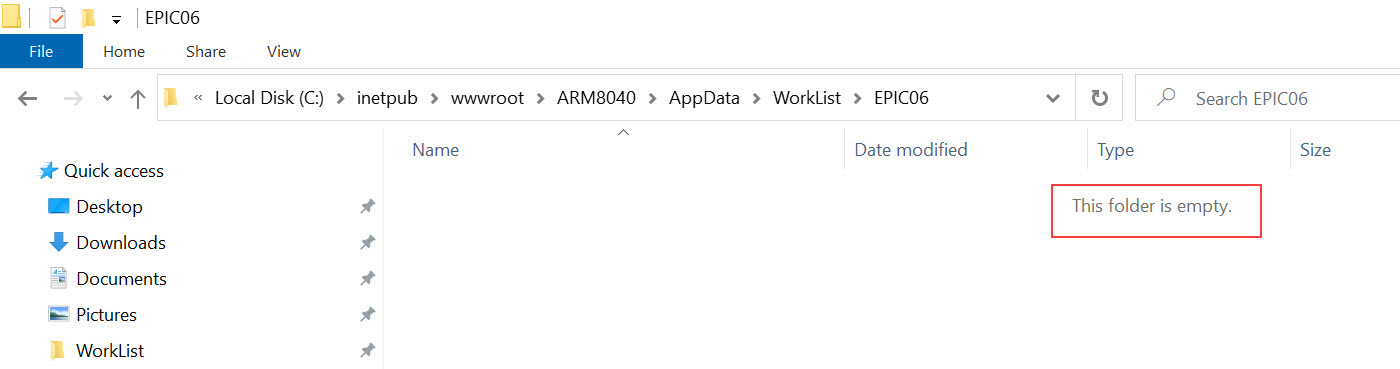
After an interval of a few seconds, the Worklist folder is emptied.
The new Draft Invoice appears at the top of the list on the Draft Invoice page. It has the Status Metadata Being Processed.
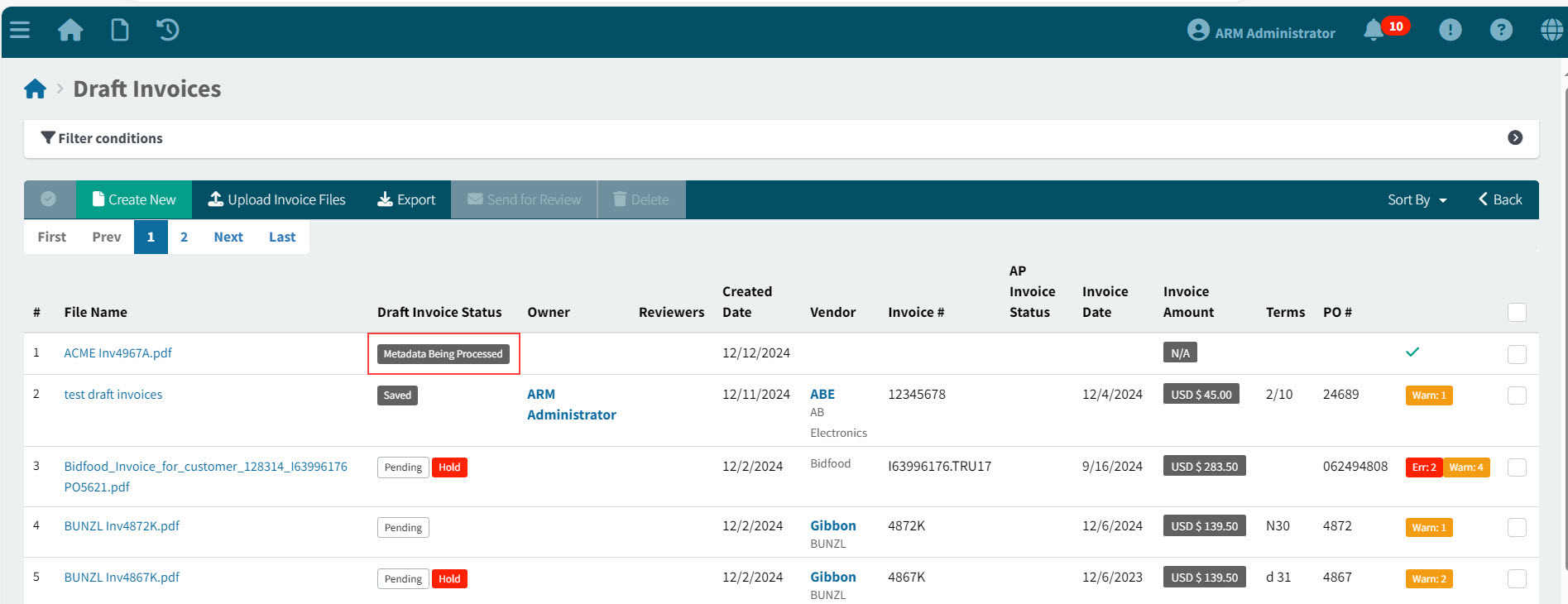
The Draft Invoice is ready to view now.
-
Click on the File Name to open the new Draft Invoice.
Initially, there is no data visible in the Draft Invoice fields. This is because it is still being read and processed.
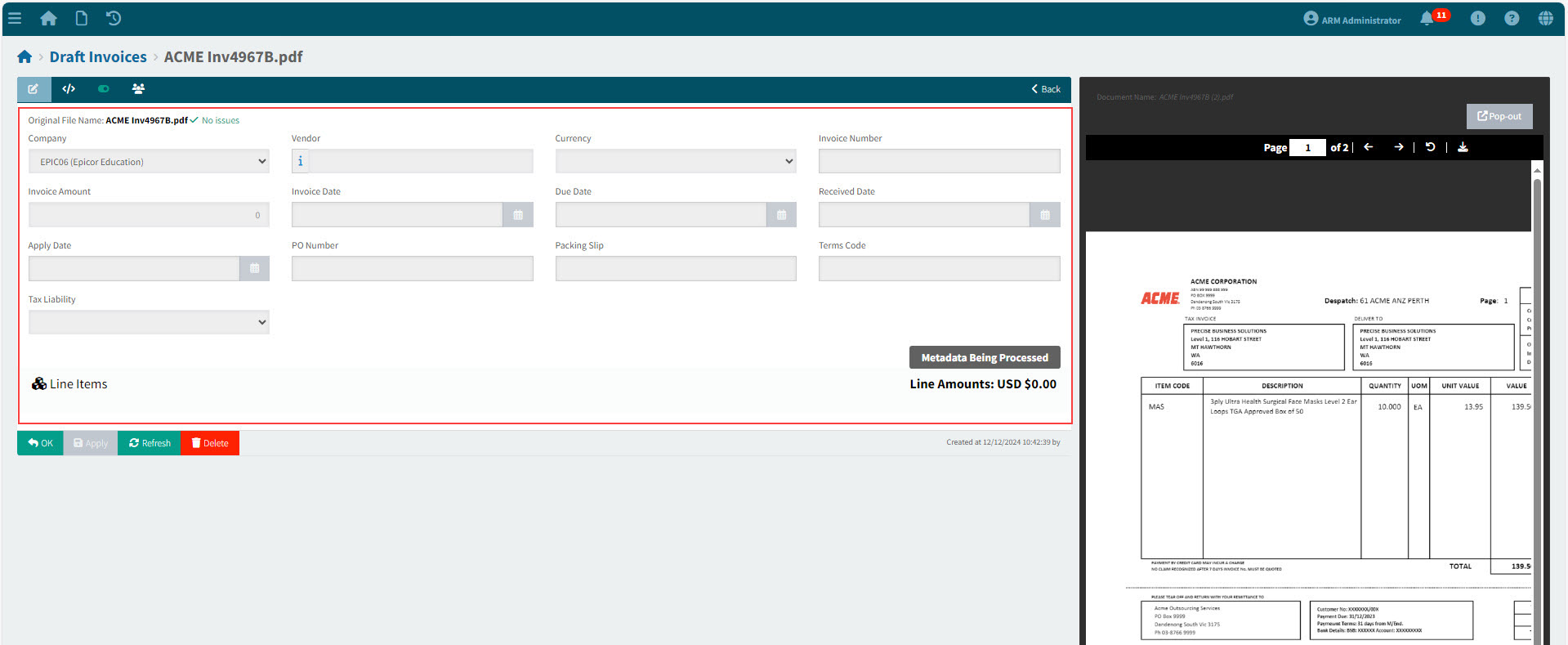
When the Metadata Processing is complete, you can view or edit the Draft Invoice. See Editing an Automatically Generated Draft Invoice.