Blanket Pro-Forma Orders
An approved Blanket Order Requisition results in a Blanket Pro-Forma Order. Use the Blanket Pro-Forma Order (BLPFO) to create a Blanket Purchase Order.
-
Select
 BLPFOs from the Side Menu to open the Blanket Pro-Forma Orders page. See Side Menu.
The Blanket Pro-Forma Orders page opens.
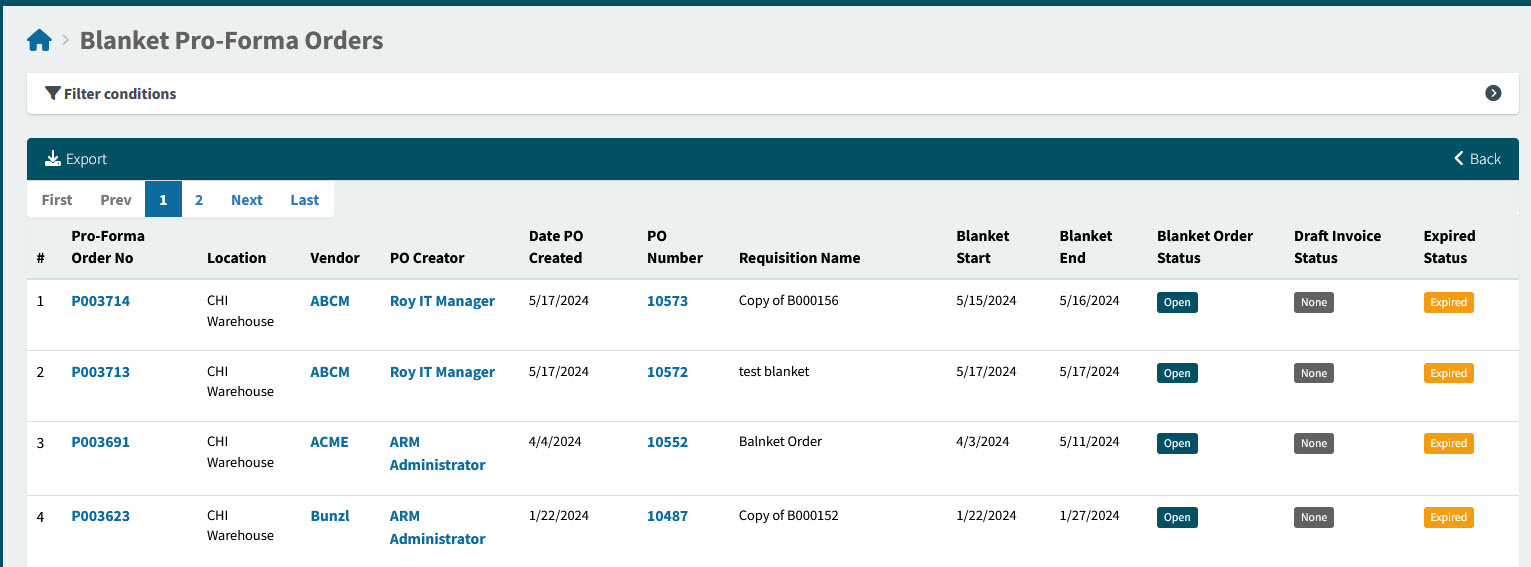
Pro-Forma Order No The order number for this document. Click on the Pro-Forma Order No to open the Pro-Forma Order.
Location The location on the document header.
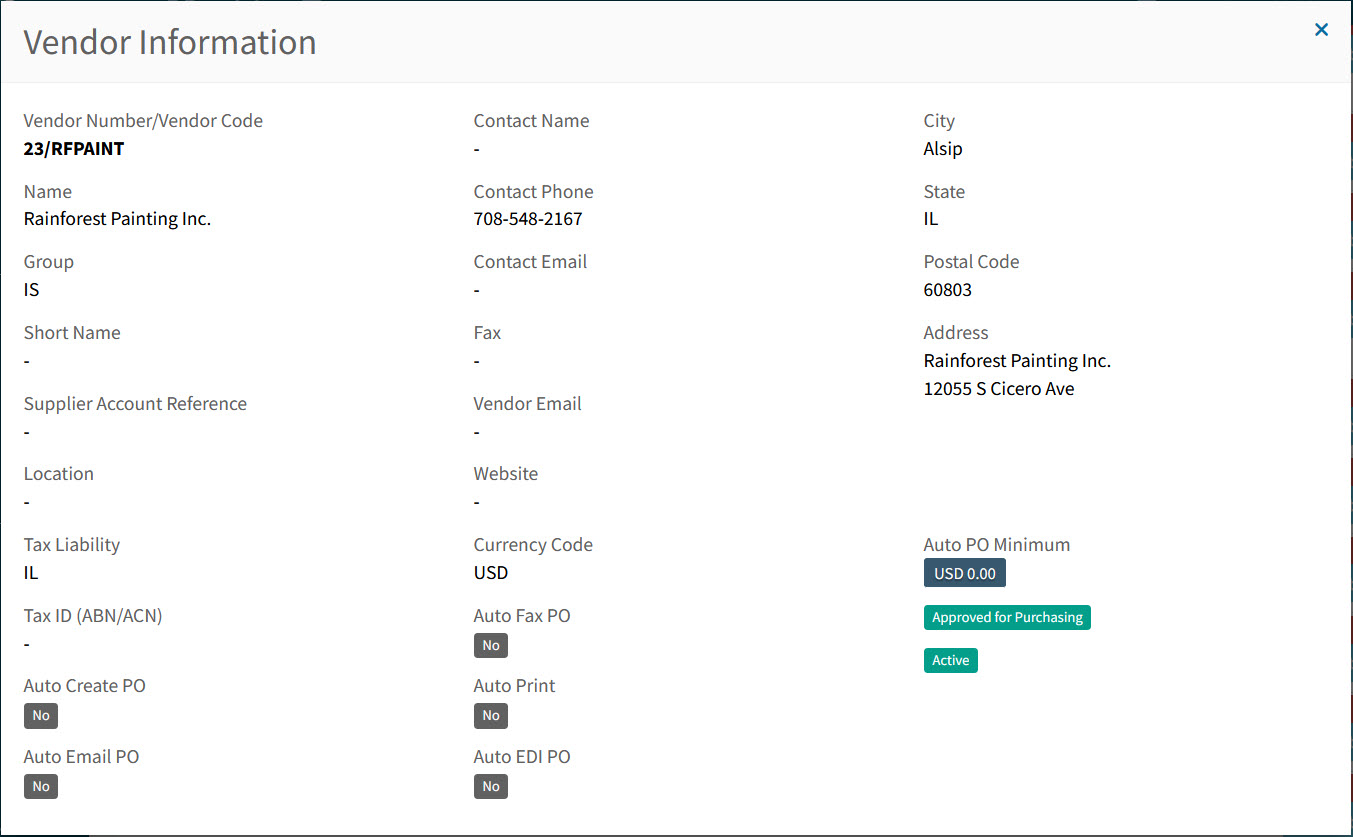
Vendor The Vendor Code for the lines in this document. Hover over a Vendor Code to view the full Vendor Name, or click on a Vendor Code to open the details in the Vendor Information pop-up screen.
Example
PO Creator If a User created a PO from this document, then they are the PO Creator.
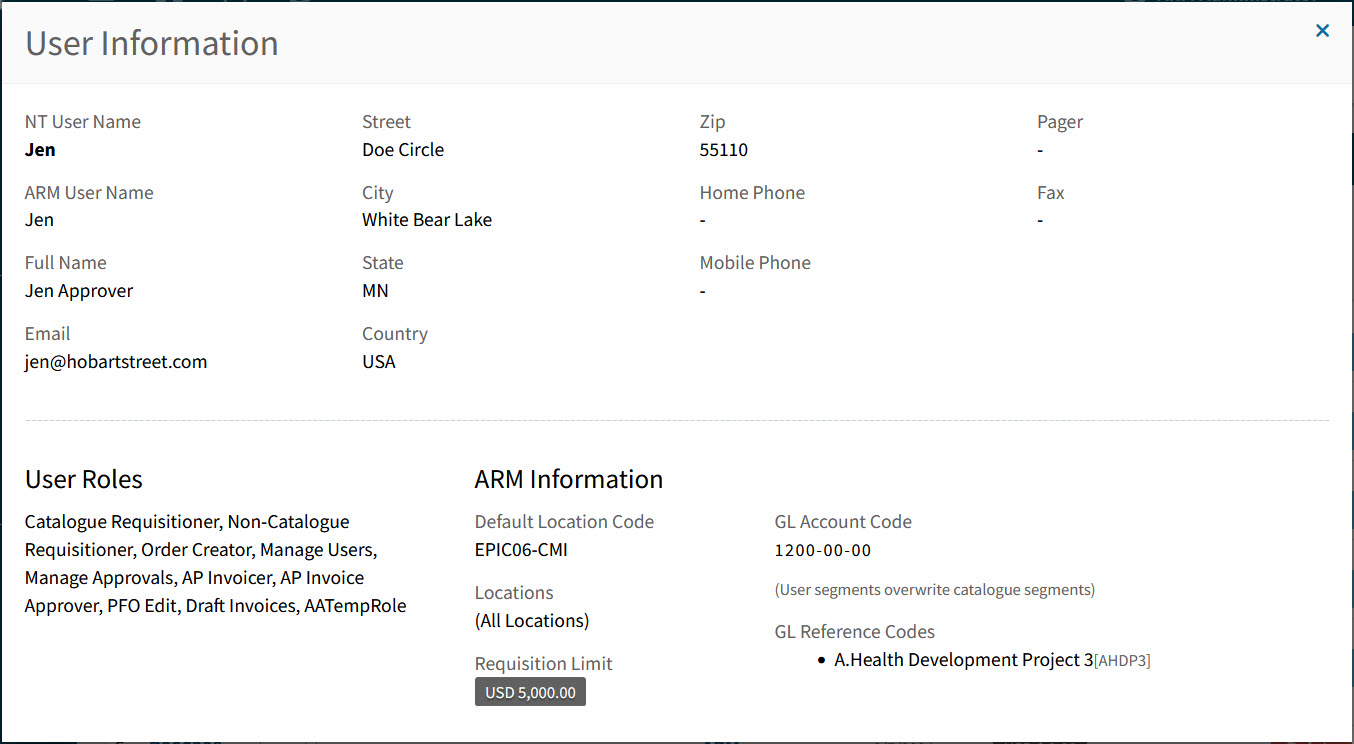
PO Creators are in blue. Hover over a PO Creator to view the full Name, or click on a PO Creator to open the details in the User Information pop-up screen.
Example
Date PO Created The date a PO was created from this PFO.
PO Number The Purchase Order number, if one has been created.
Click on the PO Number to open the Purchase Order.
Requisition Name The name of the Requisition that this Blanket PFO originated from.
Blanket Start Blanket Start Date to Blanket End Date covers the Blanket Purchase Order period.
Blanket End Blanket Start Date to Blanket End Date covers the Blanket Purchase Order period.
Blanket Order Status This can be:
-
Any
-
Blanket Open If the Blanket Order PFO has not yet expired, you can still create Purchase Order from it.
-
Blanket Closed The Blanket Order PFO has been closed. Purchase Orders can no longer be created from this BLPFO.
Draft Invoice Status This can be:
-
Any
-
None
-
Awaiting Receipts
-
Awaiting Matching
Expired Status Expired Blanket PFOs have an Expired label. This can be:
-
Any
-
Yes
-
No
-
-
Adjust the Search conditions.
See Details
-
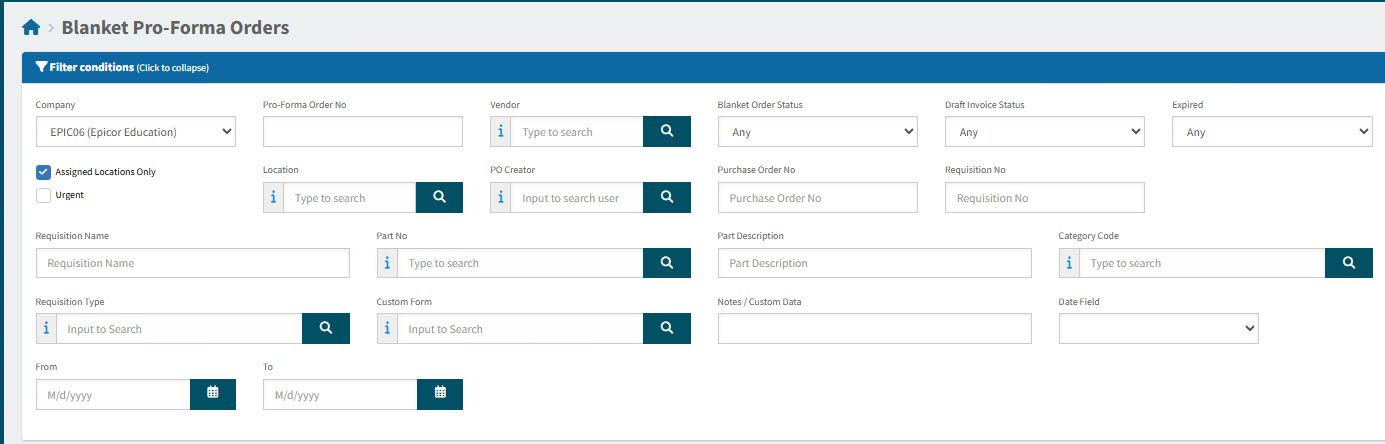
Expand the filter conditions in the top section of the page to search for a specific Blanket Pro-Forma Order or to narrow your search.
View filter conditions
-
Enter values in the edit boxes, or select from the search boxes. See the filter conditions, below.
Filter conditions
Company Select a Company.
Pro-Forma Order No Type in the Pro-Forma Order No if known, or do a partial search using part of the number followed by %.
Vendor Select a Vendor Code.
Blanket Order Status Blanket PFOs with a Status of Any, Blanket Open, or Blanket Closed.
Draft Invoice Status Blanket PFOs with a Draft Invoice Status of Any, None, Awaiting Receipts, or Matching.
Expired Search for Blanket PFOs that have expired (Yes), not expired (No), or Any.
Assigned Locations Only If this check box is selected only documents for Locations assigned to the User in their User Profile will be displayed.
Location Code Select a Location Code to filter from.
PO Creator Select the name of the PO Creator. Only applicable for PO Created.
Purchase Order No Enter the PO Number, if known. Only applicable for PO Created.
Requisition No Limits results to PFOs originating from this requisition number.
Requisition Name Limits results to PFOs originating from requisitions with this name.
Part No Limits results to PFOs that include this part number.
Part Description Limits results to PFOs that include parts with this name.
Category Code Limits results to PFOs with a line that has that category code.
Notes / Custom Data Search on Notes / Custom Data.
Date Field Select Date Created, or Date Modified, or Date PO Created, then select a date range with From and To dates.
PFOs that match the search conditions are listed in the grid.
-
Blanket Pro-Forma Order Functionality
A blanket order has much of the same functionality as any other requisition (see Working with Requisitions).
In addition, there is functionality specifically for blanket orders:
-
Adding a Release to a Blanket Pro-forma Order. See Adding a Release to a Blanket Order.
-
Adding an Append Requisition. See Appending New Requisition.
-
Closing a Blanket Pro-Forma Order Early. See Closing Blanket Order Early.
-
Replacing the Owner on a Blanket Pro-Forma Order and its linked Purchase Orders. See Replacing the Owner on a Blanket Pro-forma Order.
See how to search for a Blanket Pro-Forma Order: Searching for a BLPFO.
Adding a Release to a Blanket Order
When a release is added to a Blanket Pro-Forma Order, the PO is automatically updated and the changes integrated into Kinetic.
A release is then either manually received, or it is auto-received, depending on whether Auto Receive is selected on the Blanket Order Release pop-up.
| Blanket Orders ready to be released can also be accessed from your Dashboard (see Pending Items). |
-
Open the BLFO.
-
Enter a value in the Release edit box.
This must be less than or equal to the Remaining amount.
-
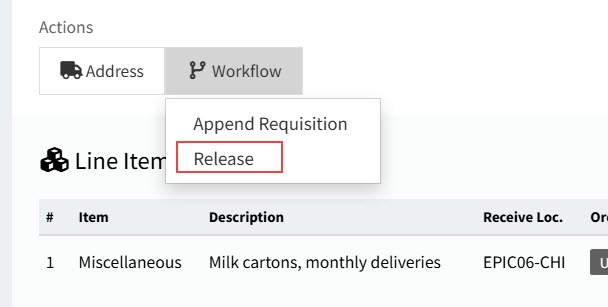
Select Release under the Workflow menu item, in the Actions section.
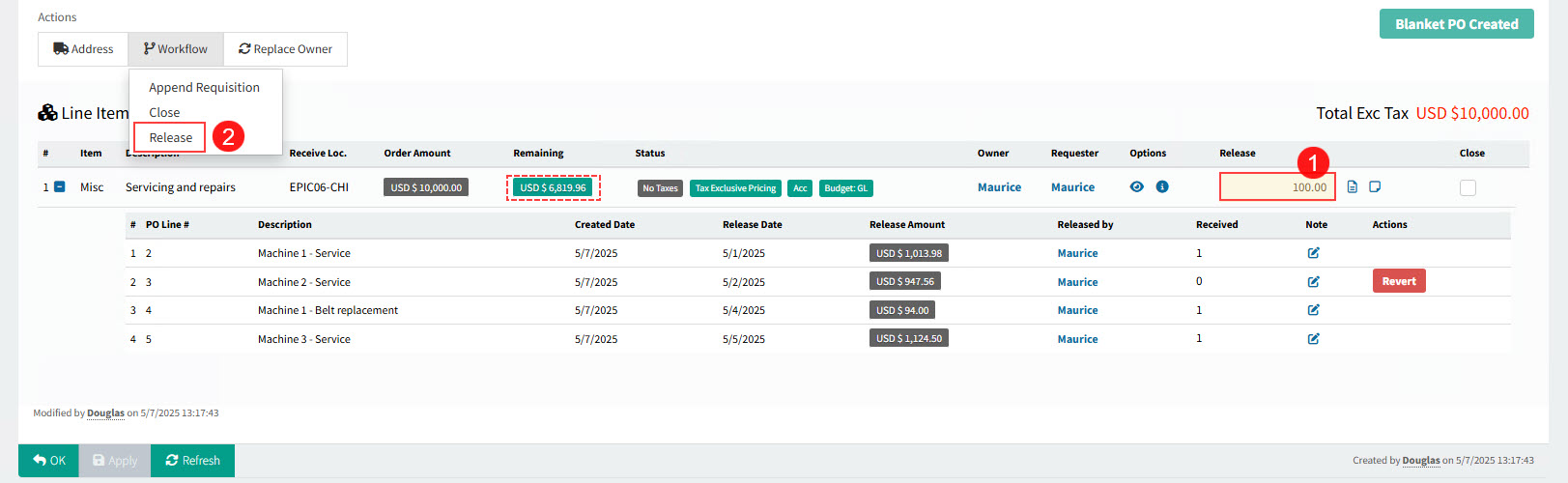
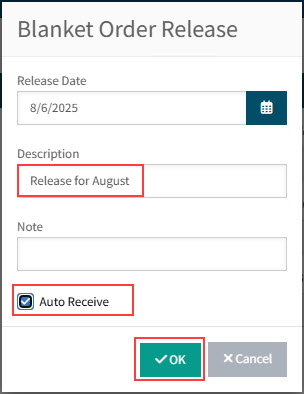
The Blanket Order Release pop-up displays.
-
Fill in the Blanket Order release details.
-
Select a Release Date, or keep the default of the current date.
-
Optionally enter a Description for the release.
-
Optionally enter a Note for the release.
-
Select or clear the Auto Receive check box. Note: The default for this setting is determined by the Auto Receive Blanket Order Releases setting in List of Global Settings.
-
-
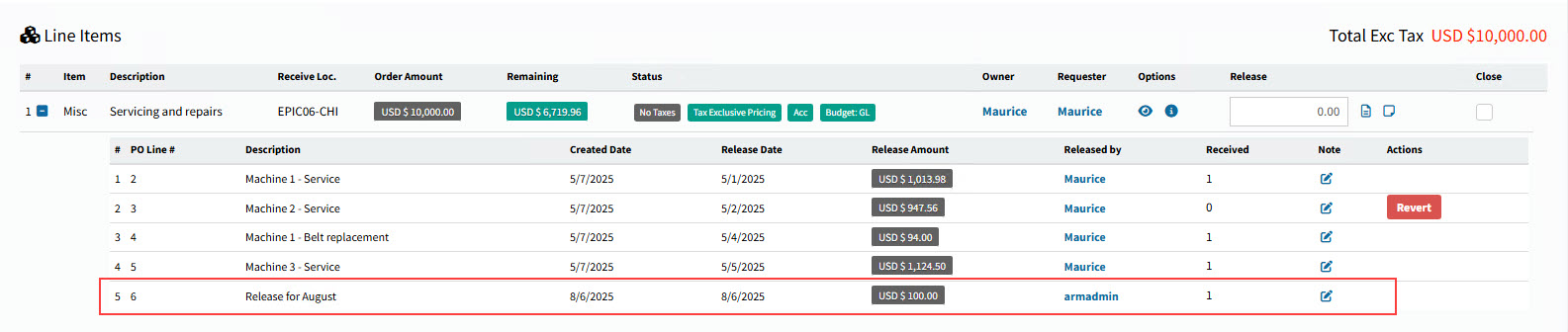
Click OK.
The amount is released and a new PO Line is added under the Item line.
Adding Release Line Details
If you have the permission Can specify dynamic GL Segments on Blanket Order Release, you will be able to add release line details. See Permissions in ARM.
-
Click on the Add Release Line Details
 icon alongside the Release Amount edit box (only visible if you have permission to add release line details).
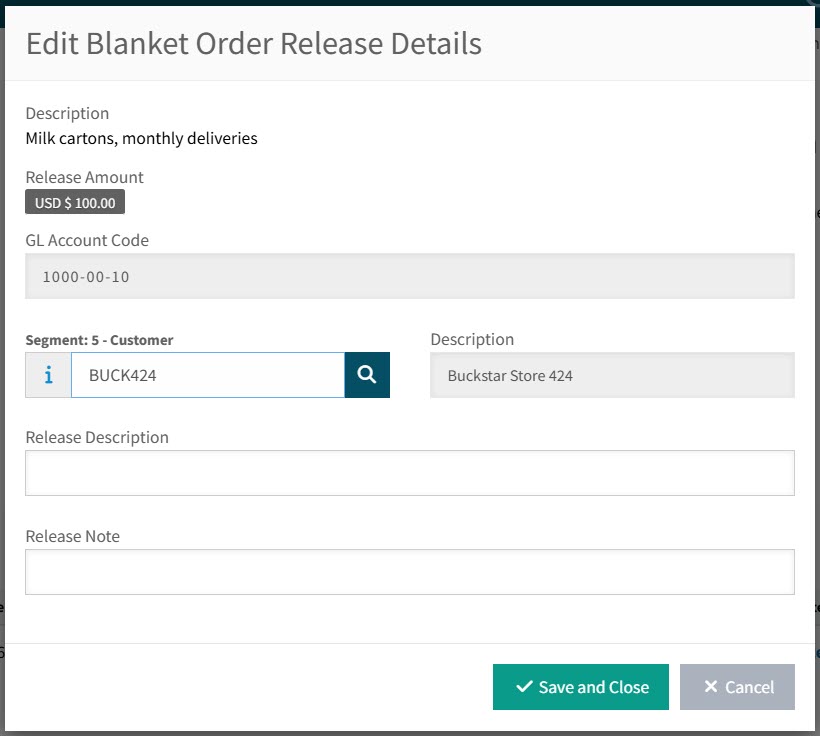
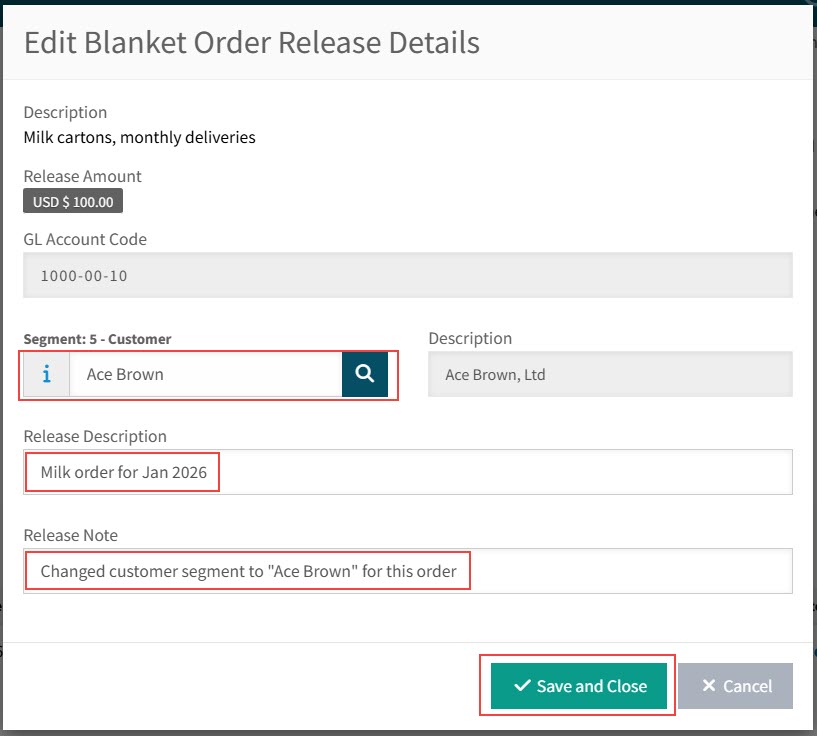
This opens the Edit Blanket Order Release Details pop-up.
-
Edit the blanket order release details:
-
Optionally specify alternative dynamic GL Segments. Available segments appear on the pop-up screen. Those segments that you are allowed to edit (see Editable GL Segments) will be editable.
-
Edit the Release Description.
-
Edit the Release Note.
-
Click Save and Close.
Details
-
-
Release the line, as usual.
Details
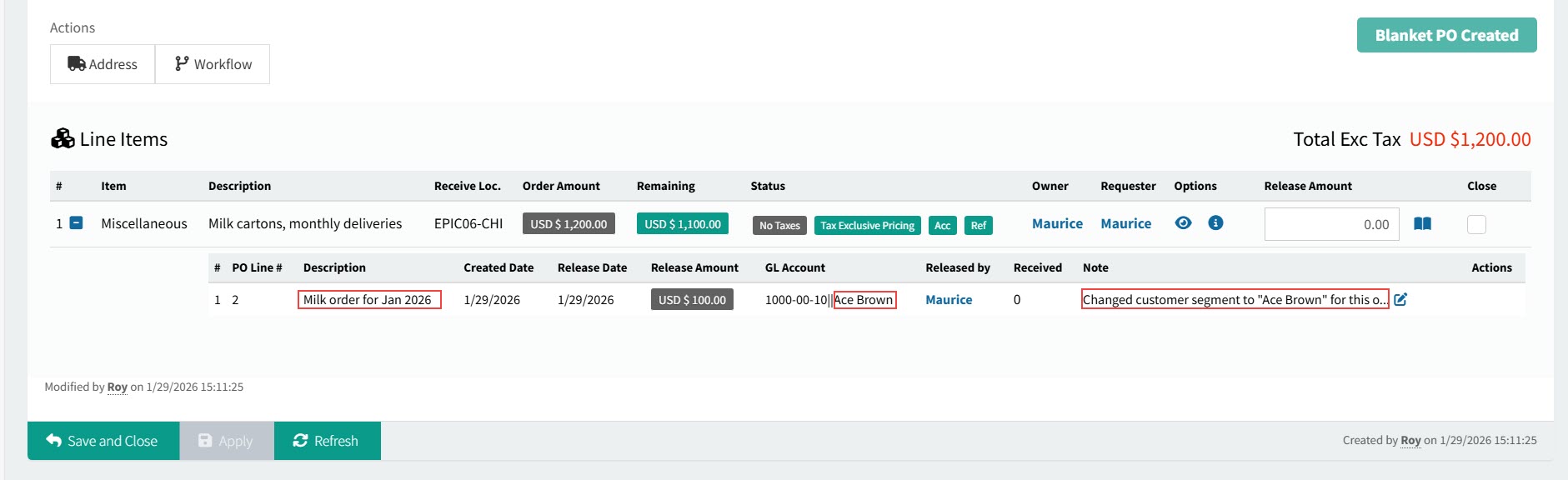
The released line appears under the line item. Note the description, the updated segment(s), and the note.
Details
Adding a Final Release
-
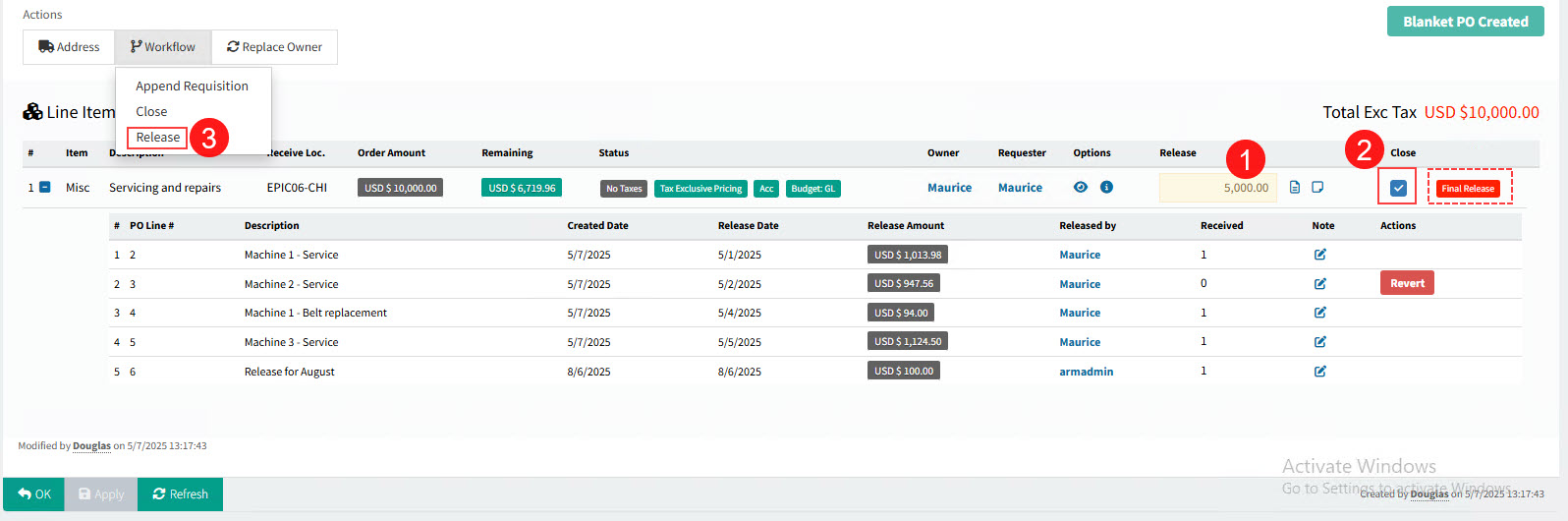
When adding a release, you can select the Close check box next to the Item line.
A Final Release label appears next to the Item line.
-
Select Release under the Workflow menu item, in the Actions section.
-
Click Yes on the confirmation dialog.
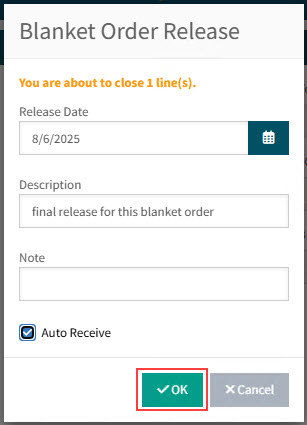
The Blanket Order Release pop-up displays, this time with a note: "You are about to close 1 line(s).".
-
Fill in the Blanket Order release details.
-
Select a Release Date, or keep the default of the current date.
-
Optionally enter a Description for the release.
-
Optionally enter a Note for the release.
-
Select or clear the Auto Receive check box. Note: The default for this setting is determined by the Auto Receive Blanket Order Releases setting in List of Global Settings.
-
-
Click OK.
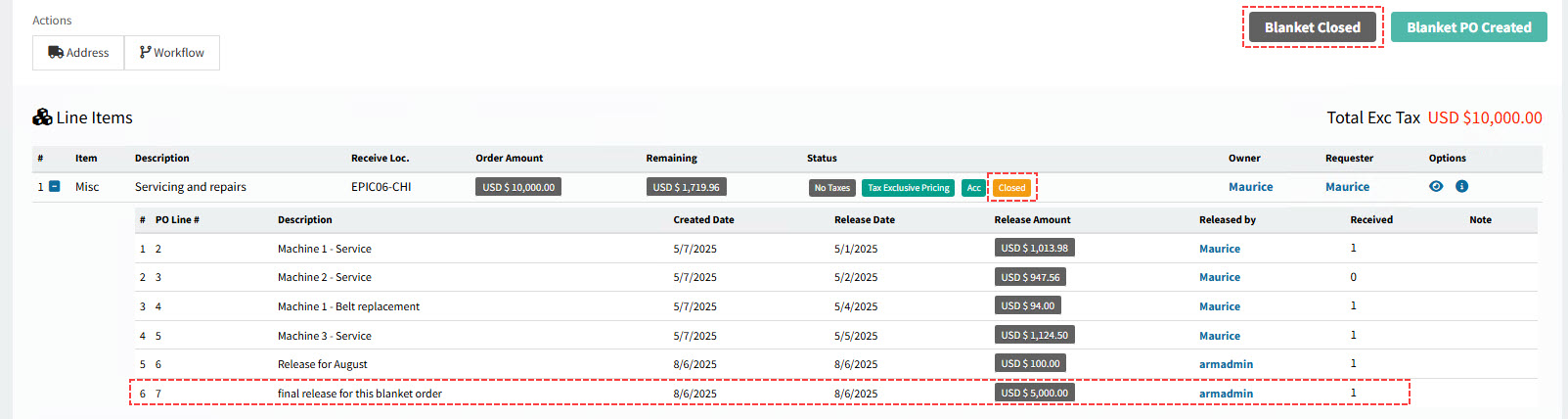
The amount is released and a new PO Line is added under the Item line.
The Line Item is Closed and the Blanket Order Status updates to Blanket Closed.
Appending New Requisition
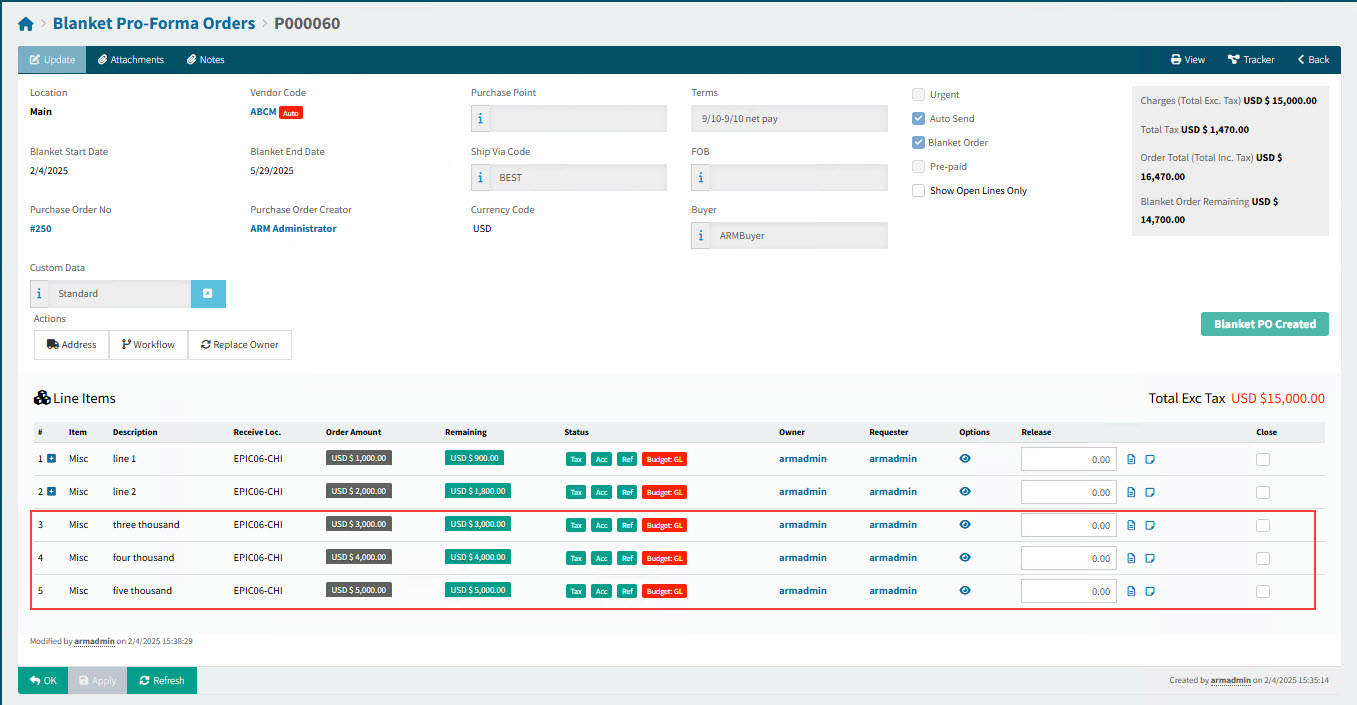
You can append new blanket order requisitions to an existing blanket order PFO. The additional line(s) appear on the Blanket Pro-Forma Order.
Example
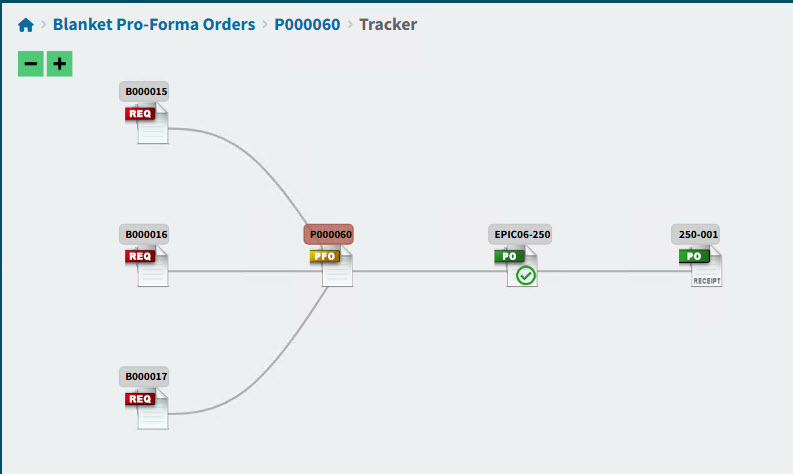
The Tracker shows how the Blanket Order PFO originates from separate requisitions.
Initiating the Append Requisition
You can initiate an Append Requisition from two places:
-
From the Requisitions > Add New page, for a new Blanket Order.
-
From the open Blanket Pro-Forma Orders page, for the BLPFO that you want to append to.
Initiating the Append Requisition from the Requisitions Page
-
Create a new Blanket Order Requisition document.
-
Select Append to existing PFO.
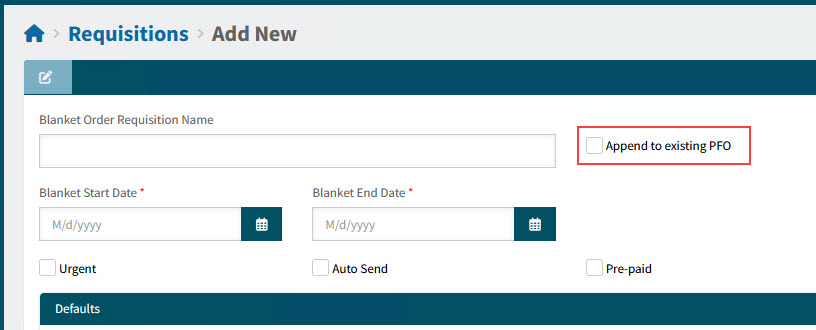
The Blanket Pro-forma Orders pop-up screen opens, displaying unexpired blanket pro-forma orders, from the same company that is associated with the requisition’s default Location Code.
-
Select a blanket pro-forma order from the Blanket Pro-forma Orders pop-up.
Selecting a Blanket Pro-forma Order:
-
Select filter conditions and
 search.
 -
Select the pro-forma order from the search results grid.
You can also view the pro-forma order details, if you select the
 button next to the Pro-forma Order No.
Details
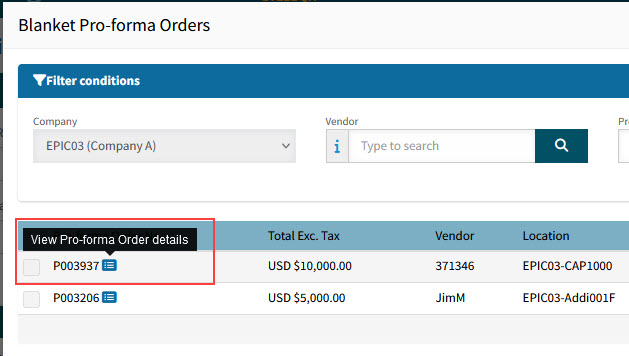
-
Select
 Finish.
Details
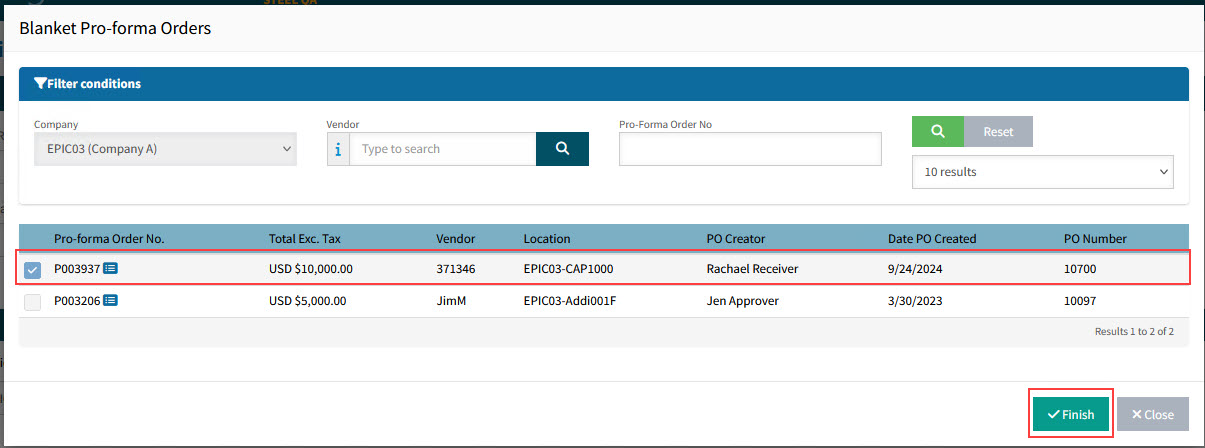
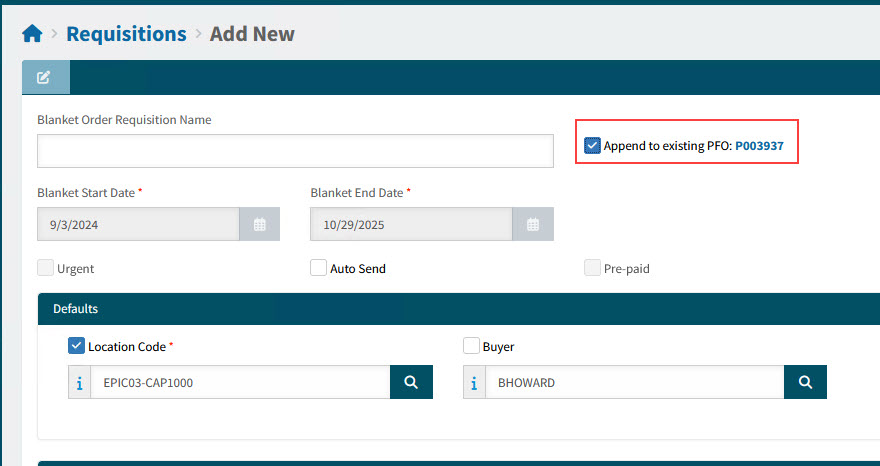
A new blanket order requisition is created, with Append to existing PFO: [PFO number] selected. All other header details are copied, such as the Blanket Start Date, Blanket End Date, Location Code, and Buyer.
Details
-
Initiating the Append Requisition from the Blanket Pro-Forma Orders Page
-
Open the Blanket Pro-Forma Orders page.
-
Filter for unexpired blanket pro-forma orders (select No from the Expired drop-down list in the filter conditions).
-
Open the blanket pro-forma order you want to append to.
-
Select Append Requisition from the
 Workflow Actions menu.
Details
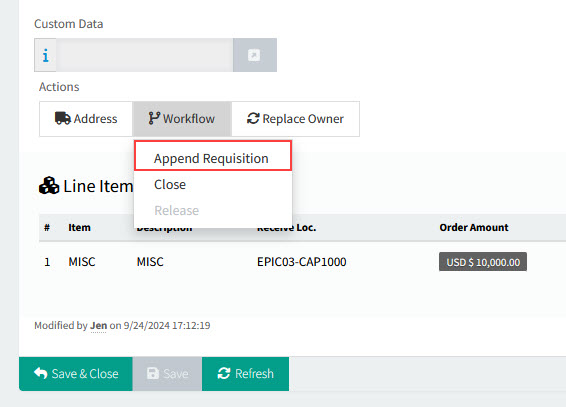
A new blanket order requisition is created, with Append to existing PFO: [PFO number] selected. All other header details are copied, such as the Blanket Start Date, Blanket End Date, Location Code, and Buyer.
Details
Closing Blanket Order Early
You can close a Blanket Order early, before the full available value has been released.
| After a Blanket Order has been closed, it can be re-opened, provided this is done before the Blanket Order expiry date and there is a dollar value remaining on at least one of the lines. See Re-opening a Blanket Order. |
Closing a Blanket Order
-
Open the BLFO.
-
Select Close under the Workflow menu item, in the Actions section.
-
Click Yes on the Confirmation dialogue.
The Blanket Order Status updates to Closed and the PO Status of the related Purchase Order updates to Closed.
Closing an Entirely Unused Blanket Order
-
Open the BLFO.
-
Close the Blanket Order without first releasing any of it. See Closing a Blanket Order.
Closing a Blanket Order after Partially Using It
-
Open the BLFO.
-
Release part of one or more Line Item(s). See Adding a Release to a Blanket Order.
-
Now close the Blanket Order. See Closing a Blanket Order.
The Blanket Order is closed, with a Remaining amount greater than zero.
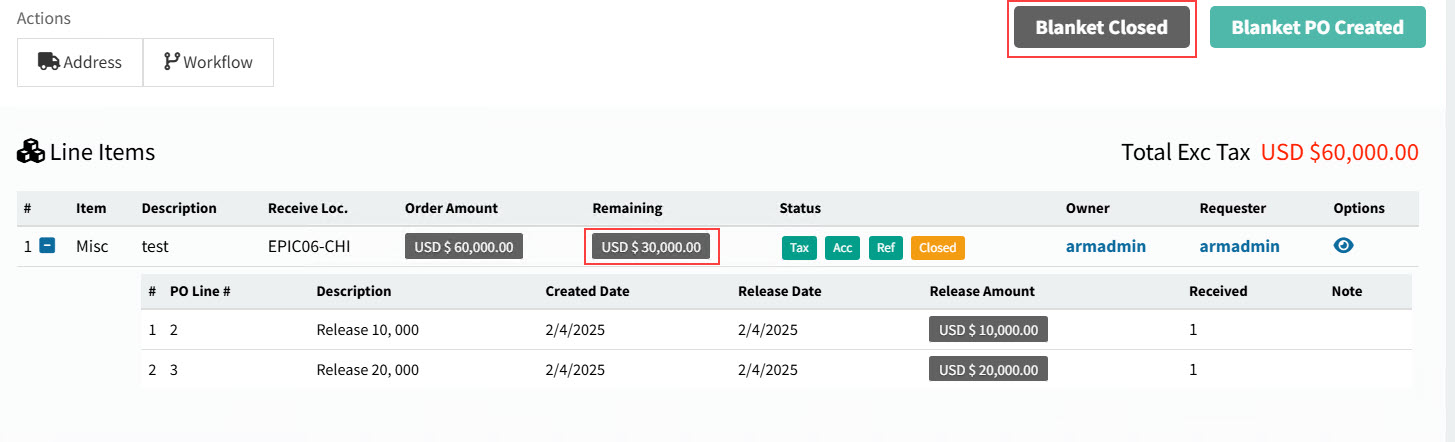
Alternatively, you can add a final release, leaving a remaining amount.
Re-opening a Blanket Order
-
Open the BLFO.
-
Select Re-open under the Workflow menu item, in the Actions section.
The Blanket Order Status updates to Open.
-
Click the Re-open button on the line to re-open it.
You can now release a value from the open line. See Adding a Release to a Blanket Order.
Replacing the Owner on a Blanket Pro-forma Order
You can replace the owner on a Blanket PFO regardless of its status.
Permissions
The permission Replace Line Owner of Blanket Proforma Order is required.
-
Click Replace Owner in the Actions section.
-
Select a new owner from the pop-up dialog, then click YES.
The new owner appears on each line item of the Blanket PFO and on the linked Purchase Orders.
Searching for a BLPFO
-
Select
BLPFOs from the Side Menu to open the Blanket Pro-Forma Orders page. See Side Menu.The Blanket Pro-Forma Orders page opens.
-
Adjust the Search conditions.
See Details
-
Expand the filter conditions in the top section of the page to search for a specific Blanket Pro-Forma Order or to narrow your search.
View filter conditions
-
Enter values in the edit boxes, or select from the search boxes. See the filter conditions, below.
Filter conditions
Company Select a Company.
Pro-Forma Order No Type in the Pro-Forma Order No if known, or do a partial search using part of the number followed by %.
Vendor Select a Vendor Code.
Blanket Order Status Blanket PFOs with a Status of Any, Blanket Open, or Blanket Closed.
Draft Invoice Status Blanket PFOs with a Draft Invoice Status of Any, None, Awaiting Receipts, or Matching.
Expired Search for Blanket PFOs that have expired (Yes), not expired (No), or Any.
Assigned Locations Only If this check box is selected only documents for Locations assigned to the User in their User Profile will be displayed.
Location Code Select a Location Code to filter from.
PO Creator Select the name of the PO Creator. Only applicable for PO Created.
Purchase Order No Enter the PO Number, if known. Only applicable for PO Created.
Requisition No Limits results to PFOs originating from this requisition number.
Requisition Name Limits results to PFOs originating from requisitions with this name.
Part No Limits results to PFOs that include this part number.
Part Description Limits results to PFOs that include parts with this name.
Category Code Limits results to PFOs with a line that has that category code.
Notes / Custom Data Search on Notes / Custom Data.
Date Field Select Date Created, or Date Modified, or Date PO Created, then select a date range with From and To dates.
PFOs that match the search conditions are listed in the grid.
-