System Change Logs
Use the change logs available on the System Change Logs page to help with troubleshooting in application errors.
The User Login Activities page is also available on this page. See Opening the User Login Activities Page.
| The options of Archiving or Deleting these logs are also available. |
Permissions
You require a role with the Maintain Settings permission to access System Change Logs.
See Permissions in ARM.
Viewing System Change Logs
You can access ARM application logs from this page.
-
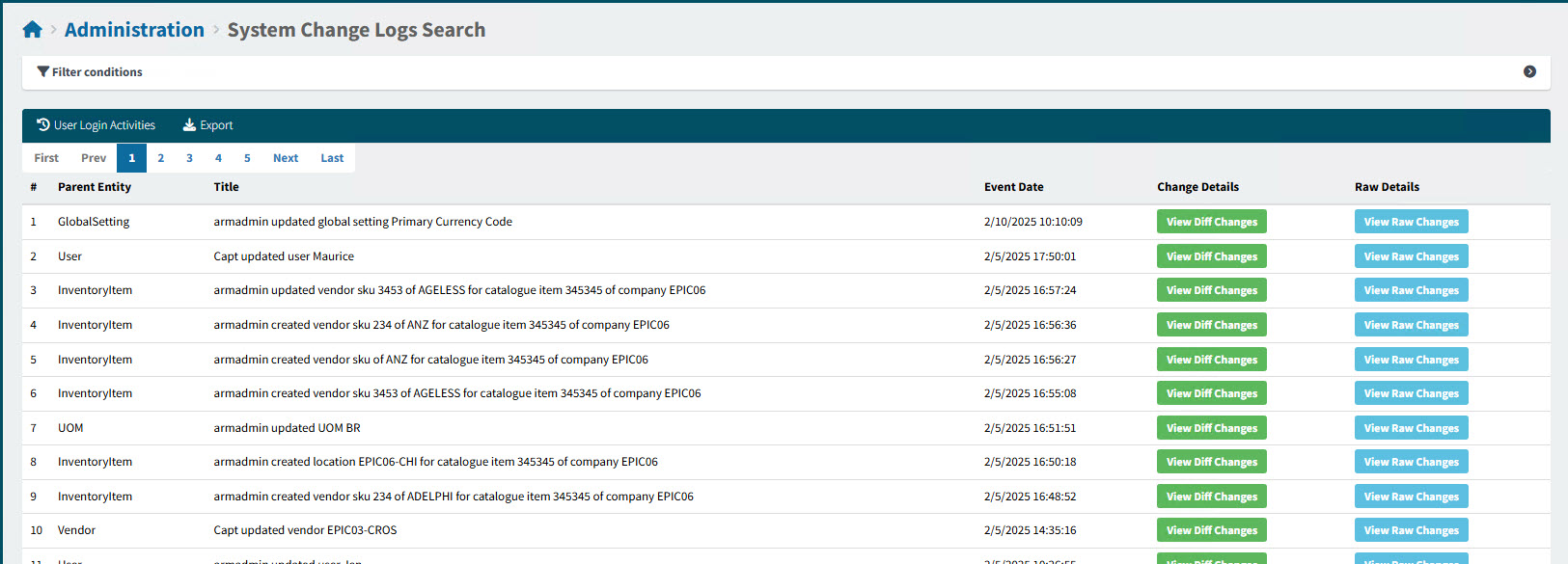
Select the System Change Logs menu item on the Administration Page. See Administration Page.
This opens the Administration > System Change Logs Search page.
-
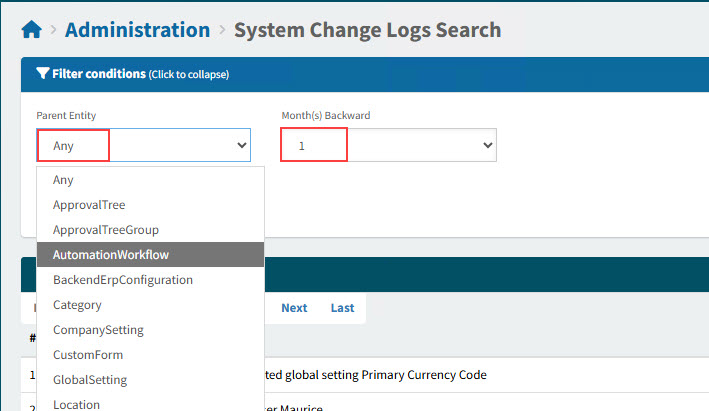
Adjust the filter conditions.
See Details
-
Select a Parent Entity from the drop-down list.
-
Select the number of Month(s) Backward to search.
Change Logs that match the filter conditions are listed in the grid.

-
-
On the System Change Logs page you can:
-
Open the User Login Activities Page. See Opening the User Login Activities Page.
-
Export the displayed System Change Logs. See Exporting Change Logs.
-
Opening the User Login Activities Page
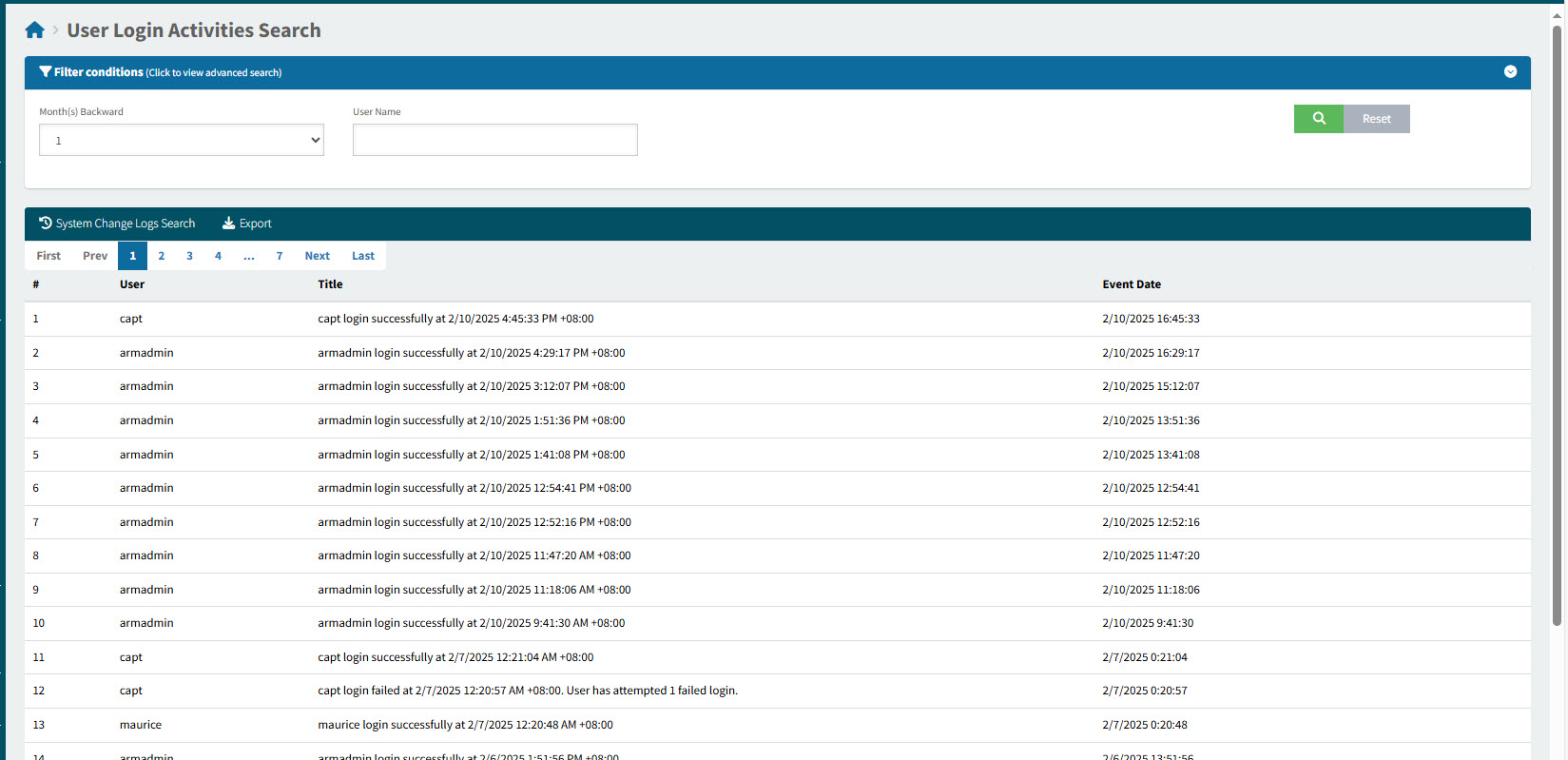
This page shows a history of user login information: the user ID, the title of the event (for example, the user logged in successfully), and the date and time of the event.
-
Select User Login Activities on the menu bar.
This opens the User Login Activities Search page.
-
Adjust the filter conditions.
See Details
-
Select the number of Month(s) Backward to search.
-
Select a User Name from the drop-down list.
User Login records that match the filter conditions are listed in the grid.
-
-
To return to the System Change Logs, select System Change Logs Search on the menu bar.
Exporting Change Logs
-
Select filters to limit the result set to the rows you want to export.
-
Select
 Export on the menu bar.
The rows showing on the search results grid are export to a file called "ChangeLog-List-[YYYY-MM-DD].xlsx" in your Downloads folder.