Category Groups
Category Groups allow you to group Categories. Category Groups can be used in Approval Maintenance, for Category Trees and Advanced Trees. Category Groups can also be assigned to Custom Forms (used as Requisition Types).
Permissions
You require a role with the Maintain Category Groups permission to access Category Groups maintenance. See Permissions in ARM.
Category Groups are maintained and used in ARM only and not in Kinetic.
A Category can only belong to one Category Group. A Category Group can have as many Categories as necessary; it could even contain just a single Category, or none at all.
Category Groups are used in other parts of ARM as a filter. For example, a User may be able to Access All Category Groups, or just a selection of Category Groups (as defined on their User Detail page, on the Category Groups tab). This places limits on the User, for example when adding a Requisition.
Catalogue Items and Category Groups
A Catalogue Item has a Category and is thereby associated with the Category Group for that Category.
Category Groups in Approvals
When a Requisition or an AP Invoice goes through approvals, ARM looks for a match between a line item’s Catalogue Item and the Category Groups in an Approval Tree (Category Tree or Advanced Tree).
Category Groups and Requisition Types
Category Groups used in Requisition Types are used to restrict the items that can be added to a Requisition.
When adding a Requisition, you may only add Catalogue Items belonging to the Category Groups allocated to the selected Requisition Type.
Category Groups are allocated in the Custom Form used for the Requisition Type. If no Category Groups are allocated to the Custom Form, then items of any Category Group may be added to Requisitions using that Requisition Type.
| Requisition Types are only used in Requisitions when the Use Requisition Types setting is enabled. |
Maintaining Category Groups
-
Select the Category Groups menu item on the Administration Page. See Administration Page.
A list of category groups matching the search criteria is displayed. Any Approvers associated with a Category Group (in Approval Trees) are listed alongside the Category Group Name.
View Category Groups
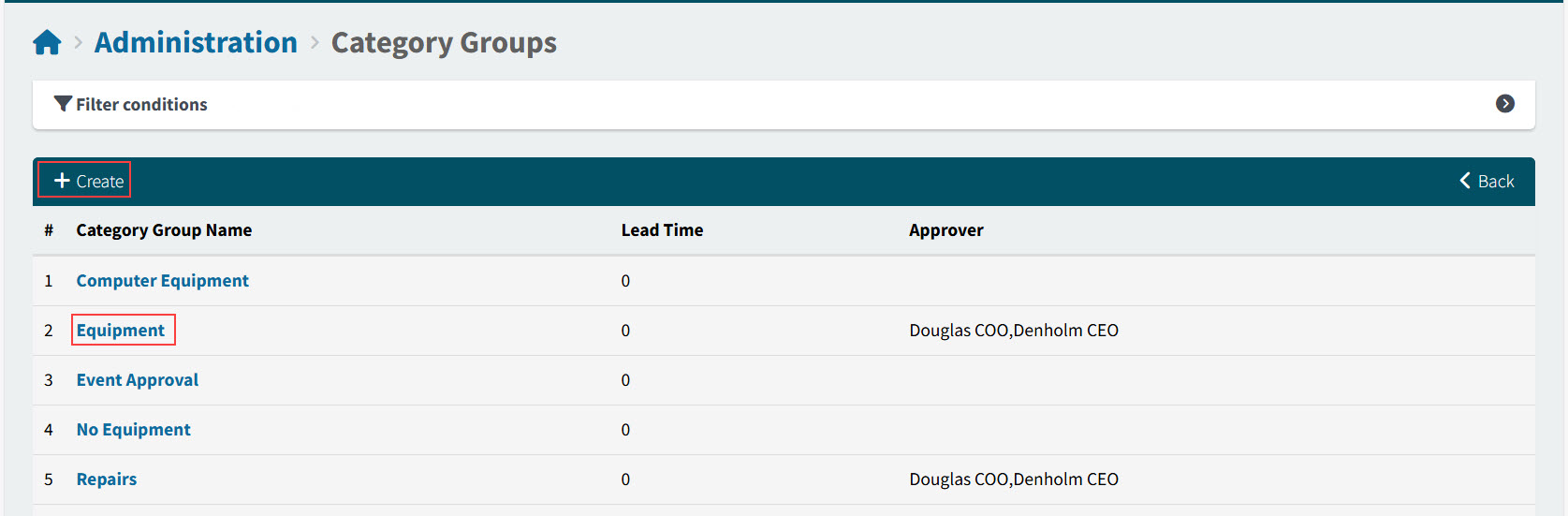
Category Group Name A descriptive name for the category group.
Lead Time The Lead Time (in days) may affect how Due Date for Requisitions is calculated.
Approver The approvers for a node on a Category Tree, where this is one of the Category Groups in the node’s Criteria.
-
Maintain Category Groups:
-
To create a new category group, select the Create button.
-
To edit a Category Group, select the Category Group Name.
-
Editing a Category Group
-
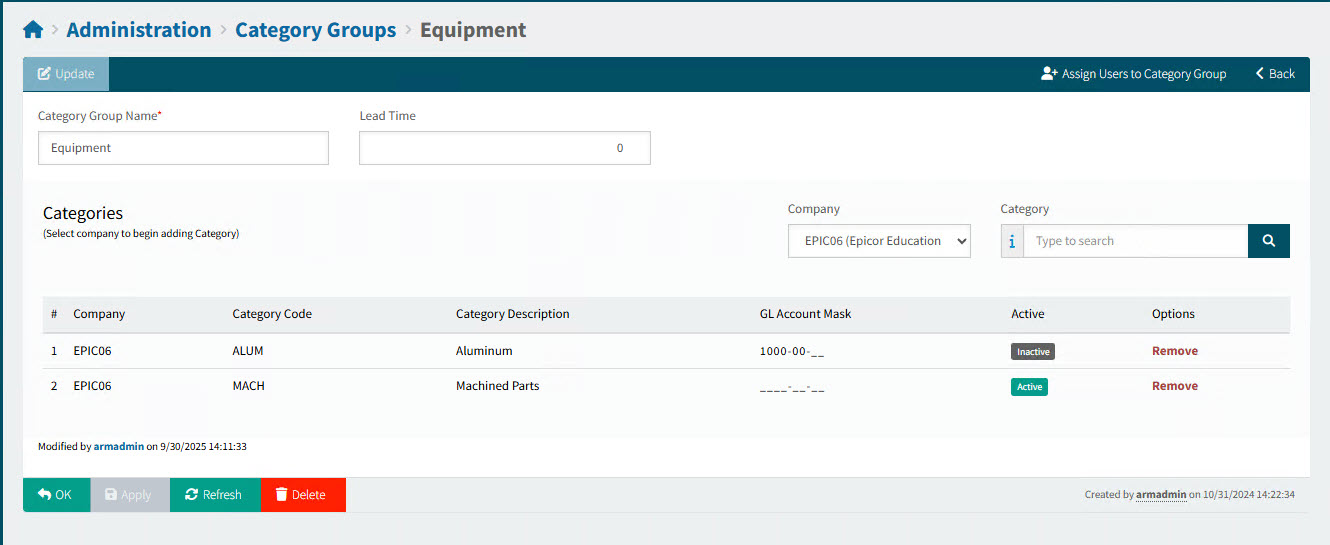
Select a Category Group Name to open the Administration > Category Groups > [Category Group Name] page.
The Categories belonging to the Category Group are listed on this page.
-
Edit the Category Group Name, if required.
-
Optionally edit the Lead Time. The Lead Time (in days) may affect how Due Date for Requisitions is calculated.
-
To assign a Category to the Category Group, select a Company, then search for and select a Category.
-
To remove a Category from the Category Group, click Remove. (Note that adding a Category to a Category Group also removes it from its current Category Group.)
-
Select Apply to save changes, or OK to save changes and return to Category Groups. To abandon your changes, select Refresh.
| You cannot delete a Category Group if it is associated with an Approval Node. |
Creating a Category Group
-
Select the Create button.
The Administration > Category Groups > Add New page is displayed.
-
Enter a Category Group Name. This must be unique.
-
Enter a Lead Time (or leave as zero, which equates to an undefined Lead Time). The Lead Time (in days) may affect how Due Date for Requisitions is calculated.
-
Assign the Categories to include in the Category Group: Select a Company, then search for and select a Category.
-
Select Apply to save the new Category Group.
Assigning Users to a Category Group
To assign Category Group access for different users:
-
Select a Category Group Name to open the Category Groups > [Category Group Name] page.
-
Select
 Assign Users to Category Group.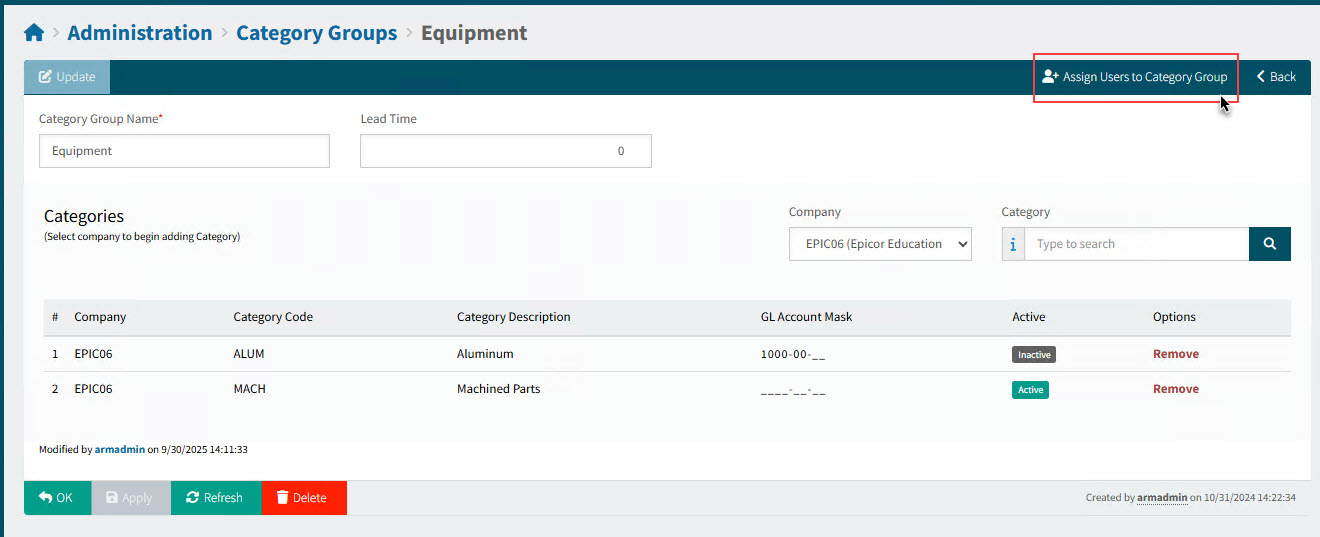
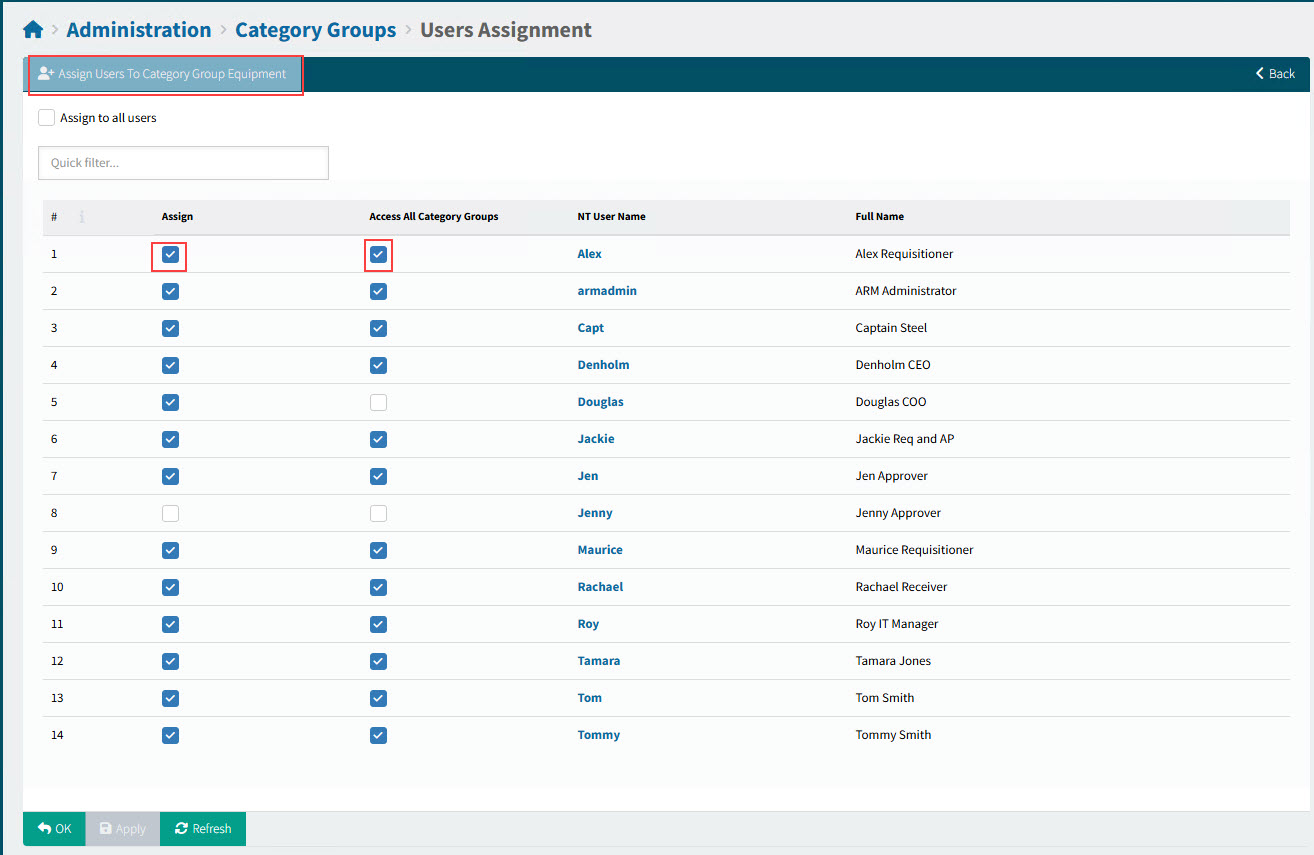
This opens the Category Groups > User Assignment page for the selected Category Group.
-
Assign Users to the Category Group. See User Assignment.
| Users with Access All Category Groups selected already have automatic access to the selected Category Group. |