Trackers
Several of the document types in ARM have a Tracker button on their Menu Bar.
Example:
|

-
Click on the
 Tracker button on the document Menu Bar to open the document’s Tracker.
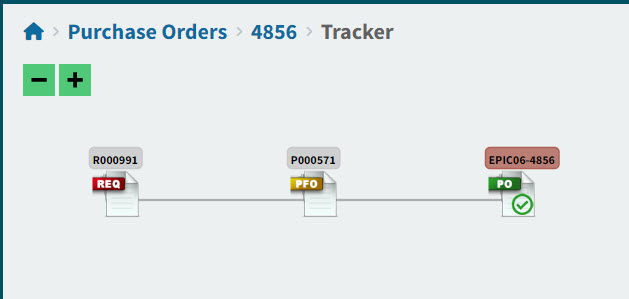
The Tracker is a diagram depicting the documents that relate to the document that is currently open. For example, the Tracker for a Purchase Order will show icons of the Requisition document and the Pro-Forma Order document that relate to the Purchase Order, as well as the Purchase Order document itself.
| The current document is the Root of the diagram, and its document number is colored in. All documents in the Tracker relate to the root document only. For example, a Tracker will not depict other PFOs for a Requisition, if the PFO is the root. |
View example of a Tracker for a Purchase order:
Note how the PO number is colored in, to indicate that this is the root. The Tracker path information decribes the root document: Purchase Orders > 4856 > Tracker in this example.
|
Opening the Document Info Panel
-
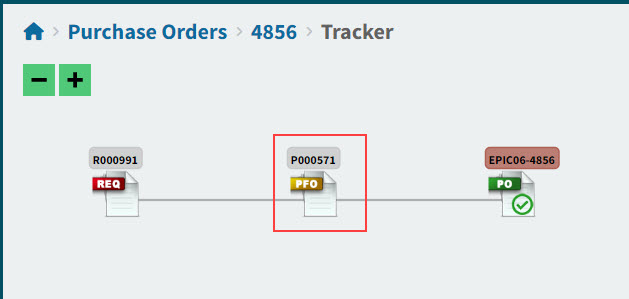
On the Tracker diagram, click on an icon for any of the documents to open the Document Info slide-out panel relating to that document.
View detail:
The Document Info panel contains information relevant to the document (for example, the document type, the document number, the Location, Vendor Code, and document Creator).
View example of a Document Info slide-out:
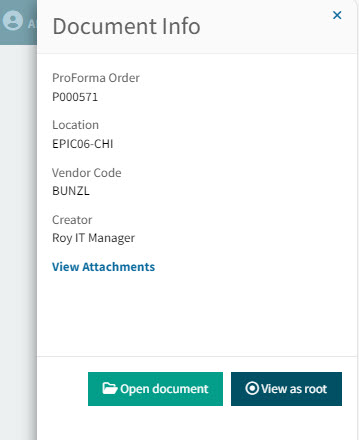
In the Document Info panel you can:
-
Click View Attachments to view or add any attachments for the document.
-
Click
 Open document to open the document in its own page. For example, click on a Requisition to open it in the Requisitions > [document number] page.
 -
Click
 View as root to open the Tracker for the selected document. For example, if you click on the Requisition on a Pro-Forma Order’s Tracker, and then click View as root, this opens the Tracker for the Requisition, which may have several of its own Pro-Forma Orders.
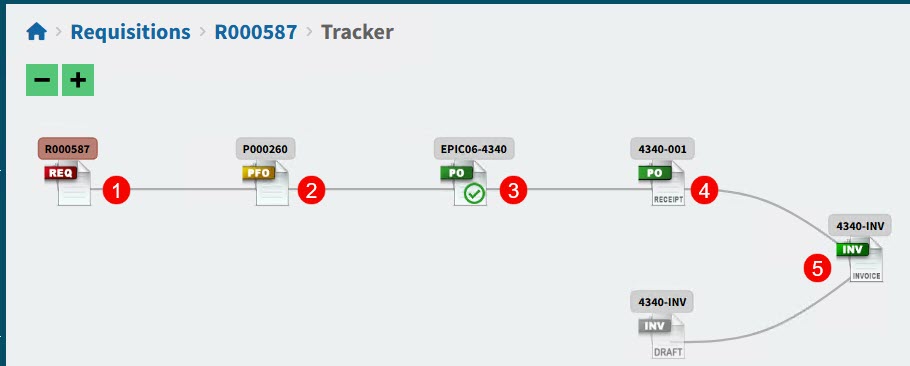
As well as providing a way to navigate through relevant documents, the Tracker reveals the relationship between documents, and is a record of the process flow for that document. The documents icons are laid out in process order, and the separate lines show the connections between documents.
View example of a complex Tracker:
|
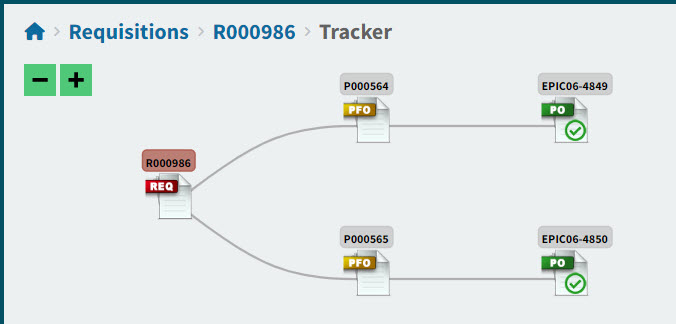
Development of the Tracker
A Tracker’s contents will change over time. For example, the Tracker for a Requisition starts with just the Requisition document. After the Requisition is approved and a PFO is created, the Pro-Forma Invoice appears on the Tracker. Next, a Purchase Order document is included, next the Purchase Order is received and finally an AP Invoice is created.
Example:
|