New Standing Order
Use the standing order document to raise a single order in ARM and then automatically generate subsequent orders at intervals (for example, monthly), based on a configured recurrence pattern.
Adding a New Standing Order
To add a new standing order:
-
Select
 Standing Order under
  Create a new document on the Top Menu Bar. See Creating a New Document.
The option only appears if Standing Orders is included in your permissions. -
See how to add a new standing order: Creating a Standing Order.
Creating a Standing Order
Creating a standing order is similar to creating a requisition. The standing order requires a schedule.
Permissions
Can Raise Standing Orders: The user can raise standing orders.
-
Select
Standing Order under Create a new document on the Top Menu Bar. See Creating a New Document.The Standing Order > Add New form displays.
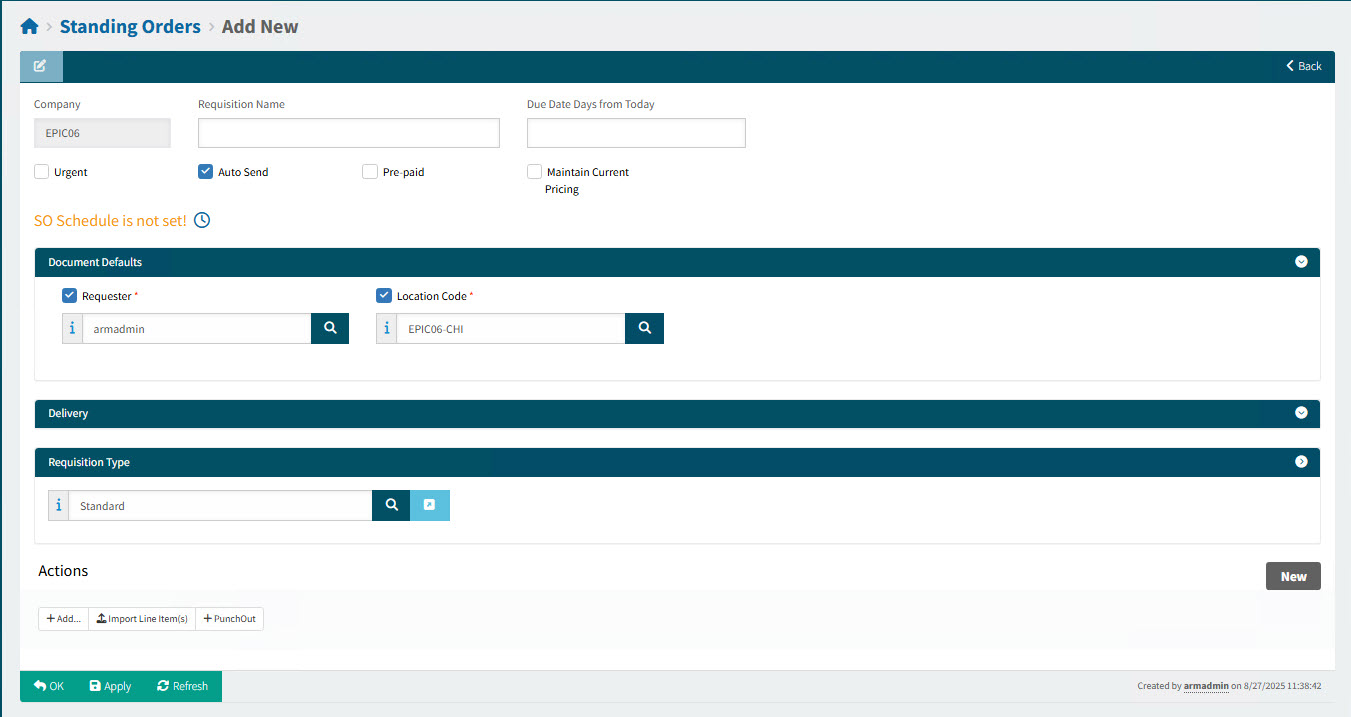
The Requisition Type section only appears if the Use Requisition Types setting is set to either optional or required. -
Click Save to save the new standing order.
-
Fill out the header details and set a schedule. See Standing Order Header.
-
Add Document Defaults. See Adding Document Defaults.
-
Optionally add Delivery details. See Adding Standing Order Delivery Details.
-
If using Requisition Types, complete the Requisition Type section. See Completing the Requisition Type Section.
-
Add one or more standing order lines. See Adding Standing Order Line Items.
To delete standing order lines, see Deleting Standing Order Line Items.
-
Optionally apply new defaults to selected lines. See Applying Defaults to Line Items.
-
Complete the standing order lines by editing them. See Editing Standing Order Line Items.
-
The standing order is ready to be Submitted. See Submitting a Standing Order.
For standing order functionality, see Standing Order Functionality.
Standing Order Header
Fill out the fields for the document header section.
Header Details
- Company
-
This read-only field displays the requester’s Default Company.
- Requisition Name
-
Enter a Requisition Name for the Standing Order.
- Due Date Days from Today
-
The number of days after the current date. (This is the Global Setting Due Date Days from Today.)
Each generated requisition will have a due date of the order date plus Due Date Days from Today.
- Urgent
-
Select this check box to mark this requisition as urgent. Urgent requisitions are shown with a red exclamation mark
 in the requisition search results page. If there is a scheduled job for urgent requisitions (Remind Urgent Requisition Approval), email notifications will be sent to relevant parties.
 - Auto Send
-
Select this check box to automatically send purchase orders to the vendor. There are other settings and selections to make - see note below. This check box is pre-selected if the setting Default Allow Auto Send for PO is set to On.
See how to set up the automatic email and/or automatic faxing of a purchase order (see Automatic Email of a Purchase Order and Automatic Faxing of Purchase Orders). - Pre-paid
-
Select this check box to indicate that the requisition lines have been pre-paid.
More
- Payment Type
-
AP Payment Methods on the logged-on user’s User Detail page (AP Payment Methods tab) are displayed in a drop-down list. (Only AP Payment Methods where the company matches the selected Location’s company are displayed.)
This field is only visible if Pre-paid is selected.
- Payment Reference
-
Any Payment References on the logged-on user’s User Detail page (AP Payment Methods tab) will be displayed here in a drop-down list, otherwise the field is free text.
This field is only visible if the selected Payment Type requires a reference.
- Maintain Current Pricing
-
With this option selected, catalogue line items are regularly assessed against the catalogue, to check for price changes. This is handled by the Scheduled Job (Standing Order Auto Pricing Updates Check.)
If the price has increased, any lines that increase the value of the Standing Order revert to requiring approval. (No child requisitions will be generated until the Standing Order is approved again.)
If the price remains the same or decreases, the Standing Order is unaffected and no further approvals are required.
Subsequent requisitions use the updated line value.
- SO Schedule is not set!
-
Click the clock
 icon to set a schedule for the Standing Order. See Setting a Schedule.
Now set a schedule (see next section).
Setting a Schedule
-
Click on the
 clock icon.
Detail
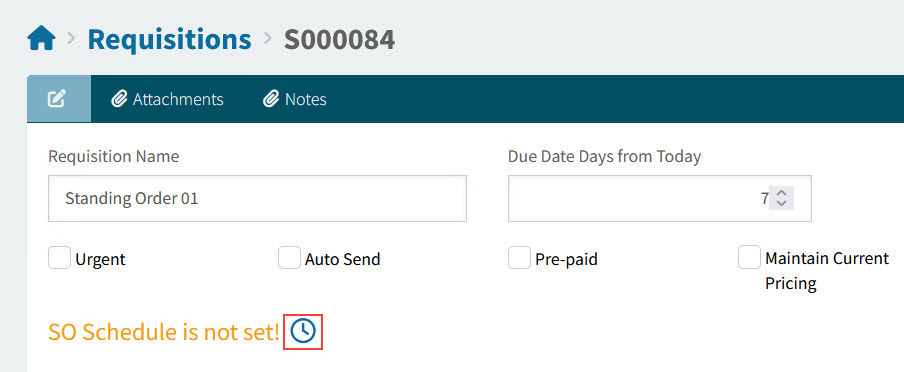
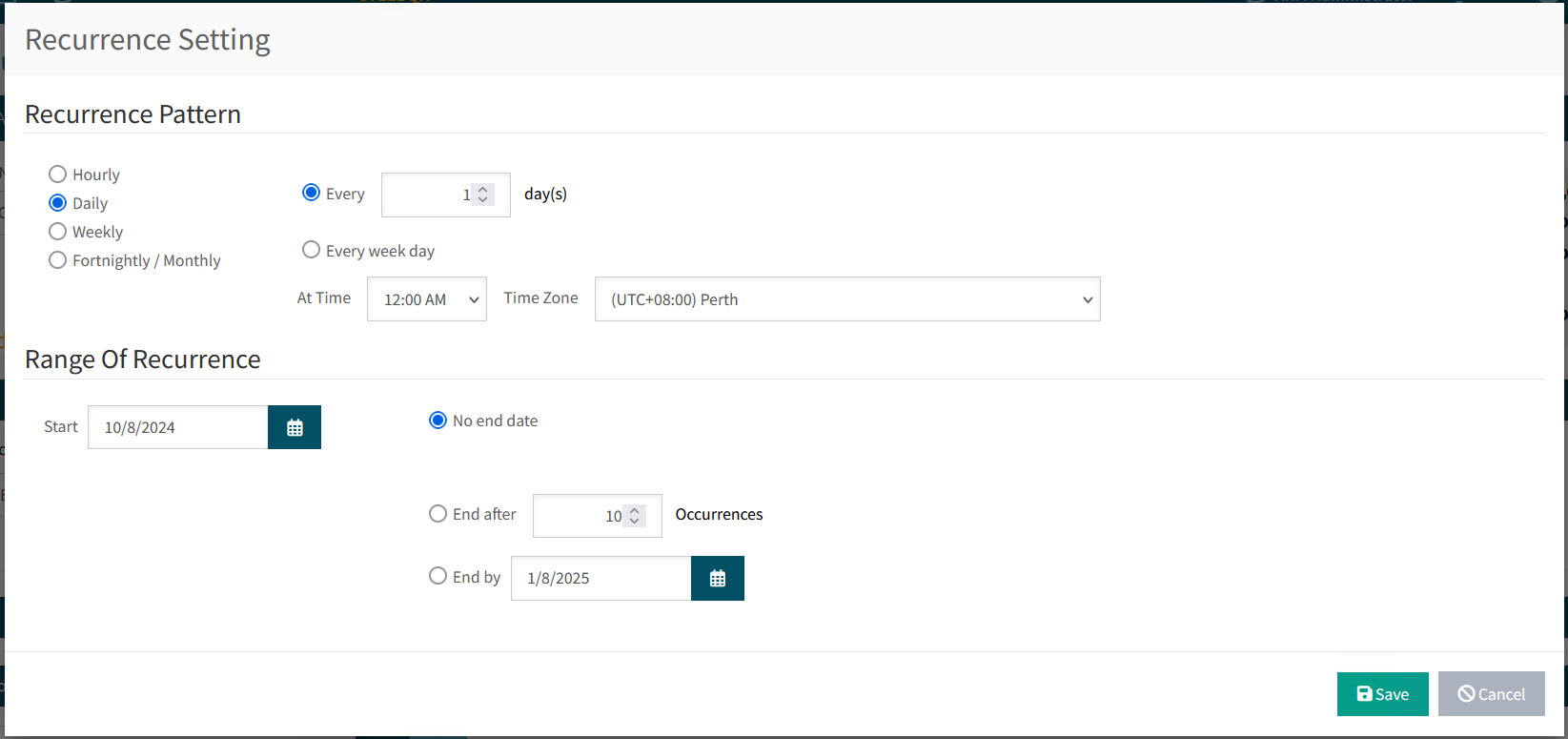
The Recurrence Setting pop-up screen displays.
Recurrence Setting
-
Enter the Recurrence Pattern values.
-
Select from:
-
Hourly and then Recur every [select number] hour(s).
-
Daily and then select either Every [select number] of day(s) or select Every week day.
-
Weekly and then click on one or more days (Sunday, Monday, etc.) to Recur every week on. (For example, Monday, Tuesday and Thursday of every week.)
-
Fortnightly / Monthly then select either Days of the month (tick the days) Of every, [select number] Months. (For example, day 3 and day 8 of every 2 months) or select The [select first, second, third, fourth, or last] [select day, or weekday, or weekend day, or select a day of the week] Of every [select number] Months. (For example, the second Monday of every 3 months).
-
-
Select At Time and Time Zone.
-
-
Enter the Range of Recurrence values.
-
Select a Start date.
-
Select from:
-
No end date
-
End after and then select the number of Occurrences.
-
End by and select an end date.
-
-
-
Click Save.
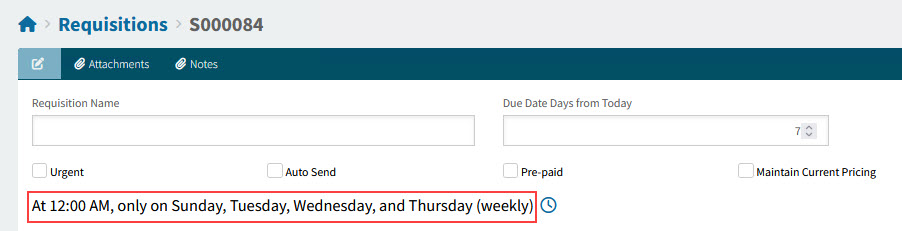
The schedule is saved and appears on the Standing Order Header.
View Schedule summary
Standing Order Values
On the right of the header are the standing order values. This is what they represent:
Standing Order Values
| Total Approved Exc Tax |
The total value of all approved child requisitions to date, at the value they were processed and approved. |
| Total Ordered Exc Tax |
The total value of all Purchase Orders created from child requisitions to date, at the value they were processed and approved. |
| Total Received Exc Tax |
The total value of all receipts for all Purchase Orders created from child requisitions to date, at the value they were processed and approved. |
| Total Remaining Exc Tax |
The total value of expected remaining requisitions based on the current pricing in the Standing Order and known number of recurrences remaining. NOTE: If the recurrence is configured with 'no end date', this value will show 'N/A' |
| Total Final Value Exc Tax |
The sum of Total Approved and Total Remaining. |
Adding Document Defaults
-
To set default values in new line items, set and select default values in the Document Defaults section before adding the new line items.
OR
-
To update values in existing line items, set and select default values in the Document Defaults section, select the line items to update, then click Apply selected fields to selected Lines on the bottom left of the Document Defaults section.
To select default values in the Document Defaults section:
-
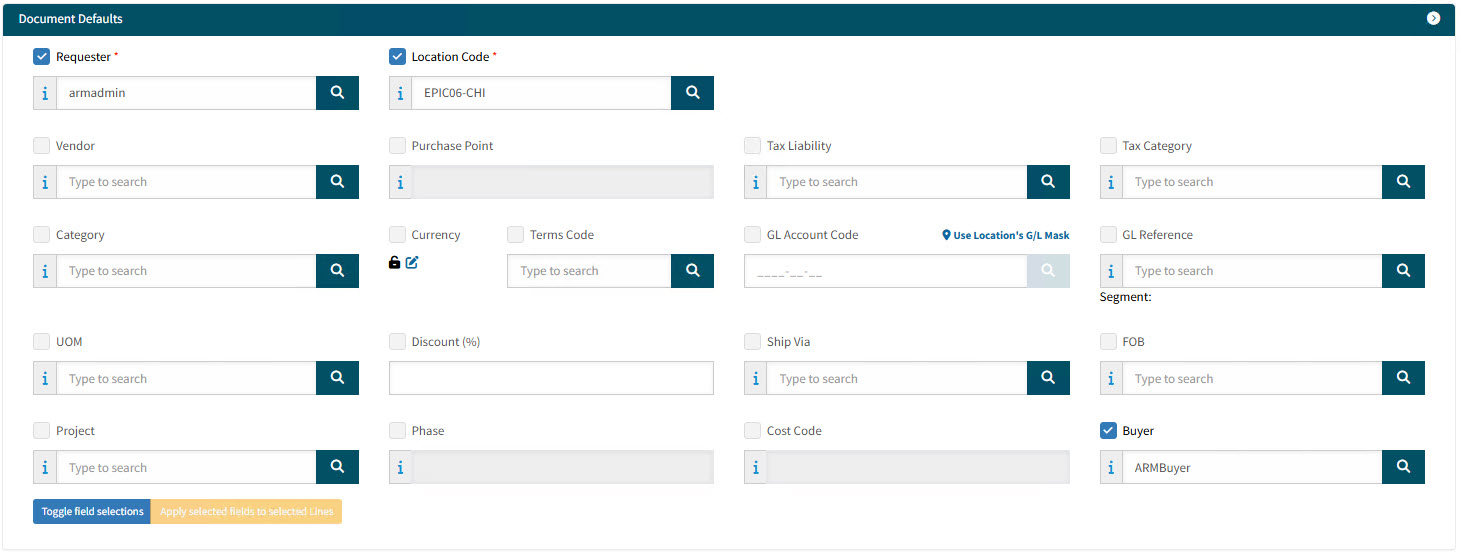
Click on Document Defaults section header bar, to expand the Document Defaults section.
Some of the defaults already have values.
View Document Defaults
-
For each default setting, select a value, then select the check box alongside its label. If the check box is not selected, the default value will not be applied to the corresponding field on the new or selected lines.
Tip: Click the Toggle field selections button at the bottom of this section, to select/clear the selected fields in Document Defaults.
Default Settings
- Requester
-
This defaults to your Link Requester. You can select any other Requester in your Requester Groups.
- Location Code
-
This defaults to the Requester’s Default Receiving Location. You can select from any other Locations that you have access to. Note that the Requester’s Default Receiving Location might not be one you have access to, in which case you must select a different one.
- Vendor
-
Select a Vendor.
- Purchase Point
-
Select a Purchase Point (configured on the Supplier in Kinetic).
-
The Purchase Point detail is also visible on the Purchase Order report.
-
The Purchase Point’s contact email address is a point of reference for email notification. (The order of preference for an email address is: Purchase Point > Vendor Primary Contact > Other contacts > Vendor.)
-
- Tax Liability
-
Select a Tax Liability.
- Tax Category
-
Select a Tax Category.
- Category
-
Select a Category.
- Currency
-
If you have permissions you can change the default currency.
Details
Click on the edit
 icon next to the currency field.
The Currency Info pop-up dialog appears.
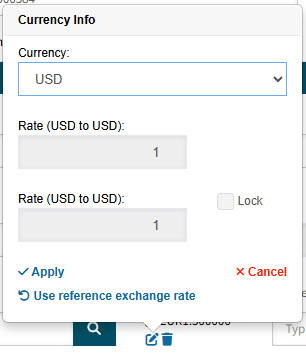
Here you can:
-
Select a different Currency from the drop-down list.
-
Select Lock to lock in the current exchange rate between the two currencies (as displayed in the two Rate boxes).
-
Select Apply.
-
- Terms Code
-
Select a default Terms Code for the line items.
- GL Account Code
-
Click the search
 button on the GL Account Code edit box. This opens the GL Account Code Search screen. Search for and select a GL Account Code.
OR
- Use Location’s G/L Mask
-
Click Use Location’s G/L Mask if you want the list of GL Account Codes in the drop-down list limited to the document location’s GL Account Mask (for example, if the location’s GL Account Mask is _ _ _ _ -_ _-10, the drop-down list will only display GL Account Codes that end in 10).
OR
- Edit the GL Account Code
-
If you have edit permissions on the three GL Account segments you may edit the GL Account Code in the edit box.
Otherwise, click the edit
 button on the GL Account Code edit box. This opens the GL Account Segments screen. Search for and select the segments that make up a GL Account Code.
Details
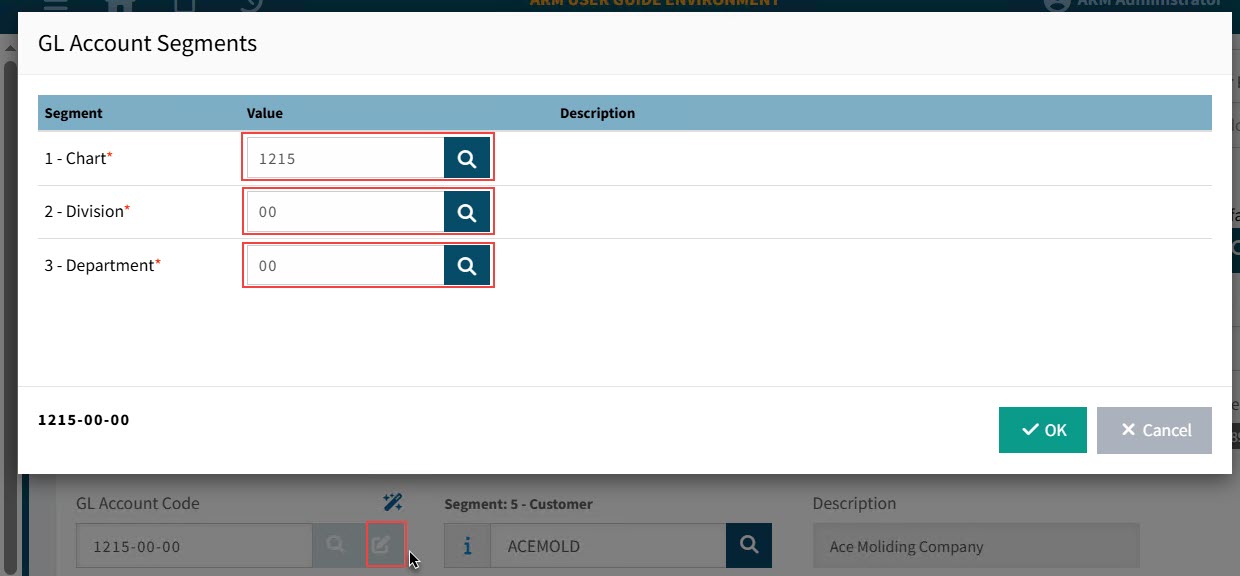
You may only select GL Account segments for which you have edit permissions. See Editable GL Segments.
- GL Reference
-
Select a GL Reference from the drop-down list. This will be used as the default GL Reference in the line items.
- UOM
-
Select a UOM.
- Discount
-
Enter a Discount (%).
- Ship Via
-
Select a Ship Via.
- FOB
-
Select a FOB.
- Project
-
Select a Project originating from Kinetic.
- Phase
-
Select a Phase belonging to the selected Project.
- Cost Code
-
Select a Cost Code belonging to the selected Project and Phase. (This field is only available if the Global Setting Enable Cost Codes is Enabled.)
- Buyer
-
The Buyer for this item. Buyers are integrated from Kinetic and available for selection in this field when Enable Buyer Mapping in Global Settings is set to Yes.
On full approval of a Requisition, the Buyer field will be mapped to the Buyer field on the resulting Pro-Forma Order.
If the Buyer field is blank on the Pro-Forma Order, it will default to the Buyer info on the Root Node of the relevant approval tree.
-
To close the Document Defaults section, click on the section header bar again.
Adding Standing Order Delivery Details
-
Click on the Delivery section header bar.
This opens the Delivery section.
View Delivery Section
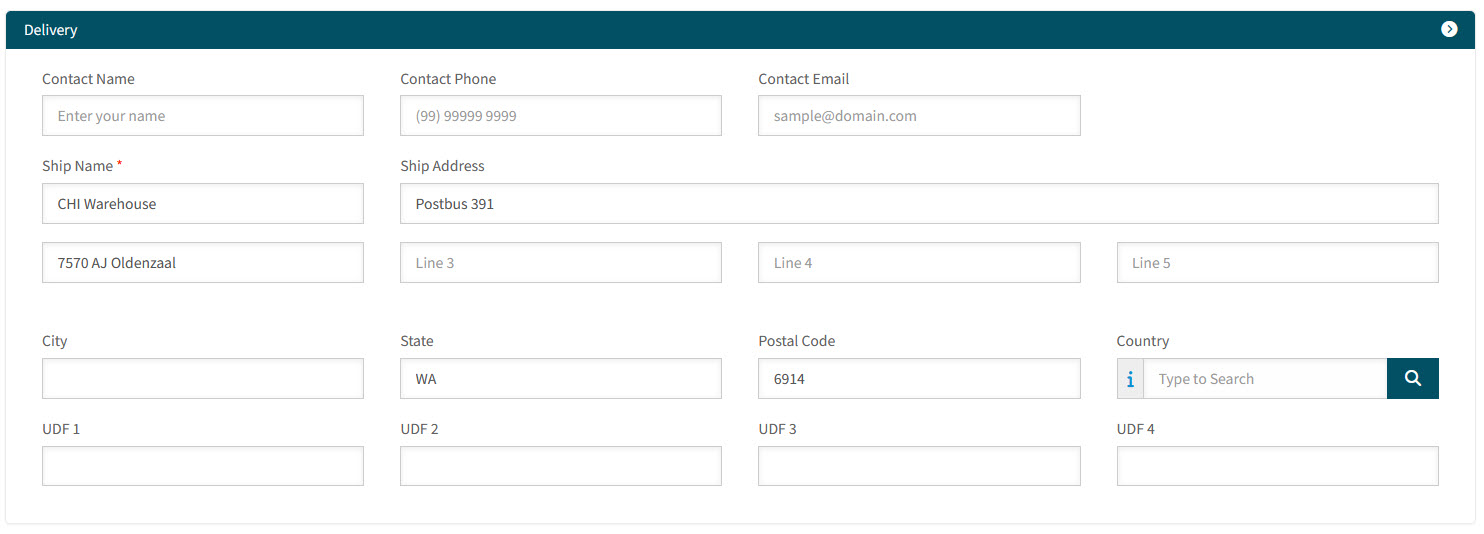
The delivery details of the selected Location are populated in these fields.
-
Update the delivery details, if necessary.
Delivery Settings
-
Contact Name
-
Contact Phone
-
Contact Email
-
Ship Name
-
Ship Address
-
City
-
State
-
Postal Code
-
Country
-
User Defined Fields (UDF 1, etc.)
-
-
To close the Delivery section, click on the Delivery section header bar again.
Completing the Requisition Type Section for a Standing Order
The Requisition Type is used to categorize the Requisition. Custom Data is saved to the database, where it can be used in reports or mapped to user-defined fields in Kinetic. The Requisition Type can also be selected as a field for criteria in an Advanced approval tree.
|
NOTES:
|
-
Select a Requisition Type, or keep the default Requisition Type.
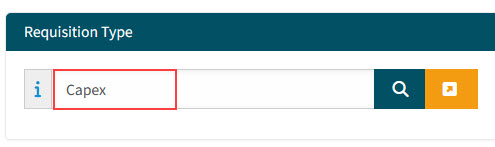
-
Click the Values button
 to open the custom form for the selected Requisition Type.
-
If there are no required fields to fill out, the Values button
 is blue.
 -
If the required fields are filled out, the Values button
 is green.
-
-
Select the required values in the custom form, then click Save and Close. See Custom Form Designer.
Adding Standing Order Line Items
Add one or more line items to the document.
|
You can also copy |

 Catalogue - Add a catalogue item.
 Non-Catalogue - Add a non-catalogue item.
 Job Material - Add a manufacturing job’s material item.
 Job Operation - Add a manufacturing job’s operation item.
 Import Line Items - Import line item(s).
 PunchOut - Add items from your configured PunchOut website.
See below for more detail.
Adding Catalogue Items to a Standing Order
-
Select Add > Catalogue at the bottom of the page.
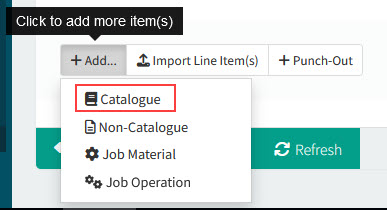
The [Document Type] > [Document No.] > Add Catalogue Items page opens, showing any results from the selected filters.
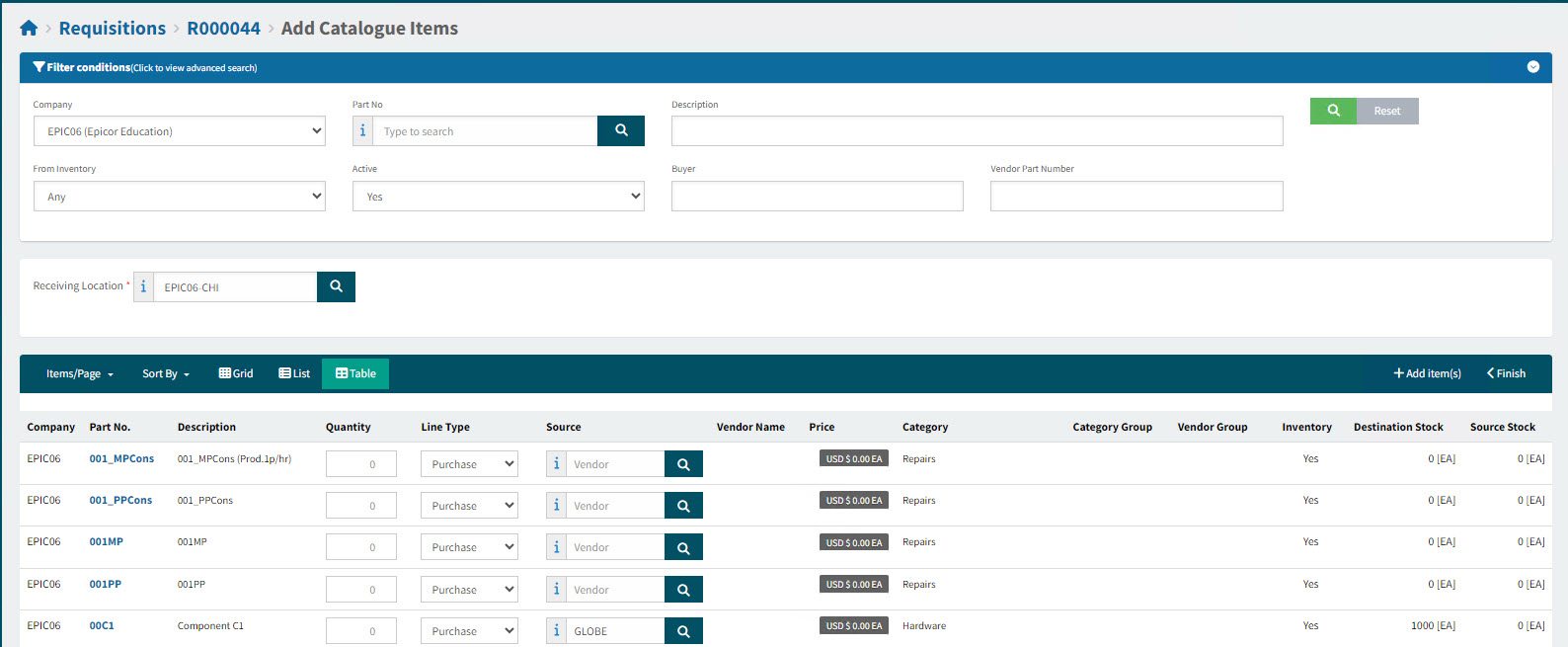
If there are no results in the > Add Catalogue Items page, click the Search button. For a faster search, you can also refine your filter conditions before clicking the Search button.
Note that search results for catalogue items are loaded automatically if the Global Setting Auto-execute Search for Catalogue Items is set to Yes.
-
To change the result set, select different filter conditions then click the Search button.
Filter Conditions
-
Company - This defaults to the User’s default Company Code.
-
Part No - Enter the Part No, if known.
-
Description - Enter all or part of the Description.
-
From Inventory - Yes, No, Any. Inventory catalogue items are maintained in Kinetic; non-inventory items are added in ARM.
-
Active - Yes, No, Any.
-
Buyer - Enter a Buyer name.
-
Vendor Part Number - Enter all or part of the Vendor Part Number, if known.
To search in any of the filter fields where there is a search icon displayed you can start typing partial data and matches will be displayed in a list. Select an item from the list. -
-
Select a Receiving Location - This defaults to the Location Code on the document default.
If there are filters set for the Receiving Location, this will limit the results. See Filter Items by Category Codes. Only items belonging to accessible Category Codes will remain in the results. -
Add items from the results section.
-
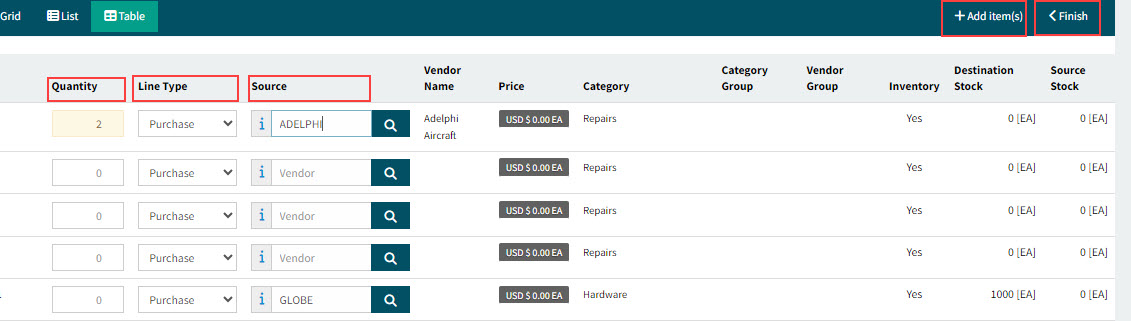
Select a Quantity greater than zero for each item that you want to add.
-
Optionally update the Line Type and the Source. The Line Type defaults to the Default Line Type for the Receiving Location (see Locations).
-
Line Type: Purchase - Source is a Vendor. The Preferred Vendor for the item and (receiving) location, if available, is the default Vendor.
You can also search for and select a Vendor. The search list is limited to Vendors Approved for Purchasing that are also on the Catalogue Item’s Price List as an Approved Supplier.
If no Vendor is selected, then the Document Default Vendor, if defined, is added to the line.
-
Line Type: Transfer - Source is a Location.
-
Line Type: Expense - Source is a Date.
Catalogue parts will only show the list of approved Vendors (or just display the Preferred Vendor if permissions do not permit editing at all). -
-
Click Add item(s).
-
-
Click Finish when you have added all required items.
|
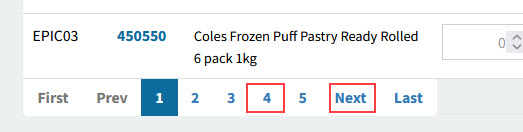
| Use the buttons on the page footer to add results from other pages. |
|
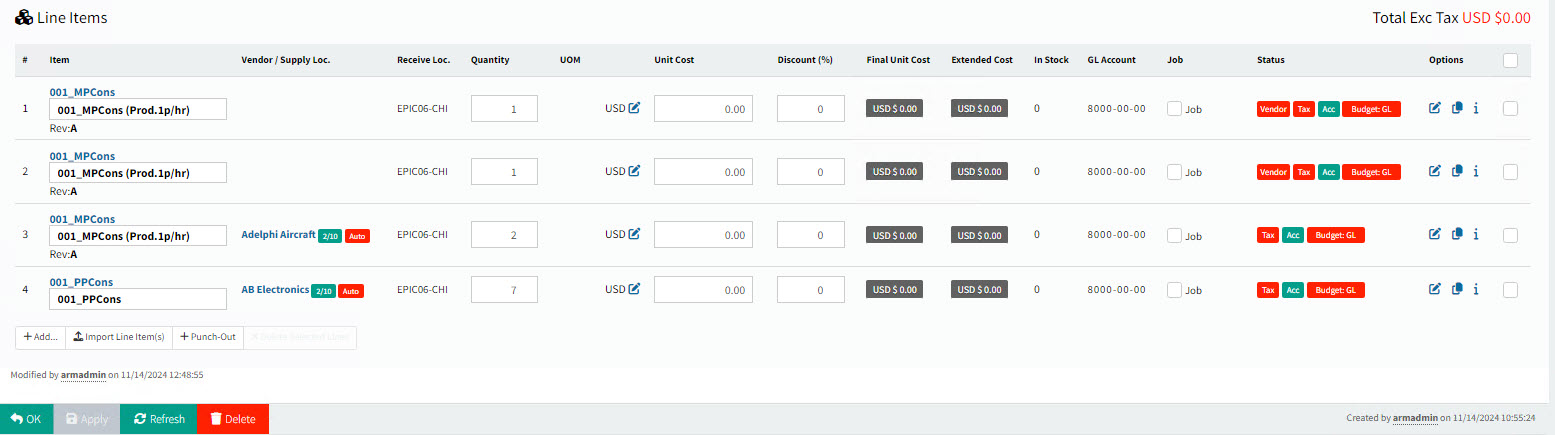
Each added Catalogue Item, with its selected Quantity, Vendor / Supply Loc. etc. appears on the page under the Line Items section.
|
Adding Non-Catalogue Items to a Standing Order
Add non-catalogue items when you need items that you don’t often purchase (for ad hoc, or once-off purchases) and are not in your catalogue.
| ARM will not allow you to add a non-catalogue item with the same Part Number as an inventory catalogue item (an item from Kinetic). If you enter a non-catalogue item with a Part Number that matches an Internal Part Cross Reference for another Part (such as a Supplier Price Reference), ARM raises an Alert, then converts the non-catalogue item to the identified Internal Part Cross Reference. |
-
Select Add > Non-Catalogue at the bottom of the page.
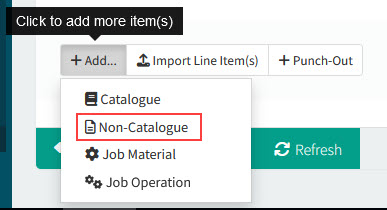
The [Document Type] > [Document No.] > New Line page opens.
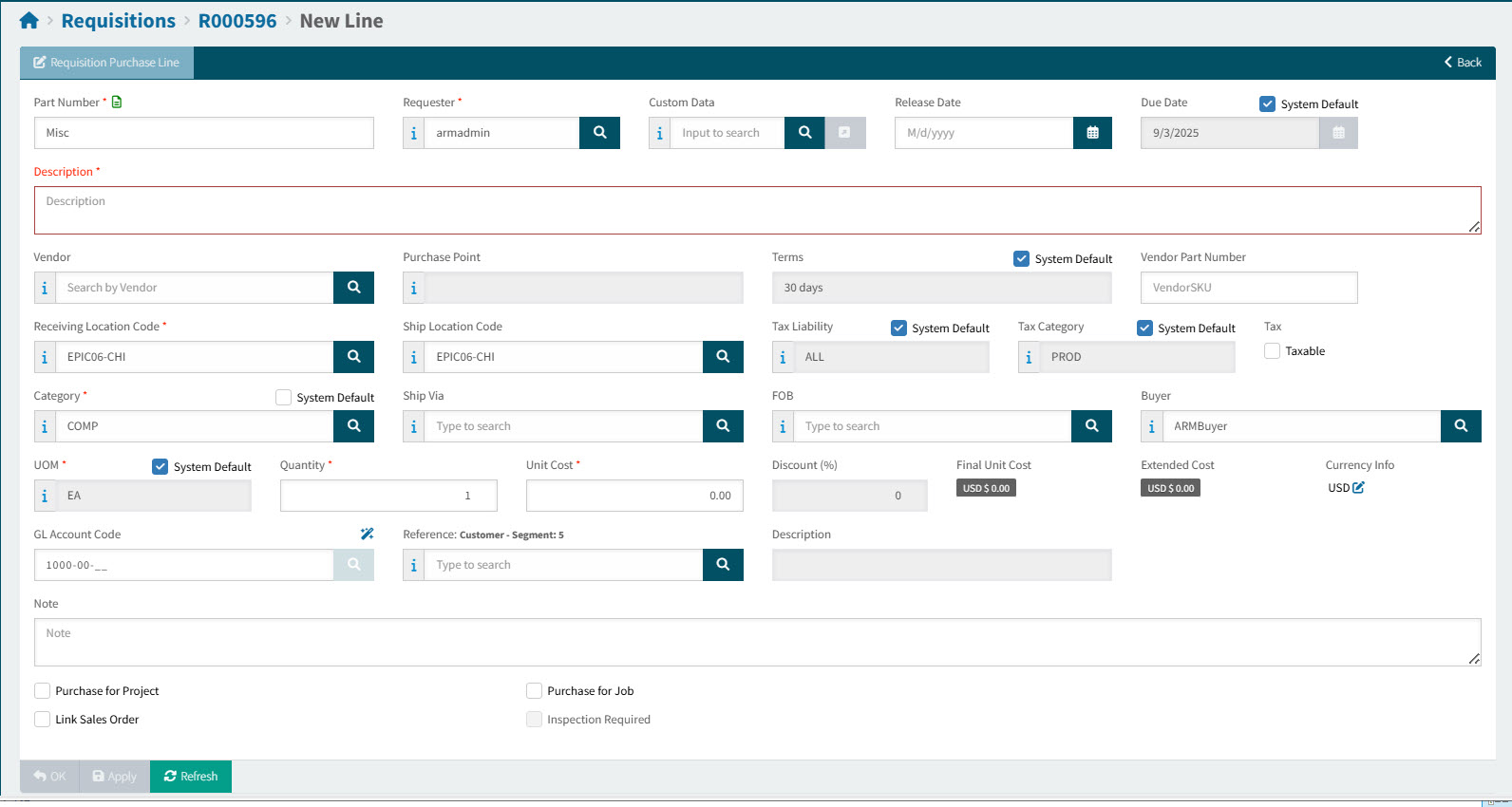
Note that many of the fields on the line item already contain default values.
Default values are either:
-
Document Defaults, if these were entered or selected
-
System Defaults, where no Document Defaults were supplied and the System Defaults could be supplied.
For example, if a Category is selected in Document Defaults, then this is the Category Code on all new line items, otherwise ARM supplies the System Default Category Code.
-
-
Edit the fields to create a non-catalogue item.
Non-Catalogue Item Fields
- Part Number
-
The icon
 indicates this is a non-catalogue item.
The Part Number defaults to the value set in the Company Setting for Default Non-Cat Part No. If you have the permission Can Change Non-catalogue Item Name, you can edit it.
Converting a Non-Catalogue Item to a Catalogue Item
Inventory Part Number
If you enter a Part Number belonging to an Inventory Part, select Yes to convert the line to a Catalogue Line Item.
Details
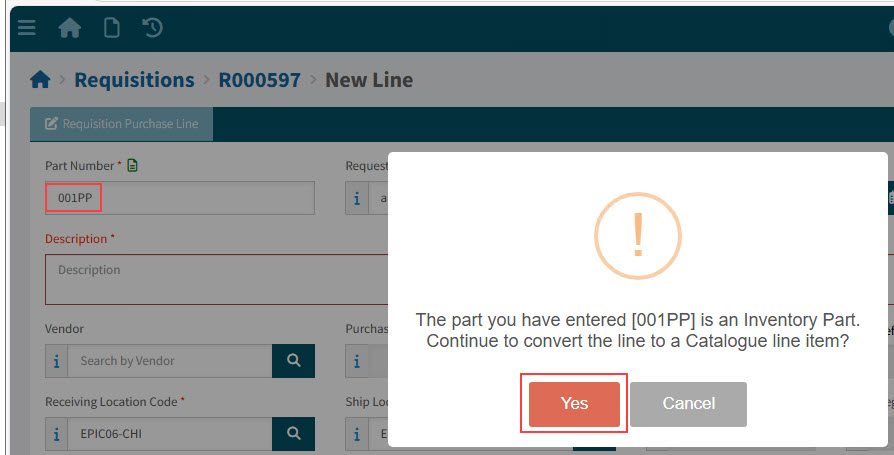
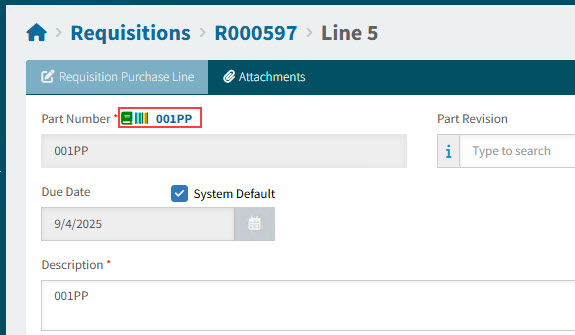
The line item converts to a Catalogue item, with the selected Inventory Part selected as the Part Number.
Cross-referenced Part Number
If the Part Number is cross-referenced to one or more parts, a Cross-references pop-up for the Part Number displays.
-
Click the check
 Action button to select the cross-referenced part.
Details
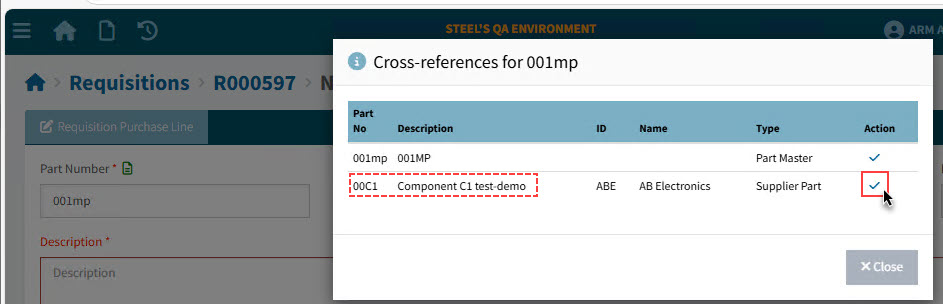
The line item converts to a Catalogue item, with the selected cross-referenced part as the Part Number.
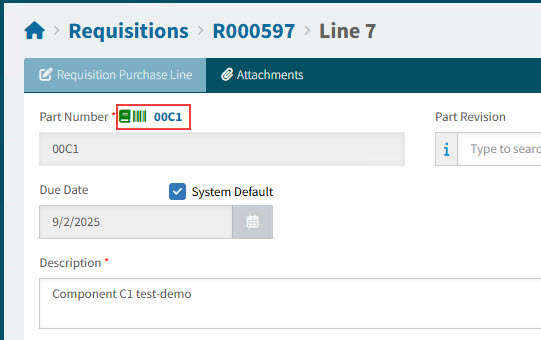
Note that you cannot edit the part number after saving the non-catalogue item.
-
- Requester
-
This defaults to the Requester in Document Defaults. You can select any other Requester in your Requester Groups.
- Custom Data
-
This field is available if Use Requisition Types is enabled. See Global Settings.
-
Select a User Assigned Custom Form then click the Values
button. -
Select the required values in the custom form, then click Save and Close. See Custom Form Designer.
-
- Description
-
The description is blank for a non-catalogue item. Enter a suitable description.
- Vendor
-
To update, select a Vendor by typing a partial name and selecting from the displayed list, which is limited to Vendors Approved for Purchasing that are also on the Catalogue Item’s Price List as an Approved Supplier.
- Purchase Point
-
Select a Purchase Point (configured on the Supplier in Kinetic).
If you have a Document Default Purchase Point, then this is selected, otherwise the System Default Purchase Point (if available) is selected.
If you select a different Purchase Point, this clears the System Default check box.
- Purchase Point
-
The vendor’s primary purchase point.
-
The Purchase Point detail is also visible on the Purchase Order report.
-
The Purchase Point’s contact email address is a point of reference for email notification. (The order of preference for an email address is: Purchase Point > Vendor Primary Contact > Other contacts > Vendor.)
- Terms
-
If you have a Document Default Terms Code, then this is selected, otherwise the System Default Terms Code is selected.
If you select Terms, this clears the System Default check box.
- Terms
-
The Terms defaults to the first available from:
-
Supplier (Vendor), if available, otherwise
-
Company settings
-
- Vendor Part Number
-
Enter the vendor part number or SKU (stock taking unit), if known.
- Receiving Location Code
-
You can select a different location code from the one on the Document Defaults. The Global Setting Line Level Locations must be enabled.
Different locations will cause a Requisition to split into separate Pro-Forma Orders and thus different Purchase Orders. See Pro-Forma Order Creation Rules.
Note that the locations can be from multiple companies.
- Ship Location Code
-
You can select shipping location that is different from the receiving location. You can also Edit to edit the Delivery Address. The Global Setting Line Level Locations must be enabled.
If you cannot edit the Delivery Address, you can View it.
The locations can be from multiple companies.
- Tax Liability
-
If you have a Document Default Tax Liability, then this is selected, otherwise the System Default Tax Liability is selected.
If you select a Tax Liability, this clears the System Default check box.
- Tax Liability
-
The Tax Liability defaults to the first available of:
-
The Vendor’s Tax Liability, if available, otherwise
-
The Company Setting Default Tax Liability (Tax Region) Code.
-
- Tax Category
-
If you have a Document Default Tax Category, then this is selected, otherwise the System Default Tax Category is selected.
If you select a Tax Category, this clears the System Default check box.
- Tax Category
-
For Catalogue items, the Tax Category defaults to the first available of:
-
The Tax Category for the Catalogue item for the Location matching the Receiving Location Code
-
The Tax Category for the Catalogue item
-
The Tax Category for the Catalogue’s Category
-
The Default Product Tax Category Code defined in Company Settings.
For items not in the Catalogue, the Tax Category defaults to the Default Product Tax Category Code defined in Company Settings.
-
- Category
-
If you have a Document Default Category, then this is selected, otherwise the System Default Category is selected.
Just for Blanket Orders:
-
If you have a Document Default Category, then this is selected
-
Otherwise, the same Category as used in the first line of the Blanket Order (for the second line onward).
-
Otherwise the System Default Category is selected.
If you select a Category, this clears the System Default check box.
- For Catalogue and Non-Catalogue Items
-
The category defaults to the first available of:
-
The Category for the Catalogue item (catalogue items only)
-
The Default Category for the Vendor
-
The Default Category for the Vendor Group
-
Default Category in Company settings
-
<blank>
- For PunchOut Lines
-
The category defaults to the first available of:
-
The PunchOut line Category
-
The Category that maps to the PunchOut item’s UNSPSC code
-
The Category for the Catalogue item that maps to the PunchOut item
-
The Category for the PunchOut configuration - see Maintaining PunchOut.
-
-
The Default Category for the Vendor
-
The Default Category for the Vendor Group
-
Default Category in Company settings
-
<blank>
To update the Category, click the search
 button open the Category Code Search. The Category Code Search contains a list of Category Codes that belong to the Category Groups assigned to your User details.
 -
- Ship Via
-
If you have a Document Default Ship Via, then this is selected, otherwise the System Default Ship Via is selected.
If you select a Ship Via, this clears the System Default check box.
- Ship Via
-
The Ship Via defaults to the first available from:
-
The selected Vendor’s Ship Via value (from the Supplier record on Kinetic).
Ship Via specifies the shipping method (for example, FedEx, or Company Truck) that the supplier uses to ship purchased materials to your shipping location.
-
The Company Setting for Ship Via
-
If PFO Combining is enabled, Requisition lines will combine based on the combinations of line Ship Via and FOB values. - FOB
-
If you have a Document Default FOB, then this is selected, otherwise the System Default FOB is selected.
If you select a FOB, this clears the System Default check box.
- FOB
-
The FOB defaults to the first available from:
-
The selected Vendor’s FOB value (from the Supplier record on Kinetic). The FOB specifies the free on board location for the supplier. This location indicates the point at which title of the shipped goods changes from the supplier to your company.
-
The Company Setting for Default FOB
-
If PFO Combining is enabled, Requisition lines will combine based on the combinations of line Ship Via and FOB values. - Buyer
-
The Buyer for this item. Buyers are integrated from Kinetic and available for selection in this field when Enable Buyer Mapping in Global Settings is set to Yes.
On full approval of a Requisition, the Buyer field will be mapped to the Buyer field on the resulting Pro-Forma Order.
If the Buyer field is blank on the Pro-Forma Order, it will default to the Buyer info on the Root Node of the relevant approval tree. You cannot edit the Buyer on a new line. - Mark-up Type
-
This field is visible when the Enable On-charge Mark-up Global Setting is enabled.
Select either Unit Price or Percent.
If there is a configured Default Mark Up in Kinetic, then the default on-charge data is displayed here (based on the Project/Phase/Cost Code and Part selections). You can enter values if necessary.
- Unit Price Mark-Up
-
This field appears if Unit Price is selected for Mark-up Type.
- Mark-up %
-
This field appears if Percent is selected for Mark-up Type.
- UOM
-
If you have a Document Default UOM, then this is selected, otherwise the System Default UOM is selected.
If you select a UOM, this clears the System Default check box.
- UOM
-
This defaults to the catalogue item’s (part) UOM. The available UOM’s in the drop-down list are those that belong to the same UOM group.
When a Vendor is selected and there is a Price for this Vendor, then the UOM for the Vendor Price for this Catalogue Item overrides the Catalogue Item’s UOM.
When a line is added from Job Material, the UOM defaults from the Job Material UOM, overriding the Part UOM.
For non-catalogue requisition line items and AP Invoice Misc lines, the UOM defaults to the company’s Default UOM defined in Company Settings.
- Quantity
-
Enter the item quantity for this line.
- Unit Cost
-
Enter a Unit Cost for the line.
- Discount (%)
-
If the Global Setting Enable Purchase Discount is set to Yes, Discount % is displayed.
If there is a Price record for the Catalogue Item for the selected Vendor, then the Discount value is for the Unit Price.
Enter a Discount % for the Unit Cost (permission Edit Purchase Discount Info is required).
- Final Unit Cost
-
This read-only field displays the discounted unit cost.
- Extended Cost
-
This read-only field displays the Unit Cost (or Final Unit Cost if Discounts are enabled) multiplied by the Quantity.
You cannot edit the Discount on a new line. - Currency Info
-
If you have permissions you can change the currency on the line.
Details
Click on the edit
icon next to the currency field.The Currency Info pop-up dialog appears.
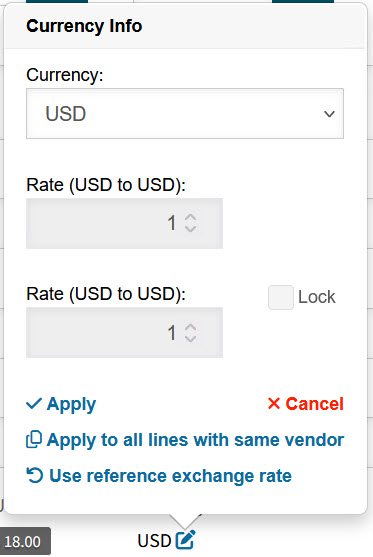
Here you can:
-
Select a different Currency from the drop-down list.
-
Select Lock to lock in the current exchange rate between the two currencies (as displayed in the two Rate boxes).
-
Select Apply to apply the new currency to just this line, or select Apply to all lines with the same vendor.
-
- GL Account Code
-
If you have a Document Default GL Account Code, then this is selected, otherwise the System Default GL Account Code is selected.
- GL Account Code
-
See GL Account Mask Sequence for an explanation on how the GL Account Code is derived as a system default.
To show the GL Sequencing Steps:
-
Click on the wand
 button above the GL Account Code search box.
This opens the GL Sequences information panel.
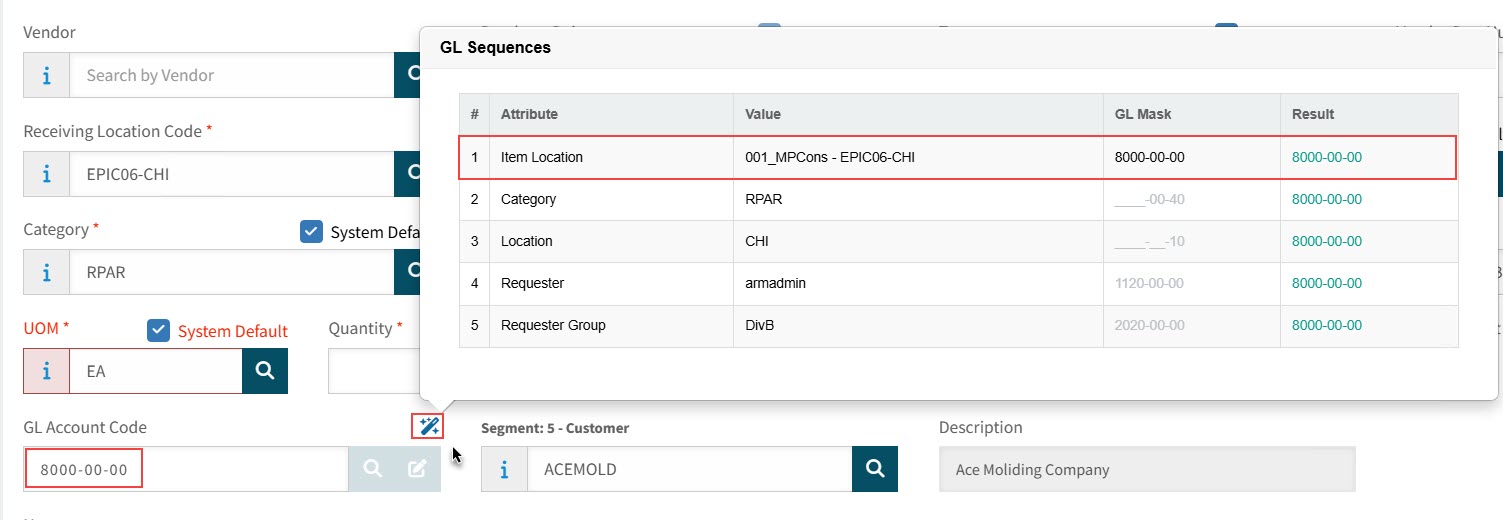
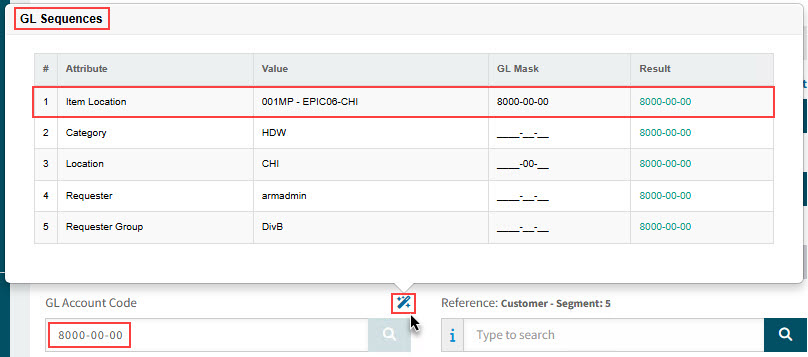
Example 1: Attribute # 1 has a valid and complete result, which is colored in green.
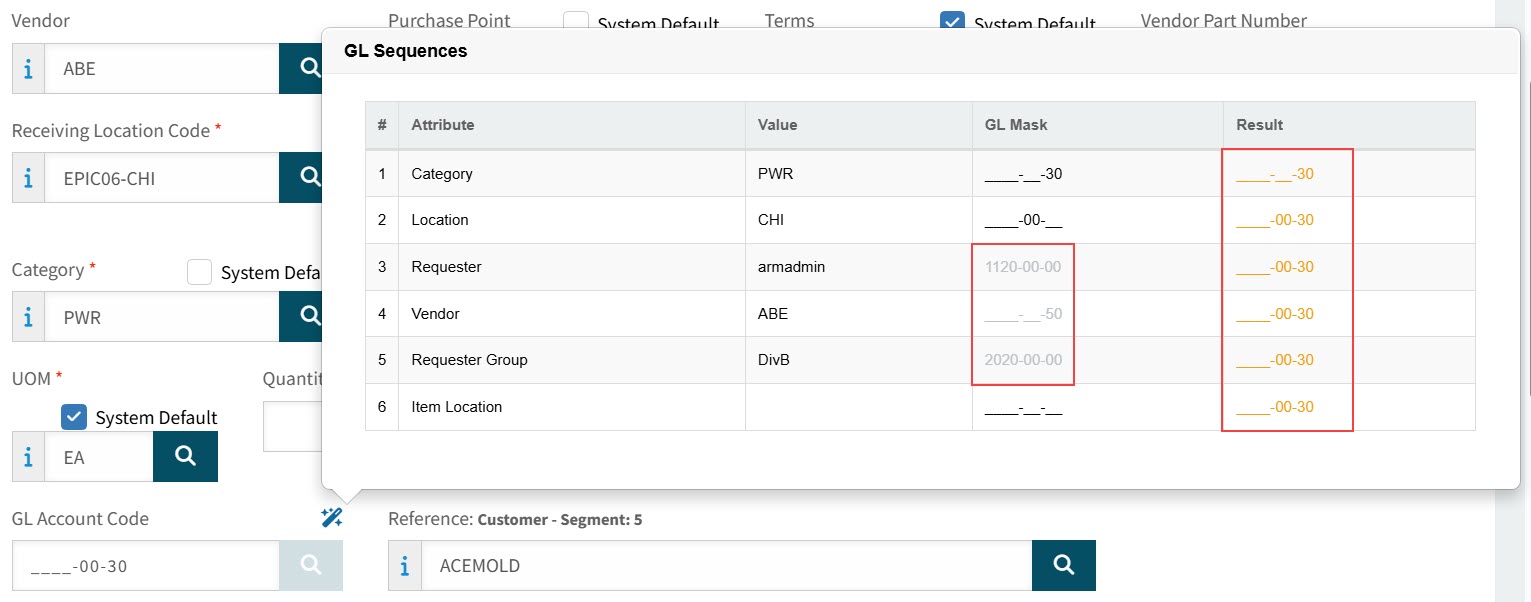
Example 2: Each result shown here is colored in amber, incomplete but valid. GL Masks that don’t match previous results are displayed in gray.
- Attribute
-
The attribute name from the GL Account Mask Sequence, with the first in the sequence at the top of the list (for example, CATEGORY).
- Value
-
The value of that attribute on the requisition line (for example, HDW).
- GL Mask
-
The GL mask associated with the value of the attribute. e.g., "__-00-20".
If the GL mask does not match the previous result, it is colored in gray and is not used.
- Result
-
The resultant GL Account code when this attribute value’s mask is applied to the cumulative GL Account. The result is color-coded as follows:
- Amber
-
The GL Account mask is incomplete, but valid.
- Red
-
The GL Account mask is complete, but invalid.
- Green
-
The GL Account mask is complete and valid. (This is the value that ARM defaults into the GL Account field.)
GL Sequences displays how the default GL Account Code is derived, according to the GL Account Mask Sequence.
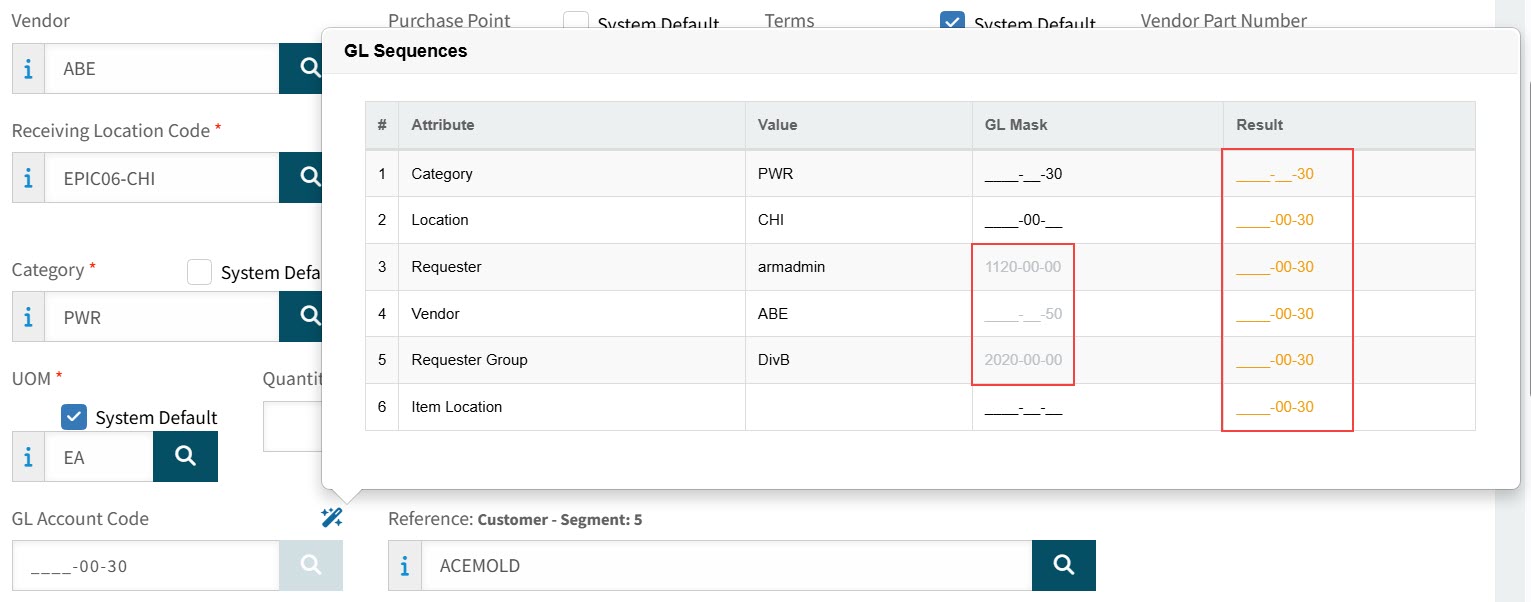
Based on the information displayed, it is possible to see where there are GL Account segments for relevant attribute values that are missing from the Chart of Accounts.
See example where GL Account segments are missing:
Each result shown here is colored in amber: the GL Account mask is incomplete but valid. GL Masks that don’t match previous results are displayed in gray.
To search for a new GL Account Code:
-
Click the search
button on the edit box. This opens the GL Account Code Search screen. Search for and select a new GL Account Code.All GL Account Codes that match the User’s Assigned GL Accounts (for the Company) are available for selection. See Maintaining Users - Assigned GL Accounts Tab.
For Inventory items, the GL Account Code defaults to the GL Account Code for the Catalogue Item Location, unless the Company Setting Use ARM’s GL defaulting logic on inventory items is enabled, in which case the GL Account Code is created as it is for non-inventory items.
To edit the GL Account Code:
-
Edit the GL Account Code in the edit box. This is only possible if you have edit permissions on the three GL Account segments.
OR
-
Click the edit
button on the GL Account Code edit box. This opens the GL Account Segments screen. Search for and select the segments that make up a GL Account Code.Details
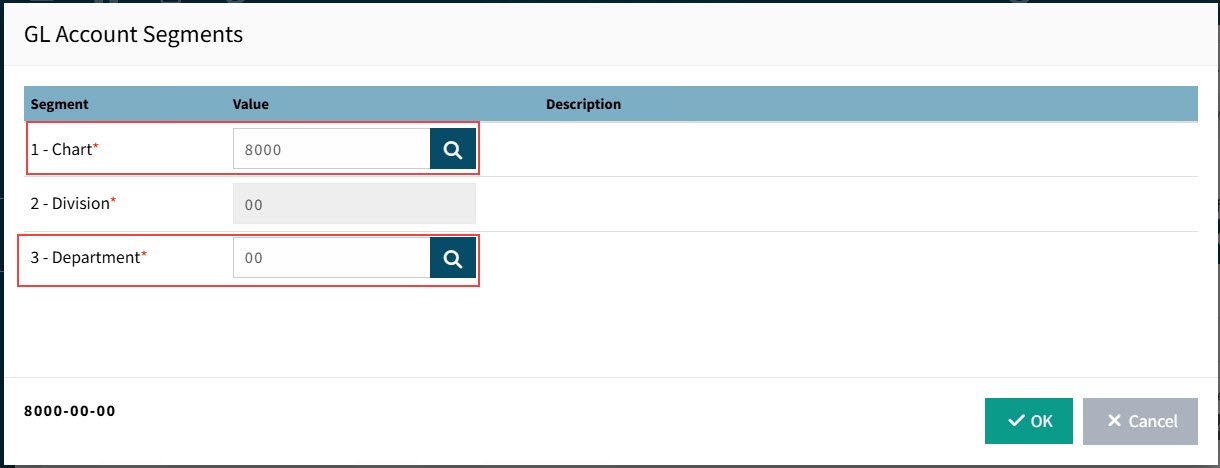
NOTE: You may only select GL Account segments for which you have edit permissions. See Editable GL Segments.
In this example, a user may only select the Chart and Department segments.
Details
- HS Commodity Code
-
Overwrite the HS Commodity Code, if necessary. This field is required if the Company General Setting for HS Commodity Code Required setting is Yes.
- Note
-
Any note added here will be integrated into Kinetic on the Purchase Order > Line > Comments.
- Purchase for Project
-
Select this check box to enter Project and Phase values.
Project and Phase
These values are sourced from Kinetic. Select a project and phase.
- Project
-
The Requisition will be against this project’s budget.
- Phase
-
The Requisition will be against this project phase’s budget.
Note: Catalogue, Local Catalogue and Non-Catalogue items support this option.
- Purchase for Job
-
Purchase for an item a job (details are sourced from Kinetic). You can select a job, assembly and material/operation.
Job Details
- Job
-
Select a Job.
- Assembly
-
Select an Assembly for the Job.
- Material or Operation
-
The item can be from job operations, existing material, or new material:
Existing Material Select existing material for this job.
New Material Create a New Material request for this job. If a job already has material requests from this or other documents, you can view these.
View Example
-
Click on the message There are currently [x] New Material requests submitted.
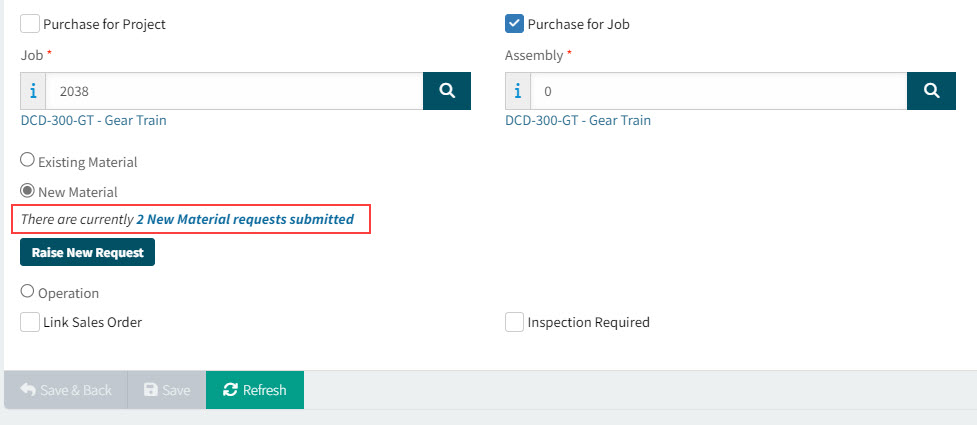
The Submitted New Material Requests page displays.
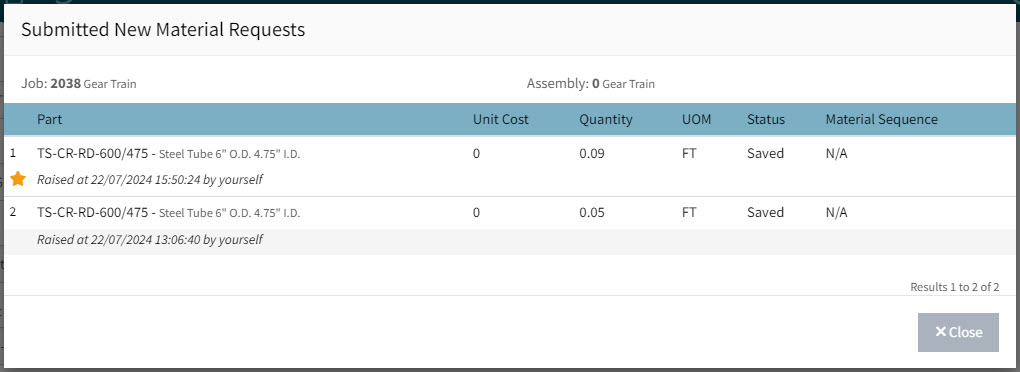
If the details have a gold
 star, then the material was raised for this document.
New Job Material Request
-
Click Raise New Request.
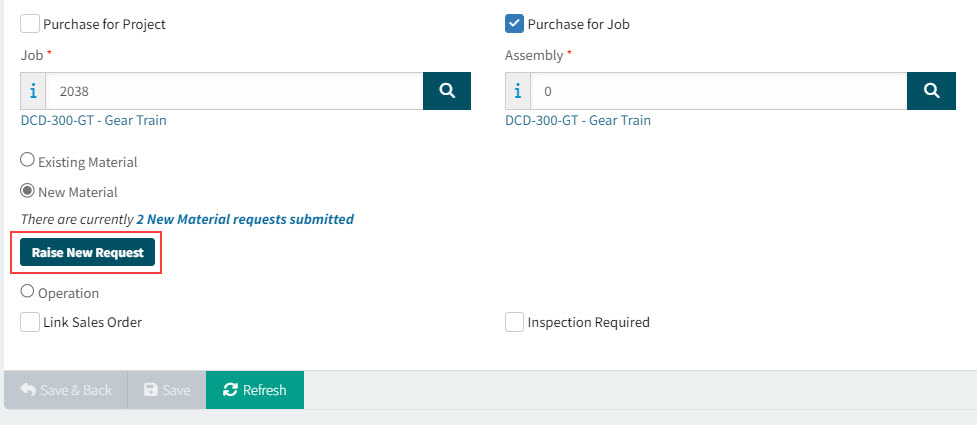
This opens the New Job Material Request pop-up.
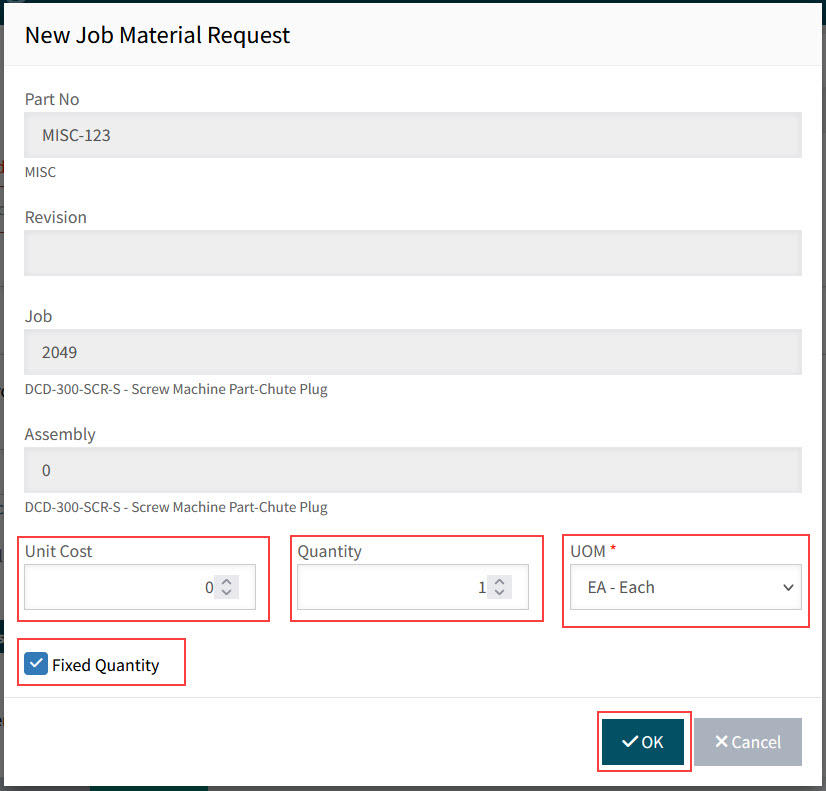
-
Update the Unit Cost, Quantity, UOM.
-
Clear the Fixed Quantity check box if necessary.
-
Click OK.
Operation Select a job operation.
- Link Sales Order
-
Select Link Sales Order to link the document to a Sales Order.
Details
The fields Order Number, Order Line and Release Number appear.
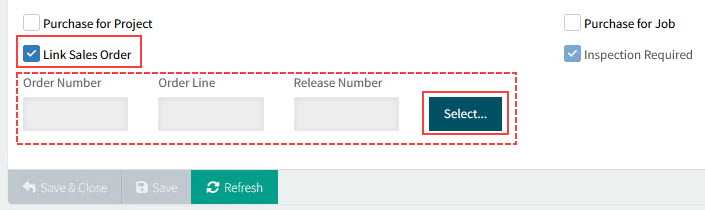
Click the Select button to select an Order Number, Line Number and Release Number.
- Inspection Required
-
If either the Vendor or the Category has Inspection Required selected, then Inspection Required is selected on a document line item and cannot be edited. If neither the Vendor nor the Category has Inspection Required selected, you may select/de-select the check box. Read more about Part Inspection.
-
Select Apply to save changes, or OK to save and return to the document.
Adding Job Material Item to a Standing Order
-
Select Add > Job Material under Line Items on the Requisitions > [Requisition No.] page.
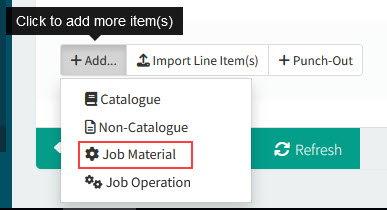
The Add Items from Job Material pop-up screen opens.
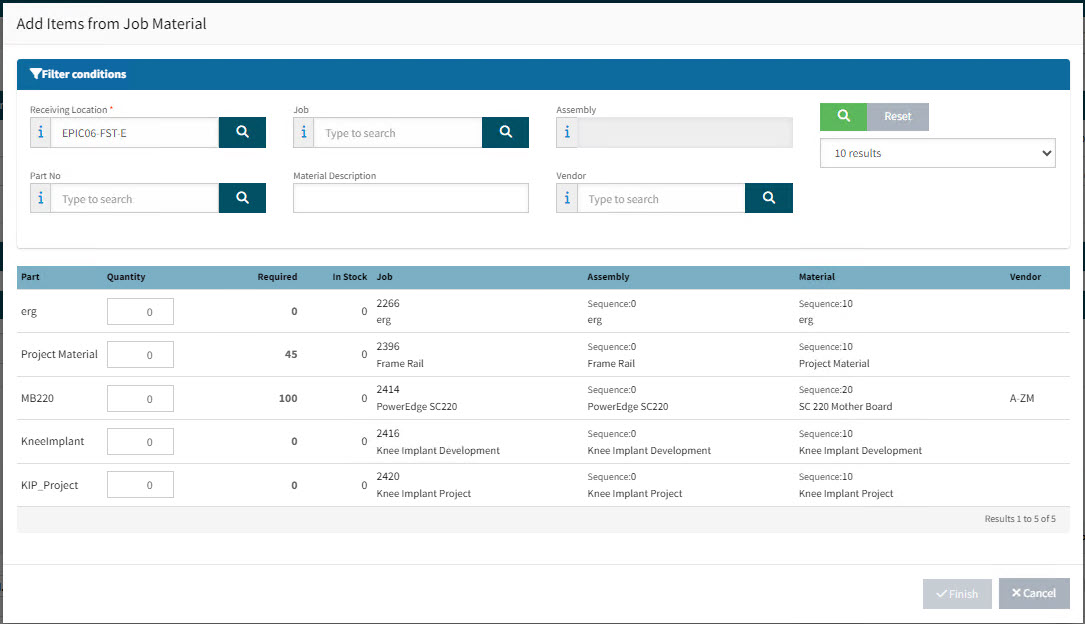
-
Select a Quantity greater than zero for each item that you want to add.
-
Click Finish.
Adding Job Operation Item to a Standing Order
-
Select Add > Job Operation at the bottom of the page.
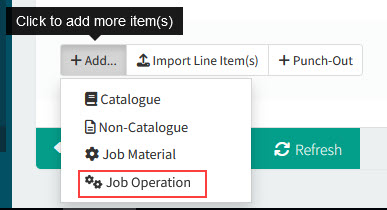
The Add Items from Job Operation pop-up screen opens.
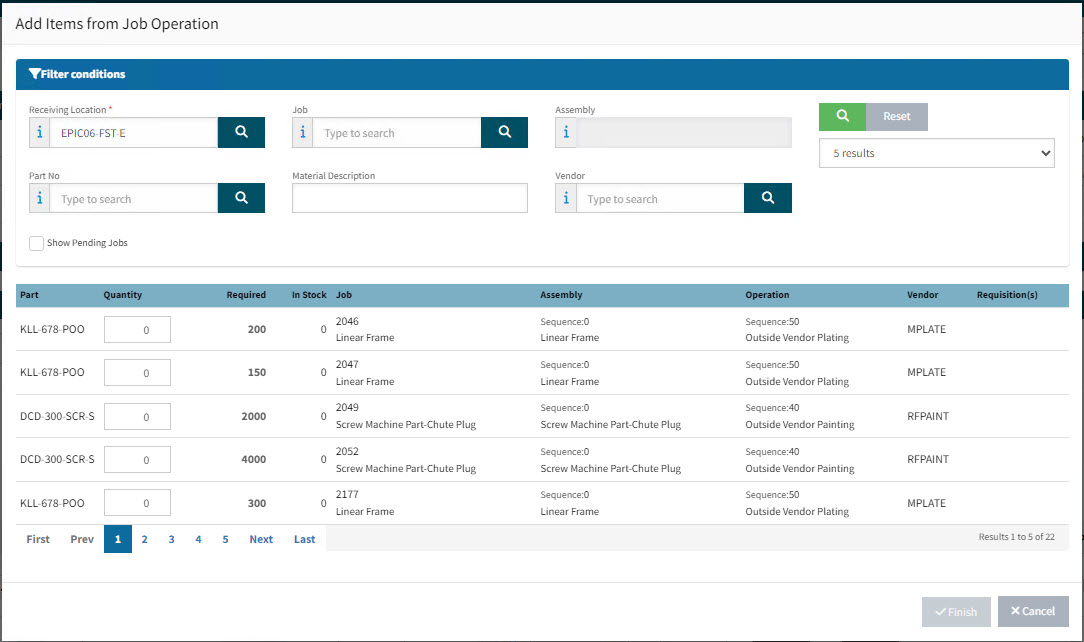
-
Select a Quantity greater than zero for each item that you want to add.
-
Click Finish.
Importing Line Items to a Standing Order
-
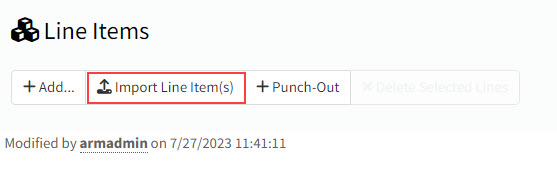
Select Import Line Item(s) under Line Items on the Requisitions > [Requisition No.] page.
The [Document No.] > Requisition Line Import page opens.
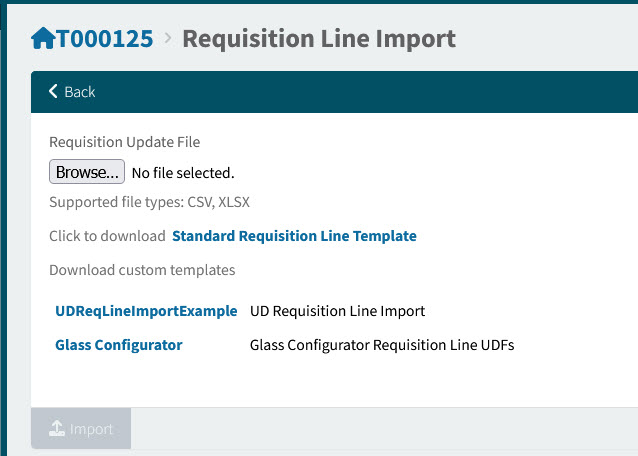
-
Click Browse, then select and Open a file to import.
-
Click Import on the page footer menu.
The file is imported, and the lines are added. Any validation errors appear beneath the file name.
|
To create a file to import, you can download the Standard Requisition Line Template form and update this. If there are any custom templates to download, you can choose one of these instead. Each imported line can include a Note, as well as the Release Date and Due Date for that line. |
Adding PunchOut Items to a Standing Order
-
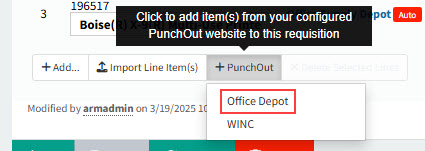
Select a PunchOut for a vendor from the + PunchOut menu at the bottom of the page.
PunchOuts for some of the vendors are configured and maintained by an Administrator. See Maintaining PunchOut.
-
Click OK on the Processing PunchOut dialog box.
The selected vendor’s PunchOut web page is displayed.
-
Select items from the displayed catalog, then finalize the order according to the site’s instructions (for example, add to shopping cart).
When the order has been finalized on the PunchOut site, the site closes.
Items from the PunchOut site are added to the document’s line items.
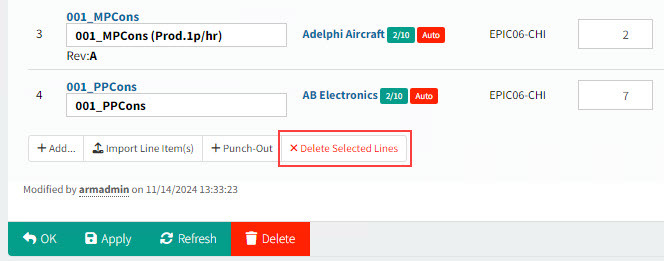
Deleting Standing Order Line Items
To delete items from a document:
-
Select the check box to the right of one or more items to delete.
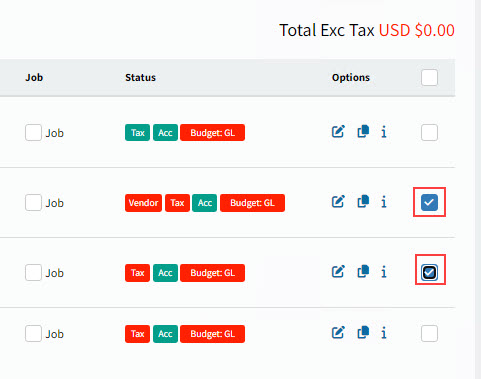
-
Select Delete Selected Items button on the Line Items footer.
Applying Defaults to Standing Order Line Items
-
Before applying defaults, select one or more lines to include in the update, by selecting the check box at the end of the line, under the Options column.
-
Open the Document Defaults section.
-
Optionally update default values.
-
To apply the selected values, click the Apply selected fields to Lines button.
-
Close the Document Defaults section.
Editing Standing Order Line Items
Permissions
- Currency
-
The Edit Requisition Currency Info permission allows you to edit the currency code and exchange rate on a requisition line.
- Due Date
-
The Edit Requisition Due Date permission allows you to edit the due date on a requisition line that is not in approvals.
- UOM
-
-
The Edit Own Requisition Catalogue Item UOM permission allows you to edit the UOM of a catalogue item in a requisition.
-
Edit Requisition Catalogue Item UOM On Approval - The user can edit UOM of a catalogue item in a requisition during the approval process.
-
Edit Requisition Non-Catalogue Item UOM On Approval - The user can edit the UOM of a non-catalogue item in a requisition during the approval process.
-
See Permissions in ARM.
-
Click the edit icon
 to edit a line item.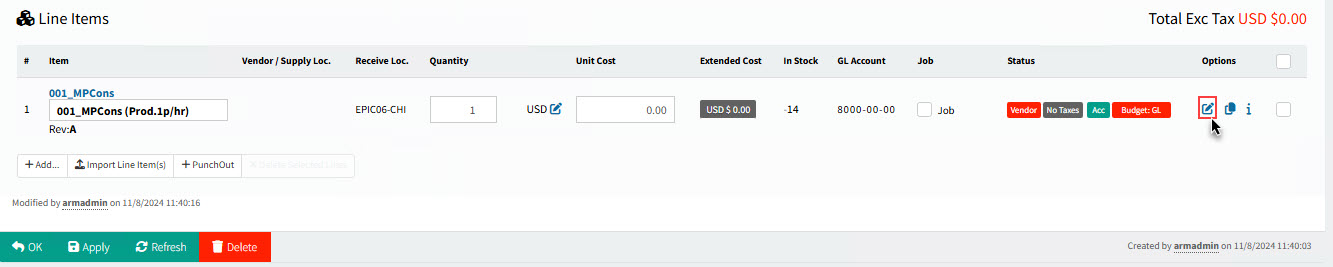
Note that many of the fields on the line item already contain default values.
Default values are either:
-
Document Defaults, if these were entered or selected
-
System Defaults, where no Document Defaults were supplied and the System Defaults could be supplied.
For example, if a Category is selected in Document Defaults, then this is the Category Code on all new line items, otherwise ARM supplies the System Default Category Code.
Example
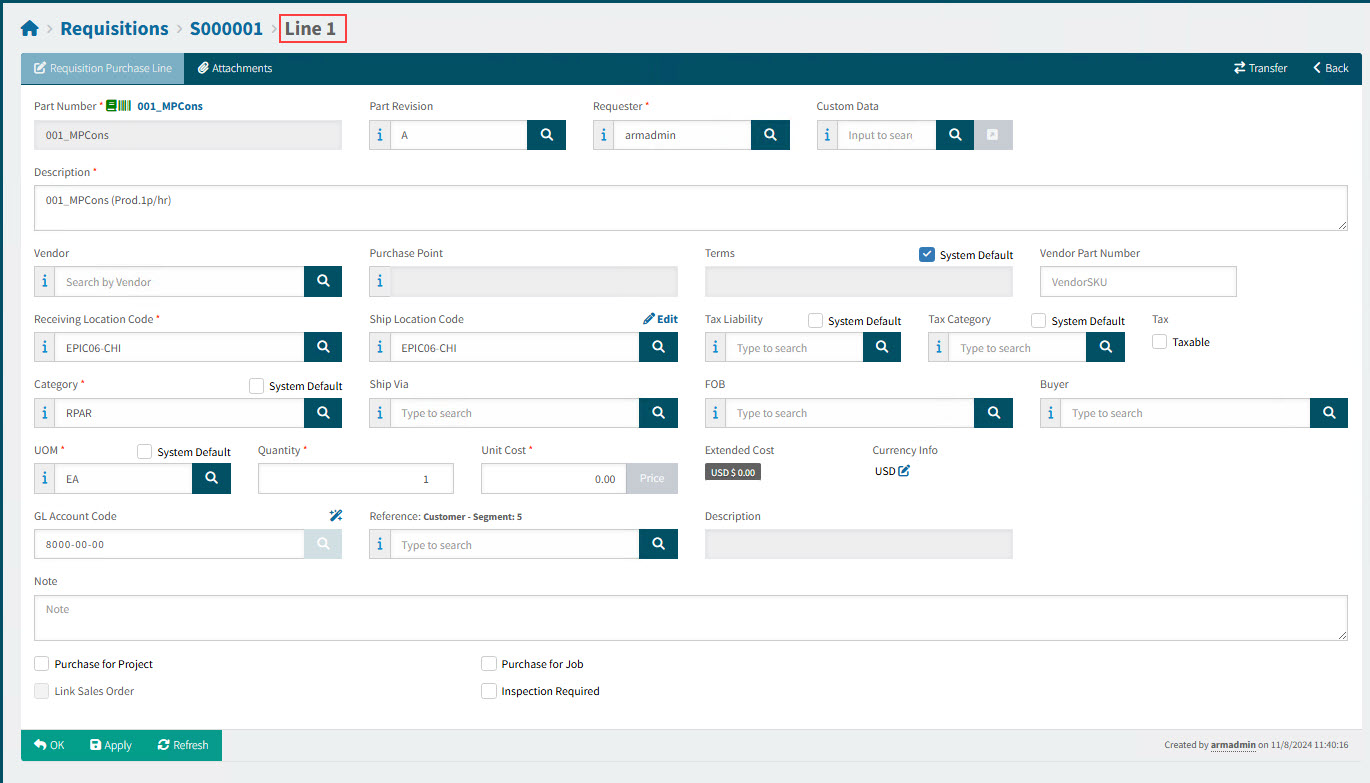
Line Item Fields
- Part Number
-
The icon next to the Part Number indicates what sort of item it is:
Non-catalogue item

Catalogue item

Inventory item (a non-local Catalogue item)
You cannot edit a part number.
- Part Revision
-
Select a Part Revision, if available, or type in a Part Revision.
The Part Revision is only available for inventory
items. - Requester
-
Select a Requester for the line item. You can select any other Requester from your Requester Groups.
- Custom Data
-
This field is available if Use Requisition Types is enabled. See Global Settings.
-
Select a User Assigned Custom Form then click the Values
button. -
Select the required values in the custom form, then click Save and Close. See Custom Form Designer.
-
- Description
-
You can optionally update the item description.
- Vendor
-
To update, select a Vendor by typing a partial name and selecting from the displayed list, which is limited to Vendors Approved for Purchasing that are also on the Catalogue Item’s Price List as an Approved Supplier.
If the selected Vendor’s currency is different from the line currency, the following message appears: Do you want to change the currency to the Vendor’s currency? If you select Yes, the line item’s currency is updated.
- Vendor (One Time)
-
If you select a One Time Vendor, the label changes to Vendor (One Time). See more about One Time Vendor.
-
Click Edit OTV address… above the text box.
-
Enter the OTV Name and Address fields.
-
To add bank or remittance details, select the Create Bank/Remit To check box, then enter the banking details.
-
Click Done editing.
-
- Purchase Point
-
Select a Purchase Point (configured on the Supplier in Kinetic).
If you have a Document Default Purchase Point, then this is selected, otherwise the System Default Purchase Point (if available) is selected.
If you select a different Purchase Point, this clears the System Default check box.
- Purchase Point
-
The vendor’s primary purchase point.
-
The Purchase Point detail is also visible on the Purchase Order report.
-
The Purchase Point’s contact email address is a point of reference for email notification. (The order of preference for an email address is: Purchase Point > Vendor Primary Contact > Other contacts > Vendor.)
- Terms
-
If you have a Document Default Terms Code, then this is selected, otherwise the System Default Terms Code is selected.
If you select Terms, this clears the System Default check box.
- Terms
-
The Terms defaults to the first available from:
-
Supplier (Vendor), if available, otherwise
-
Company settings
-
- Vendor Part Number
-
Enter the vendor part number or SKU (stock taking unit), if known.
- Receiving Location Code
-
You can select a different location code from the one on the Document Defaults. The Global Setting Line Level Locations must be enabled.
Different locations will cause a Requisition to split into separate Pro-Forma Orders and thus different Purchase Orders. See Pro-Forma Order Creation Rules.
Note that the locations can be from multiple companies.
- Ship Location Code
-
You can select shipping location that is different from the receiving location. You can also Edit to edit the Delivery Address. The Global Setting Line Level Locations must be enabled.
If you cannot edit the Delivery Address, you can View it.
The locations can be from multiple companies.
- Tax Liability
-
If you have a Document Default Tax Liability, then this is selected, otherwise the System Default Tax Liability is selected.
If you select a Tax Liability, this clears the System Default check box.
- Tax Liability
-
The Tax Liability defaults to the first available of:
-
The Vendor’s Tax Liability, if available, otherwise
-
The Company Setting Default Tax Liability (Tax Region) Code.
-
- Tax Category
-
If you have a Document Default Tax Category, then this is selected, otherwise the System Default Tax Category is selected.
If you select a Tax Category, this clears the System Default check box.
- Tax Category
-
For Catalogue items, the Tax Category defaults to the first available of:
-
The Tax Category for the Catalogue item for the Location matching the Receiving Location Code
-
The Tax Category for the Catalogue item
-
The Tax Category for the Catalogue’s Category
-
The Default Product Tax Category Code defined in Company Settings.
For items not in the Catalogue, the Tax Category defaults to the Default Product Tax Category Code defined in Company Settings.
-
- Category
-
This defaults to the Catalogue item’s Category.
Default Category for PunchOut lines
The category code defaults to the PunchOut item’s Category code (where this can be mapped out from the PunchOut item’s UNSPSC code - see Category Mapping of PunchOut lines), otherwise the PunchOut vendor’s Category (if defined) - see Maintaining PunchOut.
- Ship Via
-
If you have a Document Default Ship Via, then this is selected, otherwise the System Default Ship Via is selected.
If you select a Ship Via, this clears the System Default check box.
- Ship Via
-
The Ship Via defaults to the first available from:
-
The selected Vendor’s Ship Via value (from the Supplier record on Kinetic).
Ship Via specifies the shipping method (for example, FedEx, or Company Truck) that the supplier uses to ship purchased materials to your shipping location.
-
The Company Setting for Ship Via
-
If PFO Combining is enabled, Requisition lines will combine based on the combinations of line Ship Via and FOB values. - FOB
-
If you have a Document Default FOB, then this is selected, otherwise the System Default FOB is selected.
If you select a FOB, this clears the System Default check box.
- FOB
-
The FOB defaults to the first available from:
-
The selected Vendor’s FOB value (from the Supplier record on Kinetic). The FOB specifies the free on board location for the supplier. This location indicates the point at which title of the shipped goods changes from the supplier to your company.
-
The Company Setting for Default FOB
-
If PFO Combining is enabled, Requisition lines will combine based on the combinations of line Ship Via and FOB values. - Buyer
-
The Buyer for this item. Buyers are integrated from Kinetic and available for selection in this field when Enable Buyer Mapping in Global Settings is set to Yes.
On full approval of a Requisition, the Buyer field will be mapped to the Buyer field on the resulting Pro-Forma Order.
If the Buyer field is blank on the Pro-Forma Order, it will default to the Buyer info on the Root Node of the relevant approval tree. - Mark-up Type
-
This field is visible when the Enable On-charge Mark-up Global Setting is enabled.
Select either Unit Price or Percent.
If there is a configured Default Mark Up in Kinetic, then the default on-charge data is displayed here (based on the Project/Phase/Cost Code and Part selections). You can enter values if necessary.
- Unit Price Mark-Up
-
This field appears if Unit Price is selected for Mark-up Type.
- Mark-up %
-
This field appears if Percent is selected for Mark-up Type.
- UOM
-
If you have a Document Default UOM, then this is selected, otherwise the System Default UOM is selected.
If you select a UOM, this clears the System Default check box.
- UOM
-
This defaults to the catalogue item’s (part) UOM. The available UOM’s in the drop-down list are those that belong to the same UOM group.
When a Vendor is selected and there is a Price for this Vendor, then the UOM for the Vendor Price for this Catalogue Item overrides the Catalogue Item’s UOM.
When a line is added from Job Material, the UOM defaults from the Job Material UOM, overriding the Part UOM.
For non-catalogue requisition line items and AP Invoice Misc lines, the UOM defaults to the company’s Default UOM defined in Company Settings.
- Quantity
-
Enter the item quantity for this line.
- Unit Cost
-
Update the Unit Cost.
For Catalogue Items:
-
The Unit Cost defaults to the Catalogue Item’s current Price, for the selected Vendor, if this is available.
-
To update the Unit Cost, either enter a value, or click Price to update to the Vendor’s price.
-
Updating the Unit Cost for a Catalogue Item requires the permission Edit Own Requisition Catalogue Item Price .
-
- Discount (%)
-
If the Global Setting Enable Purchase Discount is set to Yes, Discount % is displayed.
If there is a Price record for the Catalogue Item for the selected Vendor, then the Discount value is for the Unit Price.
Enter a Discount % for the Unit Cost (permission Edit Purchase Discount Info is required).
- Final Unit Cost
-
This read-only field displays the discounted unit cost.
- Extended Cost
-
This read-only field displays the Unit Cost (or Final Unit Cost if Discounts are enabled) multiplied by the Quantity.
- Currency Info
-
If you have permissions you can change the currency on the line.
Details
Click on the edit
icon next to the currency field.The Currency Info pop-up dialog appears.
Here you can:
-
Select a different Currency from the drop-down list.
-
Select Lock to lock in the current exchange rate between the two currencies (as displayed in the two Rate boxes).
-
Select Apply to apply the new currency to just this line, or select Apply to all lines with the same vendor.
-
- GL Account Code
-
If you have a Document Default GL Account Code, then this is selected, otherwise the System Default GL Account Code is selected.
- GL Account Code
-
See GL Account Mask Sequence for an explanation on how the GL Account Code is derived as a system default.
To show the GL Sequencing Steps:
-
Click on the wand
button above the GL Account Code search box.This opens the GL Sequences information panel.
Example 1: Attribute # 1 has a valid and complete result, which is colored in green.
Example 2: Each result shown here is colored in amber, incomplete but valid. GL Masks that don’t match previous results are displayed in gray.
- Attribute
-
The attribute name from the GL Account Mask Sequence, with the first in the sequence at the top of the list (for example, CATEGORY).
- Value
-
The value of that attribute on the requisition line (for example, HDW).
- GL Mask
-
The GL mask associated with the value of the attribute. e.g., "__-00-20".
If the GL mask does not match the previous result, it is colored in gray and is not used.
- Result
-
The resultant GL Account code when this attribute value’s mask is applied to the cumulative GL Account. The result is color-coded as follows:
- Amber
-
The GL Account mask is incomplete, but valid.
- Red
-
The GL Account mask is complete, but invalid.
- Green
-
The GL Account mask is complete and valid. (This is the value that ARM defaults into the GL Account field.)
GL Sequences displays how the default GL Account Code is derived, according to the GL Account Mask Sequence.
Based on the information displayed, it is possible to see where there are GL Account segments for relevant attribute values that are missing from the Chart of Accounts.
See example where GL Account segments are missing:
Each result shown here is colored in amber: the GL Account mask is incomplete but valid. GL Masks that don’t match previous results are displayed in gray.
To search for a new GL Account Code:
-
Click the search
button on the edit box. This opens the GL Account Code Search screen. Search for and select a new GL Account Code.All GL Account Codes that match the User’s Assigned GL Accounts (for the Company) are available for selection. See Maintaining Users - Assigned GL Accounts Tab.
For Inventory items, the GL Account Code defaults to the GL Account Code for the Catalogue Item Location, unless the Company Setting Use ARM’s GL defaulting logic on inventory items is enabled, in which case the GL Account Code is created as it is for non-inventory items.
To edit the GL Account Code:
-
Edit the GL Account Code in the edit box. This is only possible if you have edit permissions on the three GL Account segments.
OR
-
Click the edit
button on the GL Account Code edit box. This opens the GL Account Segments screen. Search for and select the segments that make up a GL Account Code.Details
NOTE: You may only select GL Account segments for which you have edit permissions. See Editable GL Segments.
In this example, a user may only select the Chart and Department segments.
Details
- Dynamic Reference Segment/s (Client Specific Values)
-
If the Chart of Account structure in Kinetic includes the setup of multiple dynamic segments, these are integrated into ARM and can be selected within Requisition lines.
Example of reference segments:
- Reference: Customer
-
Select a Customer reference from the drop-down list.
- Reference: Employee
-
Select an Employee reference from the drop-down list.
- Reference: Vehicles
-
Select a Vehicle reference from the drop-down list.
You may only select dynamic references for which you have edit permissions. See Editable GL Segments.
In this example, a user may not edit the segment.
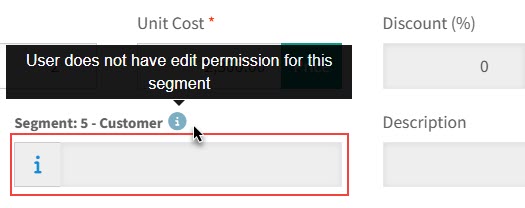
- HS Commodity Code
-
Overwrite the HS Commodity Code, if necessary. This field is required if the Company General Setting for HS Commodity Code Required setting is Yes.
- Note
-
Any note added here will be integrated into Kinetic on the Purchase Order > Line > Comments.
- Purchase for Project
-
Select this check box to enter Project and Phase values.
Project and Phase
These values are sourced from Kinetic. Select a project and phase.
- Project
-
The Requisition will be against this project’s budget.
- Phase
-
The Requisition will be against this project phase’s budget.
Note: Catalogue, Local Catalogue and Non-Catalogue items support this option.
- Purchase for Job
-
Purchase for an item a job (details are sourced from Kinetic). You can select a job, assembly and material/operation.
Job Details
- Job
-
Select a Job.
- Assembly
-
Select an Assembly for the Job.
- Material or Operation
-
The item can be from job operations, existing material, or new material:
Existing Material Select existing material for this job.
New Material Create a New Material request for this job. If a job already has material requests from this or other documents, you can view these.
View Example
-
Click on the message There are currently [x] New Material requests submitted.
The Submitted New Material Requests page displays.
If the details have a gold
star, then the material was raised for this document.New Job Material Request
-
Click Raise New Request.
This opens the New Job Material Request pop-up.
-
Update the Unit Cost, Quantity, UOM.
-
Clear the Fixed Quantity check box if necessary.
-
Click OK.
Operation Select a job operation.
- Link Sales Order
-
Select Link Sales Order to link the document to a Sales Order.
Details
The fields Order Number, Order Line and Release Number appear.
Click the Select button to select an Order Number, Line Number and Release Number.
- Inspection Required
-
If either the Vendor or the Category has Inspection Required selected, then Inspection Required is selected on a document line item and cannot be edited. If neither the Vendor nor the Category has Inspection Required selected, you may select/de-select the check box. Read more about Part Inspection.
-
-
Click Save & Close on the Footer Menu.
OR
- Save
-
Click this button to apply the changes and keep the form open.
- Refresh (button)
-
Click this button to refresh unsaved data.