Submitting an AP Invoice
If an AP Invoice is not submitted automatically, you can submit it manually.
-
Click Submit in the Actions section.
View Example
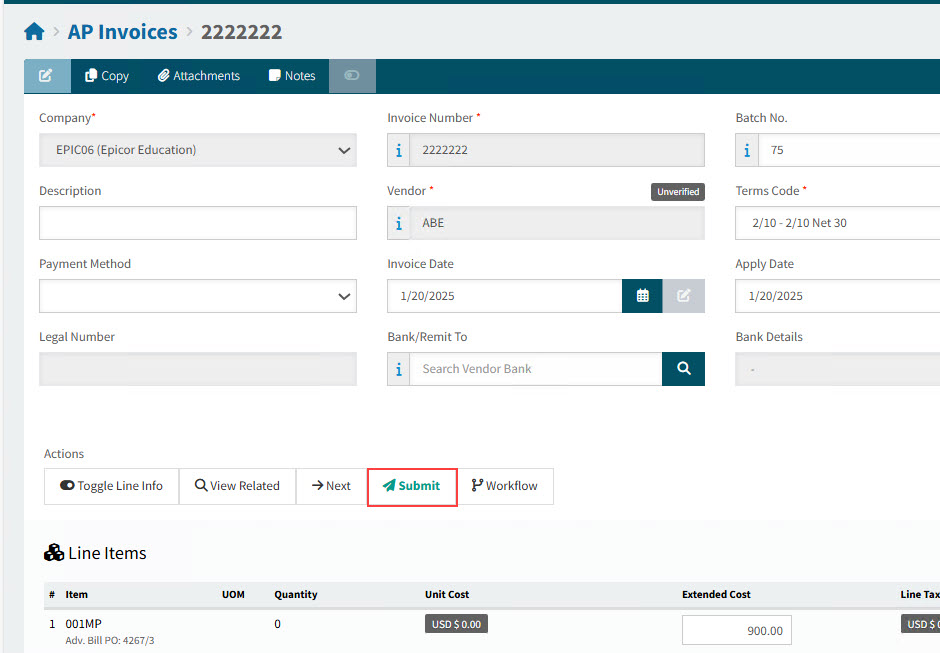
If the entered Apply Date is before the Earliest Apply Date, it overwritten by the Earliest Apply Date on validation. -
If there are errors or warning:
-
Click OK to continue.
-
Attend to any errors or warnings.
-
-
Click Submit again, if necessary.
-
When the AP Invoice successfully submits, click OK on the AP Invoice - Submitted pop-up.
Details
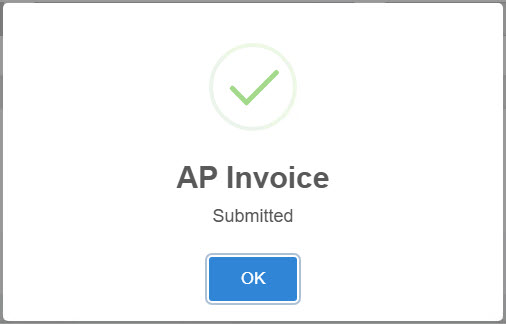
The AP Invoice is either approved automatically, or it enters an approval workflow. See Approving an AP Invoice.
|
Suspended AP Invoices
When a submitted AP Invoice is suspended, a message panel appears on the document showing the reason(s) one or more lines caused the suspension. The suspension of up to five lines are displayed. If there are more than five lines suspended, the total number appears in the header.
Example of a suspended AP Invoice:
