E-mail Template Maintenance
Use the E-mail Template Maintenance page to customize the email templates that are hosted in your ARM storage environment.
When an email notification is ready to be sent, ARM uses the applicable email template to create the email, by substituting tags with values to create text for the email subject and body.
Permissions
You require a role with the Maintain Settings permission to access E-mail Template Maintenance.
See Permissions in ARM.
-
Select the E-Mail Template Maintenance menu item on the Administration Page. See Administration Page.
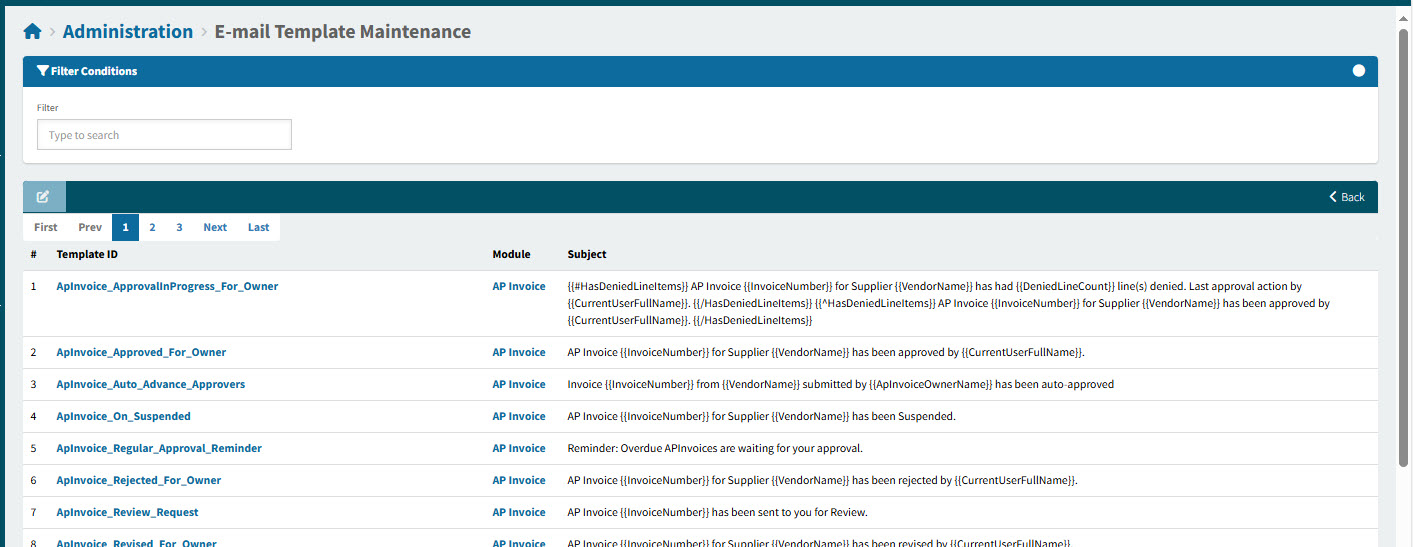
This opens the Administration > E-mail Template Maintenance page.
-
Set the Filter text to limit the search results.
You can filter on either of the following fields by typing in the whole or partial phrase:
-
Template ID
-
Module
-
-
Click on the Template ID or Module name to open a template.
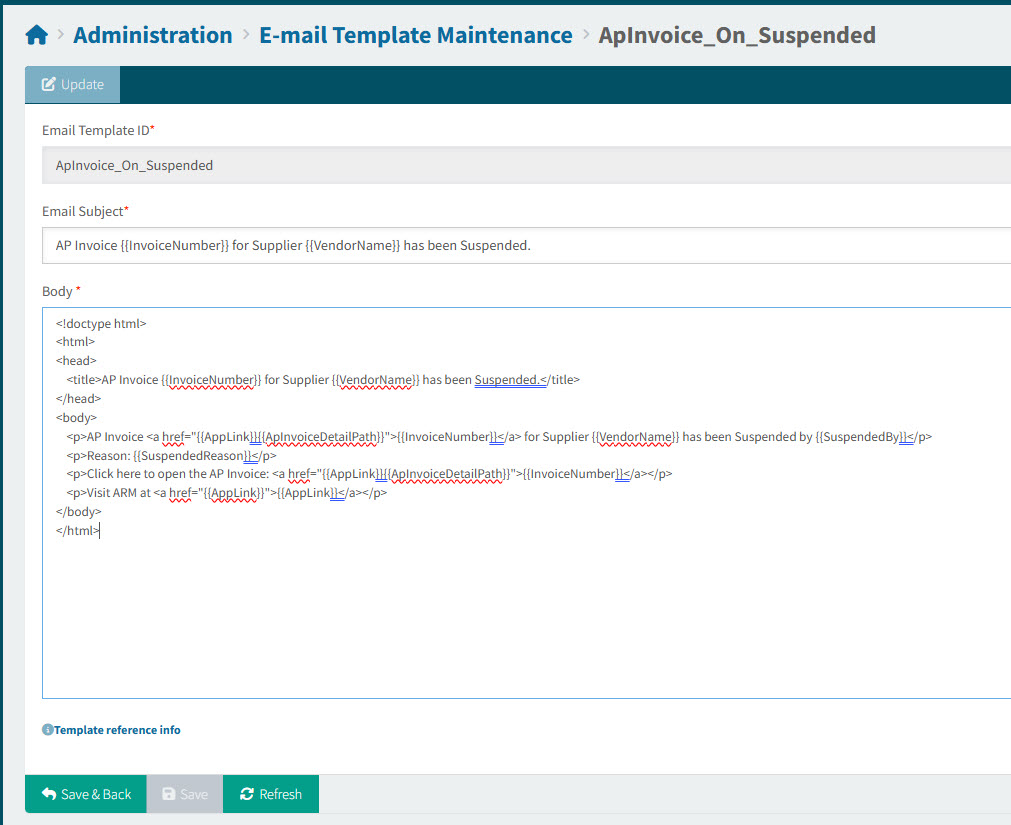
The E-mail template opens in the Administration > Email Template Maintenance > [Template ID] page.
-
Edit the E-Mail Template.
The email subject and body are made up of a combination of plain text words and tags, written in HTML format. The subject may also contain hyperlinks. For example, the extract below uses a combination of all three:
Requisition <a href="{{AppLink}}/{{ReqDetailPath}}" class="important">{{RequisitionNo}}</a> raised by <strong>{{ReqOwnerName}}</strong> is awaiting your approval.The tags point to variables, which are fields from the database tables that are specifically available to that template. For example, the To_Requisition_Approvers email template has access to most of the fields found within a requisition header and its lines, including External Notes for the requisition.
-
Optionally edit the Email Subject.
-
Optionally edit the Body.
Some tips for editing the email subject and body:
-
Click the Template reference info link at the bottom of the page, to open a reference guide. This explains how you can edit the HTML used in the Email Subject and Body using a combination of tags and plain text.
-
By viewing the different templates, you can see which tags are available to use.
-
To see the list of available variables for an email template, type @Payload (and nothing else) in the template body and save it. (Be sure to save a copy of the original in a text editor first.) Next, view the email content by triggering an event (such as submitting a requisition) to send an email or to save the email to a table. All available variables are listed in the email.
-
-
Click Save to save the changes.
The modified E-Mail Template is saved and will be used for future emails.