Value Lists
Use Value Lists to customize the contents of drop-down lists that appear in various pages.
For example, the Receive PO Overdue Reason Value List is used on the Purchase Order Line of an overdue Purchase Order (received after its Due Date), where an Overdue Reason may be provided. See Overdue Purchase Orders. In Value List Settings, you can add, edit or remove items from this list to control what appears in the drop-down list as a valid PO Overdue Reason.
There are two other value lists provided with ARM: PunchOut UOM and PunchOut Tax Code, both relating to PunchOuts.
Apart from the standard value lists mentioned above, you can create and maintain custom value lists. You can add custom value lists as drop-down lists in Custom Forms in the Custom Form Designer. See Custom Form Designer.
Permissions
You require a role with the Maintain Settings permission to access Value Lists.
See Permissions in ARM.
Maintaining Value Lists
-
Select the Value Lists menu item on the Administration Page. See Administration Page.
The Value List Settings page displays.
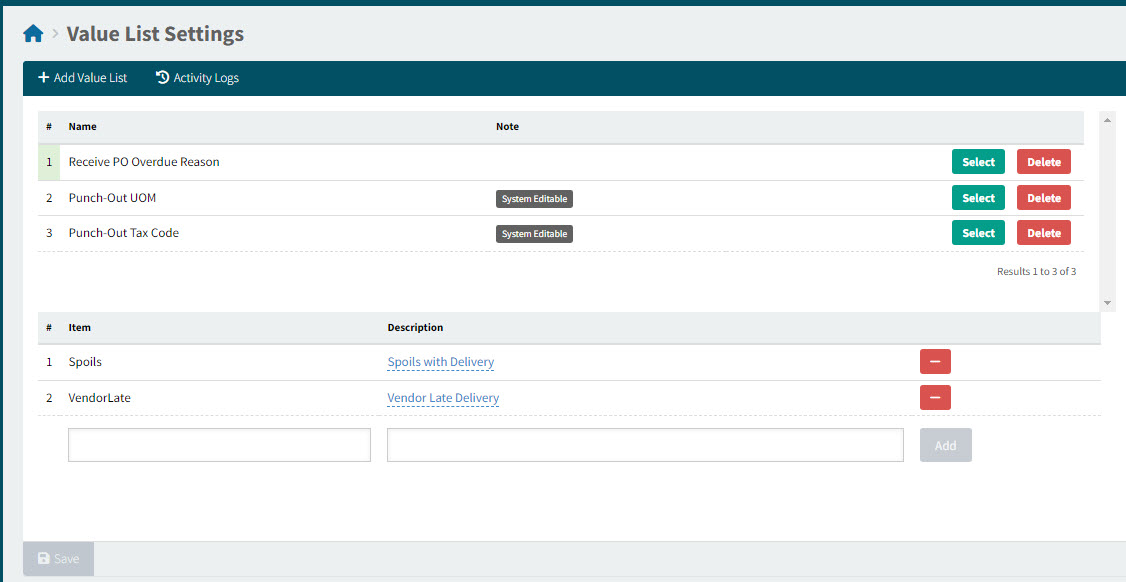
Value List Items
You can add, edit or delete a Value List Item.
Adding a Value List Item
-
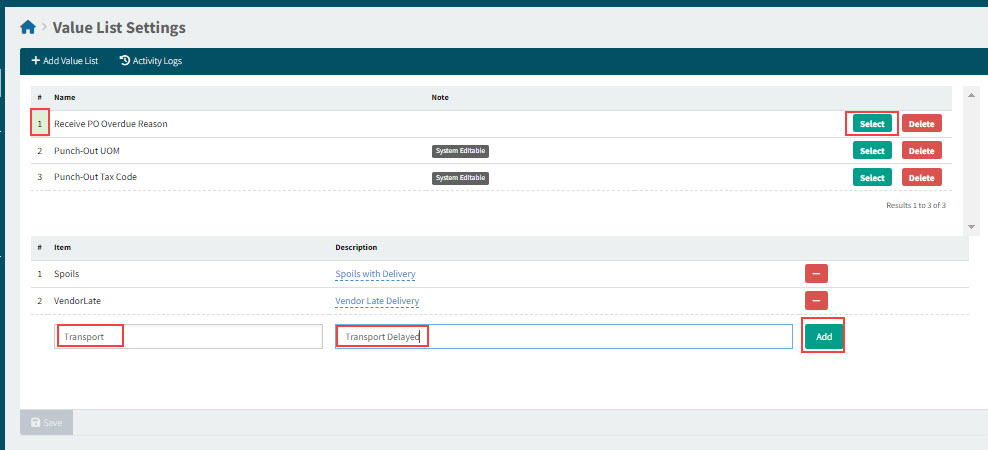
Click Select on the value list row.
The value list row # is highlighted, and the selected list’s items appear below.
-
Scroll to the end of the item list, to the blank Item and Description fields.
-
Type in the Item and a Description, then click Add.
-
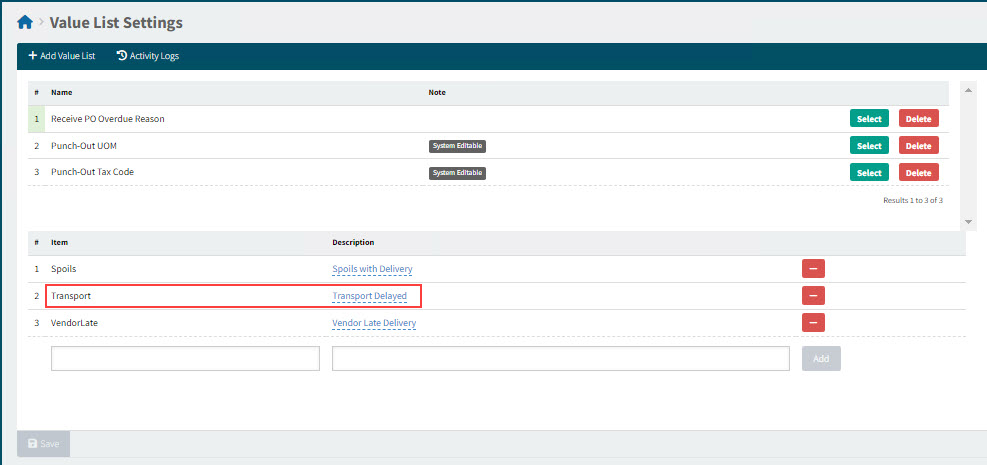
Click Save.
The new item is added, and the list is resorted alphabetically, by Item.
Editing a Value List Item
-
Click Select on the value list row.
The value list row # is highlighted, and the selected list’s items appear below.
-
In the item list, scroll to the item that you want to edit.
-
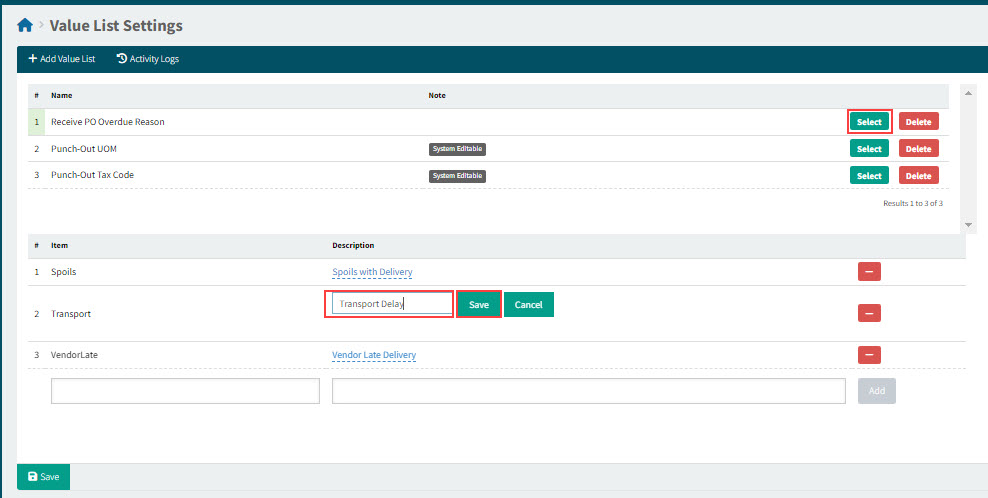
Select the Description on the item row.
-
Edit the Description then click the Save button next to the Description.
Deleting a Value List Item
-
Click Select on the value list row.
The value list row # is highlighted, and the selected list’s items appear below.
-
In the item list, scroll to the item that you want to delete.
-
Click the delete button
 on the item row.
 -
Click Save.
Values Lists
You can add or delete a Value List.
Adding a Value List
-
Select Add Value List on the menu bar.
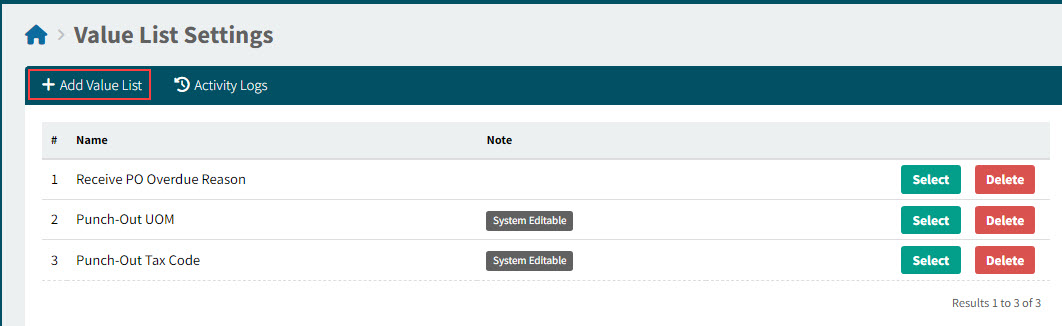
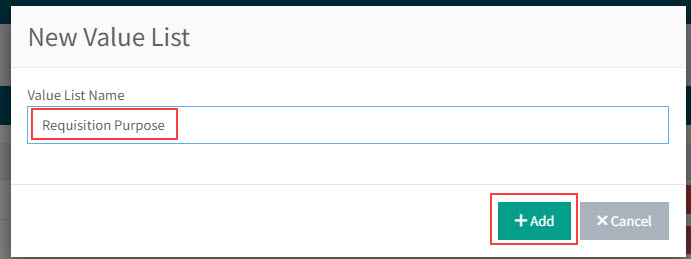
The New Value List pop-up dialog appears.
-
Enter a Value List Name.
-
Select Add.
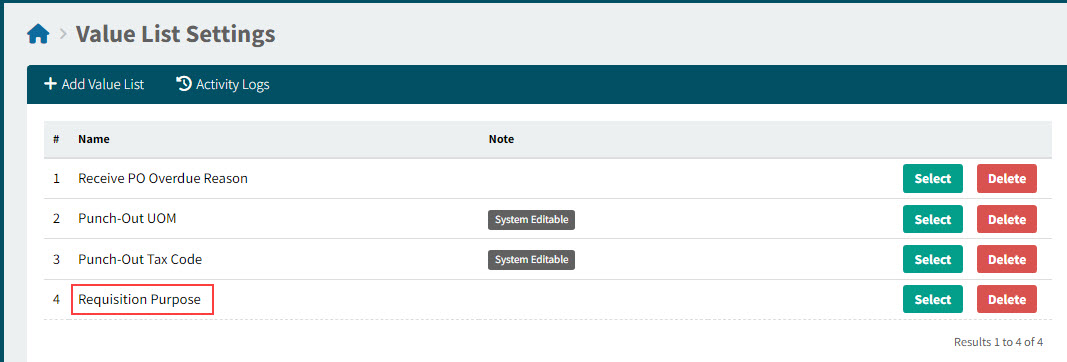
The new Value List is added.
-
Deleting a Value List
-
Click the Delete button on the value list row.
-
Click Yes on the confirmation dialog.
The value list is deleted.
| You won’t be able to delete a value list if it is used elsewhere in ARM. |