Categories
Categories are initially defined through Kinetic, after which additional configuration can be done within ARM.
ARM Categories are the equivalent of Part Classes in Kinetic. The ARM Integration Manager job that integrates Categories from Kinetic to ARM is PartClass.
Each Inventory Item needs to be associated with a Category before it can be used in ARM for requisitioning.
Permissions
You require a role with the Maintain Categories permission to access Categories maintenance. See Permissions in ARM.
Account Code Masks for Categories
Within ARM you can configure an account code mask and set one or more Default GL Reference Codes for each Category. You should define a unique and non-overlapping account code mask to represent a natural account code for each Category.
Taxonomy for Category Mapping of PunchOut lines
ARM supports the United Nations Standard Products and Services Code (UNSPSC) taxonomy for PunchOut lines.
Within ARM, add one or more UNSPSC Classifications to each Category.
When PunchOut lines are added to a Requisition, the UNSPSC code from the PunchOut item is mapped to the Category Code in ARM, with the matching UNSPSC classifications. This is the Category that may be used for the Line Item. See Category Defaults for the hierarchy of defaults used for Category code for a PunchOut item.
Maintaining Categories
To use Categories within ARM, allocate a Category Group and a GL Account Mask. You can also assign UNSPSC Codes for PunchOuts.
-
Select the Categories menu item on the Administration Page. See Administration Page.
The Categories page opens.
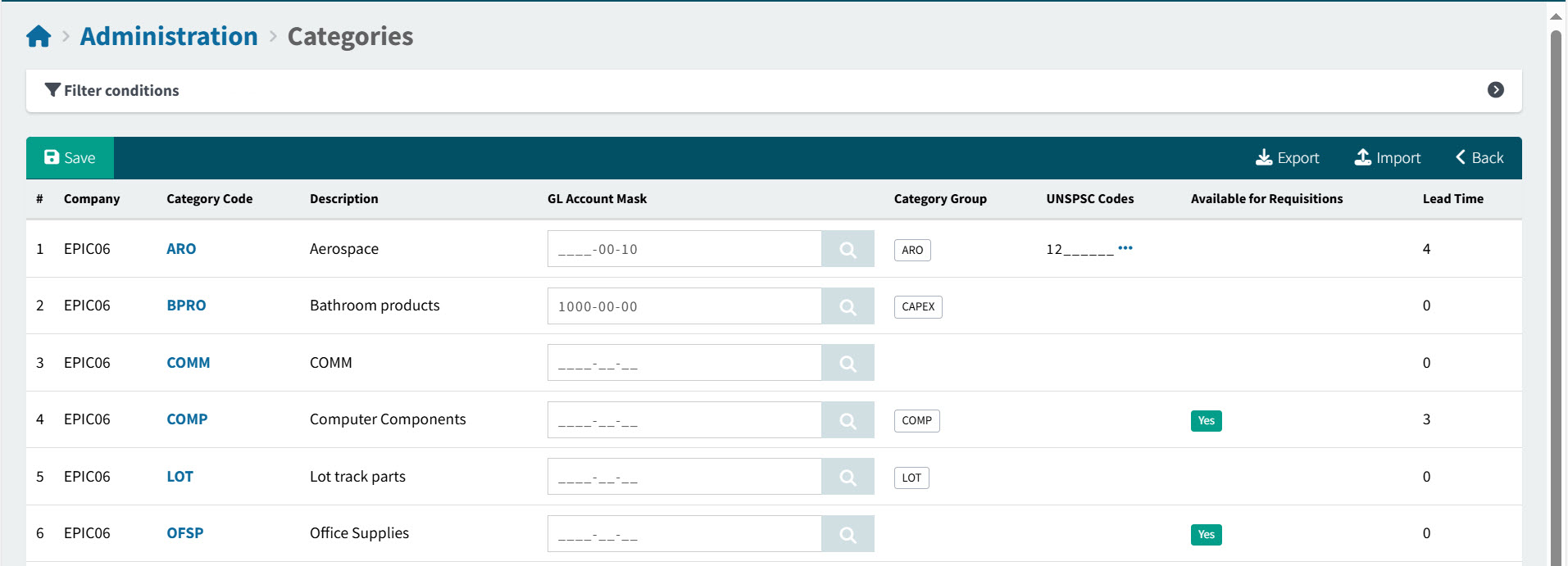
Company The Category’s Company is maintained in Kinetic.
Category Code The unique code to identify this category. This is maintained in Kinetic.
Description The Description is maintained in Kinetic.
GL Account Mask Category Group The Category is grouped along with other Categories from this group. Categories are assigned to Category Groups from Category Group Maintenance. See Maintaining Category Groups.
UNSPSC Classifications One or more full or partial UNSPSC Classifications is listed per Category. See Taxonomy for Category Mapping of PunchOut lines.
Available for Requisition This flag is set in Kinetic, and may affect whether parts (catalogue items) belonging to this Category are restricted. See Restricted Catalogue Items.
Lead Time The Lead Time (in days) may affect how Due Date for Requisitions is calculated.
-
To assign a GL Account Mask, search and select one for each Category row.
-
Use the buttons on the menu bar to view and edit, export, or import categories.
Viewing and Updating Categories
-
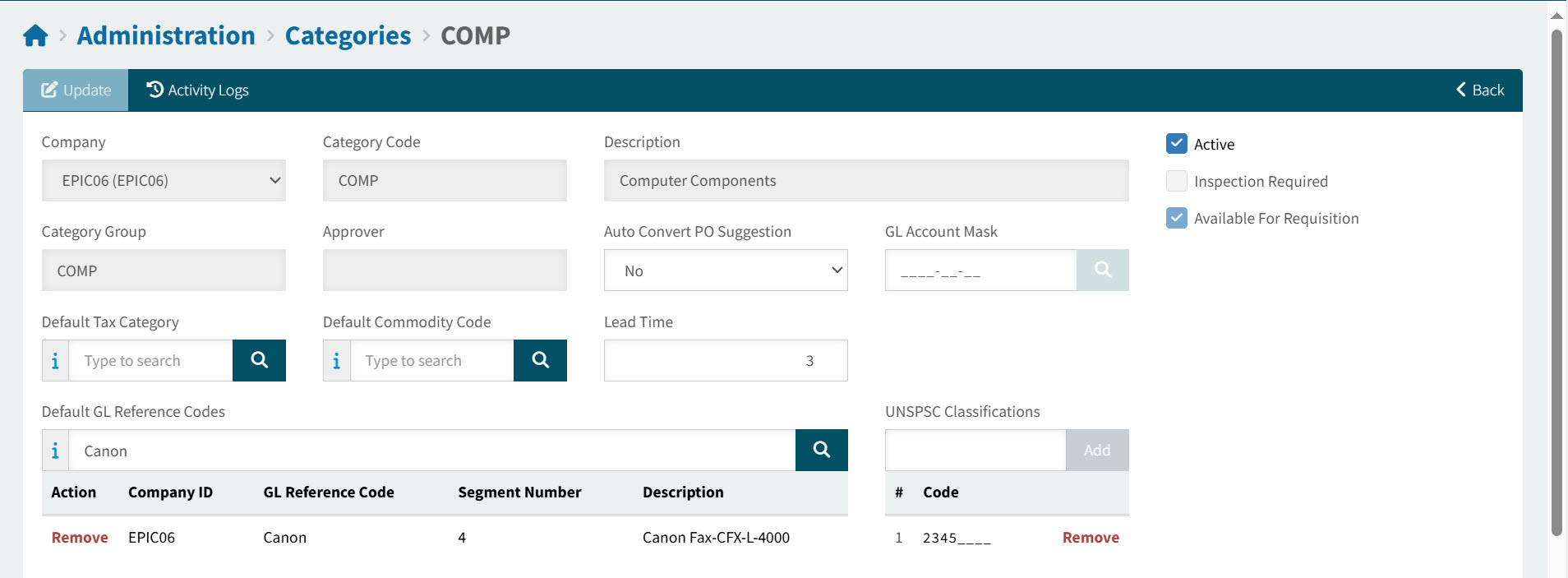
To configure or view Category details, click on the Category Code to open the Administration > Categories > [Category Code] page.
View Details
-
Update the fields as required. Some of these are read-only.
Category Fields:
Company The Category’s Company is maintained in Kinetic.
Category Code The unique code to identify this category. This is maintained in Kinetic.
Description The Description is maintained in Kinetic.
Category Group The Category is grouped along with other Categories from this group. Categories are assigned to Category Groups from Category Group Maintenance. See Maintaining Category Groups.
Approver The approver for a node on a Category Tree, where this Category is included in one of the Category Groups in the node’s Criteria.
Auto Convert PO Suggestion This setting, at Catalogue Item level, specifies whether PO Suggestions should automatically be converted to Requisitions. The setting may be inherited from the Category, at Catalogue Item level. See Adding Local Items to the Catalogue.
GL Account Mask See Account Code Masks for Categories.
Select a GL Account Mask for the Category.
Default Tax Category Optionally enter a Default Tax Category, which is used in the default logic for the Tax Category.
Default Commodity Code Optionally enter a Default Commodity Code, which is used in the default logic for the HS Commodity Code.
Lead Time The Lead Time (in days) may affect how Due Date for Requisitions is calculated.
Default GL Reference Codes Add one or remove a GL Reference Code. This is used accordance with the ordering defined in the GL Reference Sequence.
UNSPSC Classifications One or more full or partial UNSPSC Classifications is listed per Category. See Taxonomy for Category Mapping of PunchOut lines.
Add or remove one or more UNSPSC Codes.
Active You may only update the Active status for the category if it is Active in Kinetic. You may only use catalogue items from Active categories when adding line items to a requisition.
Inspection Required If either the Vendor or the Category has Inspection Required selected, then Inspection Required is selected on a document line item and cannot be edited. If neither the Vendor nor the Category has Inspection Required selected, you may select/de-select the check box. Read more about Part Inspection.
This flag is maintained in Kinetic.
Available for Requisition This flag is set in Kinetic, and may affect whether parts (catalogue items) belonging to this Category are restricted. See Restricted Catalogue Items.
-
Select Apply or OK to save the changes.
Exporting Categories
Use this function to export a list of categories. This can be used as follows:
-
As a template for performing bulk updates on selected categories.
-
As a file of category updates to import in a different environment.
To create a file of categories:
Filter a list of categories to update, using the filter conditions.
-
Click
 Export on the Menu Bar.
The result set is exported and saved into the Downloads folder in a file called 'CategoryList_[YYYY-MM-DD]'.
Importing Categories
Use the Catalogue Import function to update categories.
-
Click Import on the Category menu bar.
-
In the Templates section, download the ARM Category Details template by clicking on it.
Alternatively, you can use an exported file.
-
Open the template file or exported file and make the appropriate updates.
-
Click Choose File to select the file to import.
-
Click
 Import.
 -
After importing:
To update the details for any one catalogue, select that catalogue from the Administration > Catalogue page. See Maintaining Categories.