Roles
Roles are used for grouping a selection of Permissions and GL Account Masks. When roles are then assigned to users, the permissions and GL Account Masks associated with these roles collectively form the Permissions and GL Accounts for the users.
Permissions
You require a role with the Maintain Roles permission to access Roles maintenance. See Permissions in ARM.
To find out which roles a permission belongs to:
On the Roles page:
-
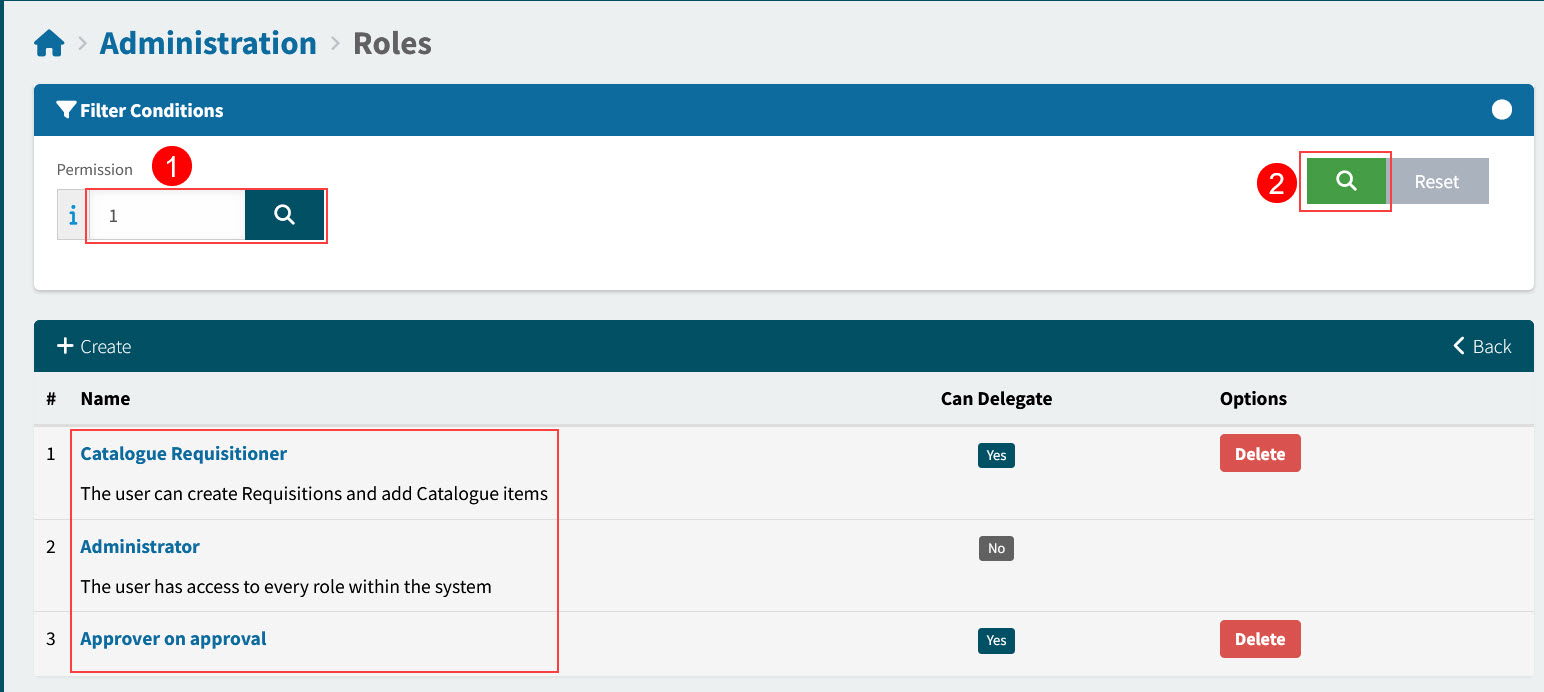
Search for the permission using the Permission search box, selecting the permission from the Permission Search pop-up display.
The selected permission ID appears in the Permission search box.
-
Click the search button
 on the Roles page.
The roles that have the selected permission are listed under the Name column.
Maintaining Roles
ARM provides a default set of Roles with assigned permissions, based on standard Roles. These Roles can be edited or deleted, and new Roles can be created if required.
-
Select the Roles menu item on the Administration Page. See Administration Page.
The Roles page displays.
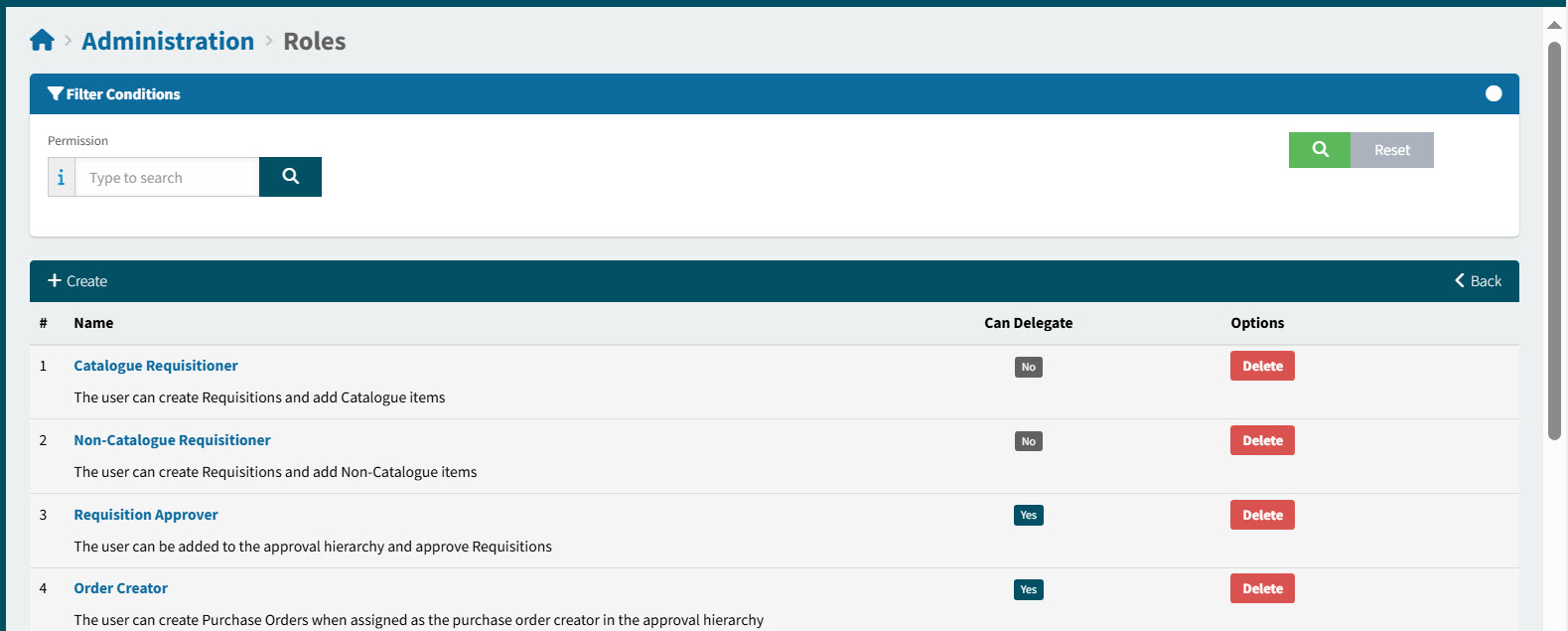
You can add, edit or delete a Role.
Adding a Role
-
Click
 Create on the menu bar to create a new role.
This opens the Administration > Roles > Add New page for a new role.
-
Update the fields and assign permissions to the new role, as described in Editing a Role.
The new role is added to the Roles page, and can be assigned to Users.
Editing a Role
-
To edit a role, click on the role’s Name.
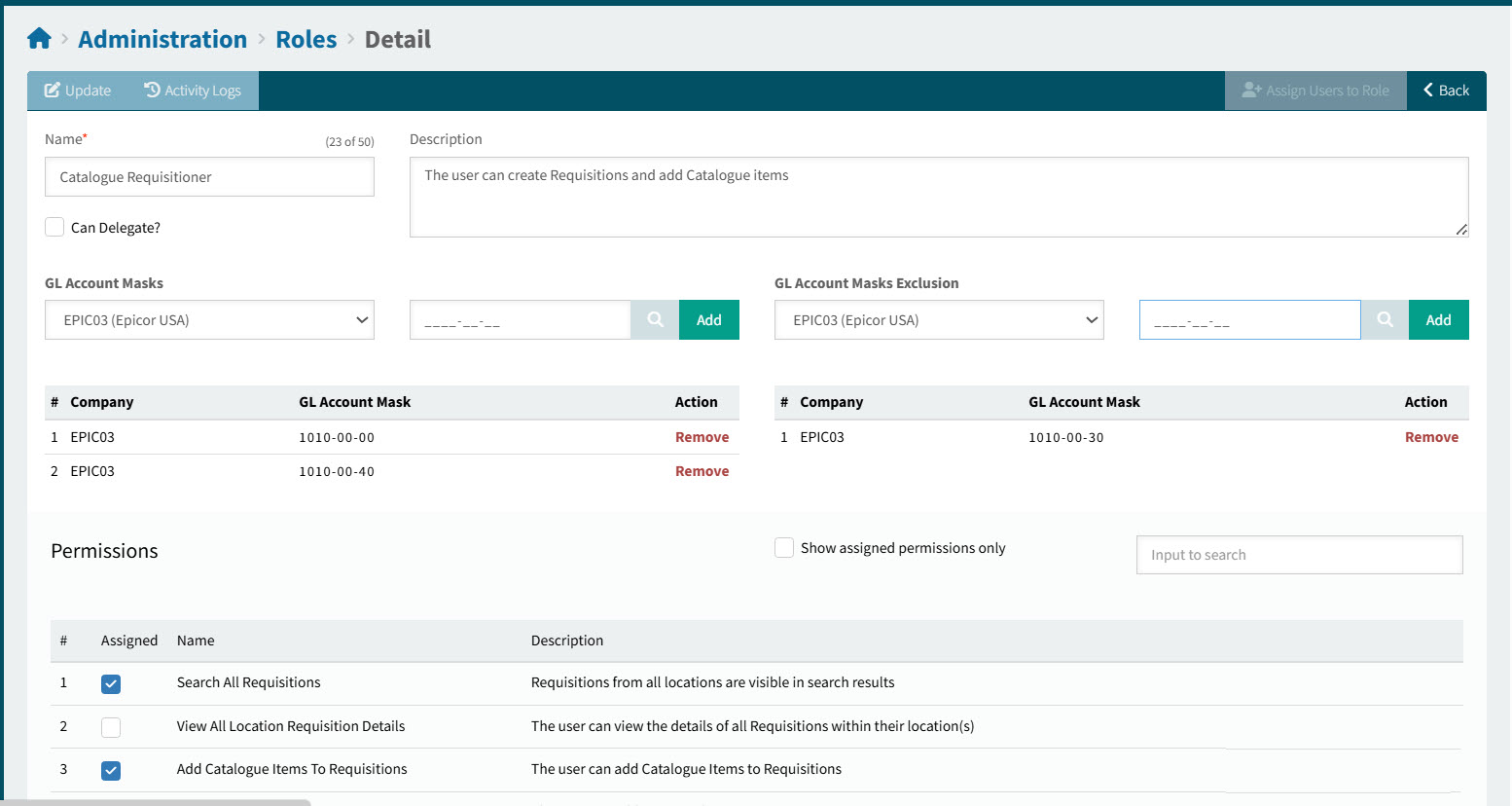
This opens the Administration > Roles > Detail page for that role.
-
Update the fields.
- Name
-
Enter a unique and descriptive name for the role.
- Description
-
Enter a description for the role.
- Can Delegate?
-
If selected, the role can be delegated to another user. See Delegating Roles.
- GL Account Masks
-
Select a Company. Then select a GL Account Mask and click Add. Continue to add all GL Account Masks to be included for this Role.
- GL Account Masks Exclusion
-
Select a Company. Then select a GL Account Mask and click Add. Continue to add all GL Account Masks to be excluded for this Role.
-
Add or remove permissions associated with the role, by selecting/deselecting the Assigned check box for the permission.
You can filter the list of permissions by selecting Show assigned permissions only, or by entering text in the Input to search text box. -
Click Apply to save changes to the role.
Deleting a Role
To delete a role:
-
Click on the Delete button for that row, under the Options column.
-
Click Yes on the confirmation dialog.
The role is deleted.
| You cannot delete a role that is assigned to one or more users. |
Standard ARM Roles
ARM comes with standard Roles.
You can add extra permissions to these roles, and you can also add new roles.
View Standard ARM Roles:
Name |
Description |
Catalogue Requisitioner |
The user can create Requisitions and add Catalogue items. |
Non-Catalogue Requisitioner |
The user can create Requisitions and add Non-Catalogue items. |
Requisition Approver |
The user can be added to the approval hierarchy and approve Requisitions. |
Order Creator |
The user can create Purchase Orders when assigned as the purchase order creator in the approval hierarchy. |
Order Receiver |
The user can receive purchase orders. |
Manage Catalogue |
The user can edit the system’s catalogue. |
Manage Settings |
The user can edit the system’s settings. |
Manage Users |
The user can edit the system’s Users. |
Manage Approvals |
The user can edit the system’s Approval Hierarchy, Locations, Categories and Category Groups. |
Manage Vendors |
The user can edit the system’s Vendors. |
Administrator |
The user has access to every role within the system. |
AP Invoice Approver |
The user can be added to the approval hierarchy and approve AP Invoices. |
Permissions
To see the full list of permissions in ARM:
-
From Administration > Roles, select any role to open Administration > Roles > Detail.
-
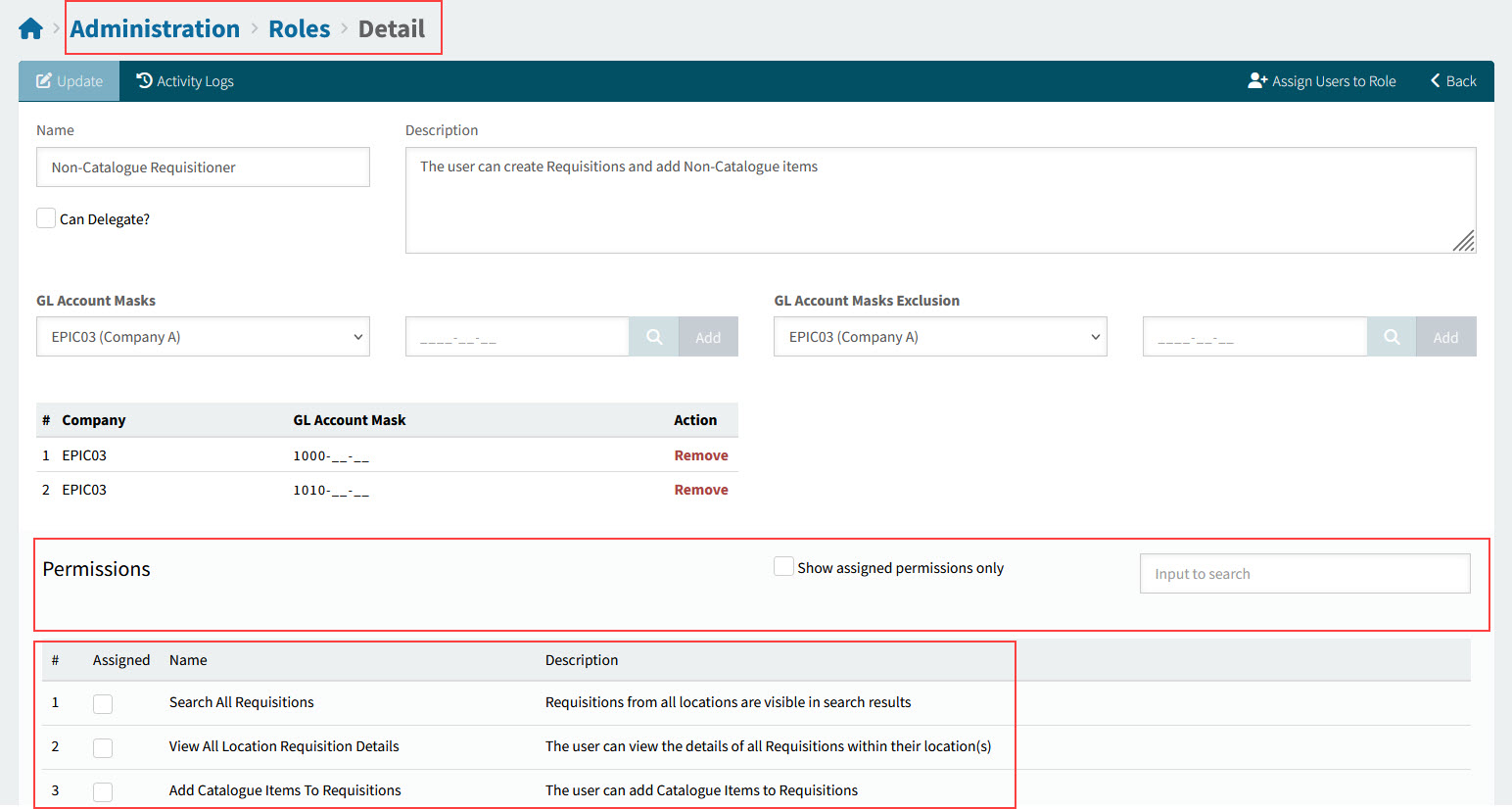
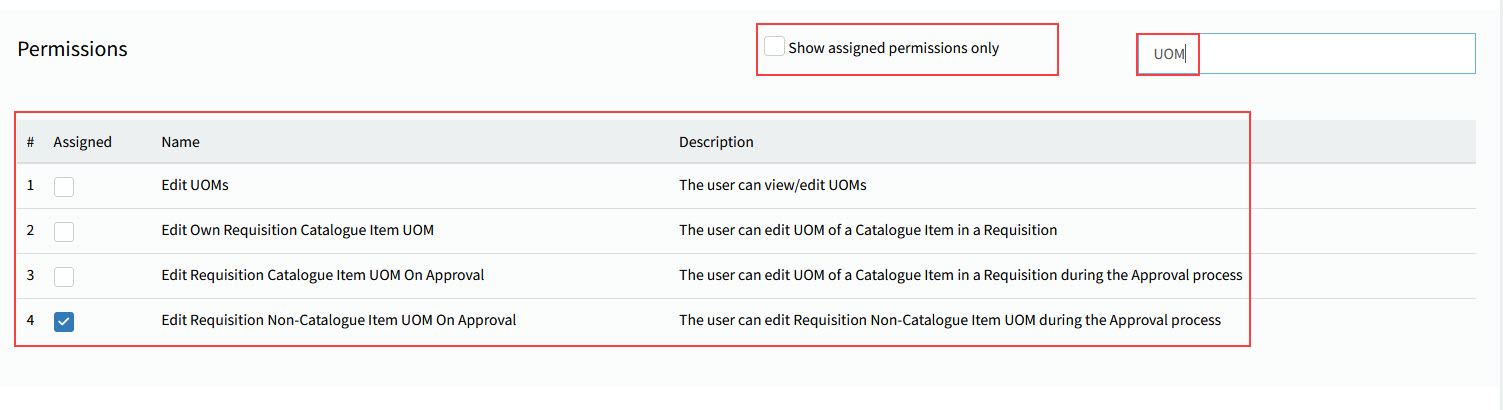
In the Permissions panel, clear the Show assigned permissions only check box and clear the Input to search edit box.
The permissions are displayed in the panel.
To search for a permission:
-
From Administration > Roles, select any role to open Administration > Roles > Detail.
-
Clear the Show assigned permissions only check box and type a search term in the Input to search edit box.
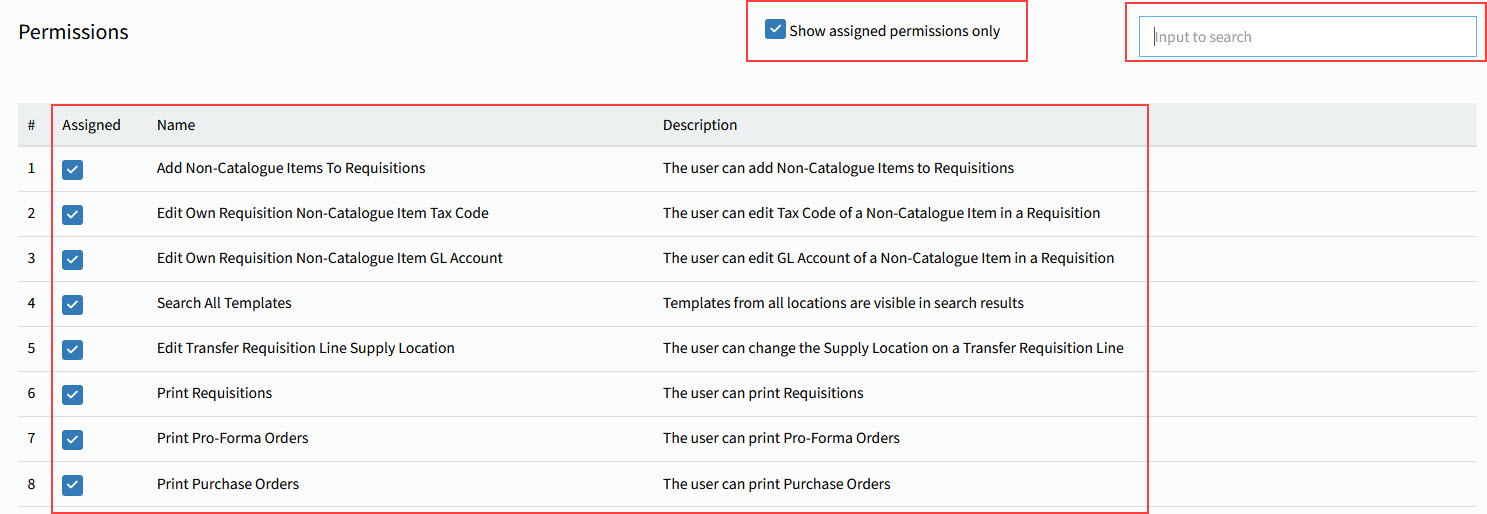
To see the list of permissions for a role:
-
From Administration > Roles, select a role to open Administration > Roles > Detail.
-
In the Permissions panel, select the Show assigned permissions only check box and clear the Input to search edit box.
All permissions for the role are displayed in the panel.
Assigning Permissions to a User
-
Establish which roles a permission belongs to.
-
Assign one of those roles to the user. See Maintaining User Details.
Permissions in ARM
See full table of Permissions:
| ID | Name | Description |
|---|---|---|
33 |
Search All Requisitions |
Requisitions from all locations are visible in search results. |
18 |
View All Location Requisition Details |
The user can view the details of all Requisitions within their location(s). |
1 |
Add Catalogue Items To Requisitions |
The user can add Catalogue Items to Requisitions. |
2 |
Add Non-Catalogue Items To Requisitions |
The user can add Non-Catalogue Items to Requisitions. |
24 |
Edit Own Requisition Catalogue Item GL Account |
The user can edit GL Account of a Catalogue Item in a Requisition. |
28 |
Edit Own Requisition Catalogue Item Tax Code |
The user can edit Tax Code of a Catalogue Item in a Requisition. |
14 |
Edit Own Requisition Catalogue Item Price |
The user can edit the price of a Catalogue Item in a Requisition. |
29 |
Edit Own Requisition Non-Catalogue Item Tax Code |
The user can edit Tax Code of a Non-Catalogue Item in a Requisition. |
175 |
Edit UOMs |
The user can view/edit UOMs. |
25 |
Edit Own Requisition Non-Catalogue Item GL Account |
The user can edit GL Account of a Non-Catalogue Item in a Requisition. |
30 |
Edit Requisition Catalogue Item Tax Code On Approval |
The user can edit Tax Code of a Catalogue Item in a Requisition during the Approval process. |
39 |
Edit Requisition Line Type |
The user can change the line type on a Requisition Line. |
59 |
Edit Requisition Vendor - Catalogue Items |
The user can change Vendor for a requisition Catalogue item. |
41 |
Void Transfers |
The user can void Transfers. |
42 |
Ship Transfers |
The user can ship Transfers. |
43 |
Receive Transfers |
The user can receive Transfers. |
31 |
Edit Requisition Non-Catalogue Item Tax Code On Approval |
The user can edit Tax Code of a Non-Catalogue Item in a Requisition during the Approval process. |
26 |
Edit Requisition Catalogue Item GL Account On Approve |
The user can edit GL Account of a Catalogue Item in a Requisition during the Approval process. |
27 |
Edit Requisition Non-Catalogue Item GL Account On Approve |
The user can edit GL Account of a Non-Catalogue Item in a Requisition during the Approval process. |
36 |
Search All Templates |
Templates from all locations are visible in search results. |
15 |
Edit Requisition Catalogue Item Price On Approval |
The user can edit the price of a Catalogue Item in a during the Approval process. |
34 |
Search All Pro-Forma Orders |
Pro-Forma Orders from all locations are visible in search results. |
37 |
Search All Pro-Forma Transfers |
Pro-Forma Transfers from all locations are visible in search results. |
38 |
Search All Transfers |
Transfers from all locations are visible in search results. |
11 |
Approve Requisitions |
The user can be added to the approval hierarchy and approve Requisitions. |
35 |
Search All Purchase Orders |
Purchase Orders from all locations are visible in search results. |
40 |
Edit Transfer Requisition Line Supply Location |
The user can change the Supply Location on a Transfer Requisition Line. |
12 |
Create Purchase Orders in Accessible Locations |
The user can create Purchase Orders in accessible locations. |
145 |
View Purchase Orders in Accessible Locations |
The user can view Purchase Orders in accessible locations. |
32 |
Maintain Roles |
The user can view/add/edit/delete applications Roles. |
13 |
Receive Purchase Orders in Accessible Locations |
The user can receive Purchase Orders in accessible locations. |
16 |
View Reports |
The user can view Management Reports. |
17 |
Maintain Reports |
The user can add/edit/delete Management Reports. |
6 |
Maintain Approval Hierarchy |
The user can view/edit the approval hierarchy. |
44 |
Quick Receive POs |
The user can receive Purchase Orders while in the search screen. |
45 |
Quick Close POs |
The user can close Purchase Orders while in the search screen. |
46 |
Quick Receive Transfers |
The user can receive Transfers while in the search screen. |
47 |
Quick Ship Transfers |
The user can ship Transfers while in the search screen. |
48 |
Quick Void Transfers |
The user can void Transfers while in the search screen. |
51 |
Print Requisitions |
The user can print Requisitions. |
53 |
Print Pro-Forma Orders |
The user can print Pro-Forma Orders. |
54 |
Print Purchase Orders |
The user can print Purchase Orders. |
19 |
Edit All Requisitions |
The user can edit any Requisition. |
20 |
Un-Suspend All Requisitions |
The user can un-suspend any Requisition. |
55 |
View Attachments |
The User can Open/View attachments from the Attached Files List. |
49 |
Send Vendor Notification |
The user can send/resend Vendor notification (EDI, EMAIL, FAX). |
56 |
Maintain Attachments |
The User can Add/Remove attachments to the Attached Files List. |
52 |
Print Templates |
The user can print Templates. |
200 |
Search Attachments |
The User can access to the "Search Attachments" menu item. |
201 |
Print Model Report |
The User can print a Model Report to see all available fields in the report. |
141 |
Can delete all templates |
The user has permission to delete all templates. |
57 |
Maintain Templates |
The user can view/add/edit/delete Templates. |
50 |
View Requisition Prices |
The user can view the prices of Catalogue Items in Requisitions. |
58 |
View Templates |
The user can view Templates. |
21 |
Approve All Requisitions |
The user can approve any approval node of a Requisition. (Approval limits do not apply). |
22 |
Create All Purchase Orders |
The user can create any Purchase Order. |
23 |
Receive All Purchase Orders |
The user can receive any Purchase Order. |
9 |
Maintain Categories |
The user can view/edit (GLAccount Masks) for Categories. |
10 |
Maintain Category Groups |
The user can view/add/edit/delete Category Groups. |
3 |
Maintain Catalogue |
The user can view/add/edit/delete/import Catalogue Items. |
8 |
Maintain Locations |
The user can view/edit (GLAccount Masks) for Locations. |
4 |
Maintain Settings |
The user can view/edit the system settings. |
7 |
Maintain Vendors |
The user can view/edit/disable Vendors. |
5 |
Maintain Users |
The user can view/add/edit/disable ARM Users. |
60 |
View Catalogue |
The user can view the entire Catalogue in read-only mode. |
61 |
View Purchase Orders |
The user can view all Purchase Orders with read-only permission. |
62 |
Launch Punchout |
The user can launch a Punchout session in a Requisition. |
63 |
Maintain Punchout |
The user can maintain Punchout settings. |
64 |
Can Review Requisition |
The user can put Requisitions into a Review status. |
65 |
Can Receive Email Notifications |
The user can receive email notifications from ARM. |
66 |
Can Receive Own Purchase Orders |
The user can receive Purchase Orders that originated from their Requisitions. |
67 |
Create Global Templates |
The user can create Global Templates. |
68 |
View Global Templates |
The user can view Global Templates and create Requisitions from them based on their location access. |
69 |
Quick Delete |
The user can delete Saved Requisitions. |
70 |
Can Convert to Req |
The user has access to the Req function for Templates. |
71 |
Can Convert to FastReq |
The user has access to the FastReq function for Templates. |
72 |
Can Copy Req and Template |
The user has access to the Copy function on Requisitions and Templates. |
73 |
Can Fast Copy Req |
The user has access to the FastCpy function for Requisitions. |
74 |
Can Convert to Template |
The user has access to the TempIt function for Requisitions. |
75 |
Edit Requisition Line |
The user has access to the Edit function on their Requisition line(s). |
76 |
Can Revise Requisition |
The user can Revise Requisitions after they have been Submitted. |
77 |
Can Maintain User Signatures |
The user can add/edit/delete signature images linked to users. |
78 |
Edit All Requisitions (Location Access) |
The user can edit any requisition that they have location access to. |
79 |
Create Blanket Order Requisitions |
The user can create a Requisition that will turn into a Blanket Pro-Forma Order. |
80 |
Can Release Blanket Order |
The user can create Releases within a Blanket Pro-Forma Order. |
81 |
Can Close Blanket Order |
The user can Close a Blanket Pro-Forma Order. |
82 |
Quick Approve |
The user can Approve Requisitions while in the search screen. |
83 |
Quick Reject |
The user can Reject Requisitions while in the search screen. |
84 |
Edit Catalogue Item Location GL Mask |
The user can edit the GL Mask of a Catalogue item’s location. |
85 |
Override PO Receiving Unit Cost |
The user can override Unit Cost when receiving Purchase Orders. |
86 |
Edit Requisition Currency Info |
The user can edit currency code and exchange rate of a requisition line. |
87 |
Edit Purchase Discount Info |
The user can edit purchase discount info. |
88 |
Can Perform Advance Approval on Requisitions |
The user can perform requisition approval in advance. |
89 |
View Order Lines from Other Users |
The user can view Purchase Order lines that originate from other users. |
90 |
Can Complete GL Account Code |
The user can complete a GL Account Mask. This permission allows you to restrict the range of GL account codes that a User can add to requisitions. |
91 |
Create Own Purchase Orders |
The user can create his/her own Purchase Orders. |
92 |
View PFO Lines from Other Users |
The user can view all lines belonging to a Pro-Forma Order he/she has access to. |
93 |
Edit Pro-forma Order Unit Price |
The user can edit unit price on a Pro-forma Order line. |
94 |
View Own Pro-forma Orders |
The user can view his/her own Pro-forma Orders. |
95 |
View Own Purchase Orders |
The user can view his/her own Purchase Orders. |
96 |
Approve All AP Invoices |
The user can approve any approval node of an AP Invoice. (Approval limits do not apply). |
97 |
Approve AP Invoices |
The user can approve AP Invoices. |
98 |
Un-suspend All AP Invoices |
The user can un-suspend any AP Invoice. |
99 |
Create AP Invoices |
The user can create AP Invoices. |
100 |
Edit All AP Invoices |
The user can edit any AP Invoice. |
101 |
View All AP Invoices |
The user can view any AP Invoice. |
102 |
Revise All AP Invoices |
The user can Revise All AP Invoices after they have been Submitted, except for Approved Invoices. |
103 |
Edit Requisition Vendor - Non-Catalogue Items |
The user can change Vendor for a requisition Non-Catalogue item. |
104 |
Edit Own Requisition Catalogue Item Description |
The user can edit Description of a Catalogue Item in a Requisition. |
105 |
Edit Requisition Catalogue Item Description On Approval |
The user can edit Description of Catalogue Items in a Requisition during the Approval process. |
106 |
Edit Own Requisition Catalogue Item Category |
The user can edit Category of a Catalogue Item in a Requisition. |
107 |
Edit Requisition Catalogue Item Category On Approval |
The user can edit Category of a Catalogue Item in a Requisition during the Approval process. |
108 |
Edit Own Requisition Catalogue Item UOM |
The user can edit UOM of a Catalogue Item in a Requisition. |
109 |
Edit Requisition Catalogue Item UOM On Approval |
The user can edit UOM of a Catalogue Item in a Requisition during the Approval process. |
110 |
Approve Own Documents |
The user when assigned as an approver can approve his/her own requisitions or invoices. |
111 |
Can edit Custom Fields on PO |
The user when assigned this permission can edit custom fields on purchase order regardless its status. |
112 |
Can control Integration Service |
The user when assigned this permission can control ARM Integration Service. |
113 |
Can monitor Integration Service |
The user when assigned this permission can view activities and errors in ARM Integration Service. |
146 |
Edit Requisition Name On Approval |
The user can edit Requisition Name during the Approval process. |
147 |
Edit Requisition Type On Approval (Header) |
The user can edit Requisition Header’s Requisition Type and Custom Data during the Approval process. |
148 |
Edit Requisition Release Date On Approval |
The user can edit Requisition Release Date during the Approval process. |
114 |
Can Delete Own Internal Notes |
The user when assigned this permission can delete his/her own internal notes. |
115 |
Can Delete Any Internal Notes |
The user when assigned this permission can delete any internal notes. |
149 |
Edit Requisition Due Date On Approval |
The user can edit Requisition Due Date during the Approval process. |
150 |
Edit Requisition’s Buyer On Approval |
The user can edit Requisition’s Buyer during the Approval process. |
116 |
Can raise New Job Material Request |
The user when assigned this permission can raise New Job Material Requests. |
117 |
Can fulfill New Job Material Request |
The user when assigned this permission can fulfill New Job Material Requests. |
151 |
Edit Requisition Type On Approval (Line) |
The user can edit Requisition Line’s Requisition Type and Custom Data during the Approval process. |
152 |
Edit Requisition Non-Catalogue Item Description On Approval |
The user can edit Requisition Non-Catalogue Item Description during the Approval process. |
118 |
Can view all New Job Material Requests |
The user when assigned this permission can view full data of New Job Material Requests. |
119 |
Can Purchase for Manufacturing Jobs |
The user when assigned this permission can raise requisitions targeting Manufacturing Jobs. |
153 |
Edit Requisition Non-Catalogue Item Quantity On Approval |
The user can edit Requisition Non-Catalogue Item Quantity during the Approval process. |
154 |
Edit Requisition Non-Catalogue Item Price On Approval |
The user can edit Requisition Non-Catalogue Item Price during the Approval process. |
120 |
Can Purchase for Projects |
The user when assigned this permission can raise requisitions targeting certain Projects. |
155 |
Edit Requisition Non-Catalogue Item Category On Approval |
The user can edit Requisition Non-Catalogue Item Category during the Approval process. |
156 |
Edit Requisition Non-Catalogue Item UOM On Approval |
The user can edit Requisition Non-Catalogue Item UOM during the Approval process. |
157 |
Edit Requisition Catalogue Item Quantity On Approval |
The user can edit Requisition Catalogue Item Quantity during the Approval process. |
158 |
View Purchase Suggestions |
The user can view Purchase Suggestions. |
159 |
Convert Reviewed Purchase Suggestions |
The user can convert Reviewed Purchase Suggestions to Requisitions. |
160 |
Edit Draft Invoices |
The user can maintain Draft Invoices. |
161 |
Approve Draft Invoices |
The user can approve Draft Invoices. |
167 |
Convert non-reviewed Purchase Suggestions |
The user can convert non-reviewed Purchase Suggestions to Requisitions. |
168 |
Review Purchase Suggestions |
The user can Review Purchase Suggestions. |
162 |
Approve All Draft Invoices |
The user can approve all Draft Invoices. |
163 |
Skip Draft Invoice Review Return |
The user can bypass original Review requester after reviewing an OCR Document. |
169 |
Edit AP Invoice Due Date |
The user can alter AP Invoice Due Date. |
176 |
View Draft Invoices |
The user can access Draft Invoices menu in read-only mode only. The user can open any document listed in the Draft Invoices dashboard but all fields will be Un-editable including the Actions buttons. |
172 |
Receive Draft Invoice Notification |
The user can receive notification of all Draft Invoice documents. Example notifications are the configuration error notifications or notifications that do not have specific receivers. |
173 |
Receive SSO Flow Notification |
The user can receive notifications related to user login flow using SSO. |
170 |
Edit Purchase Order Receipt Number |
The user can alter Purchase Order Receipt Number when receiving Purchase Order. |
171 |
Can Copy PunchOut Lines |
The user can copy PunchOut lines |
165 |
Skip AP Invoice Review Return |
The user can bypass original Review requester after reviewing an AP Invoice. |
130 |
Can Raise Standing Orders |
The user can raise Standing Orders. |
171 |
Can Copy PunchOut Lines |
The user can copy PunchOut lines. |
166 |
Edit AP Invoice Terms Code |
The user can edit Terms Code on an AP Invoice. |
177 |
Override Manual Invoice Requirements to allow Misc. Invoice Lines |
The user with this permission can by pass setting [Manual Invoice Matching Requirements] of supplier to add Misc line to AP Invoice. |
142 |
Can Perform Change Order |
The user when assigned this role can perform Change Order for POs within their authority. |
143 |
Can Edit Approved Vendor for Catalogue Item |
The user can select from a list of approved Vendors for a requisition Catalogue item. |
174 |
Can Append to Open Purchase Orders |
The user can append to Open Purchase Orders. |
144 |
Can Change Non-catalogue Item Name |
The user can use a different name other than the default value for non-catalogue items. |
178 |
Edit Terms Code Mappings |
The user can edit Terms Code Mappings. |
179 |
Replace Line Owner of Proforma Order |
The user can replace line owner of the PFO document. |
180 |
Replace Line Owner of Blanket Proforma Order |
The user can replace line owner of the Blanket PFO document. |
181 |
Delete Release Line of Blanket Proforma Order |
The user can delete unreceived release of the Blanket PFO document. |
182 |
Delete Receipt |
The user can delete receipt document. |
183 |
Edit AP Invoice Header Amount |
The user can edit Header Amount on an AP Invoice. |
184 |
Edit AP Invoice Currency |
The user can edit the AP Invoice currency. |
185 |
Edit AP Invoice Payment Method |
The user can edit the AP Invoice Payment method. |
186 |
Edit AP Invoice GL Distribution |
The user can edit the AP Invoice GL Distribution. |
187 |
Edit APInvoice Header Bank Information |
The user can edit the bank/remit to information at AP Invoice header. |
188 |
Review AP Invoices |
The user can perform review for AP Invoices. |
189 |
PurchaseForSalesOrders |
The user can raise requisitions with links to Sales Orders. |
190 |
APInvoiceUnreceivedLineType |
The user can add Unreceived lines to AP Invoice. See Add Unreceived to Invoice. |
191 |
APInvoiceDmrCreditLineType |
The user can add DMR Credit lines to AP Invoice. |
192 |
APInvoiceAdvancedBillLineType |
The user can add Advanced Bill lines to AP Invoice. |
193 |
Edit GL Account on AP Invoice |
The user can edit the GL Account and any related GL Reference Codes on an existing GL Distribution record on an AP Invoice. |
194 |
Add AP Header Charges |
Only users with this permission can add header charges to an AP Invoice. |
195 |
Add AP Line Charges |
Only users with this permission can add line charges to an AP Invoice. |
196 |
Can Perform Advance Approval on AP Invoices |
The user can perform advance approval on AP Invoices. |
197 |
Edit Assigned AP Invoices |
The user can edit AP Invoices assigned to them. Users with this permission can edit all fields not controlled by the field-specific permissions "Edit AP Invoices XYZ" (e.g., Edit AP Invoice Due Date, Edit AP Invoice Terms etc.). |
198 |
Edit AP Invoice Batch Number |
The user can edit the AP Invoice Batch Number. |
199 |
Edit AP Invoice’s Invoice Date |
The user can edit Invoice Date on AP Invoices. |
202 |
Maintain Requester Groups |
The user can create, edit, delete, activate and deactivate requester groups. |
203 |
Maintain Requesters |
The user can create, edit, activate and deactivate requesters. |
204 |
Delete Draft Invoice |
The user can delete draft invoices. |
205 |
Raise Requisitions on behalf of other Requesters |
The user can Raise Requisitions on behalf of other Requesters. |
206 |
Edit Requisition Terms Code |
The user can edit Terms Code on an Requisition. |
207 |
Edit Proforma Order Terms Code |
The user can edit Terms Code on an Proforma Order. |
208 |
View Standing Orders |
The user can view the details of all Standing Orders within their location(s) |
209 |
Edit Standing Orders |
The user can edit any Standing Order that they have location access to |
210 |
Edit Requisition Due Date |
The user can edit Requisition Due Date when the document is not in approval workflow |
213 |
Can Delete Own Attachment |
The user can delete the attachment file that they uploaded themselves |
214 |
Can Delete Any Attachment |
The user can delete any attachment file |
211 |
Edit Proforma Order Release Line Due Date |
The user can edit Proforma Order Release Line Due Date |
212 |
Edit Draft Invoice Due Date |
The user can edit Draft Invoice Due Date |
216 |
Can specify dynamic GL Segments on Blanket Order Release |
The user can specify dynamic GL Segments on Blanket Order Release |
908 |
Switch User Interface |
User can switch user interface if User Interface setting set "User managed" |
999 |
Can Execute Integration Tasks |
This is an internal permission for integration services. This permission controls the Synchronize button on the Purchase Order, allowing it to synchronize and update data for header and line miscellaneous charges. |
1000 |
Can Access Background Tasks Dashboard |
This is an internal permission to access the dashboard of Hangfire background tasks. |
121 |
Can Create Requests for Quotation |
The user has permission to raise new RFQs. |
122 |
Can View all Requests for Quotation |
The user has permission to view all RFQs. |
123 |
Can Edit all Requests for Quotation |
The user has permission to edit all RFQs. |
1001 |
Read Access Odata API |
The user can call all Odata API that perform read data. |
1002 |
Write Access Odata API |
The user can call all Odata API that perform insert or update data. |
1003 |
Delete Access Odata API |
The user can call all Odata API that perform delete data. |
1004 |
HTTP Audit Log Read All |
The User have permission to access OData API to read HTTP Audit Log. |
140 |
Can anonymise the user |
The user has permission to anonymise user data. |