Locking Receipt Matching
After a Draft Invoice is submitted, the ARM AI Matching algorithm attempts to find possible receipt matches for each Invoice Line. Unless all lines are automatically matched, you will need to choose and then lock to confirm receipt matches.
For each Invoice Line, one of the following outcomes is presented:
-
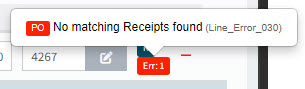
No receipt match is found for the invoice line. This occurs when there are no suggested receipt matches (for example, if the PO lines have not been receipted), or if the confidence level of a suggested receipt match is below the Cutoff Threshold setting.
-
If a receipt match has a confidence level that is greater than or equal to the Populate Threshold setting, it is listed as a possible match for the invoice line.
-
If a receipt match has a confidence level that is greater than or equal to the Trust Threshold setting, the auto-populated field is trusted, allowing for automatic invoice creation (provided all other lines also have a trusted value).
See AI Matching on the Company Settings page for more information on the threshold settings for receipt matching at the Company level.
| Matching Settings at the Vendor level supersede Matching Settings at Company level. See Matching Settings for Receipt Matching at Vendor level. |
View example of invoice lines with possible matches.
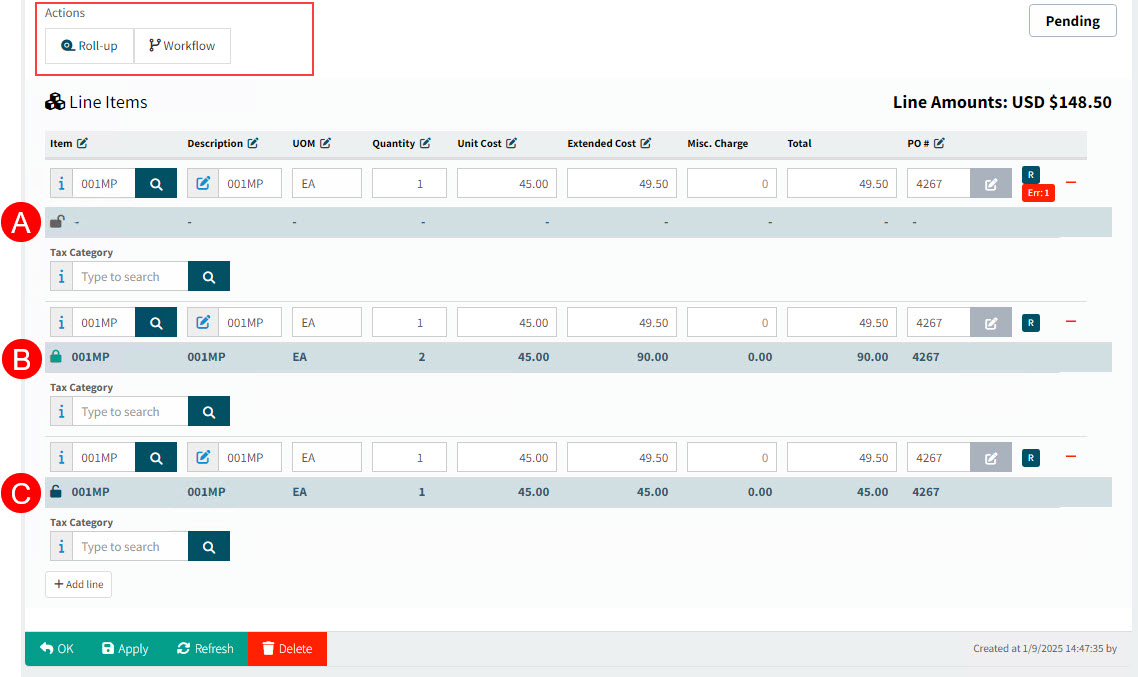
Note the following:
|
This receipt line has an icon
|
|
This receipt line has an icon
|
|
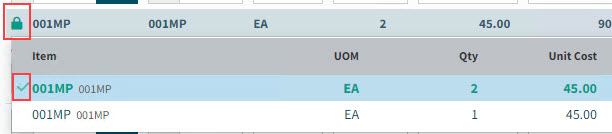
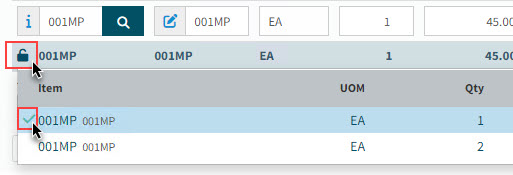
This receipt line has an icon To accept this match, click on the padlock, then tick the receipt line to use. The suggested match already has a tick next to it.
The confirmed match now shows the closed, green padlock
|







| Because one or more matches have not been locked in, the Submit option is unavailable under the Actions menu. |