AP Automation
| AP Automation is a separately licensed module. |
AP Automation has up to seven stages:
- Stage One: Draft Invoice Entry
-
This can be manual entry, or it can be automated using Precise Smart Invoice Capture (SIC).
- Stage Two: Validation
-
This is the data entry validation that checks for missing fields, misplaced fields, incorrect amounts etc. It gives the AP Invoice Creator an opportunity to complete the Draft Invoice Entry created in Stage One.
- Stage Three: Matching
-
During the matching stage, the Draft Invoice is matched by ARM’s matching algorithm to a PO Receipt.
View example of a line item matched to a receipt:
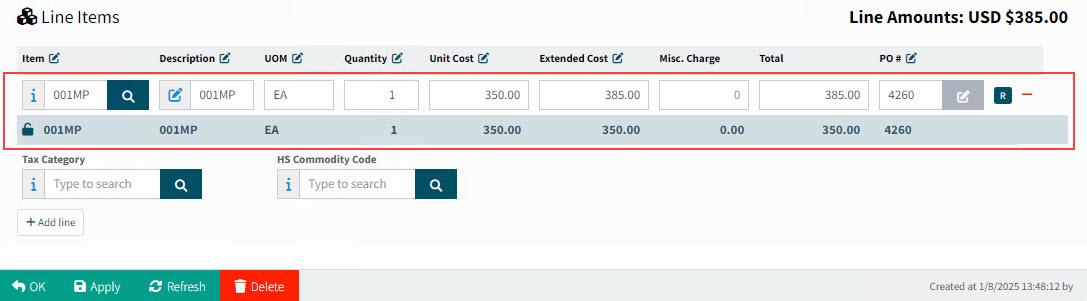
This stage may require user input.
- Stage Four: AP Invoice Creation
-
If User intervention is required in the Matching process, the User must submit the Draft Invoice when all errors and warnings have been dealt with and the lines are well matched.
A new AP Invoice is created.
If no User intervention is required, the AP Invoice is created and submitted automatically.
- Stage Five: Submit the AP Invoice
-
Unless the AP Invoice was automatically submitted in the previous stage, you will need to submit it manually.
View example of a line from the Original Receipt matched to a line from the Original PO, on an AP Invoice:
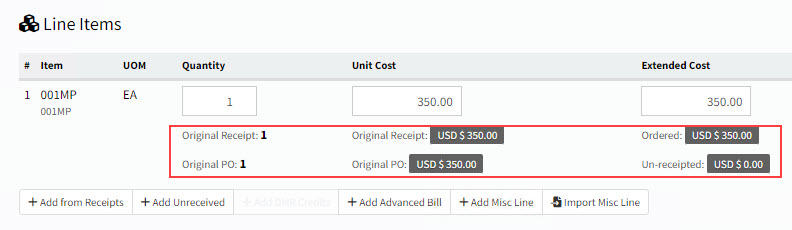
- Stage Six: Tolerance Checking
-
After the AP Invoice is submitted, Tolerance Checking is applied to the AP Invoice, comparing the Unit Cost and Quantity of the PO Receipt Line against the values on the original Purchase Order Line.
If Tolerance Checking fails, the transaction can either proceed with a Warning, or it is canceled with an Error, or it needs to go through the Approval process (depending on how the Tolerance Checking is configured).
Read about Tolerance in ARM.
- Stage Seven: AP Invoice Approval
-
If the AP Invoice needs to go through the Approval Process, active AP Invoice Approvers are notified and will either approve or reject the AP Invoice at this stage.
Read about the Approval Process.
- Finally
-
Once the AP Invoice is finally approved, a User can do the Posting and Payment in Kinetic.
Automated AP Invoice
Ideally, the entire AP Invoice process from start to finish is automated.
-
Draft Invoice is added automatically.

-
Validation passes automatically.
-
Draft Invoice successfully matched to PO Receipt. AP Invoice is created and submitted automatically.
-
AP Invoice passes Tolerance checking and skips Approvals.
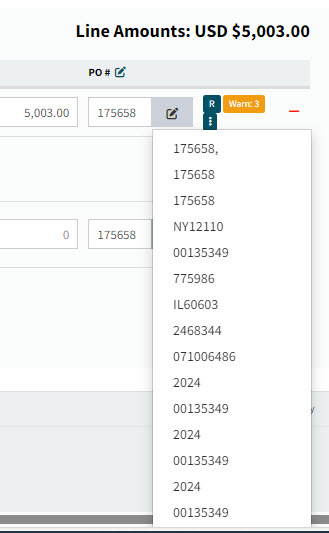
If the AP Invoice process is not fully automated because of the need for User interaction at any of the stages, it can still be partially automated. User input can be assisted, for example drop-down lists of suggested numbers to use, or highlighted fields on the source document that provide useful clues. Confidence levels are shown, to help the User decide whether to accept and use input data.
View Example
In the example shown, the User can select from a list of possible PO Numbers. The PO number that is auto-selected is shown at the top of the list, being the most likely match. The list shows all possible choices, ranked in order of highest confidence to lowest confidence.
See also: Draft Invoices Page.
For details on how to configure for AP Invoice Automation, see Setting up for AP Invoice Automation.