Workflow Diagram
-
To view the workflow on a requisition line or an AP Invoice line, click on the View Workflow
 button, at the end of the line, under the Options column.
The workflow pop-up diagram opens.
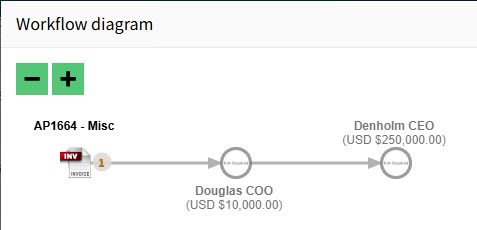
Icons on the workflow diagram are color-coded as follows:
| Orange |
Nodes that have not yet been processed and are not currently active. |
| Blue |
Nodes that are active and ready for the next action. |
| Green |
Nodes that have been manually completed with approval. |
| Red |
Nodes that have been manually completed with rejection. |
| Grey |
Nodes that have been automatically completed, skipped, bypassed, or marked as not required. |
Examples showing the node colors on workflow diagrams
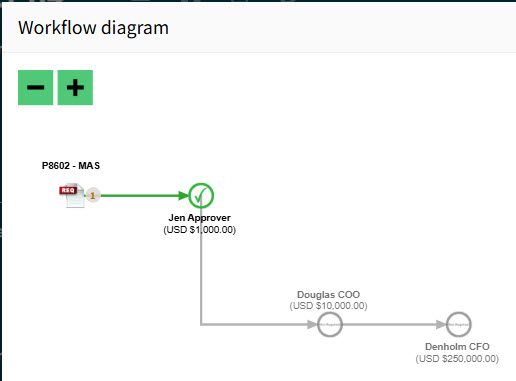
When there are no approvers listed under the Approvers column, the line requires no further approvals:
-
The green node has been approved.
-
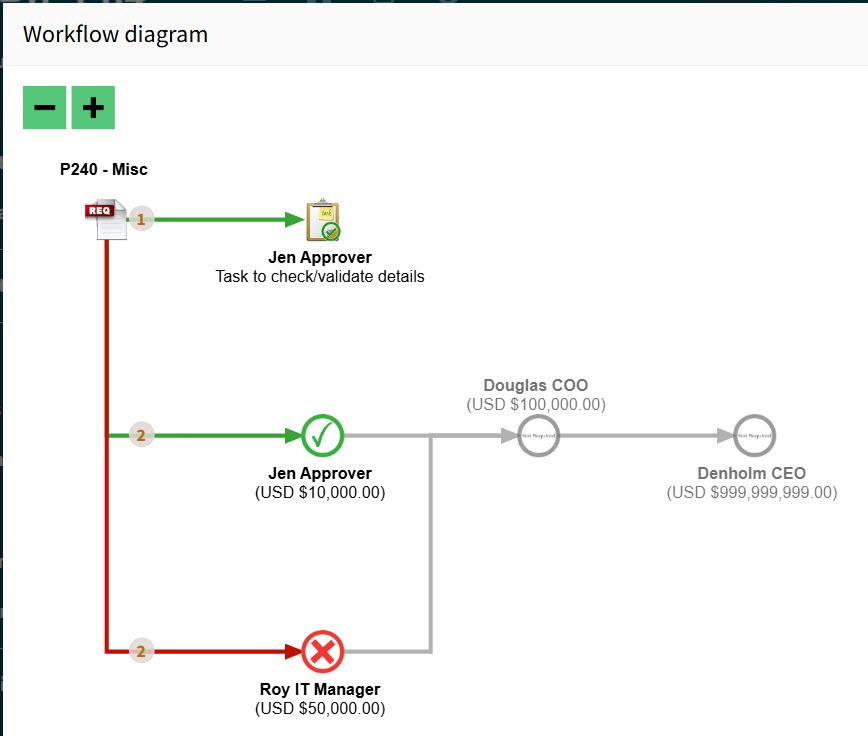
The grey nodes have been automatically completed, skipped, bypassed, or marked as not required.
-
The red node has been manually completed with rejection.
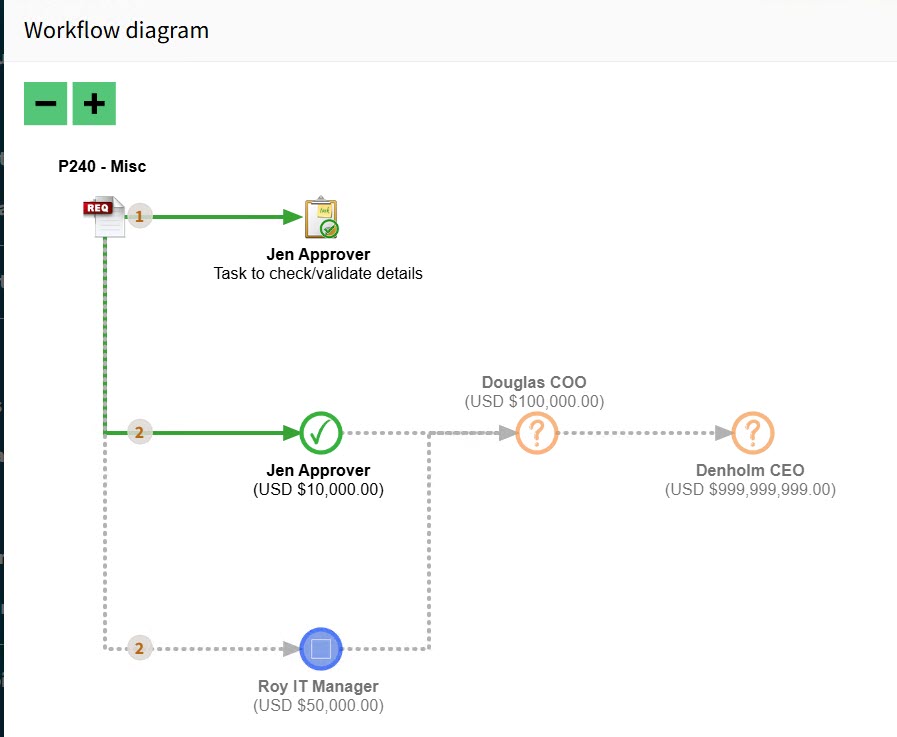
When there are approvers listed under the Approvers column, the line requires further approvals:
-
The blue node is active and requires action.
-
The orange nodes have not yet been processed and are not currently active.
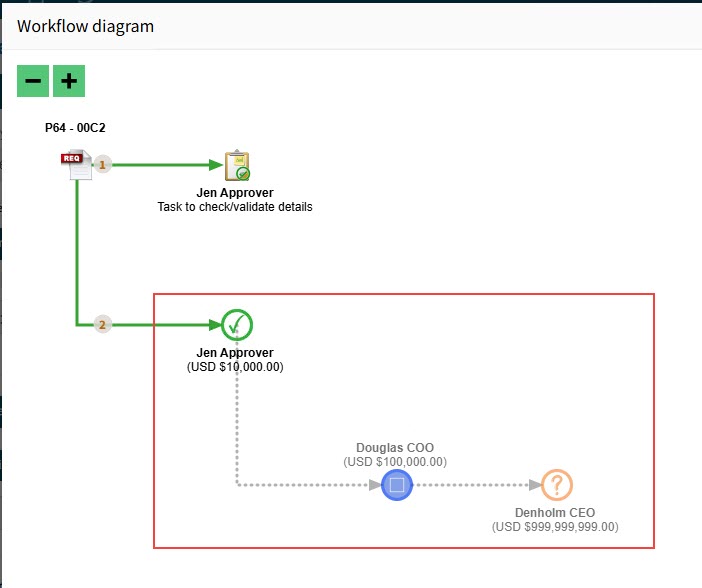
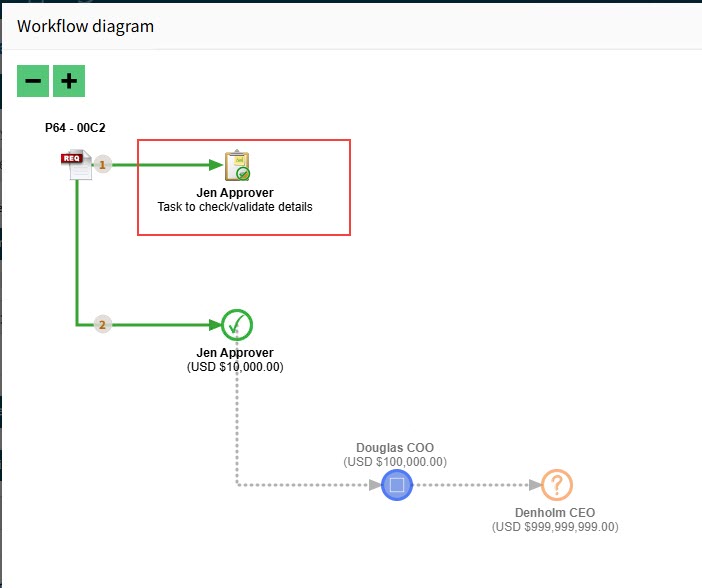
Examples of the different nodes on workflow diagrams
Example of approvers on a workflow diagram |
|
|
|
Example of a task on a workflow diagram |
|
|
|
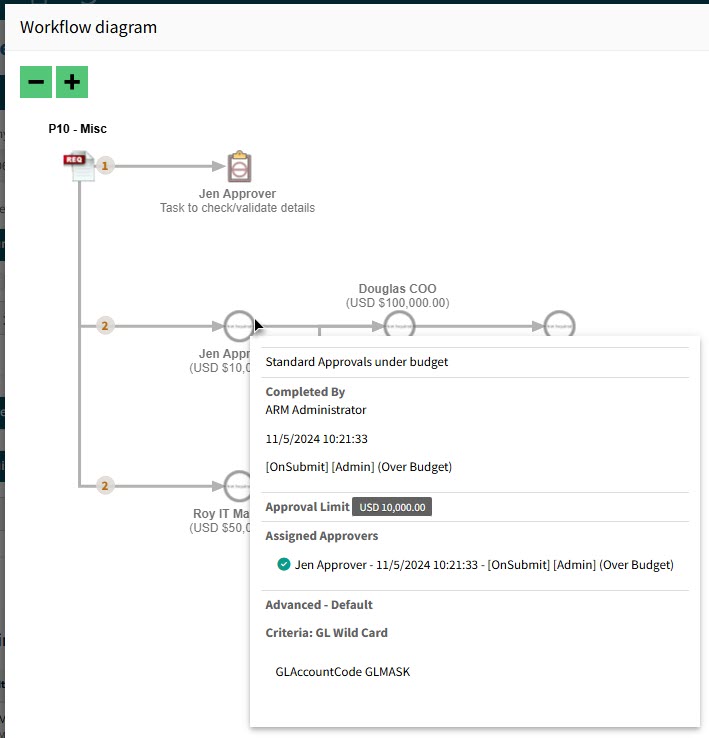
Hover over a node in the Workflow Diagram to see details on the approval tree and node |
|
|