Tolerance Settings
Tolerance checking can interrupt a process when there are discrepancies of Quantity, Unit Cost and/or Extended Cost on AP Invoices (with lines added from PO Receipts) and Purchase Order Receipts.
Use Tolerance Settings to set up the Tolerance Codes with actions defining behavior if tolerance checking fails, boundary conditions to define checking limits, and assignments to define what gets checked.
Permissions
You require a role with the Maintain Settings permission to access Tolerance Settings.
See Permissions in ARM.
Maintaining Tolerance Settings
Tolerance checking occurs:
-
When you receive a Purchase Order in ARM.
-
When you submit an AP Invoice with line(s) from receipt(s).
Note that Tolerance Checking is not mandatory, and will only occur if the Company, Category, Inventory Item, or Custom Form of the submitted document is assigned to an enabled Tolerance Code.
To maintain Tolerance Settings:
-
Select
 Administration in the side menu, to open the Administration page.
 -
On the Administration page, select Tolerance Settings.
The Administration > Tolerance Codes page opens.
|
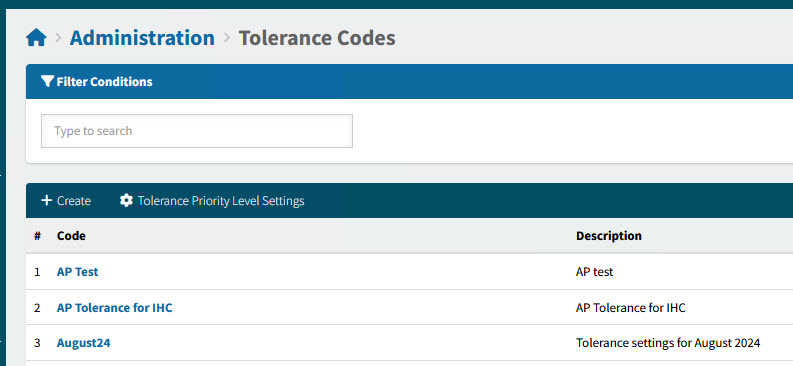
The Menu Bar has buttons to:
-
Create a new tolerance code.
-
Maintain the Tolerance Priority Level Settings.
To update a Tolerance Code from the grid, click on the Code. This is also where you can enable/disable a Tolerance Code.
Creating a Tolerance Code
-
Click Create on the Menu Bar.
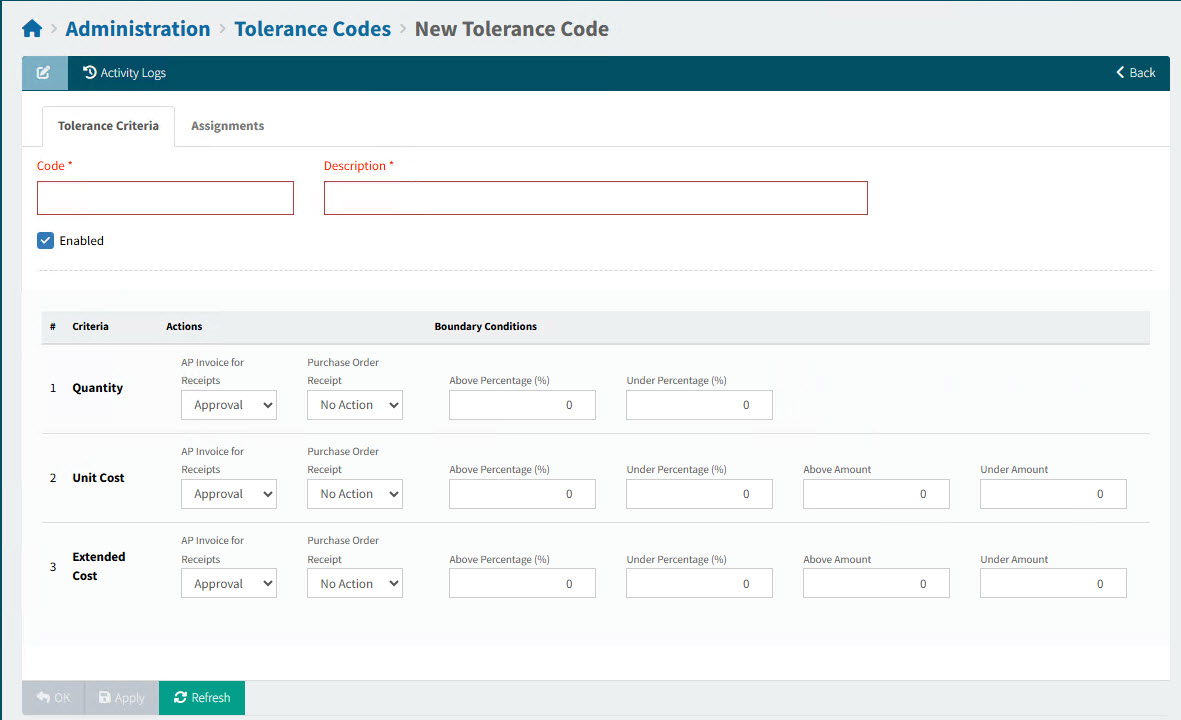
This opens the Administration > Tolerance Codes > New Tolerance Code page.
-
First complete the details on the Tolerance Criteria tab. See Tolerance Criteria Tab.
-
Next complete the selections on the Assignments tab. See Assignments Tab.
Tolerance Criteria Tab
-
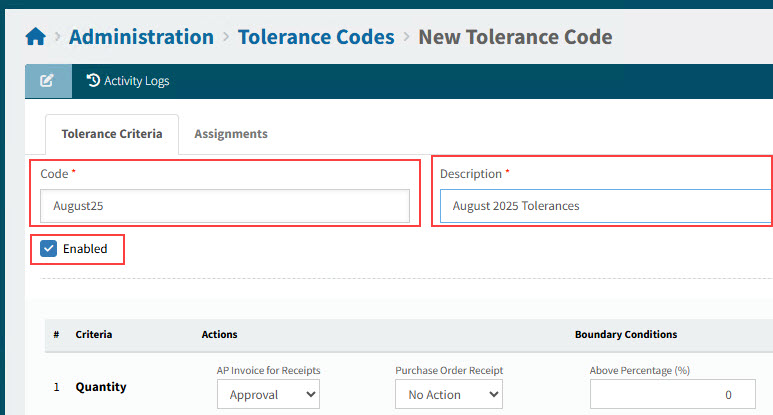
Enter a Code and Description for the new Tolerance Code.
-
Keep Enabled selected. A disabled Tolerance Code will not be used during tolerance checking.
Detail
-
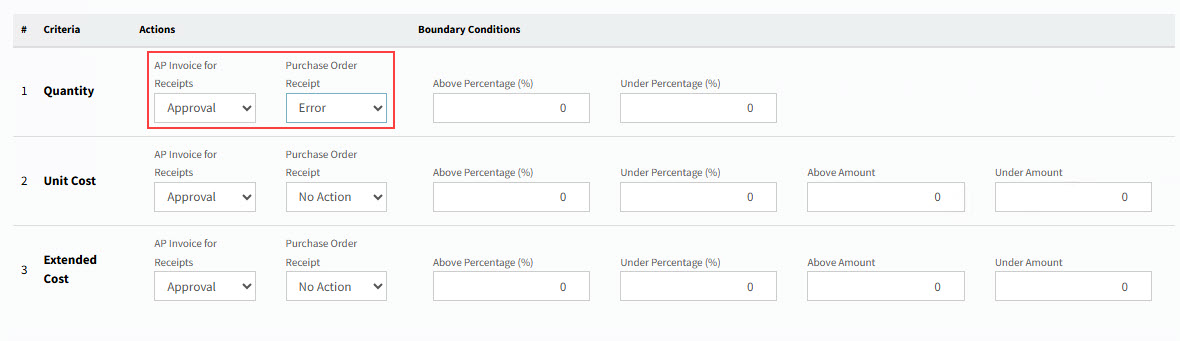
Select the Actions for Quantity.
Detail
-
Select an Action for AP Invoice for Receipts.
-
No Action
-
Approval
-
Warning
-
Error
-
-
Select an Action for Purchase Order Receipt.
-
No Action
-
Warning
-
Error
-
-
-
Set the Boundary Conditions for Quantity.
Detail
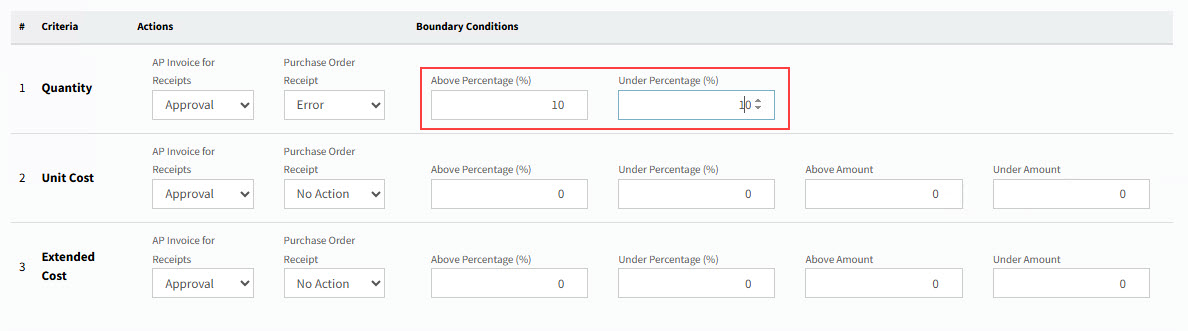
When an AP Invoice is submitted, or a Purchase Order is received, and if this is the Tolerance Code that gets used, then these percentages are used when comparing the entered Quantity on a line from receipt against the quantity on the Original Receipt (for AP Invoices), or comparing the Quantity against Ordered (for a Purchase Order Receipt).
See example of an AP Invoice Line for Receipts:
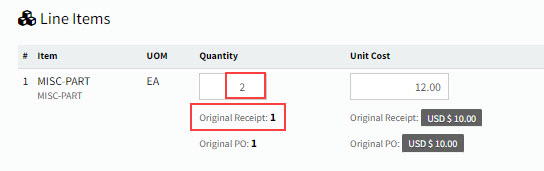
AP Invoice Line for Receipts
Above Percentage (%) Is the Quantity above the quantity on the original Receipt (or original Purchase Order, for PO Receipts), by at least this percentage? (For example, at least 10% above.)
Under Percentage (%) Is the Quantity under the quantity on the original Receipt (or original Purchase Order, for PO Receipts), by at least this percentage? (For example, at least 10% under.)
See example of a Warning action on failed a Quantity Check:
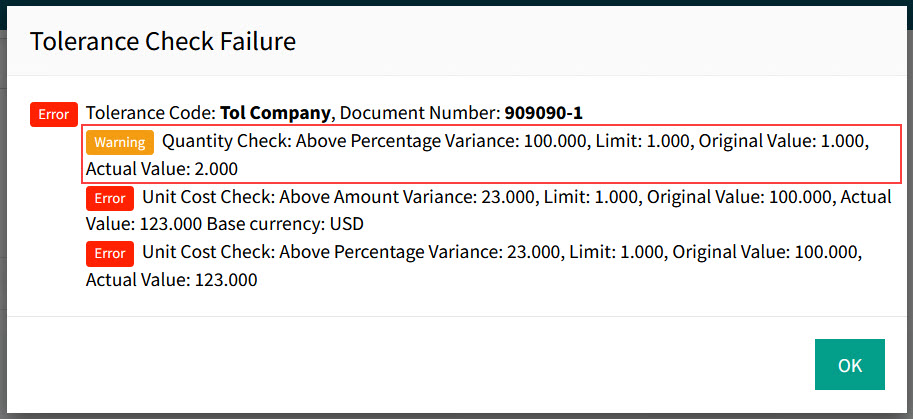
Looking at Limit, Original Value, and Actual Value
-
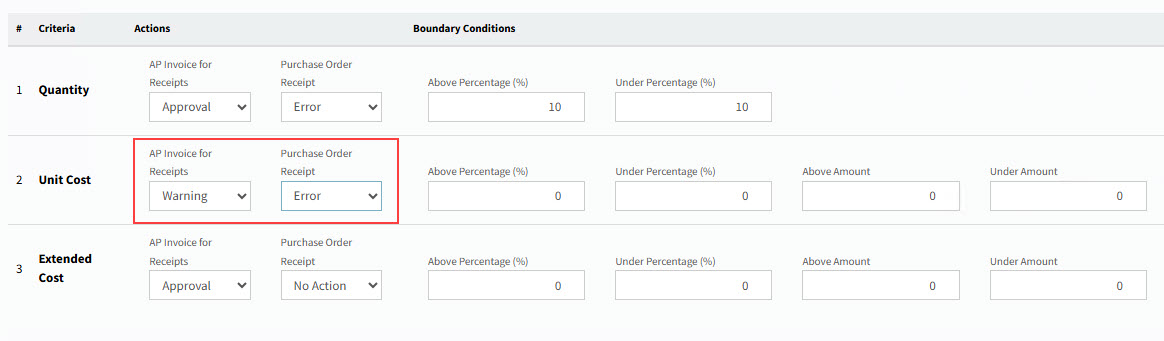
Select Actions for Unit Cost.
Detail
-
Select an Action for AP Invoice for Receipts.
-
No Action
-
Approval
-
Warning
-
Error
-
-
Select an Action for Purchase Order Receipt.
-
No Action
-
Warning
-
Error
-
-
-
Set the Boundary Conditions for Unit Cost.
Detail
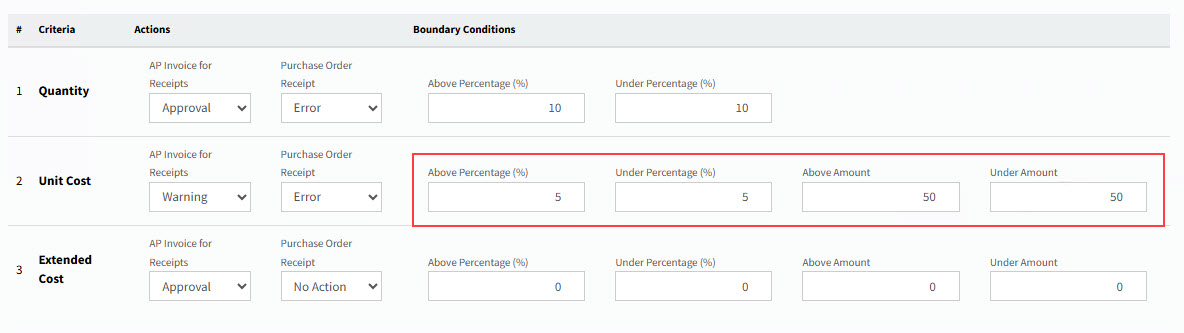
When an AP Invoice is submitted or a Purchase Order is received, and if this is the Tolerance Code that gets used, then these percentages or amounts are used when comparing the entered Unit Cost on a line from receipt against the unit cost on the Original Receipt (for an AP Invoice) or the receipt Unit Cost is compared to the Purchase Order’s Unit Cost (for a Purchase Order Receipt).
See example of an AP Invoice Line for Receipts:
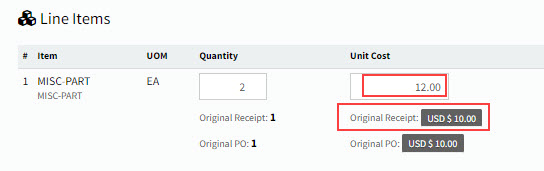
Above Percentage (%) Is the Unit Cost above the unit cost on the original Receipt (or original Purchase Order, for PO Receipts), by at least this percentage? (For example, at least 10% above.)
Under Percentage (%) Is the Unit Cost under the unit cost on the original Receipt (or original Purchase Order, for PO Receipts), by at least this percentage? (For example, at least 20% under.)
Above Amount (USD) Is the Unit Cost above the unit cost on the original Receipt (or original Purchase Order, for PO Receipts), by at least this amount? (For example, at least USD $ 100.00 above.)
Under Amount (USD) Is the Unit Cost under the unit cost on the original Receipt (or original Purchase Order, for PO Receipts), by at least this amount? (For example, at least USD $ 250.00 under.)
See example of two Error actions on failed Unit Cost Checks:
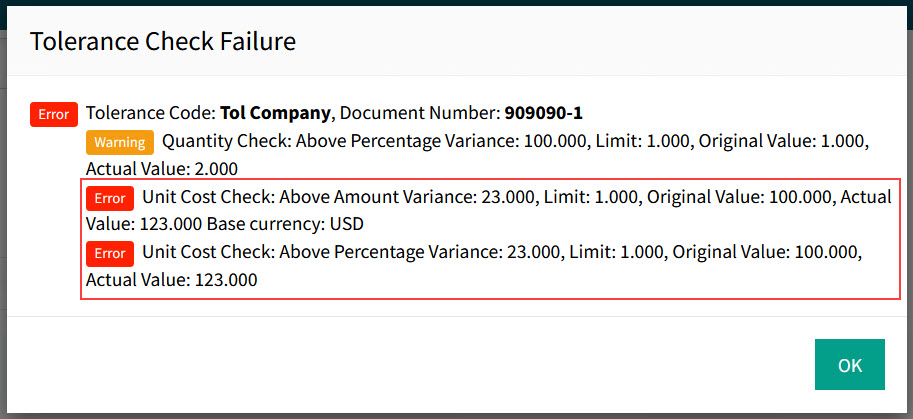
Looking at Limit, Original Value, and Actual Value
-
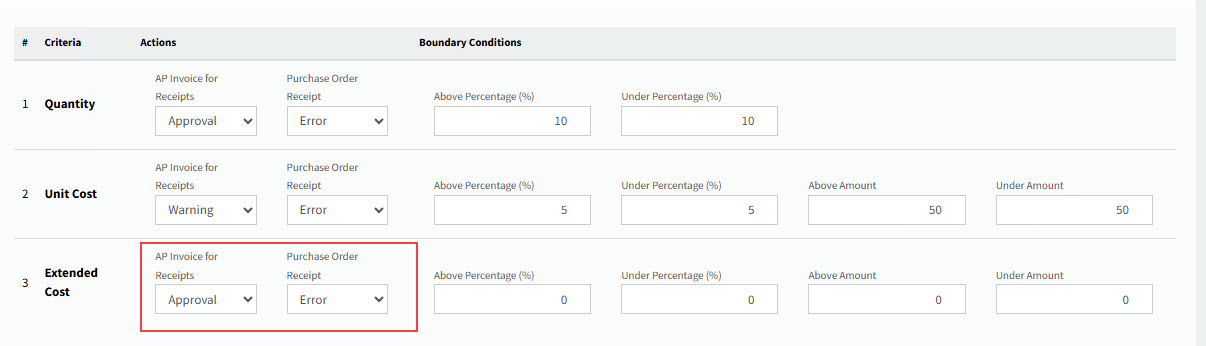
Select the Actions for Extended Cost.
Detail
-
Select an Action for AP Invoice for Receipts.
-
No Action
-
Approval
-
Warning
-
Error
-
-
Select an Action for Purchase Order Receipt.
-
No Action
-
Warning
-
Error
-
-
-
Set the Boundary Conditions for Extended Cost.
Detail
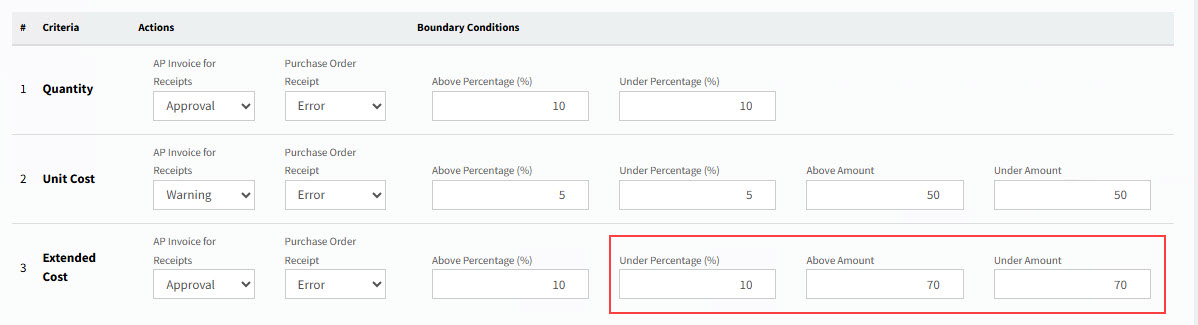
When an AP Invoice is submitted or a Purchase Order is received, and if this is the Tolerance Code that gets used, then these percentages or amounts are used when comparing the calculated Extended Cost on a line from receipt against the extended cost on the Original Receipt (for an AP Invoice) or the receipt Extended Cost is compared to the Purchase Order’s Extended Cost (for a Purchase Order Receipt).
Extended cost tolerance checking applies to the exclusive cost when tax is exclusive. When tax is inclusive, the tolerance checking is based on the inclusive cost. Above Percentage (%) Is the Extended Cost above the extended cost on the original Receipt (or original Purchase Order, for PO Receipts), by at least this percentage? (For example, at least 10% above.)
Under Percentage (%) Is the Extended Cost under the extended cost on the original Receipt (or original Purchase Order, for PO Receipts), by at least this percentage? (For example, at least 20% under.)
Above Amount (USD) Is the Extended Cost above the extended cost on the original Receipt (or original Purchase Order, for PO Receipts), by at least this amount? (For example, at least USD $ 100.00 above.)
Under Amount (USD) Is the Extended Cost under the extended cost on the original Receipt (or original Purchase Order, for PO Receipts), by at least this amount? (For example, at least USD $ 250.00 under.)
See example of an Error action on a failed Extended Cost Check:
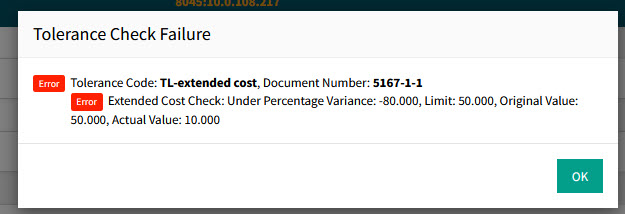
Looking at Limit, Original Value, and Actual Value
See example of a Warning action on an Extended Cost Check:
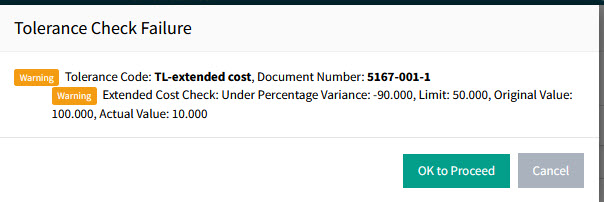
Looking at Limit, Original Value, and Actual Value
-
Click Save to save the changes.
AP Invoice with Receipts
When you submit an AP Invoice with Receipts, it may go through tolerance checking, if this is available.
These are the potential results of tolerance checking:
| Error |
If there is a tolerance failure on at least one error action, then the submitted AP Invoice fails the tolerance check, and an error message appears. The submission is cancelled and the AP Invoice Status is Unsubmitted. |
||
| Warning |
If there is a tolerance failure on at least one warning action (but no failures on error actions), then the submitted AP Invoice fails the tolerance check, and a warning message appears. The User can choose to proceed with or cancel the submission. If the User chooses to proceed, the submitted AP Invoice goes through the AP Invoice approval workflow. |
||
| Approval |
If there are no warnings or errors, but at least one approval action selected, then if tolerance checking passes for all approval actions, the approval workflow is passed with the message: Tolerance Code ([tolerance code name]_: Tolerance check passed. No approvers need to check the submitted AP Invoice, and it goes straight through to Approved. See example
If the tolerance checking fails, then the submitted AP Invoice must be approved as usual. |
||
| No Action |
If there are no warnings or errors, and there is a No Action action selected, then even if the tolerance check fails, the submitted AP Invoice must be approved as usual. |
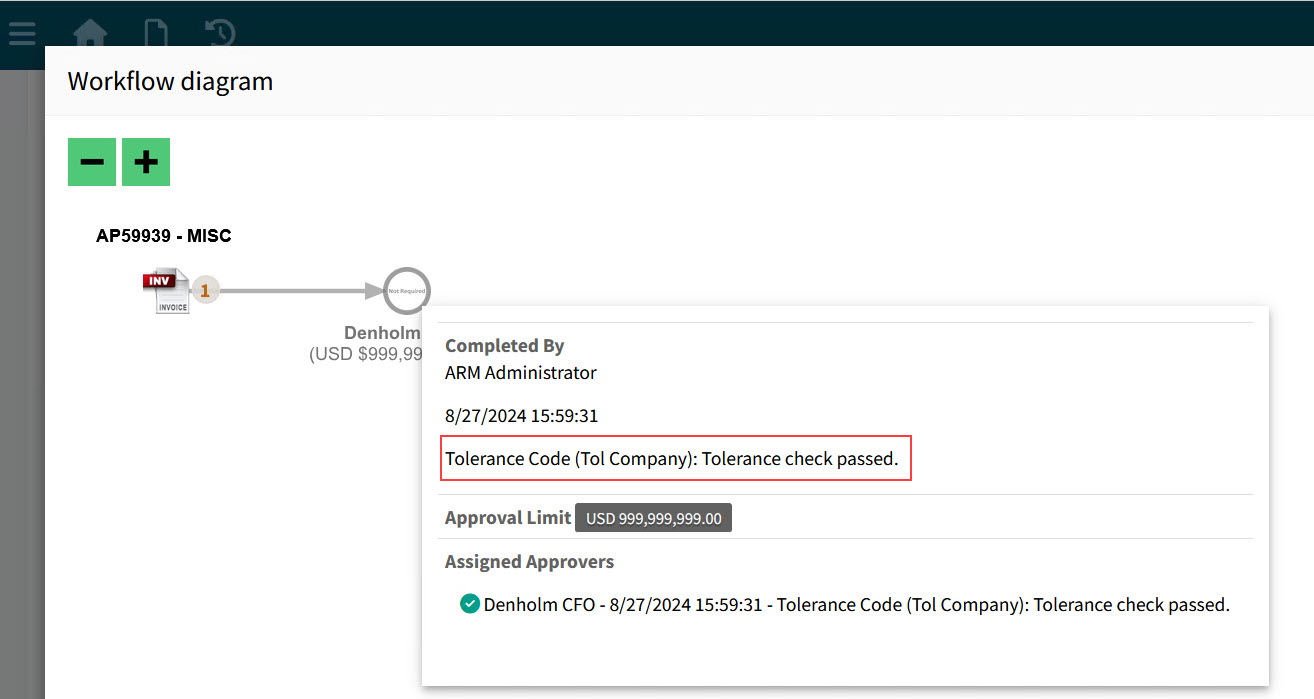
If there are no failures in tolerance checking, and there are no Approval Actions in the tolerance code used, then the submitted AP Invoice must be approved as usual.
Purchase Order Receipts
When you receive a Purchase Order, it may go through tolerance checking, if this is available.
These are the potential results of tolerance checking:
| Error |
If there is a tolerance failure on at least one error action, then the submitted document fails the tolerance check, and an error message appears. The Purchase Order cannot be received with errors. |
| Warning |
If there is a tolerance failure on at least one warning action (but no failures on error actions), then the PO Receipt fails the tolerance check, and a warning message appears. The User can choose to proceed with or cancel the Purchase Order Receipt. |
| No Action |
If there are no warnings or errors, and there is a tolerance failure on a No Action action, then the Purchase Order Receipt is received and closed. |
If there are no failures, the Purchase Order Receipt is received and closed.
Assignments
For a submitted AP Invoice or a Purchase Order you are trying to receive to go through tolerance checking for this tolerance code, it must have at least one of the following included in the tolerance code assignments:
-
Company
-
Category
-
Inventory Item
-
Custom Form
If one of these exists on a different Tolerance Code and is a higher priority (according to Tolerance Priority Level Settings for the Company), then that Tolerance Code will be used instead. See note.
| The Tolerance Priority Levels affect how a Tolerance Code is used for tolerance checking. For example, if a Tolerance Code’s assignment includes an Inventory Item that is on the submitted line, but the submitted document’s Company is assigned to a different Tolerance Code, then the Tolerance Code that gets picked depends on which of these two fields has first priority in the Tolerance Priority Level assigned to that Company. See Tolerance Priority Level Settings. |
The assignments are selected in the Assignments Tab. See the following section.
Assignments Tab
Use this tab to assign Companies, Categories, Inventory Items and Custom Forms to the tolerance code.
Note that a Company, Category, Inventory Item, or Custom Form of a submitted document/line must be assigned to a Tolerance Code to be tolerance checked by that Tolerance Code.
To select assignments for a tolerance code:
-
Select a Tolerance Code from the grid on the Tolerance Codes page, or create a new Tolerance Code.
-
Click on the Assignments tab of the Tolerance Code to select its assignments.
-
Select the assignments:
-
Add one or more Companies.
-
Add one or more Categories.
-
Add one or more Inventory Items.
-
Add one or more Custom Forms.
Anything you assign here will be removed from another Tolerance Code if already assigned to that one. -
-
Click Save & Close.
Updating a Tolerance Code
To update a Tolerance Code:
-
Select a Tolerance Code from the grid on the Tolerance Codes page.
-
Follow the instructions in Creating a Tolerance Code.
Tolerance Priority Levels Settings
Use this page to create and maintain one or more configurations for tolerance settings, then assign one of these as the priority level settings for a Company. Each Company should have a setting.
For each configuration you can include or exclude the assignment types (Company, Category, Inventory Item, Custom Form) and give these a priority. Tolerance checking is applied in reverse order of priority.
To maintain Tolerance Priority Level Settings:
-
Open the Tolerance Codes page.
-
Click
 Tolerance Priority Level Settings on the Tolerance Codes Menu Bar.
The Administration > Tolerance Codes > Tolerance Priority Levels page opens.
|
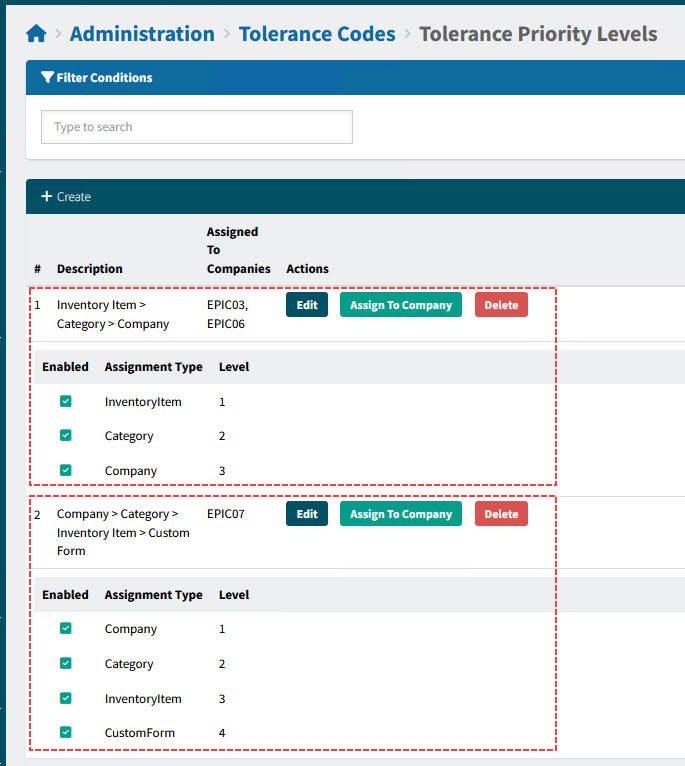
The existing Tolerance Priority Levels are listed on this page. These are the columns:
| # |
The Tolerance Priority Level number |
||||
| Description |
This is made up by the Assignment Types in priority order, for example: Company > Category > Inventory Item > Custom Form. |
||||
| Actions |
Click on a button in the Actions column to:
|
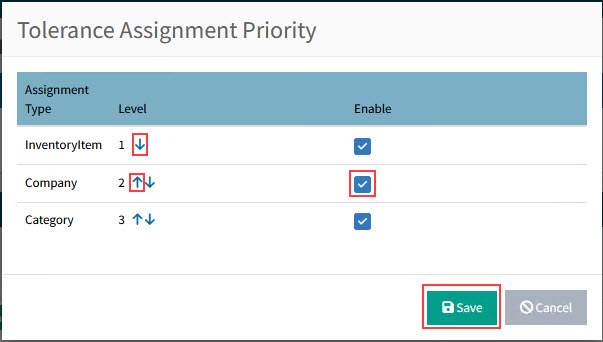
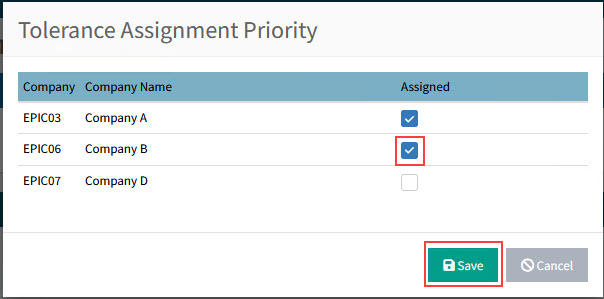
| The Tolerance Priority Level for a company can also be viewed and edited in Company Settings, in the setting: Tolerance Priority Level Setting, in the Company General Settings tab. See Company Settings. |
Creating a Tolerance Priority Level
To create a new Tolerance Priority Level:
-
Click Create on the Menu Bar.
The Tolerance Assignment Priority box pops up, with each Assignment Type enabled and prioritized.
-
Click Save.
-
You can Edit the new Tolerance Priority Level, and you can Assign to Company. See descriptions above.