Scheduled Jobs
Scheduled Jobs are automatic jobs that take place according to a defined schedule, provided they are Enabled.
Each job is defined by its workflow, with action(s) that take place according to a configured trigger.
Permissions
You require a role with the Maintain Settings permission to access Scheduled Jobs.
See Permissions in ARM.
Each job has three parts:
- Basic Information
-
The Workflow Name, Module Name, and Description for the Job.
- Workflow Trigger
-
This consists of a Recurrence Pattern (the recurrence of the job, for example every hour, or every week), and a Range of Recurrence (when the action ends, for example after 10 occurrences).
- Workflow Actions
-
This describes the action that occurs, including information about what occurs each time.
List of Scheduled Jobs
The following Scheduled Jobs are available for each Company:
| Remind APInvoice Approval |
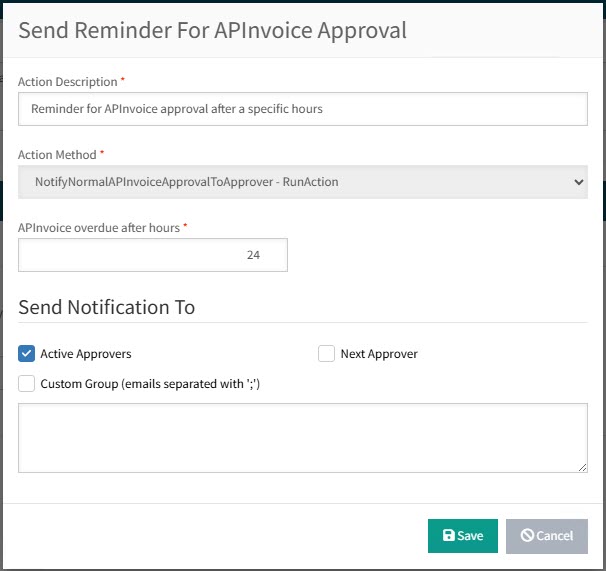
When an AP Invoice requires approval, this job sends regular email reminders to the selected notification recipients (e.g. Active Approvers, Next Approver of the associated Requisition, or Custom Group of email addresses) starting after a specified number of hours has elapsed. Workflow Action for this Scheduled Job:
|
||||||||||||
| Notify Req Owner When PO Receipt Is Overdue |
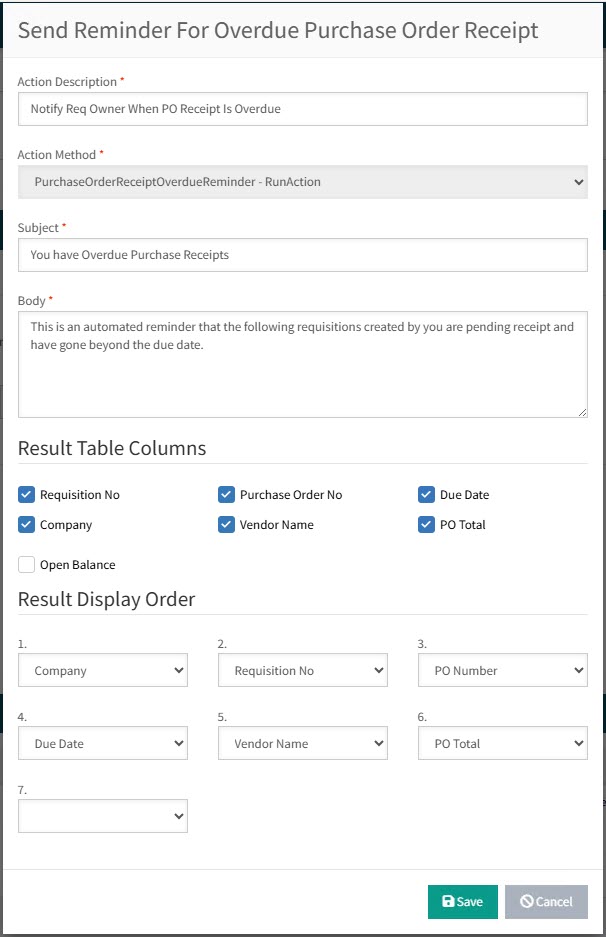
When a PO Receipt is overdue, this job sends a recurring email to the Owner of the associated Requisition. Workflow Action for this Scheduled Job:
|
||||||||||||
| Remind Regular Requisition Approval |
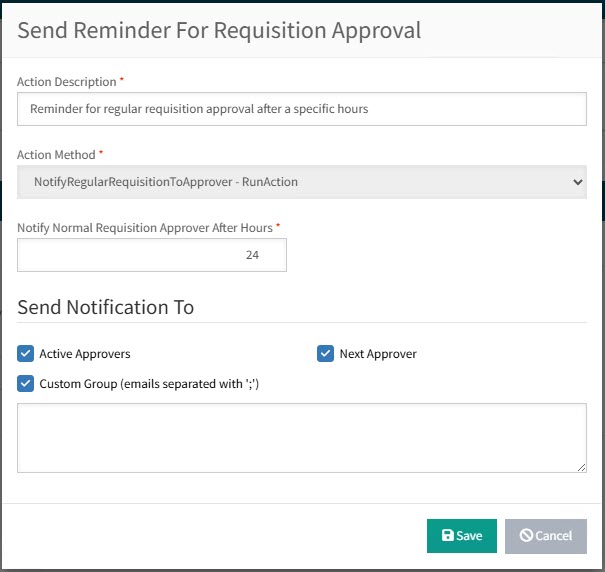
This job sends out recurring email alerts to the selected notification recipients (e.g. Active Approvers, Next Approver, Custom Group) of submitted requisitions that are not marked as Urgent. Workflow Action for this Scheduled Job:
|
| Remind Urgent Requisition Approval |
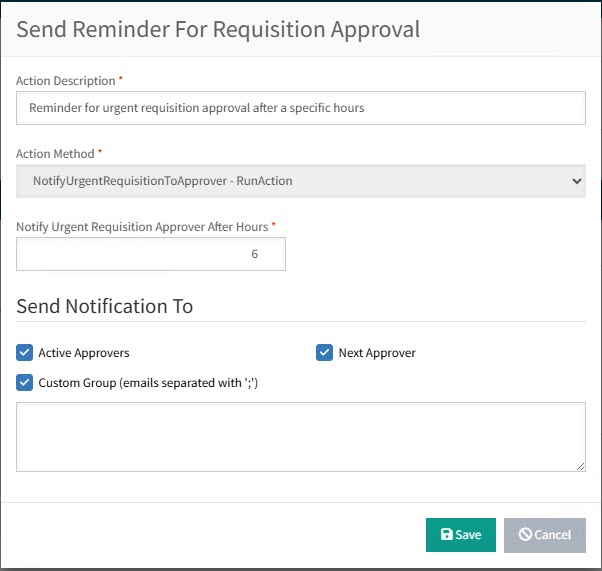
This job sends out recurring email alerts to the selected notification recipients (e.g. Active Approvers, Next Approver, Custom Group) of submitted requisitions that are marked as Urgent. (See Urgent on the Requisition Header.) Workflow Action for this Scheduled Job:
|
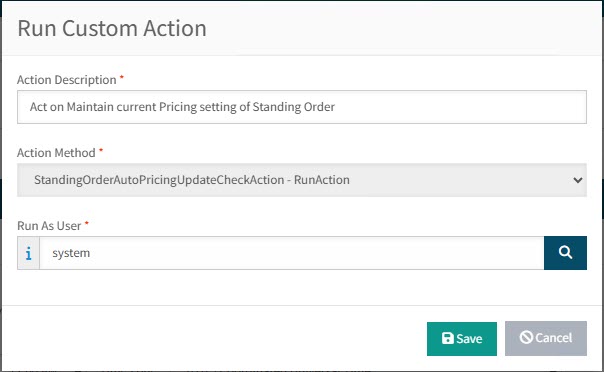
| Standing Order Auto Pricing Updates Check |
This job regularly checks and updates prices on Standing Orders that have Maintain Current Pricing selected. See Standing Order Header. Workflow Action for this Scheduled Job:
|
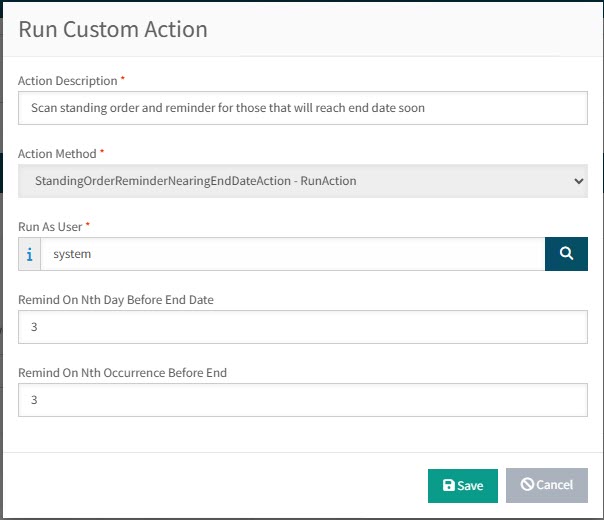
| Standing Order Reminder for nearing end date |
This job scans the current Standing Orders and sends out an email reminder to the document Owner, for any Standing Orders due to end soon (after a configured number of days/occurrences). Workflow Action for this Scheduled Job:
|
| Standing Order Scheduled Jobs |
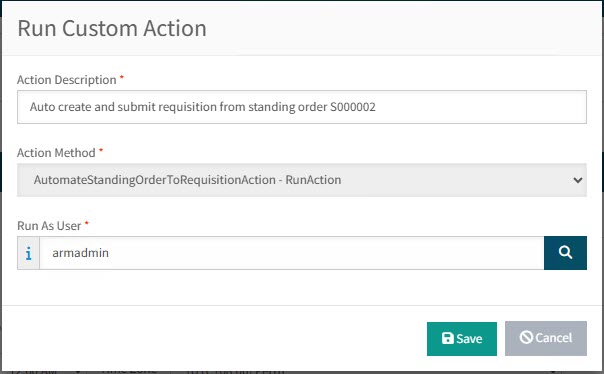
In addition to the standard Scheduled Jobs listed above, a custom Scheduled Job is generated for each new Standing Order. For example:
Workflow Action for a standing order Job:A custom workflow action is generated for each standing order job.
|
Maintaining Scheduled Jobs
-
Select the Scheduled Jobs menu item on the Administration Page. See Administration Page.
-
See how to:
-
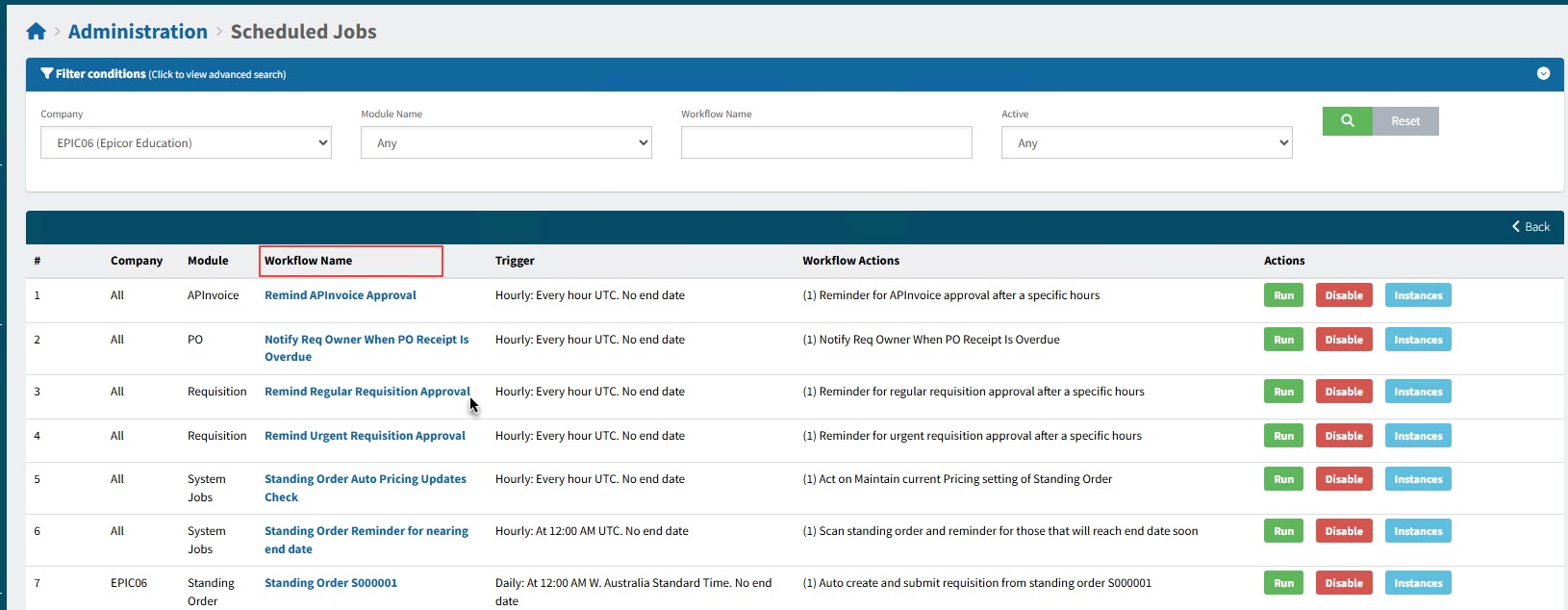
To edit a scheduled job, click on the Workflow Name. See Edit a Scheduled Job.
Enabling or Disabling a Scheduled Job
-
To enable a job, click Enable under the Actions column.
An enabled job will run according to schedule.
-
To disable an enabled job, click Disable under the Actions column.
A disabled job will not run.
Running a Scheduled Job
If a job is enabled, you can run it immediately, regardless of its configured schedule.
-
To run an enabled job, click Run under the Actions column.
Viewing Instances of a Job
You can view logs of each time a scheduled job ran.
-
Click Instances under the Actions column.
This opens a list of the instances that the selected job ran.
For example
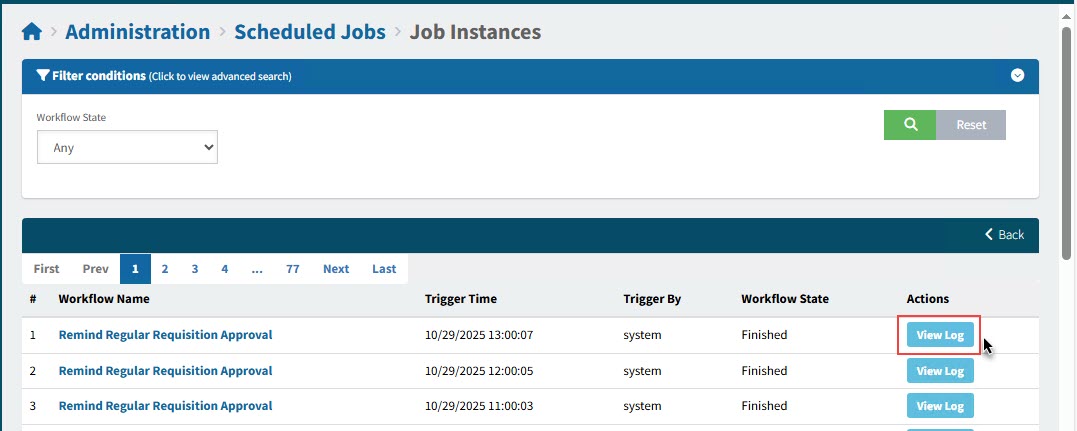
Each instance shows the Workflow Name, the Trigger Time and Trigger By, the Workflow State, and Actions.
-
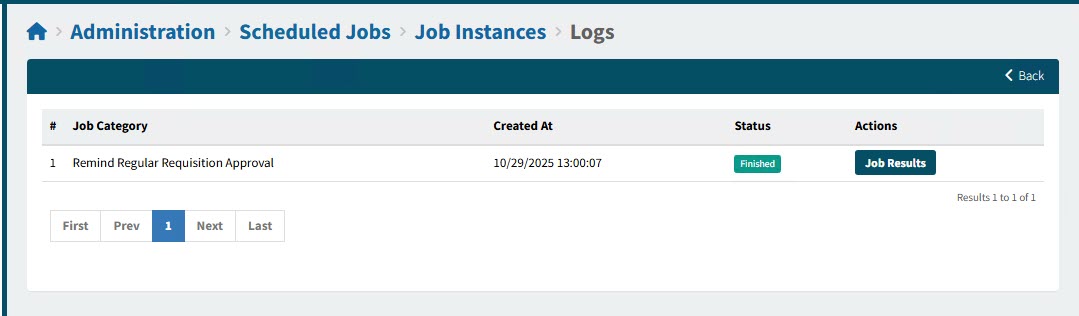
Click View Log under actions to see the Logs for this instance.
For example
-
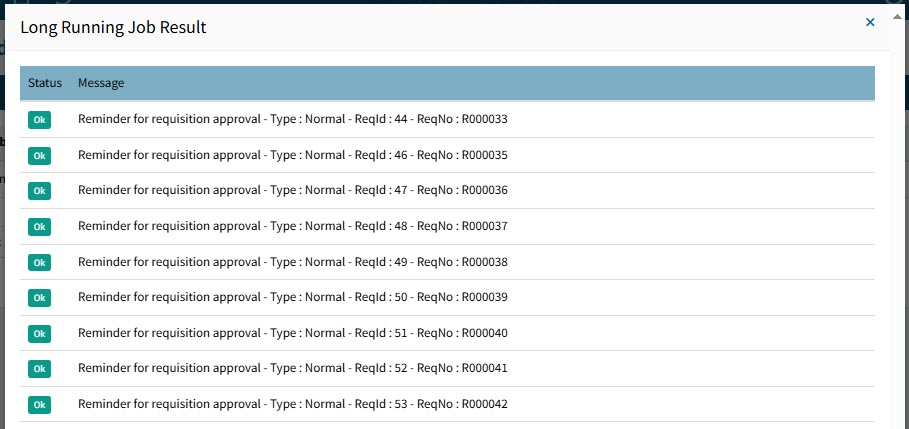
Click Job Results under the Actions column.
This shows the Job Results, with the status and message:
Editing a Scheduled Job
-
Click on the Workflow Name to view or edit a scheduled job.
Details
-
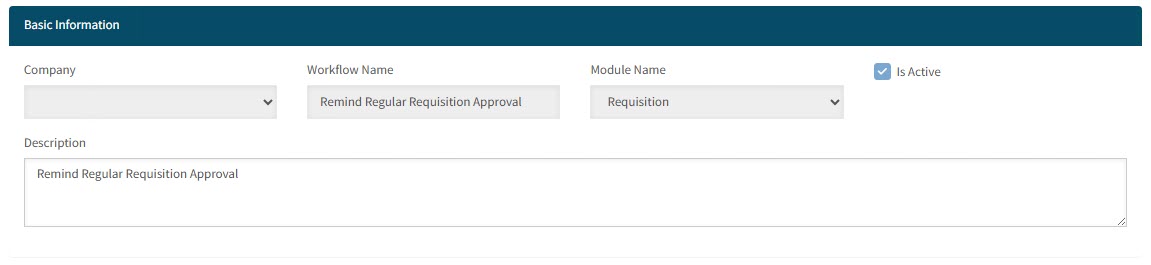
Fill out or review the Basic Information section for the scheduled job.
Basic Information
-
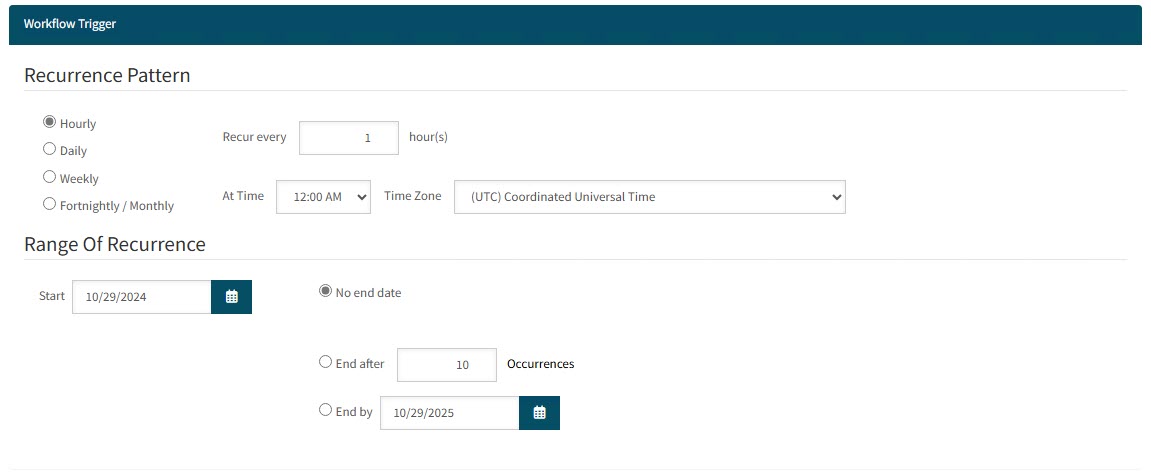
Update or review the Workflow Trigger section for the scheduled job. Note that scheduled jobs for standing orders are configured based on the Standing Order’s schedule and should not be updated.
Workflow Trigger
-
Review or edit the Recurrence Pattern (the frequency).
Recurrence Pattern
-
Select from:
-
Hourly and then Recur every [select number] hour(s).
-
Daily and then select either Every [select number] of day(s) or select Every week day.
-
Weekly and then click on one or more days (Sunday, Monday, etc.) to Recur every week on. (For example, Monday, Tuesday and Thursday of every week.)
-
Fortnightly / Monthly then select either Days of the month (tick the days) Of every, [select number] Months. (For example, day 3 and day 8 of every 2 months) or select The [select first, second, third, fourth, or last] [select day, or weekday, or weekend day, or select a day of the week] Of every [select number] Months. (For example, the second Monday of every 3 months).
-
-
Select At Time and Time Zone.
-
-
Review or edit the Range of Recurrence (when it starts and when it ends).
Range of Recurrence
-
Enter the Range of Recurrence values.
-
Select a Start date.
-
Select from:
-
No end date
-
End after and then select the number of Occurrences.
-
End by and select an end date.
-
-
-
-
-
Update or edit the Workflow Actions section for the scheduled job.
-
Review the basic information, such as Workflow Name and Module Name.
-
Optionally update the Description.
Workflow Actions

-
Click Edit under the Actions column to open the Workflow Action. The action screen is different for each scheduled job. See the individual settings for each job in the section List of Scheduled Jobs.
-