Working with AP Invoices
You can send an AP Invoice for a review at any point before it is approved - even before it is submitted.
After an AP Invoice is submitted, it can either be approved automatically (if there are no tolerance breaches), or it goes into an approval workflow.
While the status is Approval in Progress, any user with editing permissions can revise the AP Invoice.
In the Action section of an AP Invoice, there are menu buttons for performing various actions you can perform on an AP Invoice, depending on its status, your current role in the workflow, and your permissions.
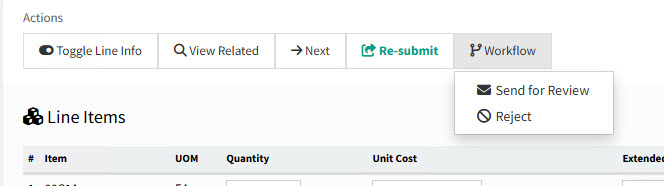
There are also standard menu buttons on the menu bar in the Actions section:
-
Toggle Line Info
Click
 Toggle line Info to show/hide Original Receipt information for each of the lines (where available).
 -
View Related
Click
 View Related to open the Receipt Tracker for receipts related to this AP Invoice.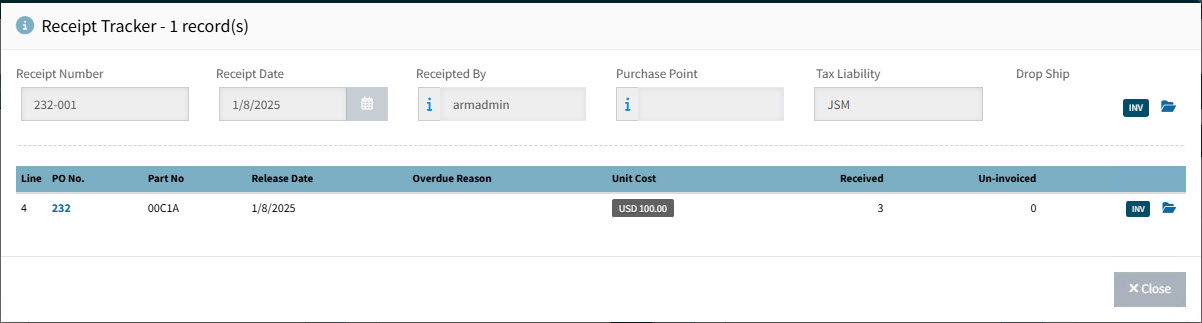
-
Next
Click
 Next to load the next invoice based on current search criteria.
To view the workflow diagram for a line, click on the View Workflow  button, at the end of the line, under the Options column. See Workflow Diagram. button, at the end of the line, under the Options column. See Workflow Diagram.
|