Logging in to ARM
ARM can be set up as an Intranet or an Internet-based system that can be accessed via a web browser such as Internet Explorer, Mozilla Firefox, or Google Chrome.
Your System Administrator will provide the address required to log on to ARM.
First open the ARM application:
-
Navigate to the supplied ARM path, and press enter.
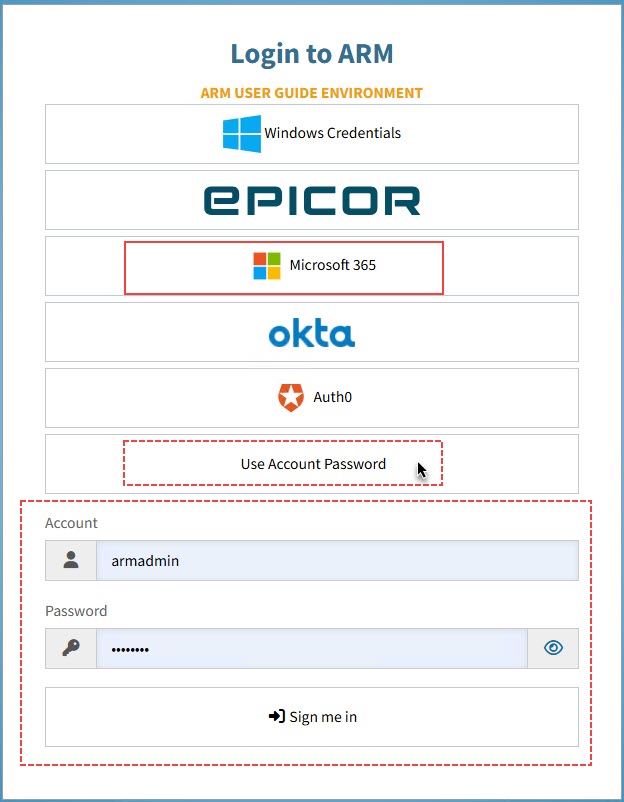
The Login to ARM pop-up screen displays.
If you have an Environment Login Banner Image file selected in Global Settings, this displays above the Login pop-up screen. -
Select one of the single sign-on options if you are set up for any of these, for example: Microsoft 365.
OR
-
Log in using your Username and Password.
-
Click Use Account Password.
This expands the section for entering your account and password.
-
Enter your username in the username edit box (Account).
-
Enter your password in the password edit box (Password).
-
Select Sign me in.
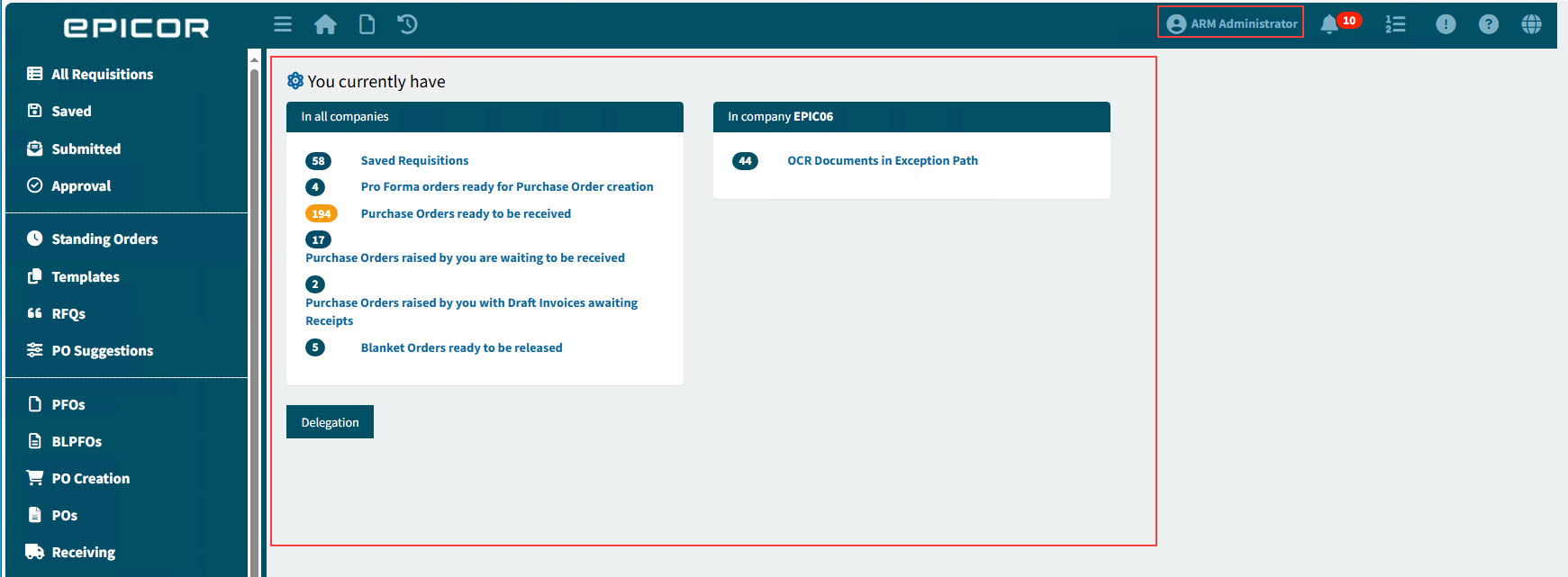
Epicor ARM opens for your Account (username and password).
Your Name (First Name and Last Name) appears in the Top Menu Bar. The Dashboard displays on the Main Panel.
-
First Time Logging In
If this is the first time you are logging in, open your User Profile to review/update your personal information and update your password. See User Profile.

