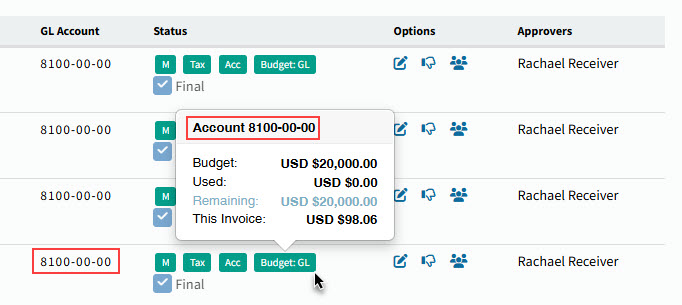
GL Budget
Use this page to define how Kinetic GL Account Budgets are used in ARM.
Permissions
You require a role with the Maintain Settings permission to access GL Budget Settings.
See Permissions in ARM.
Kinetic GL Account Budgets that are configured in Kinetic > General Ledger > Setup > Account Budget are integrated into ARM.
In ARM you can specify whether these Account Budgets will be used on their own or rolled up into one ARM Account Budget so that Requisitions in ARM can be checked against them.
Maintaining GL Budget
-
Select the GL Budget menu item on Administration Page. See Administration Page.
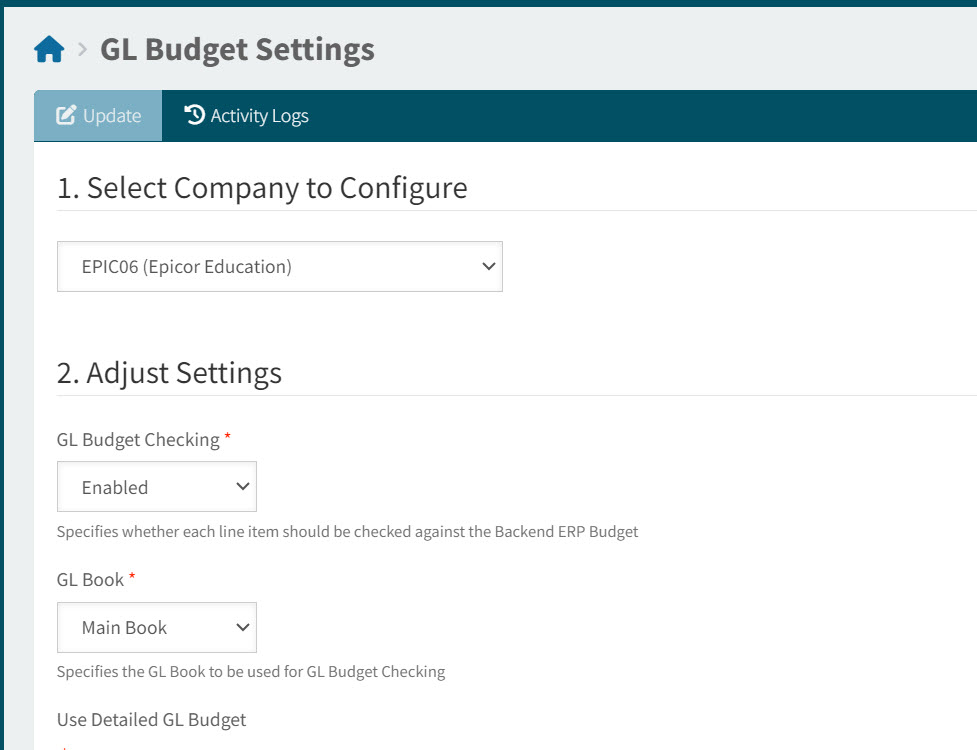
The GL Budget Settings page opens.
-
Update the GL Budget Settings.
-
Select Company to Configure.
Select the company that the GL Budget settings will apply to.
-
Adjust Settings for the selected Company.
See Settings Definitions:
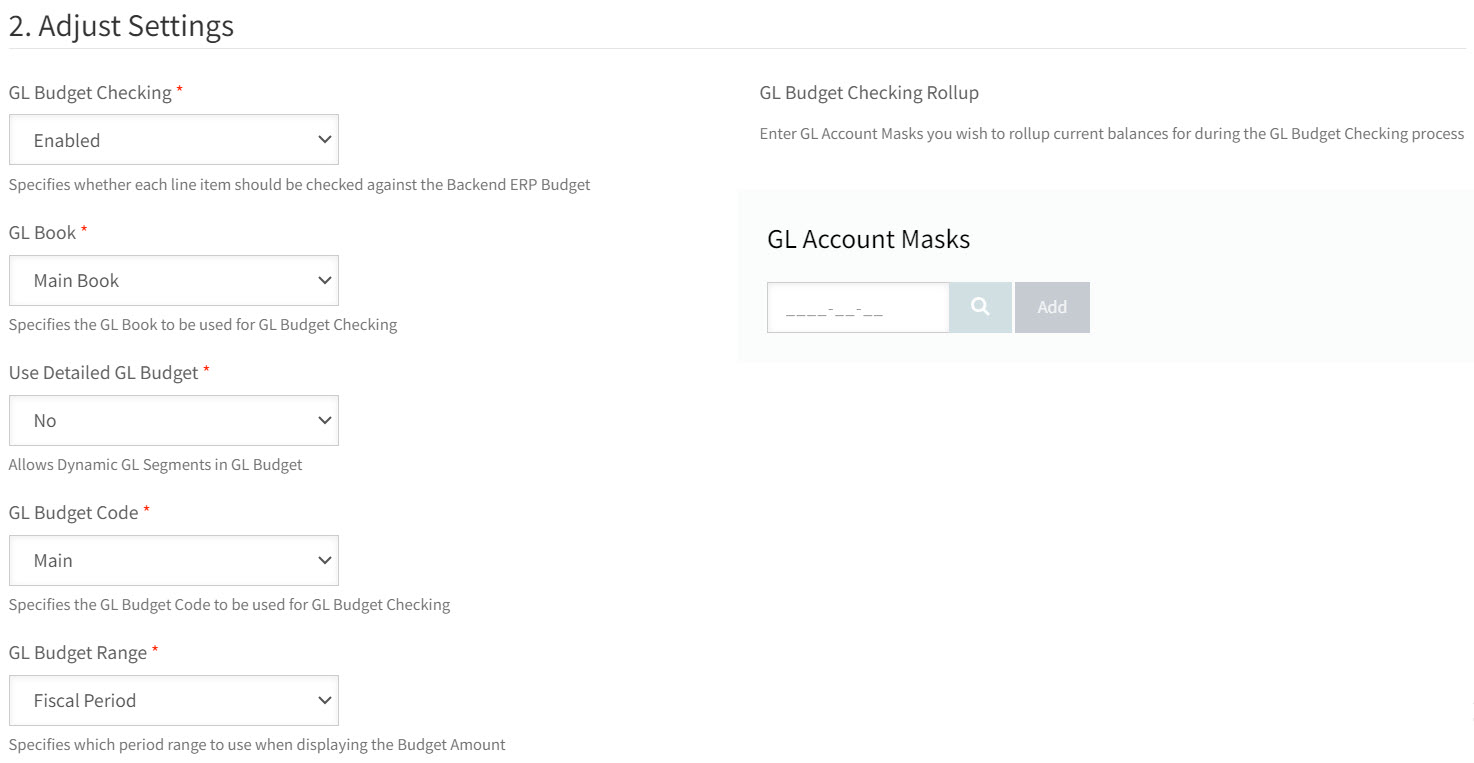
- GL Budget Checking
-
(Enabled or Disabled). Specifies whether each line item should be checked against the Backend ERP Budget.
- GL Book
-
Specify the GL Book to be used.
- Use Detailed GL Budget
-
Yes or No.
-
Yes
- Allows dynamic GL segments in the GL Budget
-
No
- Budget Checking Rollup
-
Specify GL Account Masks that will be rolled up (summed up), to produce one budget figure for each requisition/invoice to be checked against.
- GL Account Masks
-
Select the GL Accounts to be used.
-
- GL Budget Code
-
Specify the Budget Code to be used.
- GL Budget Range
-
Specifies which period range to use when displaying the Budget Amount (Examples: Fiscal Period, Fiscal Year Suffix To Date, Full Fiscal Year Suffix).
-
GL Budget Checking Enabled - Exceptions
Even with GL Budget Checking enabled, you can override this in places as follows:
-
Disable GL Budget Checking for individual users. Select the Disable GL Budget Checking check box on the User Detail page for a user, in the GL Accounts tab.
-
Disable GL Budget Checking for individual Catalogue Items. Select the Disable GL Budget Checking check box for the catalogue item. See Catalogue.
Budget Checking Rules
There are different budget checking rules for requisitions and AP invoice misc lines.
Requisitions
Each requisitioned line item is compared against the budget remaining for the GL account code. The budget for the GL account code is calculated as follows:
-
BudgetRemainingMTD = BudgetBalanceMTD – BudgetUsed MTD
-
BudgetRemainingYTD = BudgetBalanceYTD – BudgetUsed YTD
-
BudgetRemainingFullYear = BudgetBalanceFullYear – BudgetUsedFullYear
|
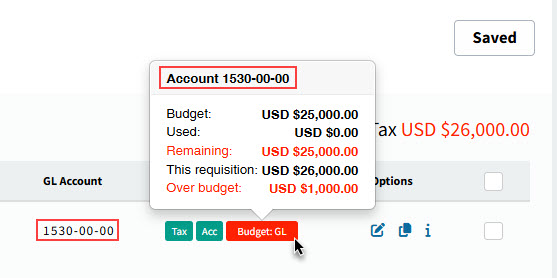
A red budget indicator appears on all lines for a specific GL account code if it has an Over budget amount.

Example of a budget indicator for requisition lines - over budget:
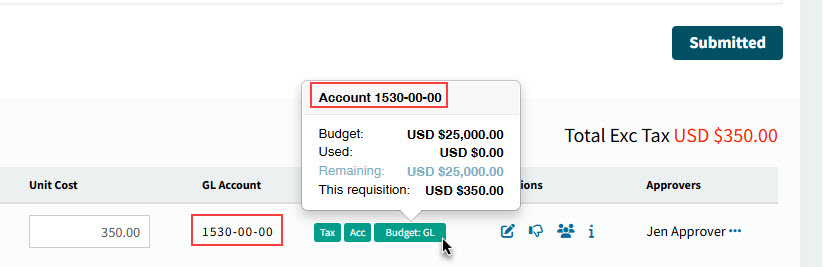
A green budget indicator appears on all lines for a specific GL account code if it has no Over budget amount.

Example of a budget indicator for requisition lines - within budget:
AP Invoice Misc Lines
The calculation for AP Invoices Misc Lines is:
BudgetUsed = Open PO + Open PFO + GL balance
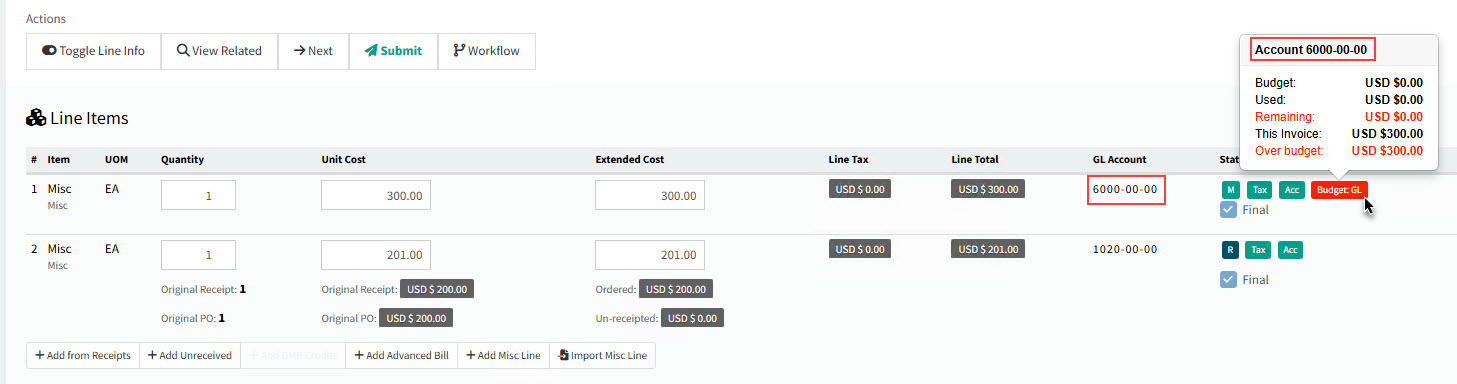
A red budget indicator appears on all AP Invoice miscellaneous lines for a specific GL account code if it has an Over budget amount.
Example of a budget indicator for miscellaneous lines - over budget:
A green budget indicator appears on all AP Invoice miscellaneous lines for a specific GL account code if it has no Over budget amount.
Example of a budget indicator for miscellaneous lines - within budget: