Searching
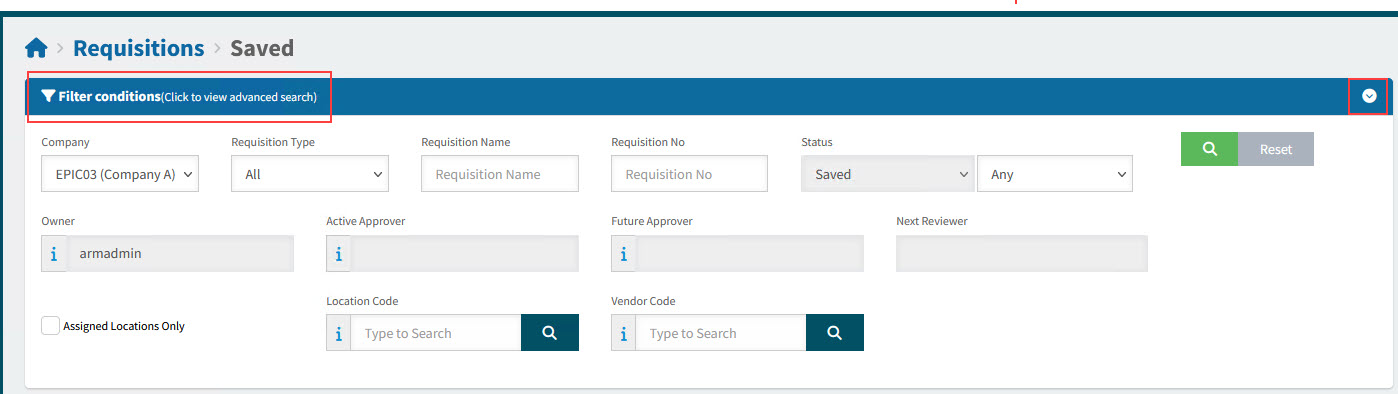
Most of the pages in ARM have a section at the top called  filter conditions.
Use this section to fill out search conditions, to narrow down your search.
By clicking on the section filter conditions you can collapse the filter conditions section, expand the section, or click again to view the advanced search (additional search options).
See example
|
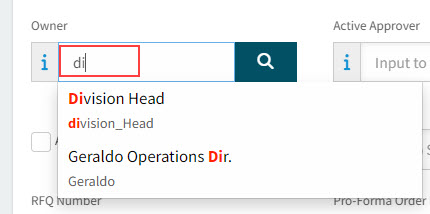
| If you type in a search box, full and partial matches are displayed in the drop-down. |
View Example of Search Box
|
-
When you have entered the search criteria click on the green search
 button in the top right corner.
View Reset and Result Options
-
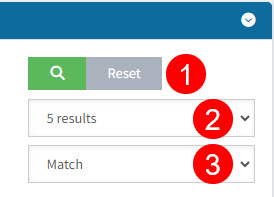
To reset the selections in the search panel, click the Reset button:

-
To limit the results per page, select from the results drop-down list:

-
To refine the match, select an option from the Match drop-down list:
 .
.
-
Refining the Match
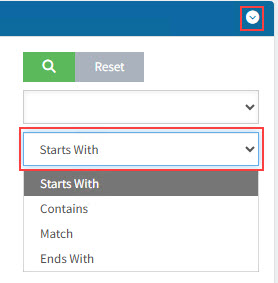
You can refine a search match by selecting a different option from the drop-down list on the right of the search page.
- Starts With
-
Data that starts with the text typed in the Search field(s) will display.
- Contains
-
Data that contains the text typed in the Search field(s) will display.
- Exact Match
-
Data that exactly matches the text typed in the Search field(s) will display.
- Ends With
-
Data that ends with the text typed in the Search field(s) will display.
| The initial search method value is determined by the Default Search Type setting, in the Defaults group on the Global Setting Maintenance page. |
The table below provides examples of the results returned when the letter A is typed in the Part No field on the Catalogue Search page, depending on which search method is selected:
| Search Method | Search Result |
|---|---|
Starts With |
All items starting with A are displayed, e.g. A, ABA |
Contains |
All items containing A are displayed e.g. A, ABA, BAT, BAD, CAA |
Exact Match |
All items that match exactly are displayed, e.g. A. |
Ends With |
All items ending with A are displayed e.g. A, ABA, CAA |
| Note on Custom Data: For performance reasons, an ARM search only scans text fields of custom data (from Requisition Types). |
Field Searches
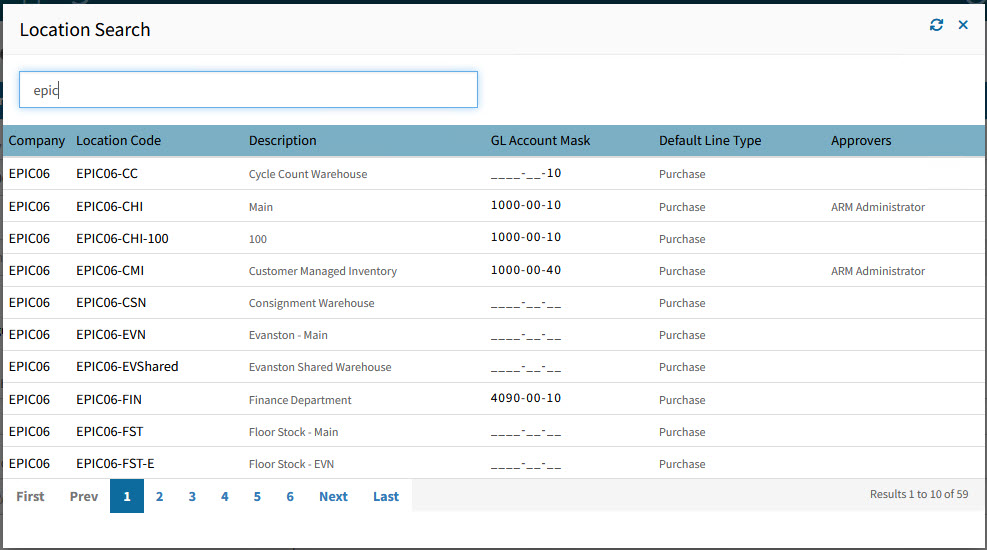
Field searches are available for those fields that have a field search  icon to the right of them. For example, clicking the field search icon adjacent to the Location Code field causes the Location Search page to open where you can do a search for Locations.
To do a field search:
-
Enter a value in the search box or leave clear.
-
Select the search
icon to the right of the field.Any text from the search box appears in the search box on the new pop-up search form, filtering the results.
See example of Location Search
-
Scroll through the results on the search form, using pagination at the bottom of the form, or updating the search text if necessary.
-
Select a row to accept it.
The search pop-up closes and the value from the selected row populates your original search box.
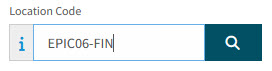
-
|
If you click inside a search box with a field search , you will get a drop-down list of available results to select from.
|