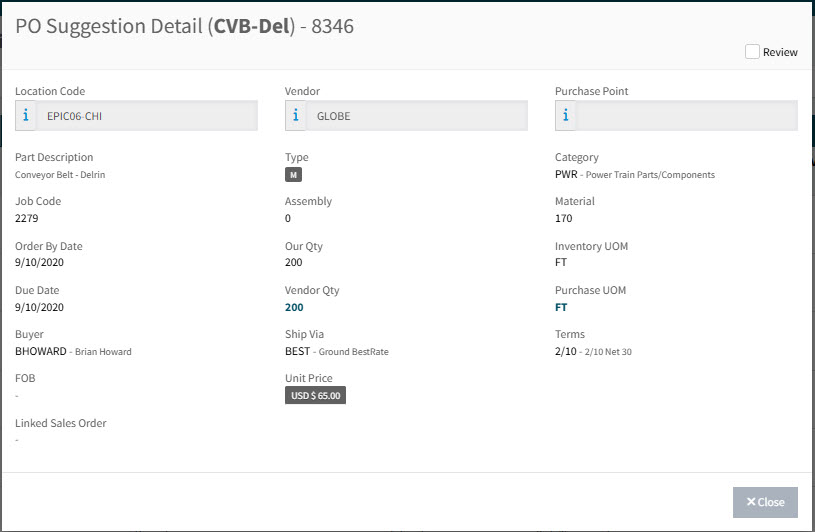
PO Suggestions
Use PO Suggestions from Kinetic to create Requisitions in ARM.
Permissions
-
View Purchase Suggestions
-
Convert Reviewed Purchase Suggestions
-
Convert non-reviewed Purchase Suggestions
-
Review Purchase Suggestions
System Requirements
-
The UDF field is required for use with this functionality: PbsRequisitionNo_c in SugPoDtl_UD.
-
The integration job POSuggestion converts the PO Suggestion to a Requisition.
Settings/Configurations
The following settings and configurations affect PO Suggestions:
Company level
- Auto Convert Purchase Order Suggestions
-
Values are: Yes, No.
Specifies whether PO Suggestions should be automatically converted to Requisitions.
- Purchase Order Suggestion Auto Conversion User Name
-
Specifies the ARM user who will be used for PO Suggestion auto conversion. There must be a value, otherwise the PO Suggestion will not auto-convert.
- Purchase Order Suggestion Conversion Cutoff Length
-
Specifies the maximum number of PO Suggestions to be picked up and converted into a single Requisition.
Opening the PO Suggestions
-
Select
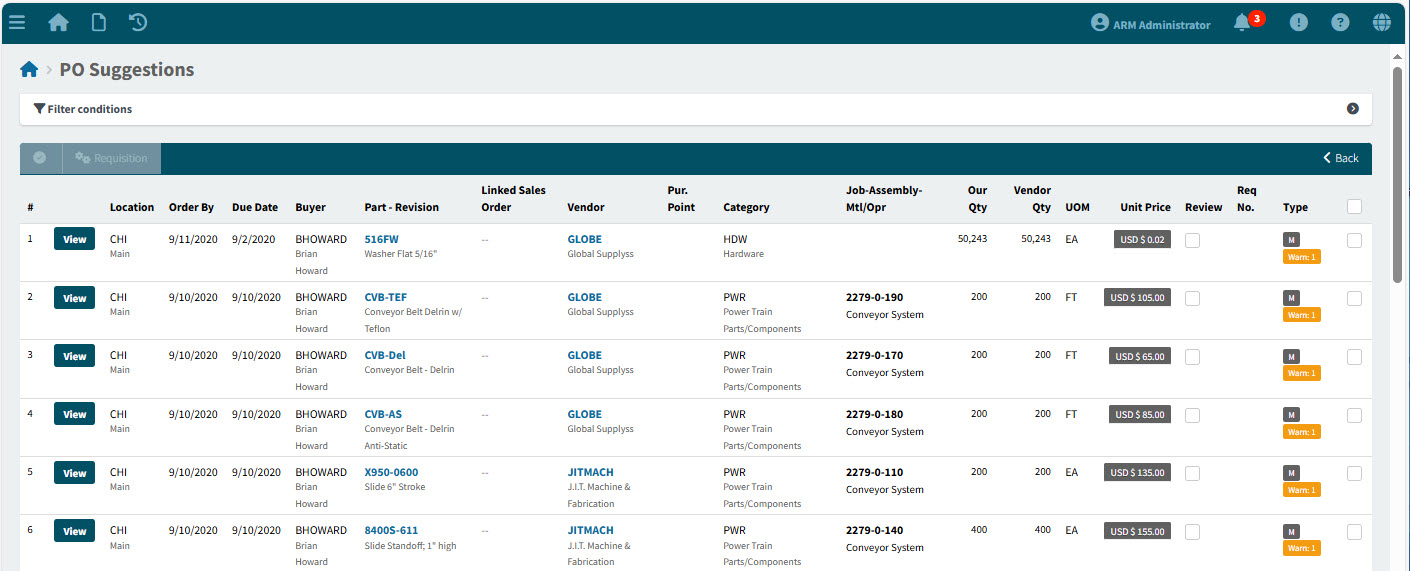
 PO Suggestions from the Side Menu to open the PO Suggestions page. See Side Menu.
The PO Suggestions page opens.
-
Adjust the Search conditions.
See Details
-
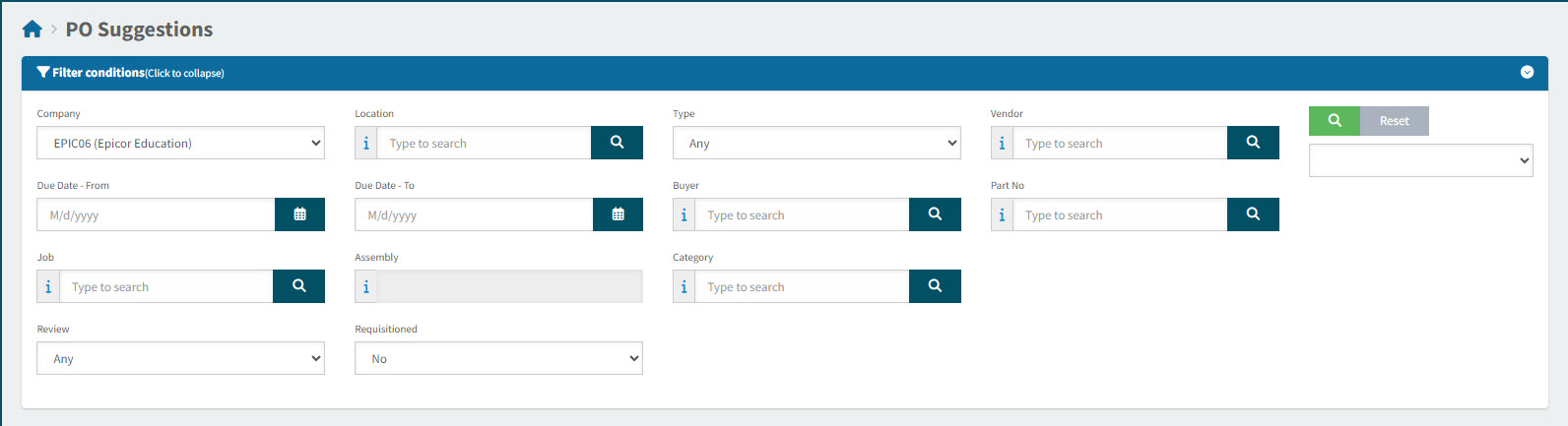
Expand the filter conditions in the top section of the page to search for a specific PO Suggestion or to narrow your search.
View filter conditions
-
Enter values in the edit boxes, or select from the search boxes. See the filter conditions, below.
Filter conditions
Company Select a Company Code.
Location Select a Location.
Type Select Any, Material, or Subcontract.
Vendor Select a Vendor for the PO Suggestion.
Due Date - From When the Due Date is on or after this date.
Due Date - To When the Due Date is on or before this date.
Buyer Filter for PO Suggestions for the selected Buyer.
Part No Select a Part No.
Job Select a Job.
- Assembly
-
Select an Assembly for the selected Job.
Category Filter by selected Category.
Review Filter for PO Suggestions flagged for Review.
Requisitioned Select Yes to filter for PO Suggestions that have had a Requisition created from them.
PO Suggestions that match the search conditions are listed in the grid.
-
Auto Converting PO Suggestions to Requisitions
If the setting Auto Convert Purchase Order Suggestions is set to Yes, ARM automatically converts PO Suggestions to Requisitions, using the POSuggestion job.
-
The setting is either Yes, No, or Inherited at Catalogue level.
-
If the Catalogue setting is Inherited, the Category setting is used.
-
If the Category setting is Inherited, the Company setting is used.
If the PO Suggestion is auto converted, the Purchase Order Suggestion Auto Conversion User Name from the Company is used for the Requisition.
The Company setting Purchase Order Suggestion Conversion Cutoff Length specifies how many PO Suggestions can be converted to a single Requisition.
Creating Requisitions Manually from PO Suggestions
You can create a requisition manually from a PO Suggestion.
-
Select one or more PO Suggestions by selecting the check box to the right of the PO Suggestion, or select the check box on the header to select all error-free PO Suggestions from the search results.
If there are any errors (marked in red label), then there is no check box to select.
-
Select the Requisition button on the Menu Bar.
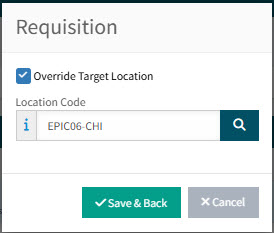
The Requisition pop-up appears.
-
Optionally change the Target Location:
-
Select Override Target Location.
-
Select a Location Code.
-
Click Save & Back.
-
The selected PO Suggestions are updated to be Requisitions which appear on the Requisitions page OR Purchase Orders.
The Requisition name is "From PO Suggestions".