AP Invoices Page
A user is limited to accessing Draft Invoices and AP Invoices where one of their assigned locations belongs to the Site on the Draft Invoice/AP Invoice header.
See Maintaining Users - Locations tab on the Users Detail page.
| To see which site a location belongs to, search for the location on the Locations Page. See Maintaining Locations. The Site Code appears on the location header. |
Create or edit an AP Invoice and upload/attach documents to that invoice.
Then submit the AP Invoice, where it will either run through Tolerance checking or be sent for Approval.
| Submission can be automatic. |
Permissions
-
Create AP Invoices
-
Edit All AP Invoices
-
Approve AP Invoices
-
Approve All AP Invoices
-
View All AP Invoices
-
Un-suspend All AP Invoices
-
Revise All AP Invoices
-
Select
 AP Invoices on the Side Menu. See Side Menu.
The AP Invoices page opens.
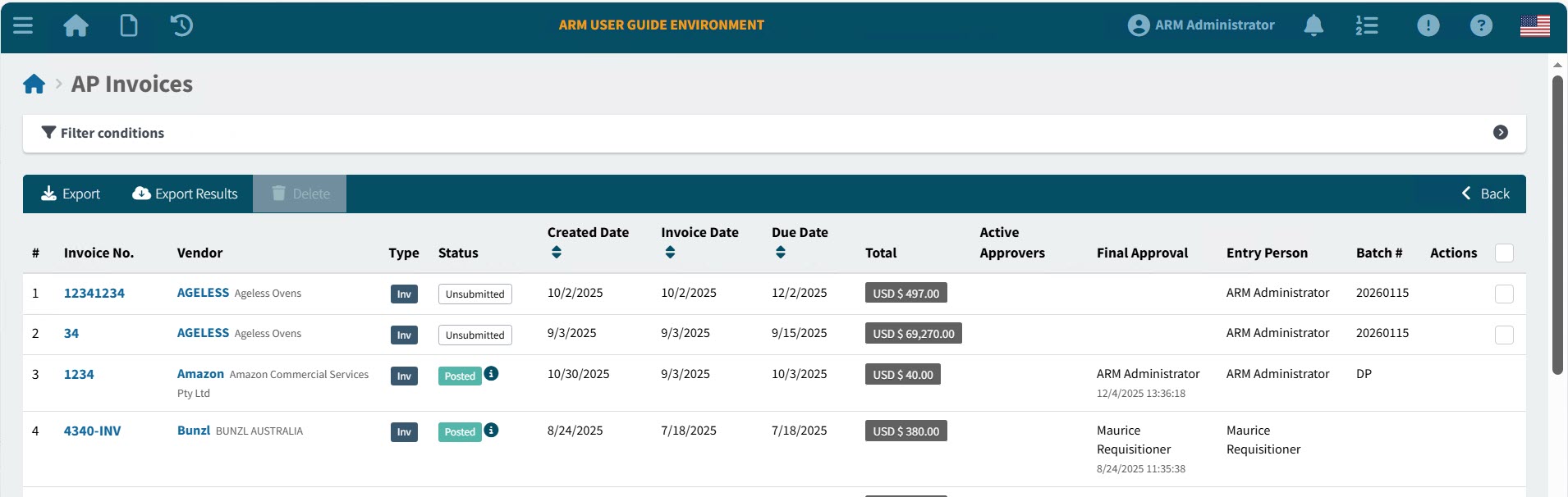
Invoice No The AP Invoice Number. Click on this to open the AP Invoice > [Invoice Number] page.
Vendor The is the Vendor who sent the AP Invoice.
Type Invoice or Debit Memo.
Status The AP Invoice status. This could be:
-
Pending Revision
-
Review in Progress
-
Paid
-
Posted
-
Suspended
-
Rejected
-
Unsubmitted
-
Submitted
-
Approval in Progress
-
Approved
Created Date The date the AP Invoice was created.
Invoice Date The Date on the original Invoice. This could be an Invoice Date, or a Billing Date.
Due Date The date the payment is due.
Total The total amount due.
Active Approvers The Approver(s) at the current step in the approval workflow. An Active Approver can approve or reject an AP Invoice.
Final Approval The name of the final approver, and the date and time they approved/rejected.
Entry Person The person who captured the AP Invoice.
Batch # The AP Invoice Batch number.
[select a row] Select the check box alongside an unsubmitted AP Invoice to select the row. The Delete button on the Header Menu Bar is enabled.
-
-
Adjust the filter conditions.
See Details
-
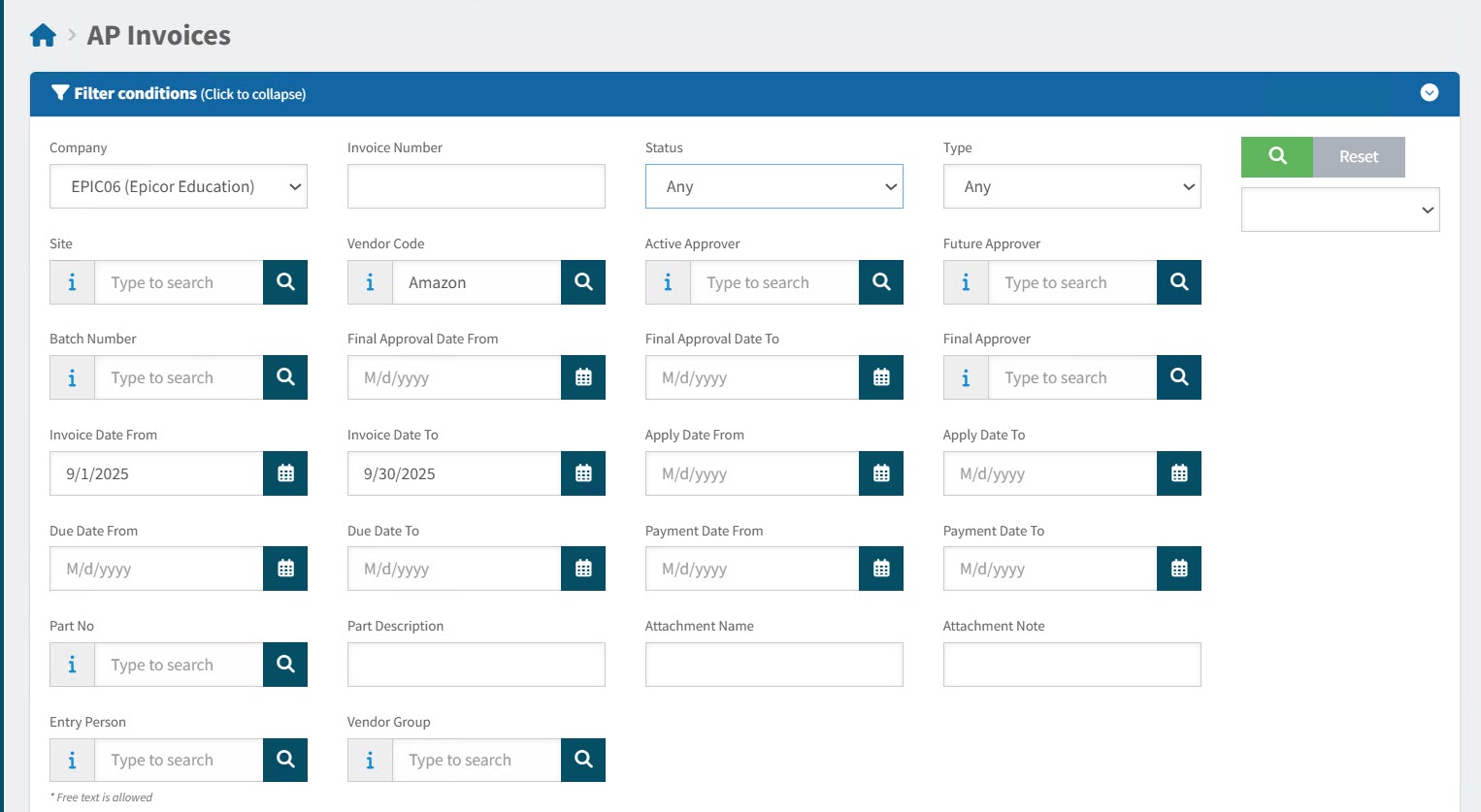
Expand the filter conditions in the top section of the page to search for a specific AP Invoice or to narrow your search.
View filter conditions
-
Enter values in the edit boxes, or select from the search boxes. See the filter conditions, below.
Filter conditions
Company Select a Company from the drop-down list. The current logged-in user only has access to Companies that include their accessible Sites (and Sites are accessible based on the user’s Assigned Locations).
Invoice Number Enter an Invoice Number (or part of the number) to match on.
Status Select one of the following status values from the drop-down list:
-
Any
-
Any (Workflow)
(This includes: Pending Revision, Review in Progress, Suspended, Rejected, Unsubmitted, Approval in Progress)
-
Pending Revision
-
Review in Progress
-
Paid
-
Posted
-
Suspended
-
Rejected
-
Unsubmitted
-
Submitted
-
Approval in Progress
-
Approved
Type Select one of the following types from the drop-down list:
-
Any
-
Invoice
-
Debit Memo
Site Only show AP Invoices belonging to the selected Site. The current logged-in user only has access to Sites that include the user’s Assigned Locations.
Vendor Code Only show AP Invoices for this Vendor. Vendors are limited to those belonging to the currently logged-in user’s Vendor Groups/the selected Vendor Group.
Active Approver Select a user from the drop-down list. Filters for this user as an active approver for the AP Invoice.
Future Approver Select a user from the drop-down list. Filters for this user as a future approver for the AP Invoice.
Batch Number Filter for AP Invoices with this batch number.
Final Approval Date From Final Approval Date between Final Approval Date and Final Approval Date To.
Final Approval Date To Final Approval Date between Final Approval Date and Final Approval Date To.
Final Approver The name of the final approver.
Invoice Date From Invoice Date between Invoice Date From and Invoice Date To.
Invoice Date To Invoice Date between Invoice Date From and Invoice Date To.
Apply Date From Apply Date between Apply Date From and Apply Date To.
Apply Date To Apply Date between Apply Date From and Apply Date To.
Due Date From Due Date between Due Date From and Due Date To.
Due Date To Due Date between Due Date From and Due Date To.
Payment Date From Payment Date between Payment Date From and Payment Date To.
Payment Date To Payment Date between Payment Date From and Payment Date To.
Part No Invoice lines contain this part number.
Part Description Invoice lines contain a part with this part description.
Attachment Name Name of an attachment file.
Attachment Note Name of an attached note.
Entry Person The person who captured the invoice.
Vendor Group Filter on AP Invoices for Vendors belonging to the selected Vendor Group. The currently logged-in user’s Vendor Groups are available.
-
AP Invoices that match the filter conditions are listed in the grid.
-
-
To sort the results, click on one or the sort column headers: Created Date, Invoice Date or Due Date. Click once to sort from most recent to oldest, or click twice to sort from oldest to most recent.
See how to:
-
Create an AP Invoice.
-
Create an AP Debit Memo. See Creating an AP Debit Memo.