Dashboard
The Dashboard has a Pending Items section and a Delegation button, which links to the User Delegation.
|
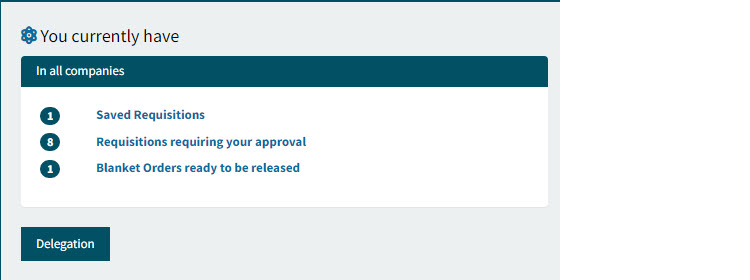
Pending Items
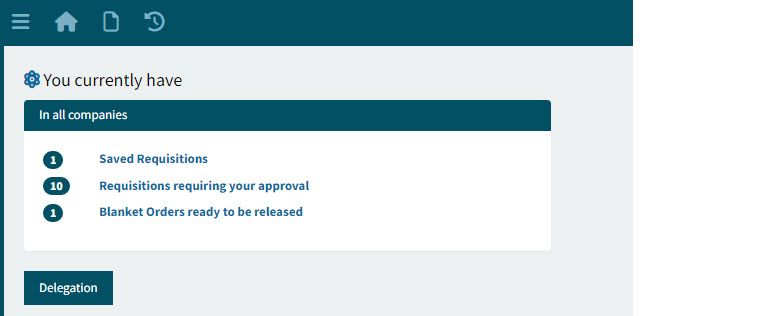
At the top of your dashboard is a list of any pending items for your attention.
Each listed item has a count, for example 10.
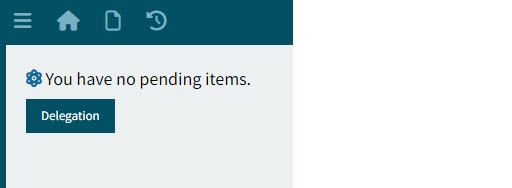
If there are no pending items, this will appear as You have no pending items.
Some pending items require your action (for example, Requisitions requiring your approval) while others require action from another party (for example, Submitted Requisitions).

Link to Pages
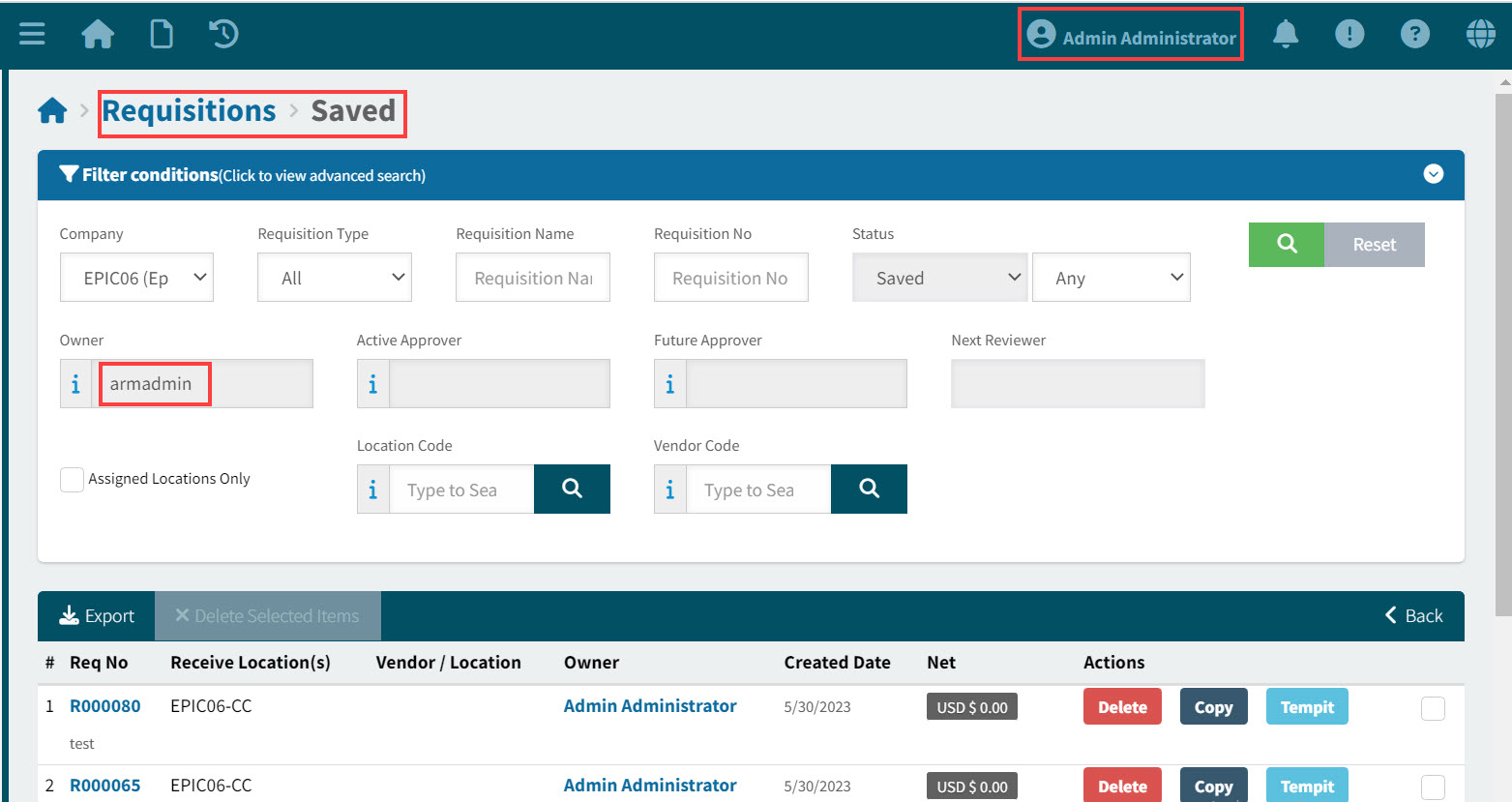
Select any of the links to open the relevant page, pre-populated with filters.
For example, selecting Saved Requisitions opens the Requisitions > Saved page, showing the list of items requiring your attention.
|
What is Listed in Pending Items?
Your potential list of pending items depends on your permissions, which are tied to your User roles. If there are no pending items, the list is empty.
Examples of pending items:
-
The number of:
-
Saved Requisitions
-
Submitted Requisitions
-
Requisitions requiring your approval
-
Requisitions you could approve in advance
-
Requisitions pending your review
-
Pro Forma Orders ready for Purchase Order creation
-
Purchase Orders ready to be received
-
Purchase Orders raised by you that are waiting to be received (My Purchase Orders)
-
Blanket Orders ready to be released
-
-
The list of AP requiring your approval (this refers to Invoices and Debit Memos).
Delegations
A user who has been assigned a Delegated role will see this information on their Dashboard.
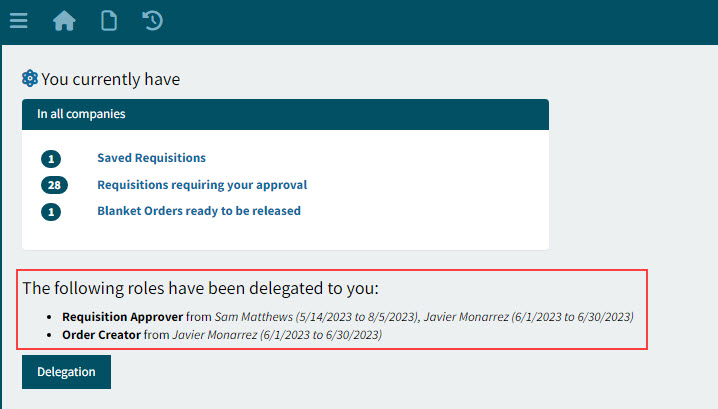
-
To delegate one or more of your roles to another user, select the Delegation button. This takes you to the User Delegation screen. See User Delegation.