Company Settings
| This page should be maintained by ARM Administrators only. |
Permissions
You require a role with the Maintain Settings permission to access Company Settings.
See Permissions in ARM.
-
Select the Company Settings menu item on the Administration Page. See Administration Page.
The companies for this installation of ARM are displayed on the Company page.
-
Select a company Code from the list of available companies.
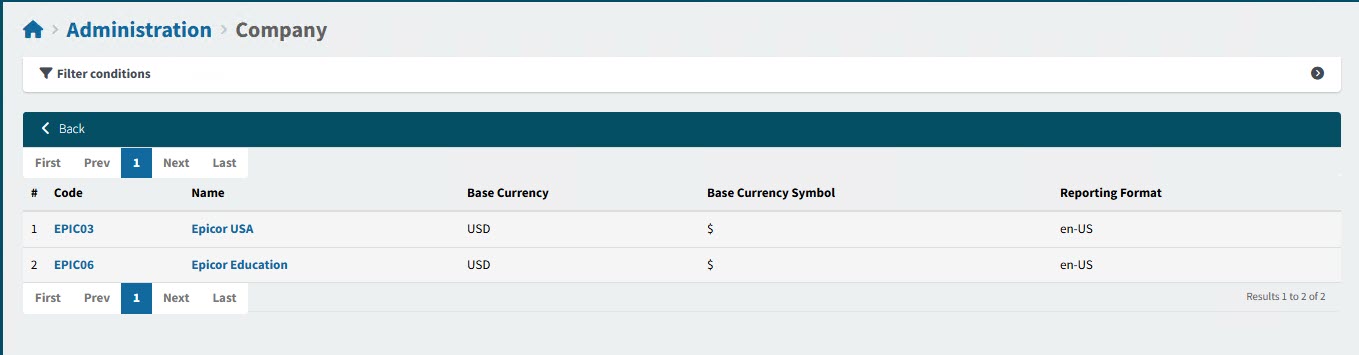
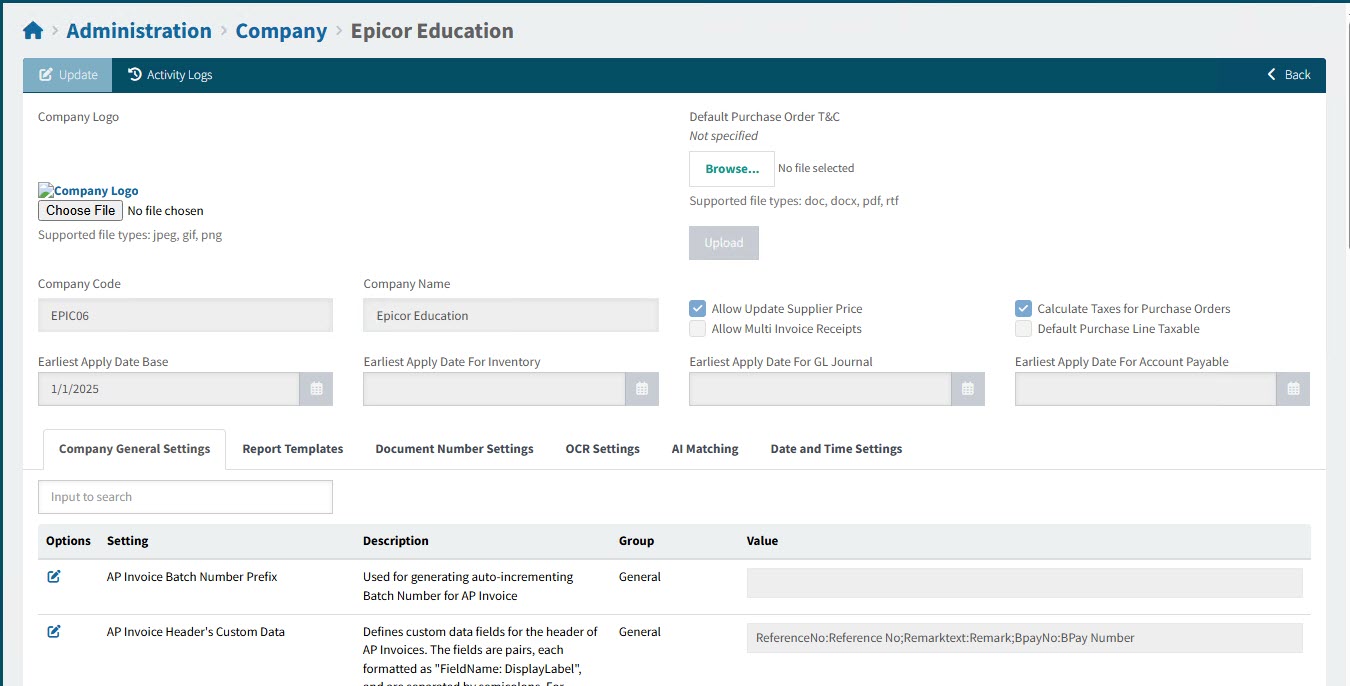
The company details display on the Company > [selected company] page.
-
Update or view the Company Details on the main panel.
Updating or Viewing Company Details:
Update or upload any of the following details for the selected company.
Updating the Company Logo
-
Select Choose File, then browse to the Company logo and select it, then select Open.
-
Select Upload.
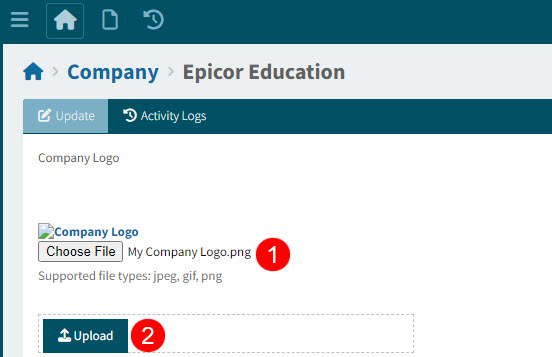
The selected company logo is displayed.
Updating the Default Purchase Order T&C
-
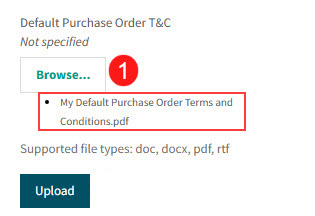
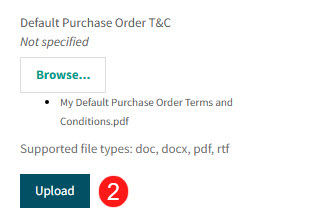
Select Browse…, then browse to the designated file, select it, then select Open.
The file is selected and is ready to upload.
-
Select Upload.
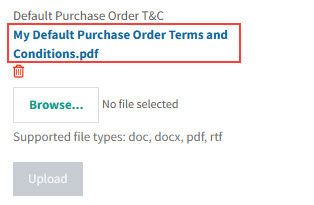
The selected file is uploaded.
Read-only Fields
The remaining company details are read-only:
Field Description Company Code
The code for the selected company, maintained in Kinetic (Company Configuration).
Company Name
The name for the selected company, maintained in Kinetic (Company Configuration).
Allow Update Supplier Price
This value is Kinetic’s Allow update of Supplier Price when Receiving which is maintained in Company Configuration (navigate to System Setup > Company/Site Maintenance > Company Configuration) on the Modules > Materials > Shipping card.
If this option is selected, then Receivers may change the unit cost on purchase orders, provided they have the necessary permission (Override PO Receiving Unit Cost).
Allow Multi Invoice Receipts
This value is Kinetic’s Allow Multiple Invoicing of Receipts which is maintained in Company Configuration (navigate to Company Configuration > Company/Site Maintenance > Company Configuration) on the Modules > Finance > Accounts Payable card.
Calculate Taxes for Purchase Orders
This value is maintained in Kinetic’s Company Configuration in Modules > Taxes. The flag is to determine whether PO taxes will be calculated.
Default Purchase Line Taxable
This value is maintained in Kinetic’s Company Configuration in Modules > Taxes.
Earliest Apply Dates
The earliest apply date is the earliest date that a transaction can be applied. Earliest Apply Dates are integrated from Kinetic into ARM. Per transaction type, you should not be using a date that is before the earliest apply date. For example: ARM Purchase Orders will not be allowed to be received on any prior date, ARM Transfer Orders will not be allowed to be shipped or received on any prior date, and an expense apply date may not be before the earliest apply date.
Note that in some cases, date validation looks at more than one of the earliest apply dates. This is covered in the relevant section of the help.
Earliest Apply Date Base
This value is maintained in Earliest Apply Date Entry in Kinetic (Financial Management > General Ledger > General Operations > Earliest Apply Date in Detail for Earliest Apply Date).
Earliest Apply Date For Inventory
This value is maintained in Earliest Apply Date Entry in Kinetic (Financial Management > General Ledger > General Operations > Earliest Apply Date in Per Module/Transaction Type for Module/Transaction Type Inventory and Production).
Earliest Apply Date For GL Journal
This value is maintained in Earliest Apply Date Entry in Kinetic (Financial Management > General Ledger > General Operations > Earliest Apply Date in Per Module/Transaction Type for Module/Transaction Type General Journal).
Earliest Apply Date For Accounts Payable
This value is maintained in Earliest Apply Date Entry in Kinetic (Financial Management > General Ledger > General Operations > Earliest Apply Date in Per Module/Transaction Type for Module/Transaction Type Accounts Payable).
-
-
To edit a Value for any of the Settings, select the edit
 icon under Options, edit the value, then Save
  or Cancel
  the change.
See the details for the separate tabs:
Company General Settings
Update or view the values for the Company General Settings:
-
Open the Company General Settings tab sheet.
-
To filter results, enter a value in the Search Box.
View Company General Settings tab sheet
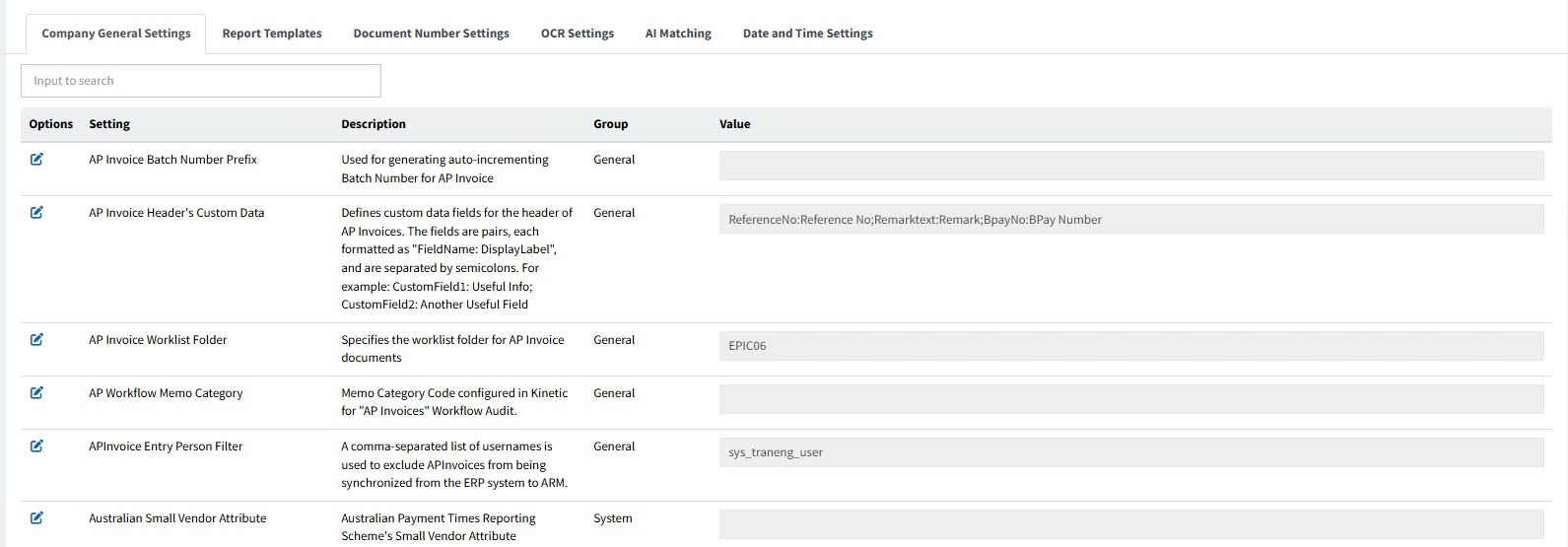
| Setting | Description | Options from Drop-down / Example Value |
|---|---|---|
AP Invoice Batch Number Prefix |
Used for generating auto-incrementing Batch Number for AP Invoice |
|
AP Invoice Header’s Custom Data |
Defines custom data fields for the header of Draft Invoices and AP Invoices. The fields are pairs, each formatted as "FieldName: DisplayLabel", and are separated by semicolons. For example: CustomField1: Useful Info; CustomField2: Another Useful Field If custom field values are entered for a Draft Invoice, these values are copied over when an AP Invoice is created from the Draft Invoice. Data Handling: Once defined and saved, the custom field data is stored locally in ARM (column UserDefinedData in the APInvoice table). If the Kinetic system’s APInvHed table contains corresponding UDFs (e.g. CustomField1_c, CustomField2_c), the values will also be synchronized and stored there. NOTE: AP Invoice Header’s Custom Data is a replacement for APInvoice Header UD Field Label and APInvoice Header UD Field Name. |
ReferenceNo:Reference No;Remarktext:Remark; |
AP Invoice Worklist Folder |
Specifies the worklist folder for AP Invoice documents |
EPIC03 |
AP Workflow Memo Category |
Memo Category Code configured in Kinetic for "AP Invoices" Workflow Audit. |
|
APInvoice Entry Person Filter |
A comma-separated list of usernames is used to exclude APInvoices from being synchronized from the ERP system to ARM. |
|
Australian Small Vendor Attribute |
Australian Payment Times Reporting Scheme’s Small Vendor Attribute |
|
Auto Confirm PO for New Vendor |
Enable Auto Confirm PO for New Vendor. |
Yes/No |
Auto Convert Purchase Order Suggestions |
Specifies whether PO Suggestions should be automatically converted to Requisitions |
Yes/No |
CC Email Addresses for RFQ |
CC Email Addresses for RFQ notifications sent out to suppliers. Multiple values must be separated by semicolons |
|
Default Buyer |
Specifies the Default Buyer for Purchase Orders |
Select a Buyer from the drop-down list. |
Default Category |
Default Category |
|
Default FOB |
Specifies the default FOB to use when adding requisition purchase line |
|
Default for "Use current date" as apply date for Invoices |
Specifies whether the "Use current date" check box should default to checked or unchecked on new Draft Invoices and AP Invoices |
Yes/No |
Default Locale |
Specifies the default Locale which will be used when parsing numeric values |
en-AU-Australia-English |
Default Miscellaneous Charge Code for AP Invoice Lines |
Default Miscellaneous Charge Code for AP Invoice Lines |
Select from the drop-down list. |
Default Non-Cat Part No |
Defaults the Requisition Non-Cat Line Part No field. The value here provides the default value for the Part No. field of a non-catalogue item. The description for non-catalogue items is left blank. |
Misc |
Default Product Tax Category Code |
The default product tax category code used for items that have no tax code defined. |
PROD - Products |
Default Report Locale |
Determine language, number and date time format for reports. |
en-US |
Default Ship Via |
Specifies the default Ship Via to use when adding requisition purchase line. |
|
Default Tax Liability (Tax Region) Code |
The default tax liability code used for requisition purchase line items when a selected vendor has no tax liability code defined |
Select from the drop-down list. |
Default Terms Code |
Default Terms Code for AP Invoices |
SERV - Services |
Default UOM |
Specifies the default UOM to use when adding non-catalog requisition lines and AP Invoice misc lines |
EA - Single Unit |
Default Void Visit Reason Code |
Specifies the default reason code to use when voiding a Community Care visit. This setting can be ignored if backend ERP does not support Community Care |
|
Document Type for AP Invoice |
Document Type for AP Invoice. Enter the required Type ID value for attachment integration with AP Invoice. See AP Invoice Attachment Integration. |
AP |
Document Type for Purchase Order |
Document Type for Purchase Order attachment integration. |
|
Draft Invoice to AP Invoice GL defaulting Behaviour |
Draft Invoice to AP Invoice GL defaulting Behaviour |
|
Enable Auto Purchase Order For New Vendor |
Auto Purchase Order is enabled by default for new vendors added to ARM |
On/Off |
Enable Pending Approval Notifications for Delegates |
Specifies whether delegated users should receive existing pending approval notifications |
On/Off |
Enforces nnn-nnn format for OTV Bank Branch Code |
Enforces nnn-nnn format for OTV Bank Branch Code |
Yes/No |
HS Commodity Code Required |
When enabled the HS Commodity Code field is required on Requisition Lines, PFO Lines, PO Lines, APInvoice Lines and Draft Invoice Lines. |
Yes/No |
Journal Code |
Enter the Journal Code from Kinetic to be used for any location-driven expensing. |
GJ |
Primary Currency Code |
Primary Currency Code, integrated from Kinetic. |
USD |
Purchase Order Suggestion Auto Conversion User Name |
Specifies the ARM user who will be used for PO Suggestion auto conversion |
|
Purchase Order Suggestion Conversion Cutoff Length |
Specifies the maximum number of PO Suggestions to be picked up and converted into a single Requisition |
|
Purchase Order Workflow Memo Category |
Memo Category Code configured in Kinetic for "Purchase Order" Workflow Audit. |
|
Quantity Adjustment Reason Code |
Reason Code to be used for Inventory Adjustments |
|
Report Printer |
Specifies the printer to be used by ARM and ARM Integration Manager for printing. Optionally change this to another printer on the network. |
|
Ship Via is Required for Purchase Orders |
Specifies whether Ship Via is Required for Purchase Orders Ship Via is Required for Purchase Orders |
Yes/No |
Supplier Email Contact Role Code |
Role Code of Supplier Contact whose Email Address will be used for Purchase Order notification. Explanation: Set the Role Code for Supplier Email Contacts. The value in this setting controls the Vendor Contact details selected for Purchase Orders in ARM. See more about Automatic Email of a Purchase Order. |
|
Tax Exclusive Tax Category |
Specifies the value for Tax Exclusive Tax Category as defined in backend ERP |
|
Tax Free Tax Category |
Specifies the value for Tax Free Tax Category as defined in backend ERP |
SERV - Services |
Tolerance Priority Level Setting |
Tolerance Priority Level Setting |
2 |
Use ARM’s GL defaulting logic on inventory items |
Kinetic defaults GL Accounts for inventory items based on GL Controls. By default, ARM uses the same logic. Enabling this setting makes ARM use the "GL Account Mask Sequence" for inventory items, like non-inventory items. WARNING: If ARM’s GL defaulting logic is used for inventory items, update Kinetic’s Posting Rules to align with ARM. |
Yes/No |
Validation mode for APInvoice tolerance checking |
Validation mode for APInvoice tolerance checking |
POReceiptLine - Tolerance check against PO Receipt Line POLine - Tolerance check against original PO line |
Report Templates
Update or view the values for the Report Templates:
-
Open the Report Templates tab sheet.
-
To filter results, enter a value in the Search Box.
View Report Templates tab sheet
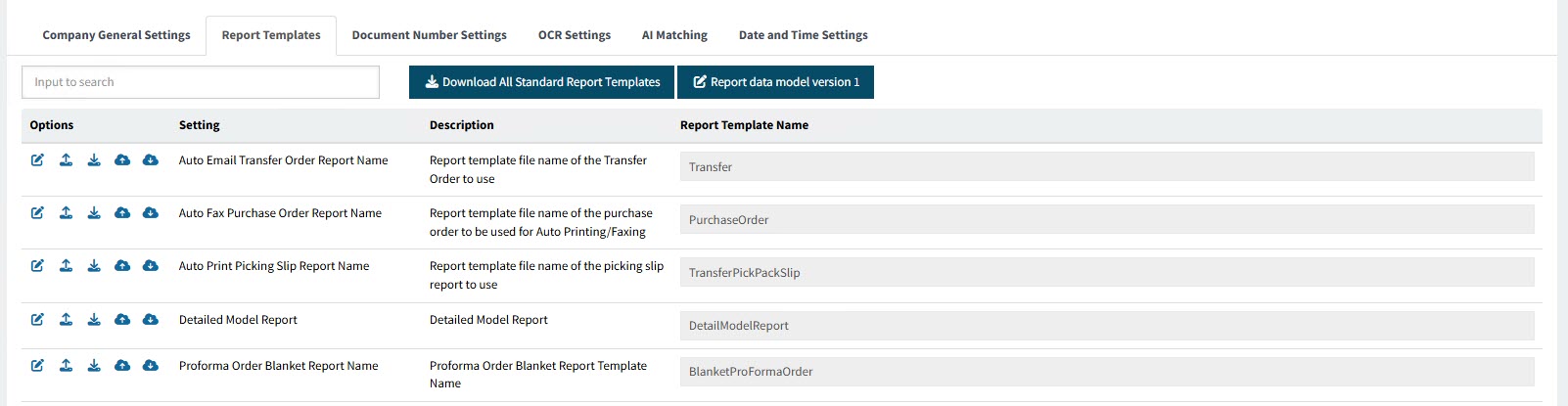
| Setting | Description | Example Value |
|---|---|---|
Auto Email Transfer Order Report Name |
Report template file name of the Transfer Order to use |
Transfer |
Auto Fax Purchase Order Report Name |
Report template file name of the purchase order to be used for Auto Printing/Faxing |
PurchaseOrder |
Auto Print Picking Slip Report Name |
Report template file name of the picking slip report to use |
TransferPickPackSlip |
Detailed Model Report |
Detailed Model Report |
DetailModelReport |
Proforma Order Blanket Report Name |
Proforma Order Blanket Report Template Name |
BlanketProFormaOrder |
Proforma Order Report Name |
Proforma Order Report Template Name |
ProFormaOrder |
Proforma Transfer Report Name |
Proforma Transfer Report Template Name |
ProFormaTransfer |
Purchase Order Blanket Report Name |
Purchase Order Blanket Report Template Name |
BlanketOrder |
Purchase Order Delivery Docket Report Name |
Purchase Order Delivery Docket Report Template Name |
PurchaseOrderDeliveryDocket |
Purchase Order Receipt Docket Report Name |
Purchase Order Receipt Docket Report Template Name |
PurchaseOrderReceiptDocket |
Purchase Order Report Name |
Purchase Order Report Template Name |
PurchaseOrder |
Purchase Order Report Name For Purchase Order With Dropshipping Release |
Purchase Order Report Name For Purchase Order With Dropshipping Release |
PurchaseOrderDropship |
Report Request For Quote Detail All Vendors Name |
Report template file name of report ReportRequestForQuoteDetailAllVendors |
ReportRequestForQuoteDetailAllVendors |
Report Request For Quote Detail Per Vendor Name |
Report template file name of report ReportRequestForQuoteDetailPerVendor |
ReportRequestForQuoteDetailPerVendor |
Requisition Blanket Order Report Name |
Requisition Blanket Order Report Template Name |
RequisitionBlanketPO |
Requisition Expense Report Name |
Requisition Expense Report Template Name |
RequisitionExpense |
Requisition Report Name |
Requisition Report Template Name |
Requisition |
Transfer Pack Slip Report Name |
Transfer Pack Slip Report Template Name |
TransferPickPackSlip |
Transfer Report Name |
Transfer Report Template Name |
Transfer |
Document Number Settings
Update or view the values for the Document Number Settings:
-
Open the Document Number Settings tab sheet.
View Document Number Settings tab sheet

| Document Type | Last Document Number |
|---|---|
Transfer |
This number is used to set the document number on the next Transfer Order that is created in ARM. This setting should be used if there is any possibility of ARM Transfer Numbers clashing with Kinetic Transfer Order numbers. For example: If ARM is installed on a version of Kinetic where Transfer Orders already exist in Kinetic. One way to achieve differentiation between these two numbers is to set the next Transfer Order number in Kinetic to a very high number and the next Transfer Order number in ARM to a number lower than that but higher than the last Transfer Order Number created in Kinetic. |
Purchase Order |
This number is used to set the number on the next Purchase Order that is created in ARM. This setting should be used if there is any possibility of ARM Purchase Order numbers clashing with Kinetic Purchase Order numbers, for example if ARM is installed on a version of Kinetic where Purchase Orders already exist in Kinetic. One way to achieve differentiation between these two numbers is to set the next PO number in Kinetic to a very high number and the Purchase Order Last Document Number in ARM to a number lower than that but higher than the last PO Number created in Kinetic. To update the next PO number in Kinetic: Update Starting PO on the Modules > Materials > Purchase tab in System Setup > Company/Site Maintenance > Company Configuration. |
OCR Settings
These are the settings concerned with the process of ARM’s Draft Invoice creation.
| OCR Settings at Vendor level, if configured, will override OCR settings at Company level. See Maintaining Vendors. |
Update or view the values for the OCR Settings:
-
Open the OCR Settings tab sheet.
-
To filter results, type in the Search Box.
View OCR Settings tab sheet
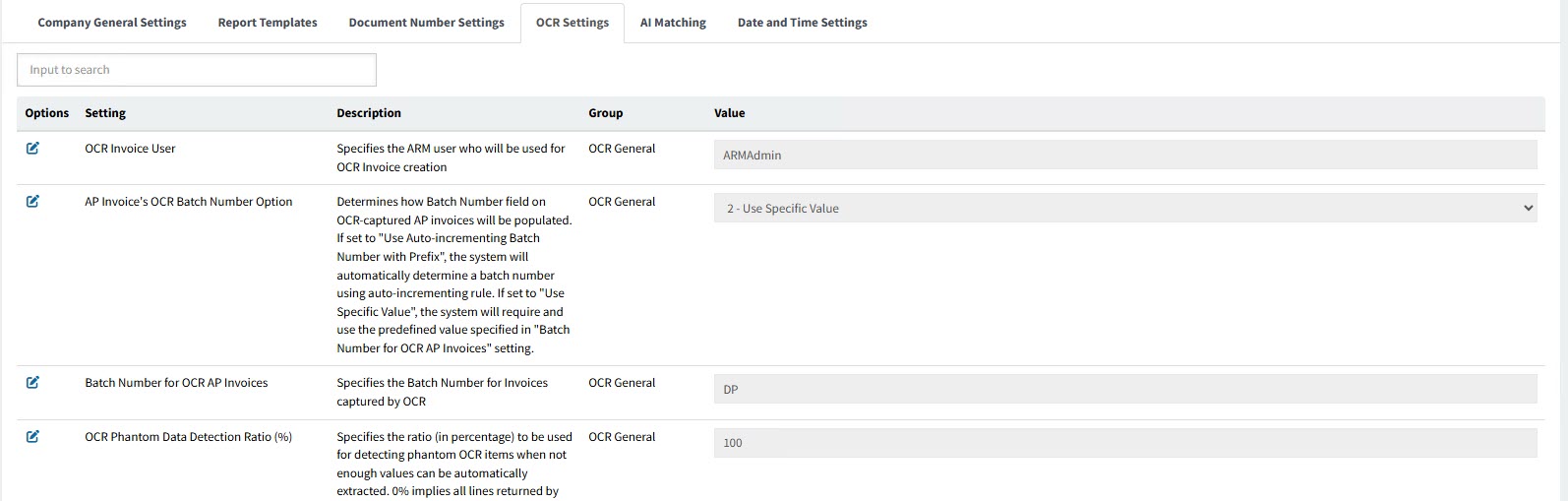
There are two groups of settings here: OCR General and OCR Suggestions.
Group OCR General
| Setting | Description |
|---|---|
OCR Invoice User |
Specifies the ARM user who will be used for OCR Invoice creation |
AP Invoice’s OCR Batch Number Option |
Determines how Batch Number field on OCR-captured AP invoices will be populated. If set to "Use Auto-incrementing Batch Number with Prefix", the system will automatically determine a batch number using auto-incrementing rule. If set to "Use Specific Value", the system will require and use the predefined value specified in "Batch Number for OCR AP Invoices" setting. |
Batch Number for OCR AP Invoices |
Specifies the Batch Number for Invoices captured by OCR |
OCR Phantom Data Detection Ratio (%) |
Specifies the ratio (in percentage) to be used for detecting phantom OCR items when not enough values can be automatically extracted |
Group OCR Suggestions
Each of these settings has a Populate Threshold and a Trust Threshold.

Some of them also have a Trust Inferred Value setting.

And two settings, [DueDate] Trust Confidence Thresholds and [PaymentTerms] Trust Confidence Thresholds, also have an Ignore mismatch warnings setting.

Populate Threshold and Trust Threshold values range from 0 to 100, and can be updated here. Trust Inferred Value can either be selected or not, and these settings are also updated here.
When the data is read, confidence levels accompanying each data value are also assessed. The confidence levels of competing suggested values are ranked, so that the value with the highest confidence is the one that automatically populates the corresponding field (if it exceeds the Populate Threshold). The populated field is then used for automatic invoice creation if its confidence value also matches or exceeds the Trust Threshold.
| Populate Threshold |
This is the Auto-Populate Threshold. If the suggested value with the highest confidence is greater than or equal to the threshold, the target field will automatically be populated with the value. For example, if the Populate Threshold for setting [TotalAmount] Trust Confidence Thresholds is set at 25 and the suggested value with the highest confidence has a confidence of 35, the target field (TotalAmount) is populated with the suggested value. |
||||||||
| Trust Threshold |
This is the Trust Threshold. If the suggested value with the highest confidence is greater than or equal to the threshold, the auto-populated field will be trusted, allowing automatic invoice creation. |
||||||||
| Trust Inferred Value |
Specifies whether the inferred value should be trusted for this field. When the check box is selected, the inferred value will allow automatic invoice creation. For example: [Item Quantity] Trust Confidence Thresholds has Trust Inferred Value selected. If the value is missing from the PDF, it cannot be read. However, it can be inferred from other values (for example the Item Quantity can be inferred from the Item Amount and the Item UnitPrice). Because Trust Inferred Value is selected for [Item Quantity] Trust Confidence Thresholds, the inferred value for Item Quantity is allowed in automatic invoice creation. |
||||||||
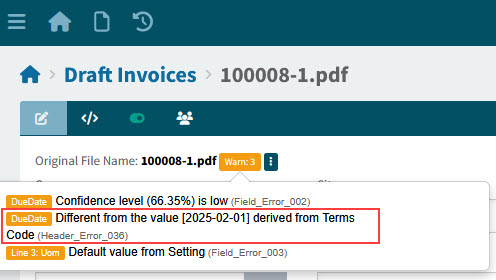
| Ignore mismatch warnings |
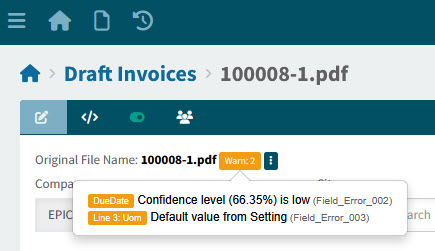
Specifies whether to ignore mismatch warnings. When the check box is selected, the system ignores warnings where the value conflicts with a calculated or default value, allowing for automatic invoice creation. For example: If Ignore mismatch warnings is not selected for setting [DueDate] Trust Confidence Thresholds, a warning is displayed when a mismatch in due dates is encountered.
For the same draft invoice, the warning is ignored and does not appear, if the setting has Ignore mismatch warnings selected.
|
| Setting | Description | Value |
|---|---|---|
[TotalAmount] Trust Confidence Thresholds |
Specifies the Trust Confidence thresholds (values ranging from 0 to 100) for field TotalAmount |
[Populate Threshold; Trust Threshold] |
[InvoiceNumber] Trust Confidence Thresholds |
Specifies the Trust Confidence thresholds (values ranging from 0 to 100) for field InvoiceNumber |
[Populate Threshold; Trust Threshold] |
[Supplier Number] Trust Confidence Thresholds |
Specifies the Trust Confidence thresholds (values ranging from 0 to 100) for field Supplier Number which populates Tax ID |
[Populate Threshold; Trust Threshold] |
[DueDate] Trust Confidence Thresholds |
Specifies the Trust Confidence thresholds (values ranging from 0 to 100) for field DueDate |
[Populate Threshold; Trust Threshold; Trust Inferred Value; Ignore mismatch warnings] |
[InvoiceDate] Trust Confidence Thresholds |
Specifies the Trust Confidence thresholds (values ranging from 0 to 100) for field InvoiceDate |
[Populate Threshold; Trust Threshold] |
[PurchaseOrder] Trust Confidence Thresholds |
Specifies the Trust Confidence thresholds (values ranging from 0 to 100) for field PurchaseOrder |
[Populate Threshold; Trust Threshold] |
[BalanceDue] Trust Confidence Thresholds |
Specifies the Trust Confidence thresholds (values ranging from 0 to 100) for field BalanceDue |
[Populate Threshold; Trust Threshold] |
[PaymentTerms] Trust Confidence Thresholds |
Specifies the Trust Confidence thresholds (values ranging from 0 to 100) for field PaymentTerms |
[Populate Threshold; Trust Threshold; Trust Inferred Value; Ignore mismatch warnings] |
[Freight] Trust Confidence Thresholds |
Specifies the Trust Confidence thresholds (values ranging from 0 to 100) for field Freight |
[Populate Threshold; Trust Threshold] |
[Supplier Name] Trust Confidence Thresholds |
Specifies the Trust Confidence thresholds (values ranging from 0 to 100) for field Supplier Name |
[Populate Threshold; Trust Threshold] |
[Supplier Address] Trust Confidence Thresholds |
Specifies the Trust Confidence thresholds (values ranging from 0 to 100) for field Supplier Address |
[Populate Threshold; Trust Threshold] |
[Supplier Phone] Trust Confidence Thresholds |
Specifies the Trust Confidence thresholds (values ranging from 0 to 100) for field Supplier Phone |
[Populate Threshold; Trust Threshold] |
[Supplier Email] Trust Confidence Thresholds |
Specifies the Trust Confidence thresholds (values ranging from 0 to 100) for field Supplier Email |
[Populate Threshold; Trust Threshold] |
[Item Amount] Trust Confidence Thresholds |
Specifies the Trust Confidence thresholds (values ranging from 0 to 100) for field Amount |
[Populate Threshold; Trust Threshold; Trust Inferred Value] |
[Item Description] Trust Confidence Thresholds |
Specifies the Trust Confidence thresholds (values ranging from 0 to 100) for field Description |
[Populate Threshold; Trust Threshold] |
[Item Quantity] Trust Confidence Thresholds |
Specifies the Trust Confidence thresholds (values ranging from 0 to 100) for field Quantity |
[Populate Threshold; Trust Threshold; Trust Inferred Value] |
[Item UnitPrice] Trust Confidence Thresholds |
Specifies the Trust Confidence thresholds (values ranging from 0 to 100) for field UnitPrice |
[Populate Threshold; Trust Threshold; Trust Inferred Value] |
[Item ProductCode] Trust Confidence Thresholds |
Specifies the Trust Confidence thresholds (values ranging from 0 to 100) for field ProductCode |
[Populate Threshold; Trust Threshold; Trust Inferred Value] |
[Item UOM] Trust Confidence Thresholds |
Specifies the Trust Confidence thresholds (values ranging from 0 to 100) for field UOM (Unit of Measure) |
[Populate Threshold; Trust Threshold; Trust Inferred Value] |
[Item Tax] Trust Confidence Thresholds |
Specifies the Trust Confidence thresholds (values ranging from 0 to 100) for field Tax |
[Populate Threshold; Trust Threshold] |
[Item PurchaseOrder] Trust Confidence Thresholds |
Specifies the Trust Confidence thresholds (values ranging from 0 to 100) for field Purchase Order |
[Populate Threshold; Trust Threshold] |
[Item Tax Category] Trust Confidence Thresholds |
Specifies the Trust Confidence thresholds (values ranging from 0 to 100) for field Tax Category |
[Populate Threshold; Trust Threshold; Trust Inferred Value] |
AI Matching
| Matching settings at Vendor level, if configured, will override Matching settings at Company level. See Maintaining Vendors. |
Update or view the values for AI Matching:
-
Open the AI Matching tab sheet.
View AI Matching tab sheet
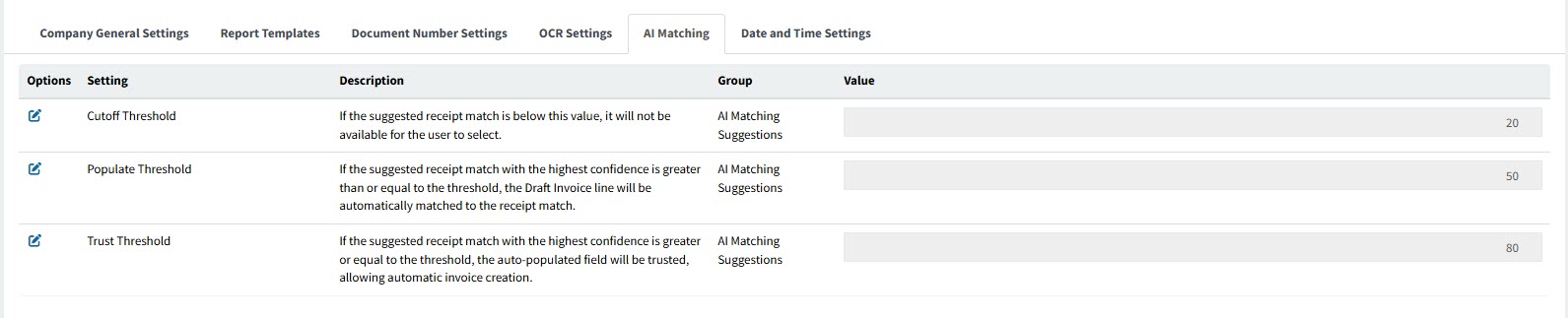
The settings for group AI Matching Suggestions are:
- Cutoff Threshold
-
If the suggested receipt match is below this value, it will not be available for the user to select.
Example value: 20
- Populate Threshold
-
If the suggested receipt match with the highest confidence is greater than or equal to the threshold, the Draft Invoice line will be automatically matched to the receipt match.
Example value: 50
- Trust Threshold
-
If the suggested receipt match with the highest confidence is greater or equal to the threshold, the auto-populated field will be trusted, allowing automatic invoice creation.
Example value: 80
Date and Time Settings
Update or view the values for the Date and Time Settings:
-
Open the Date and Time Settings tab sheet.
View Date and Time Settings tab sheet
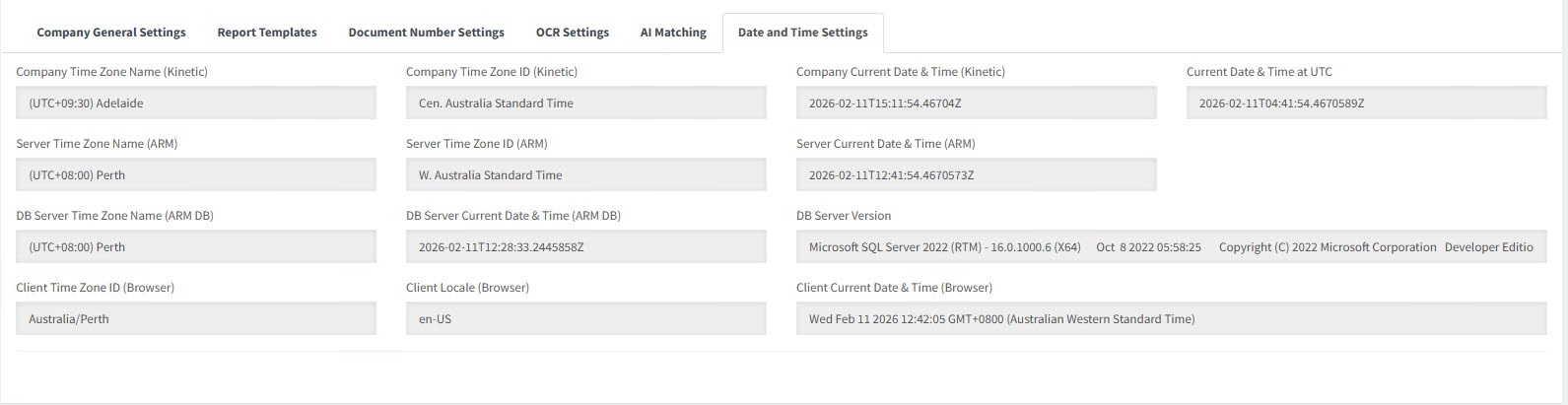
| Field | Description |
|---|---|
Company Time Zone Name (Kinetic) |
The company’s time zone, maintained in Kinetic (Company Maintenance, General Settings) |
Company Time Zone ID (Kinetic) |
The time zone ID associated with the Company Time Zone Name |
Company Current Date & Time (Kinetic) |
The current date and time in the Company Time Zone |
Current Date & Time at UTC |
The current UTC (Coordinated Universal Time) date and time |
Server Time Zone Name (ARM) |
The time zone name for the ARM Server |
Server Time Zone ID (ARM) |
The time zone ID for the ARM Server |
Server Current Date & Time (ARM) |
The current date and time in the ARM Server’s time zone |
DB Server Time Zone Name (ARM DB) |
The time zone name for ARM’s DB Server |
DB Server Current Date & Time (ARM DB) |
The time zone ID for ARM’s DB Server |
DB Server Version |
The database version number for ARM’s database server |
Client Time Zone ID (Browser) |
The time zone name for ARM’s client machine |
Client Locale (Browser) |
The locale for ARM’s client machine |
Client Current Date & Time (Browser) |
The current date and time, as well as the time zone name and ID for ARM’s client machine |