Deleting a Requisition
You may delete a requisition if you are the Owner (the user who created the requisition), or if you are an Authorized User on the Requester’s Requester Group.
The requisition must have the Saved status and must not have been submitted.
Permissions
You require a role with the Quick Delete permission to delete saved requisitions. See Permissions in ARM.
To delete a requisition from the detail page:
-
Open the Requisitions > [Requisition Number] page.
-
Click Delete on the Footer Menu.
-
Click Yes on the Confirmation Dialog.
The requisition is deleted.
To delete a requisition from a summary page:
-
Open one of the Requisition Views (All Requisitions or Saved Requisitions).
-
Click on the Delete button under the Actions column.
-
Click Yes on the Confirmation Dialog.
The requisition is deleted.
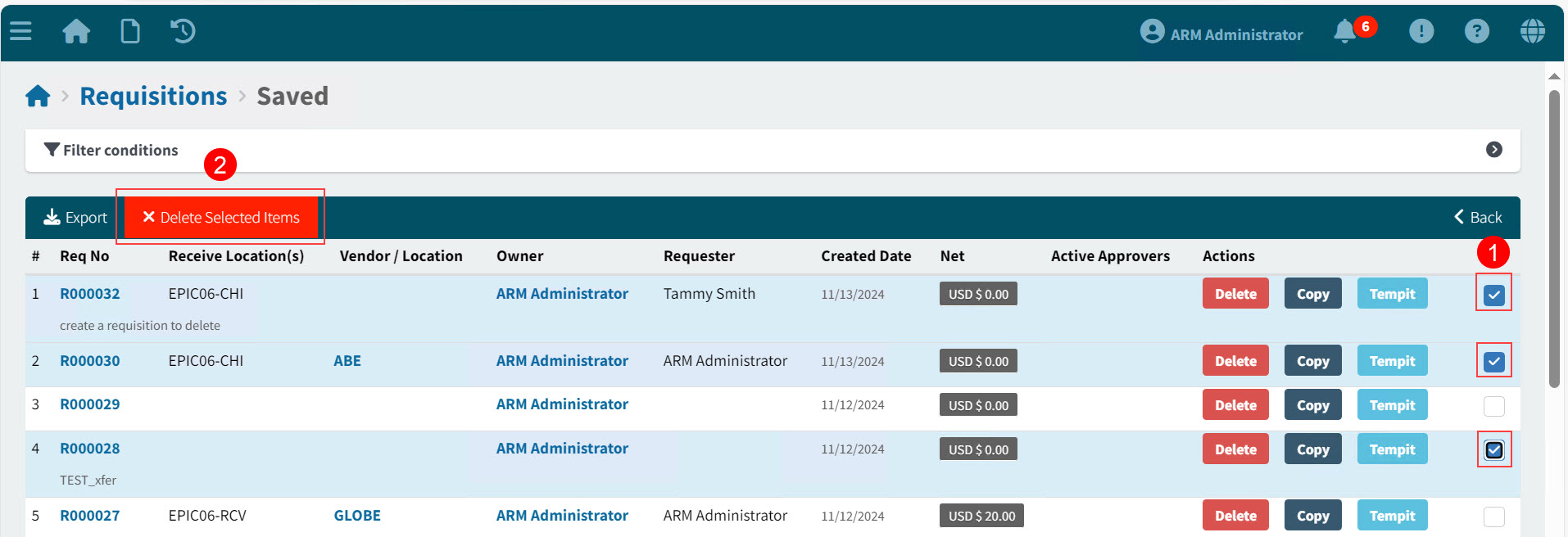
You may also delete multiple requisitions from a summary page.
-
Select the check box to the right of each requisition that you want to delete.
-
Click
 Delete Selected Items on the Menu Bar.
 -
Click Yes on the Confirmation Dialog.
The selected requisitions are deleted.
View Example