GL Budget Checking
ARM GL Budget Settings are defined on the GL Budget page by the Administrator.
Items on a requisition are checked against budgets defined in the Kinetic General Ledger.
| Budgets can be added in Kinetic’s GL Account Budget Maintenance. |
GL Budgets can be defined by:
-
Account Code
-
Period
-
Fiscal Year.
| See how to work with GL Budgets: GL Budget Settings. |
GL Budget Checking for Requisitions
When GL Budget Checking is enabled, ARM checks a requisitioned item against the selected GL Budget from ARM’s Settings where the item has a valid account code.
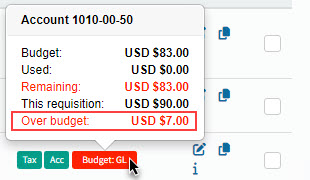
If the item’s amount causes the GL Account to go over budget, the Budget: GL button on the requisition line is red.

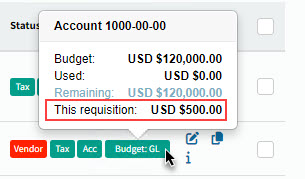
If the item’s amount leaves the GL Account within budget, the Budget: GL button on the requisition line is green.

-
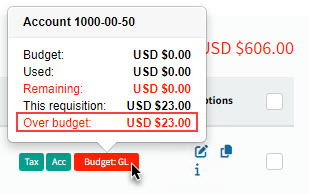
Click the Budget button to display the budget details in a pop-up box.
See example where the amount exceeds the GL Account budget:
See example where the amount is within the GL Account budget:
See example where the GL Account has no budget:
-
Click the Budget button again to close the pop-up box.
GL Budget Checking for AP Invoice
For AP miscellaneous lines, any status prior to 'Posted' ('Not Yet Submitted', 'Approval in Progress', 'Approved') will not show these amounts within the Budget ‘Used’ figure.
Also, the AP approval process for miscellaneous lines is applied to the first GL account that is listed within a line’s GL distribution configuration (see GL Distribution).