Opening the Draft Invoice Page
To open the Draft Invoices page:
-
Select
 Draft Invoices on the Side Menu. See Side Menu.
The Draft Invoices page opens.
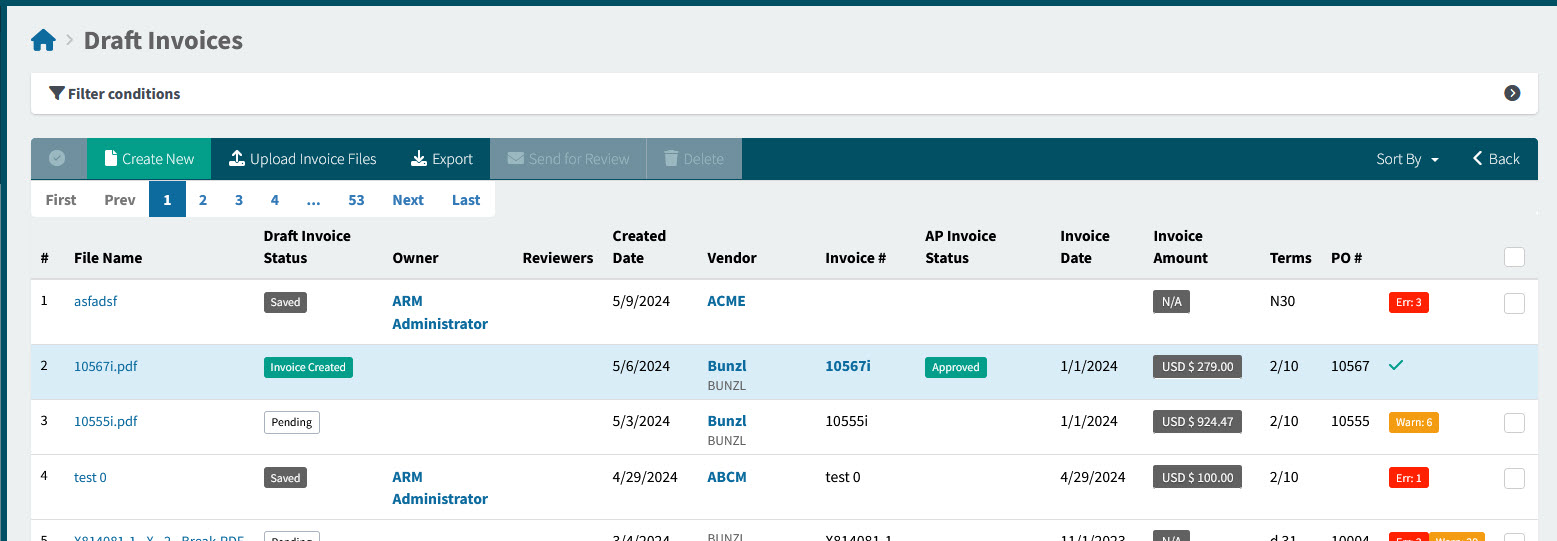
File Name The original file name
Draft Invoice Status The Draft Invoice status
Owner The person who captured the Draft Invoice manually, otherwise blank if the Draft Invoice was created automatically
Reviewers For a Draft Invoice that is under review, the reviewer name(s) are displayed here
Created Date The date the Draft Invoice was created
Vendor The vendor who sent the original invoice file
Invoice # The invoice number for this document
AP Invoice Status The AP Invoice status
Invoice Date The Date on the original Invoice. This could be an Invoice Date, or a Billing Date.
Invoice Amount The invoice amount due
Terms The payment terms
PO # The Purchase Order number on the Draft Invoice header
<buttons on the far right column> Select one or more check boxes to perform an action on the selected records, such as Delete or Send for Review. You can also view warnings and errors by clicking on the respective "Warn" and "Err" labels.
-
Adjust the filter conditions.
See Details
-
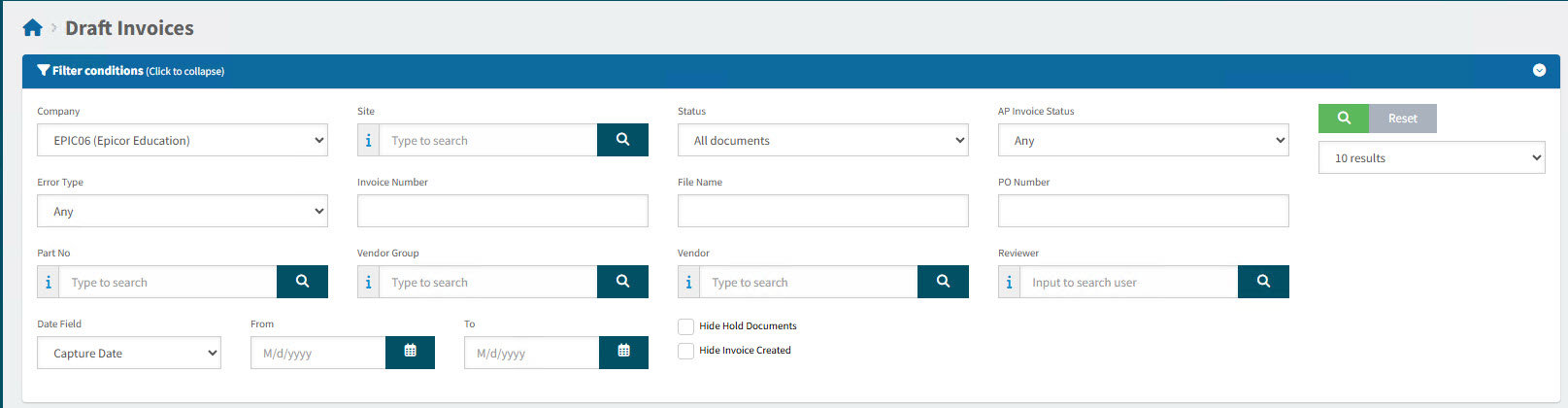
Expand the filter conditions in the top section of the page to search for a specific Draft Invoices or to narrow your search.
View filter conditions
-
Enter values in the edit boxes, or select from the search boxes. See the filter conditions, below.
Filter conditions
Company Select a Company from the drop-down list. The current logged-in user only has access to Companies that include their accessible Sites (and Sites are accessible based on the user’s Assigned Locations).
Site Only show Draft Invoices belonging to the selected Site. The current logged-in user only has access to Sites that include the user’s Assigned Locations.
Status Select one of the following status values from the drop-down list:
-
All documents
-
Metadata Being Processed
-
Saved
-
Pending
-
Review In Progress
-
Invoice Created
AP Invoice Status Select an AP Invoice status from the drop-down list:
-
Any
-
Pending Revision
-
Review in Progress
-
Paid
-
Posted
-
Suspended
-
Rejected
-
Unsubmitted
-
Submitted
-
Approval in Progress
-
Approved
Error Type Select one of the following error types from the drop-down list:
-
Any
-
Field Validation
-
Vendor
-
Tax
-
Purchase Order
-
Duplicate Invoice
-
Requisitioner Matching
-
AP Matching
Invoice Number Enter an Invoice Number (or part of the number) to match on.
File Name The text is contained in the File Name.
PO Number The PO number on the Draft Invoice header record.
Part No Invoice lines contain this part number.
Vendor Group Filter on AP Invoices for Vendors belonging to the selected Vendor Group. The currently logged-in user’s Vendor Groups are available.
Vendor Only show Draft Invoices for this Vendor. Vendors are limited to those belonging to the currently logged-in user’s Vendor Groups/the selected Vendor Group.
Date Field Select one of the following:
-
Capture Date
-
Invoice Date
From The [date field] (for example, Capture Date) is between the From and To dates.
To The [date field] (for example, Capture Date) is between the From and To dates.
Reviewer If the document is under review, then this is one of the Reviewers.
Hide Hold Documents Exclude from search results where the draft invoice is on Hold.
Hide Invoice Created Exclude from search results where the Draft Invoice Status is Invoice Created.
-
Draft Invoices that match the filter conditions are listed in the grid. These include Draft Invoices that were manually created, as well as those that were generated automatically.
Identify Draft Invoices that were automatically generated by those missing the Owner field. View Example
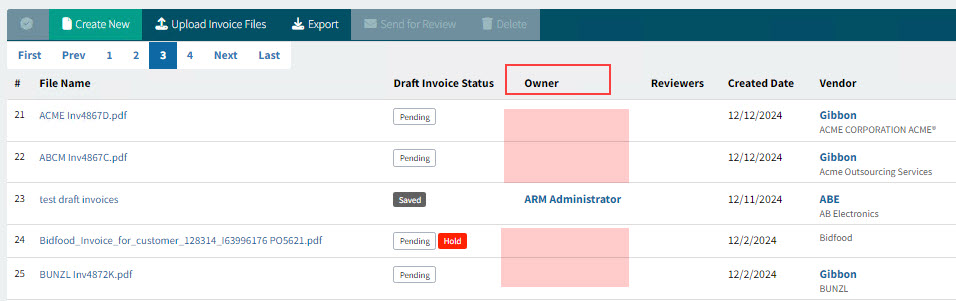
All Draft Invoices are sorted according to the Sort By selection on the Menu Bar (Created Date, Invoice Date, Modified Date).
-
On the grid, you can do the following:

|
Get an overview of all Draft Invoices in the search results. |
||

|
Select one or more rows to perform an action on these, using the buttons on the Menu Bar, for example Delete the selected rows. |
||

|
Click on a row’s Error label to view all errors. Click on a row’s Warning label to view all warnings. |
||

|
Click on a row’s File Name to open the Draft Invoice detail page for the selected Draft Invoice. See Editing an Automatically Generated Draft Invoice or Editing a Manually Created Draft Invoice. |
||

|
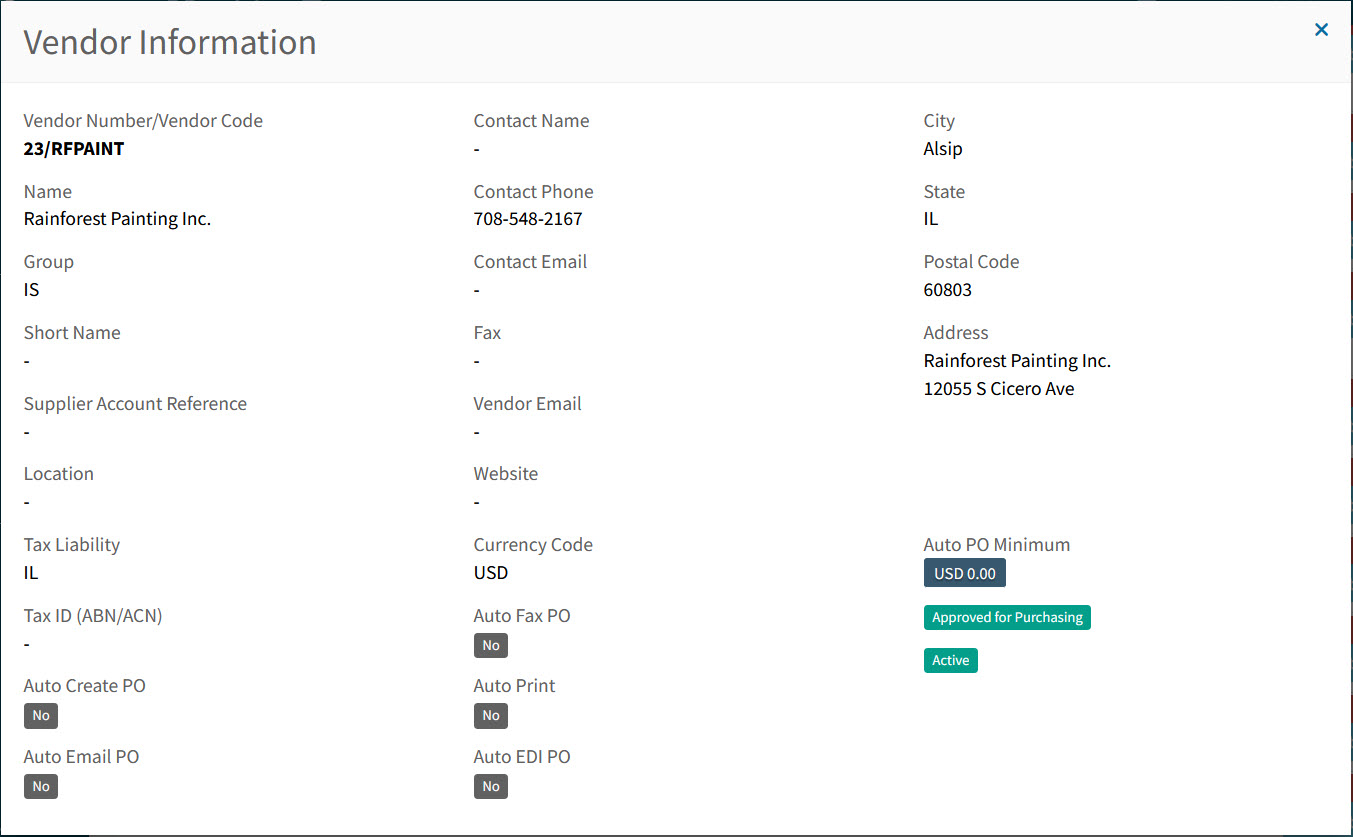
Vendor Codes are in blue. Hover over a Vendor Code to view the full Vendor Name, or click on a Vendor Code to open the details in the Vendor Information pop-up screen. Example
|
See Grid
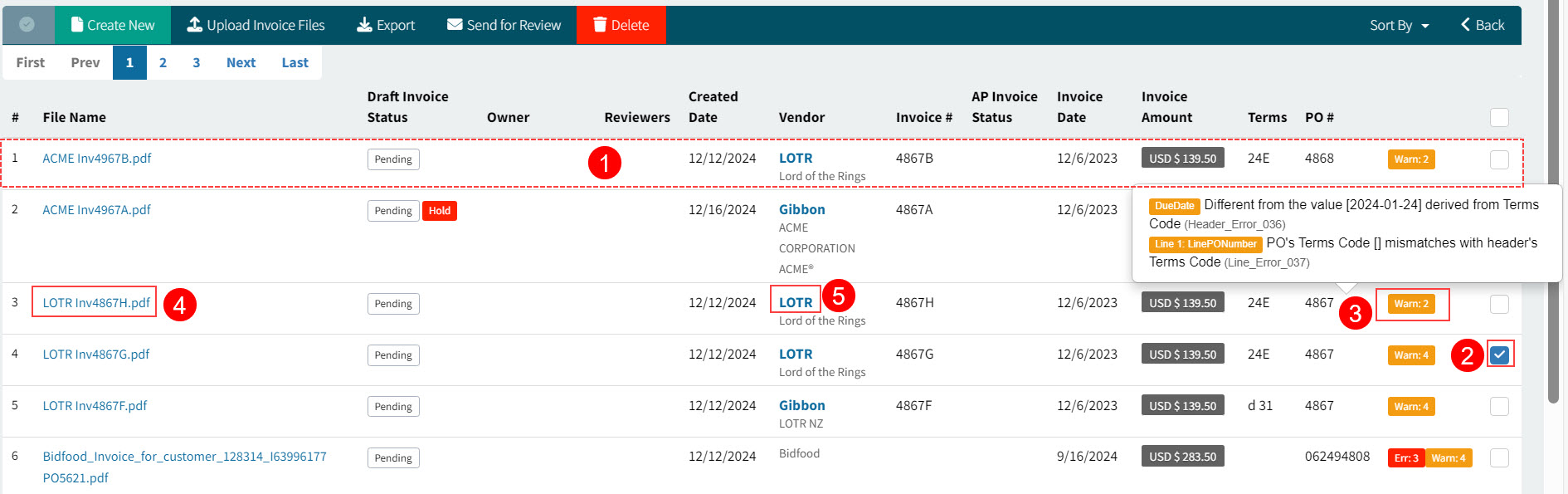
On the Menu Bar, you can perform the following actions:

|
Create a new Draft Invoice manually. See Creating a Draft Invoice. |

|
Upload one or more Invoice Files. See Uploading Invoice Files |

|
Export a range of Invoice Files. See Exporting Draft Invoices. |

|
Send one or more Draft Invoices for review. See Sending Draft Invoices for Review. |

|
Delete one or more Draft Invoices. See Deleting Draft Invoices. |
You can also change the sort order, by selecting from the Sort By drop-down list on the Menu Bar.
See Menu Bar
