Receiving
Receiving Permissions
The following permissions allow you to receive Purchase Orders in ARM:
- Can Receive Own Purchase Orders
-
The user can receive Purchase Orders that originated from their own Requisitions.
- Receive Purchase Orders in Accessible Locations
-
The user can receive Purchase Order Lines in accessible locations (locations to which the user has access. This is defined in the user’s User Detail page - see Maintaining Users - Locations tab).
- Receive All Purchase Orders
-
The User can receive lines at any location, created by any user.
Additional permissions relating to Purchase Orders are:
- Override PO Receiving Unit Cost
-
Override PO Receiving Unit Cost
- Quick Receive POs
-
The user can receive Purchase Orders while in the search screen
- Quick Receive Transfers
-
The user can receive Transfers while in the search screen
- Receive Transfers
-
The user can receive Transfers
- Override PO Receiving Unit Cost
-
The user can override Unit Cost when receiving Purchase Orders
- Edit Purchase Order Receipt Number
-
The user can alter Purchase Order Receipt Number when receiving Purchase Order
Opening the Purchase Orders > Receiving page:
-
Select the
 Receiving menu item on the Side menu to open the Purchase Orders > Receiving page.
The Purchase Orders > Receiving page opens.
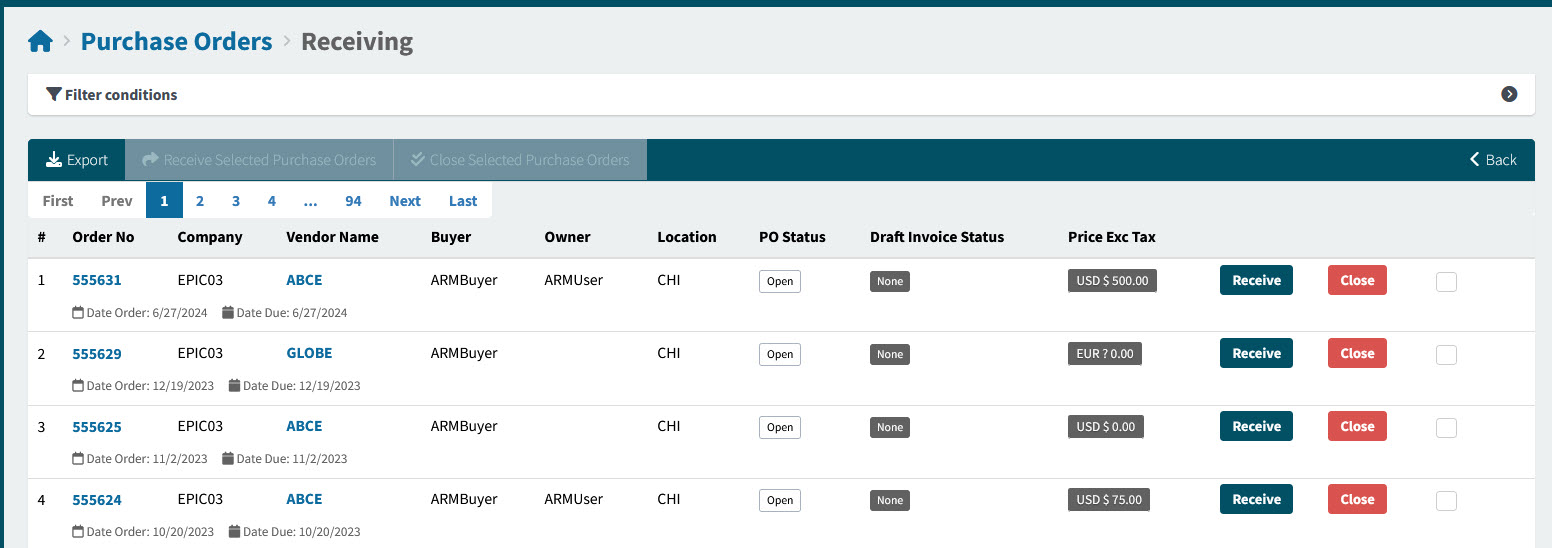
Order No The Purchase Order number. Click on the Order No to open the Purchase Order.
Company The Company that the Purchase Order belongs to.
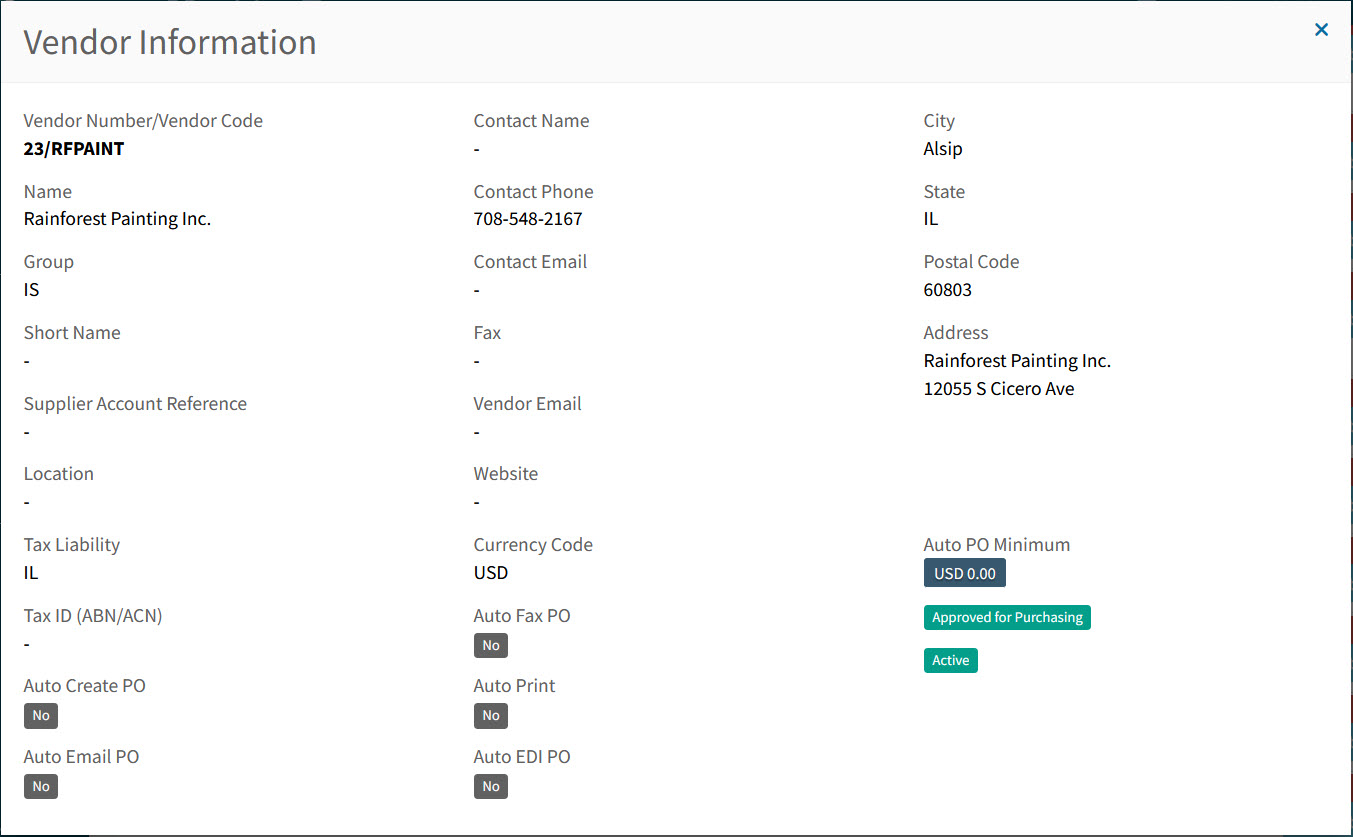
Vendor Name This is the Vendor that the Purchase Order is ordered from. Hover over a Vendor Code to view the full Vendor Name, or click on a Vendor Code to open the details in the Vendor Information pop-up screen.
Example
Buyer The Buyer can be assigned on the Requisition. If the Buyer field is blank on the Pro-Forma Order, it will default to the Buyer info on the Root Node of the relevant approval tree. This is the Buyer on the PO.
Owner The document owner. This is the User who created the document.
Location The location on the document header.
PO Status This could be:
-
Open
-
Closed
-
Hold
Draft Invoice Status This could be:
-
None
-
Awaiting Receipts
-
Awaiting Matching
Price Exc Tax This label shows the Order Total, excluding tax. The currency is included.
<buttons on the far right> Click one of the buttons or select the check box.
-
Receive
-
Close
-
Select check box.
-
-
Adjust the Search conditions.
See Details
-
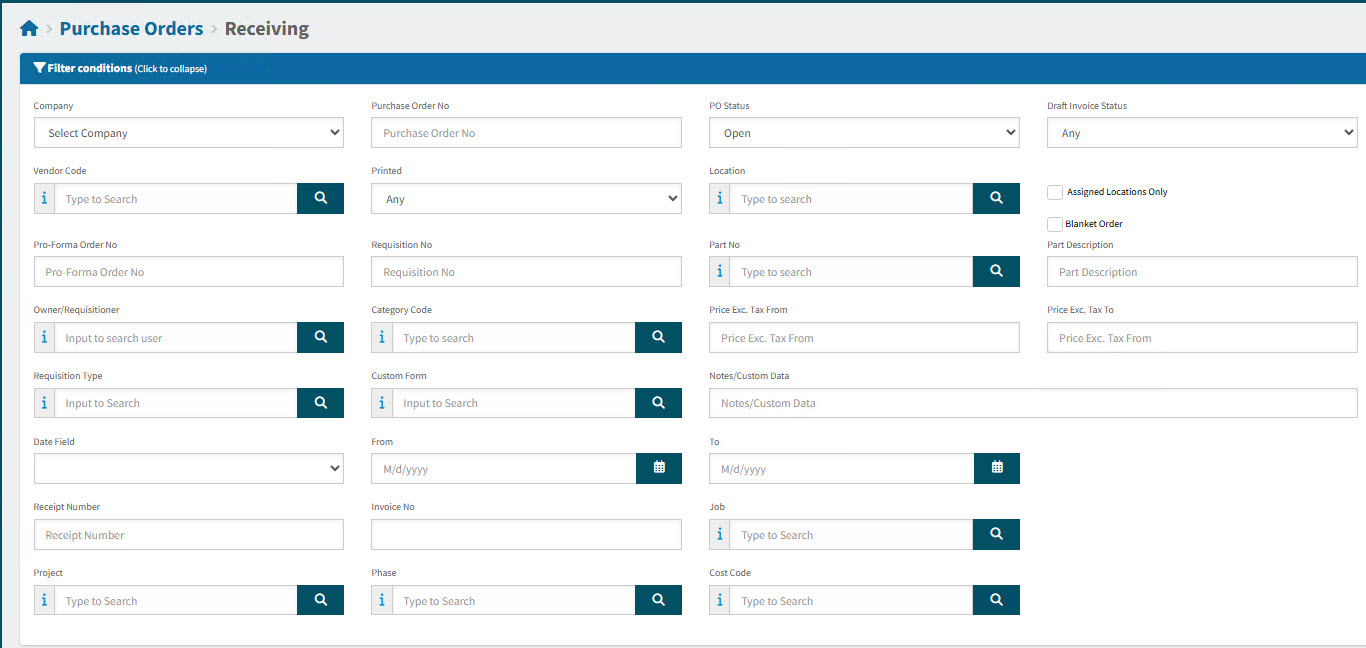
Expand the filter conditions in the top section of the page to search for a specific Purchase Order or to narrow your search.
View filter conditions
-
Enter values in the edit boxes, or select from the search boxes. See the filter conditions, below.
Filter conditions
Company Select a Company.
Purchase Order No Limits results to the PO with this number.
PO Status Select one of the following status values from the drop-down list:
-
Any
-
Open
-
Closed
-
Hold
Draft Invoice Status Select one of the following status values from the drop-down list:
-
Any
-
None
-
Awaiting Receipts
-
Awaiting Matching
Vendor Code Limits results to PO’s for this Vendor.
Printed Limits results to PO’s with a matching Print Status.
Location Limits results to PO’s with this Location.
Assigned Locations Only Select this check box to filter on documents with Locations assigned to your User Profile.
Blanket Order Limits results to PO’s that are belong to a Blanket Order.
Pro-Forma Order No Limits results to PO’s originating from this Pro-Forma Order.
Requisition No Limits results to PO’s originating from this requisition number.
Part No Limits results to PO’s that include this part number.
Part Description Limits results to PO’s that include this part description.
Owner/Requisitioner The document owner.
Category Code Limits results to PO’s with a line that has that category code.
Price Exc. Tax From Limits results to PO’s with a Price Exc. Tax for at least this amount.
Price Exc. Tax To Limits results to PO’s with a Price Exc. Tax for up to this amount.
Custom Form Search for PO’s originating from a requisition with this custom form.
Notes/Custom Data Search for PO’s where a note or custom data contains this text.
Date Field Select Order Date, or Due Date, then select a date range with From and To dates. The PO Order Date/ the PO Due Date must fall within the date range.
ERP PO Number Limits results to PO with a matching ERP PO Number.
Receipt Number Limits results to PO with matching receipt number.
Invoice No Limits results to PO with matching invoice number.
Job Limits results to PO’s with a line that includes the job.
Project Limits results to PO’s with a line that includes the project.
Phase First select a Project. The Phase limits results to PO’s with a line that includes the project and phase.
-
Purchase Orders that match the search conditions are listed in the grid.
-
In ARM, you can receive and close POs as follows:
-
Receive or close multiple purchase orders.
-
Receive or close a single purchase order.
-
Receive or close a single purchase order line.
See Receiving Functions.
Settings and Behaviors Affecting Receiving
Earliest Apply Date
Purchase Orders cannot be received on a date that is before the Earliest Apply Date, if this has been configured in Kinetic. To view the Earliest Apply Dates, see Company Settings.
Auto-fill Quantities
The setting Auto-Fill Receive Quantities in Epicor Settings helps to determine how quantities are pre-populated on the Receiving page.
-
If Receive quantities are saved for the current PO line: the receive quantities populate the Receive column.
Otherwise
-
If Receive quantities are not saved for the current PO line:
-
If Auto-Fill Receive Quantities is set to YES: the Receive column is populated with the amount remaining to be received.
Otherwise
-
If Auto-Fill Receive Quantities is set to NO: the Receive column is populated with 0 (zero).
-
Tolerance Checking
ARM can be configured to have Tolerance Checking applied during PO Receiving.
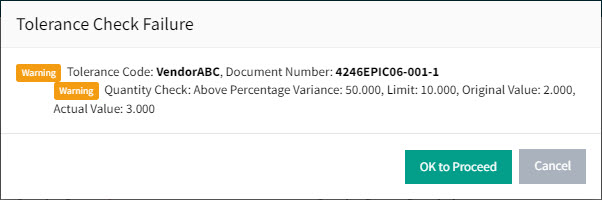
Tolerance Checking is applied to Quantity and/or Unit Cost during PO receiving, depending on the Tolerance Settings. If the Quantity/Unit Cost is over the configured tolerance, a Warning or Error appears.
Warnings or Errors
If the Tolerance setting is configured to give a Warning, a warning message appears. You can choose to proceed or cancel.
View Warning
|
If the Tolerance Setting is configured to give an Error, the relevant Unit Cost of Quantity values must be altered before receiving can continue.
View Error
|
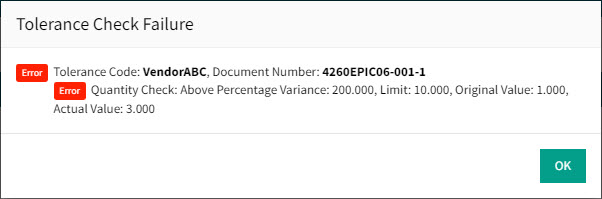
Tolerance Settings are managed in the Administration section. See Tolerance Settings.
Receiving Functions
-
Read about Receiving in Kinetic.
-
Receiving or Closing Single Purchase Orders. See Receiving or Closing Single Purchase Orders.
-
Exporting Purchase Orders. See Exporting Purchase Orders.
-
Viewing Receipt Details. See Viewing Receipt Details.
-
Viewing Send to Supplier History. See Viewing Send to Supplier History.
-
Receiving or Closing Multiple Purchase Orders. See Receiving or Closing Multiple Purchase Orders.
-
Posting to GL Accounts occurs in Kinetic. See Posting to GL.
-
See how to search for Purchase Orders > Receiving. See Searching for a Purchase Order Receiving.
Read about receiving Blanket Pro-Forma Orders. See Adding a Release to a Blanket Order.
Receiving in Kinetic
ARM users can also receive Purchase Orders (fully or partially) within Kinetic.
If you receive a Purchase Order in Kinetic, integration will update the PO in ARM.
| Ensure you select the correct Warehouse and Bin number on the Receipt Entry in Kinetic to prevent an incorrect value being submitted as a result of Kinetic Warehouse/Bin defaulting. |
Receiving or Closing Single Purchase Orders
When more than one release has been defined for an item in Kinetic, the details can be viewed and received or closed explicitly, by release.
-
Select the
Receiving menu item on the Side menu to open the Purchase Orders > Receiving page.The Purchase Orders > Receiving page opens.
-
Adjust the Search conditions.
See Details
-
Expand the filter conditions in the top section of the page to search for a specific Purchase Order or to narrow your search.
View filter conditions
-
Enter values in the edit boxes, or select from the search boxes. See the filter conditions, below.
Filter conditions
Company Select a Company.
Purchase Order No Limits results to the PO with this number.
PO Status Select one of the following status values from the drop-down list:
-
Any
-
Open
-
Closed
-
Hold
Draft Invoice Status Select one of the following status values from the drop-down list:
-
Any
-
None
-
Awaiting Receipts
-
Awaiting Matching
Vendor Code Limits results to PO’s for this Vendor.
Printed Limits results to PO’s with a matching Print Status.
Location Limits results to PO’s with this Location.
Assigned Locations Only Select this check box to filter on documents with Locations assigned to your User Profile.
Blanket Order Limits results to PO’s that are belong to a Blanket Order.
Pro-Forma Order No Limits results to PO’s originating from this Pro-Forma Order.
Requisition No Limits results to PO’s originating from this requisition number.
Part No Limits results to PO’s that include this part number.
Part Description Limits results to PO’s that include this part description.
Owner/Requisitioner The document owner.
Category Code Limits results to PO’s with a line that has that category code.
Price Exc. Tax From Limits results to PO’s with a Price Exc. Tax for at least this amount.
Price Exc. Tax To Limits results to PO’s with a Price Exc. Tax for up to this amount.
Custom Form Search for PO’s originating from a requisition with this custom form.
Notes/Custom Data Search for PO’s where a note or custom data contains this text.
Date Field Select Order Date, or Due Date, then select a date range with From and To dates. The PO Order Date/ the PO Due Date must fall within the date range.
ERP PO Number Limits results to PO with a matching ERP PO Number.
Receipt Number Limits results to PO with matching receipt number.
Invoice No Limits results to PO with matching invoice number.
Job Limits results to PO’s with a line that includes the job.
Project Limits results to PO’s with a line that includes the project.
Phase First select a Project. The Phase limits results to PO’s with a line that includes the project and phase.
-
Purchase Orders that match the search conditions are listed in the grid.
-
-
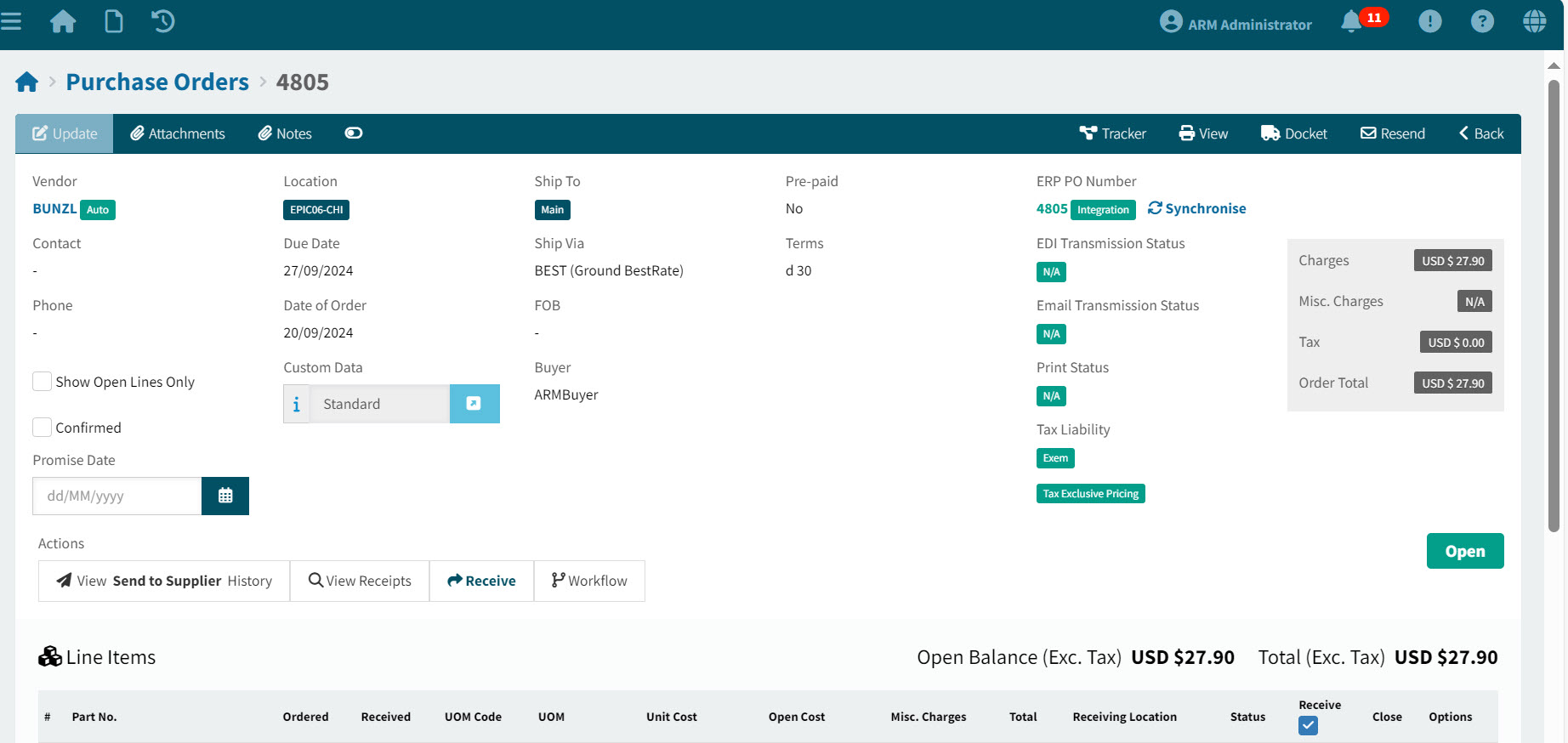
Locate the relevant Purchase Order in the results grid, and click on the Order No to open the Purchase Order in the Purchase Orders > [Order No] page.
View Purchase Orders > [Order No] page:
-
Locate the line item that you want to receive for, and click on the Edit
 button on the line.
View Line:

This opens the Purchase Orders > [Order No]> [Line No] page for the selected line.
View Purchase Orders > [Order No]> [Line No] page:
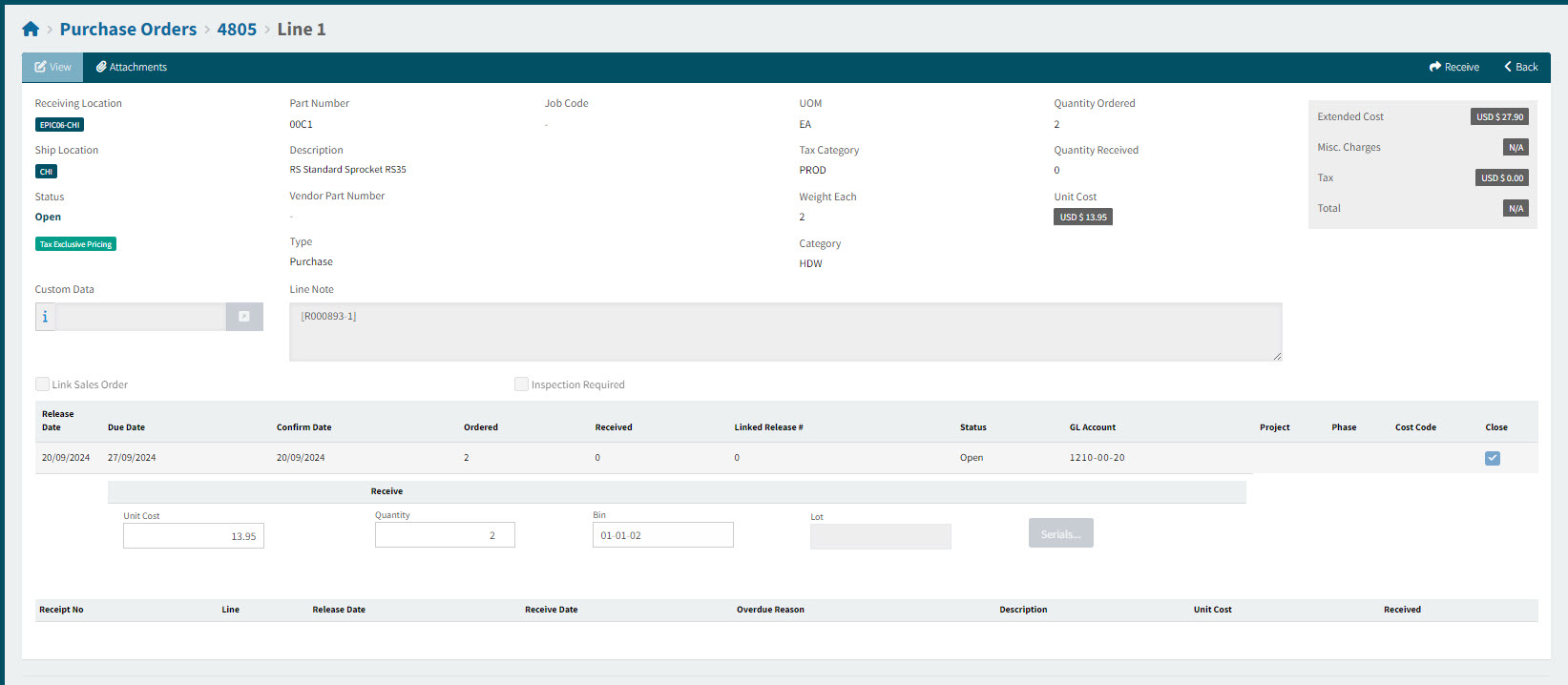
All of the PO line details are displayed.
-
For each line:
-
Optionally edit the Unit Cost. (You require the Override PO Receiving Unit Cost permission to do this.)
-
Enter the Quantity. This can be the full Ordered quantity, or less than that. (See also Auto-fill Quantities.)
-
If the PO is overdue:
-
Select an Overdue Reason.
-
Enter an Overdue Reason Description.
-
Click Save.
-
-
Select the Close check box if you wish to close the line.
-
-
Edit any other data on the line header, including a Receive Date and Receipt Note.
The Receive Date may not be before the Earliest Apply Date.
Earliest Apply Date
The Earliest Apply Date values can be viewed in Company Settings.
When receiving a purchase order, ARM checks that Receive Date is:
-
not before the Earliest Apply Date Base and
-
not before the Earliest Apply Date For Inventory (if available) and
-
not before the Earliest Apply Date For Accounts Payable (if available)
-
-
When you have completed all the entries for the line, click the Receive button on the page menu bar.
An error is raised if you attempt to receive with an invalid Receive Date.
Exporting Purchase Orders
To export purchase orders to a file:
-
Select the
Receiving menu item on the Side menu to open the Purchase Orders > Receiving page.The Purchase Orders > Receiving page opens.
-
Adjust the Search conditions.
See Details
-
Expand the filter conditions in the top section of the page to search for a specific Purchase Order or to narrow your search.
View filter conditions
-
Enter values in the edit boxes, or select from the search boxes. See the filter conditions, below.
Filter conditions
Company Select a Company.
Purchase Order No Limits results to the PO with this number.
PO Status Select one of the following status values from the drop-down list:
-
Any
-
Open
-
Closed
-
Hold
Draft Invoice Status Select one of the following status values from the drop-down list:
-
Any
-
None
-
Awaiting Receipts
-
Awaiting Matching
Vendor Code Limits results to PO’s for this Vendor.
Printed Limits results to PO’s with a matching Print Status.
Location Limits results to PO’s with this Location.
Assigned Locations Only Select this check box to filter on documents with Locations assigned to your User Profile.
Blanket Order Limits results to PO’s that are belong to a Blanket Order.
Pro-Forma Order No Limits results to PO’s originating from this Pro-Forma Order.
Requisition No Limits results to PO’s originating from this requisition number.
Part No Limits results to PO’s that include this part number.
Part Description Limits results to PO’s that include this part description.
Owner/Requisitioner The document owner.
Category Code Limits results to PO’s with a line that has that category code.
Price Exc. Tax From Limits results to PO’s with a Price Exc. Tax for at least this amount.
Price Exc. Tax To Limits results to PO’s with a Price Exc. Tax for up to this amount.
Custom Form Search for PO’s originating from a requisition with this custom form.
Notes/Custom Data Search for PO’s where a note or custom data contains this text.
Date Field Select Order Date, or Due Date, then select a date range with From and To dates. The PO Order Date/ the PO Due Date must fall within the date range.
ERP PO Number Limits results to PO with a matching ERP PO Number.
Receipt Number Limits results to PO with matching receipt number.
Invoice No Limits results to PO with matching invoice number.
Job Limits results to PO’s with a line that includes the job.
Project Limits results to PO’s with a line that includes the project.
Phase First select a Project. The Phase limits results to PO’s with a line that includes the project and phase.
-
Purchase Orders that match the search conditions are listed in the grid.
-
-
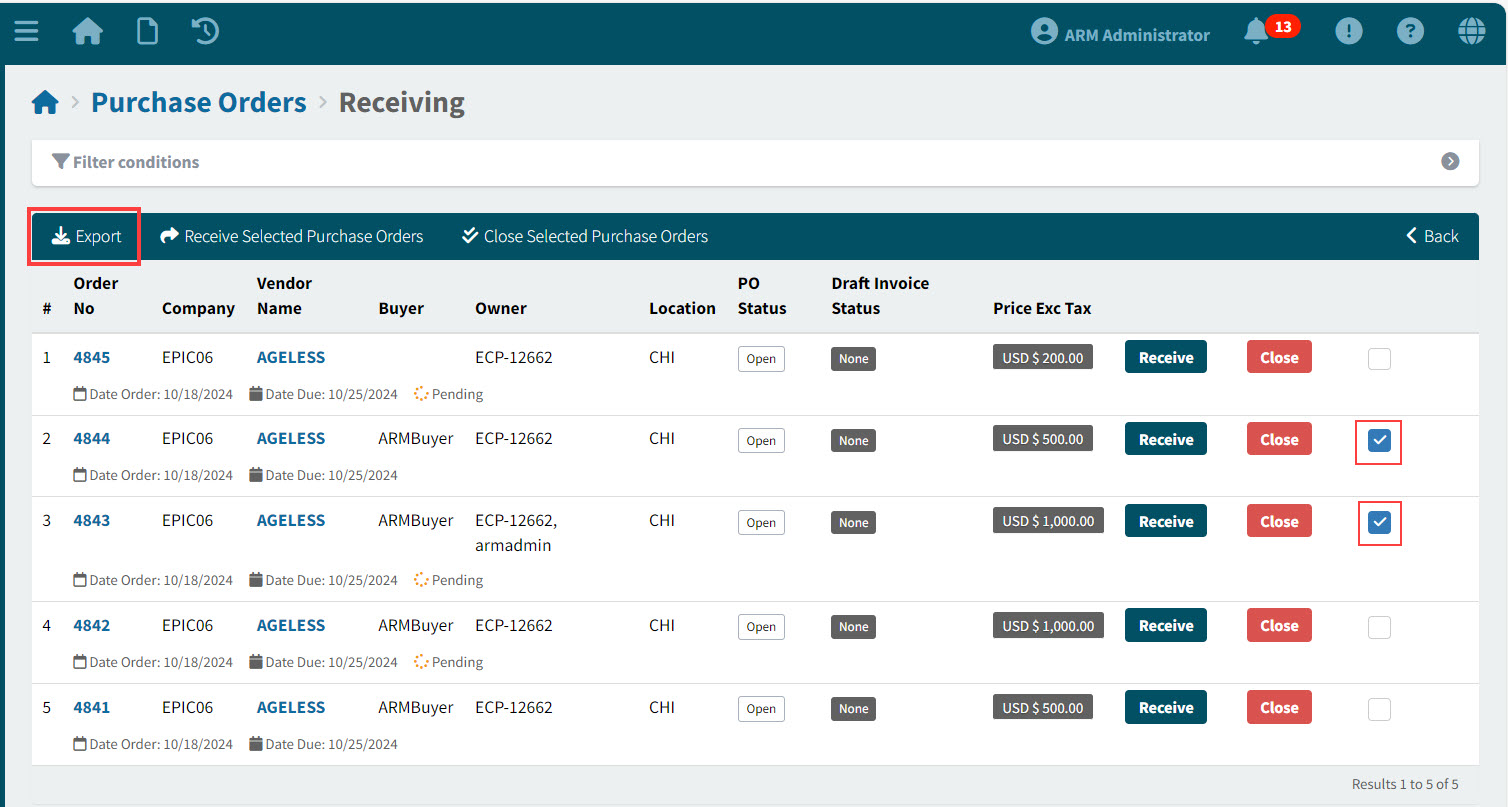
Select one or more of the Purchase Orders, using the check box on the right of each row.
-
Click Export on the menu bar.
-
Choose a file format to export to (CSV, Word, or Excel).
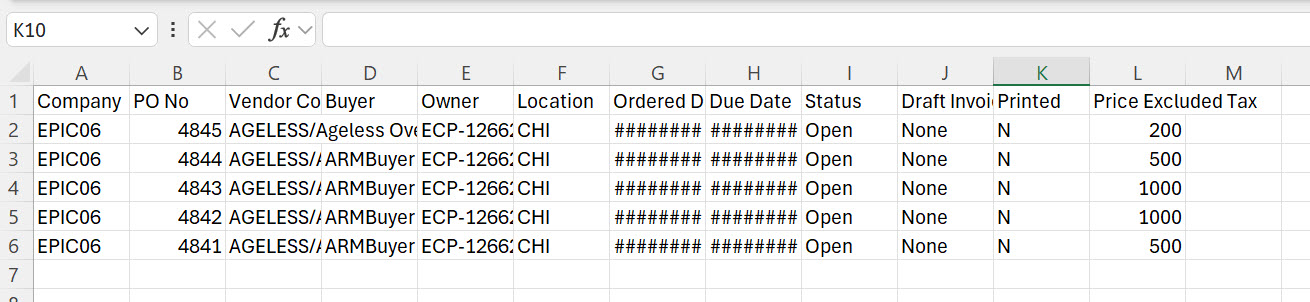
All the selected Purchase Orders are exported to a file in the selected format.
See example of the exported file contents:
|
Viewing Receipt Details
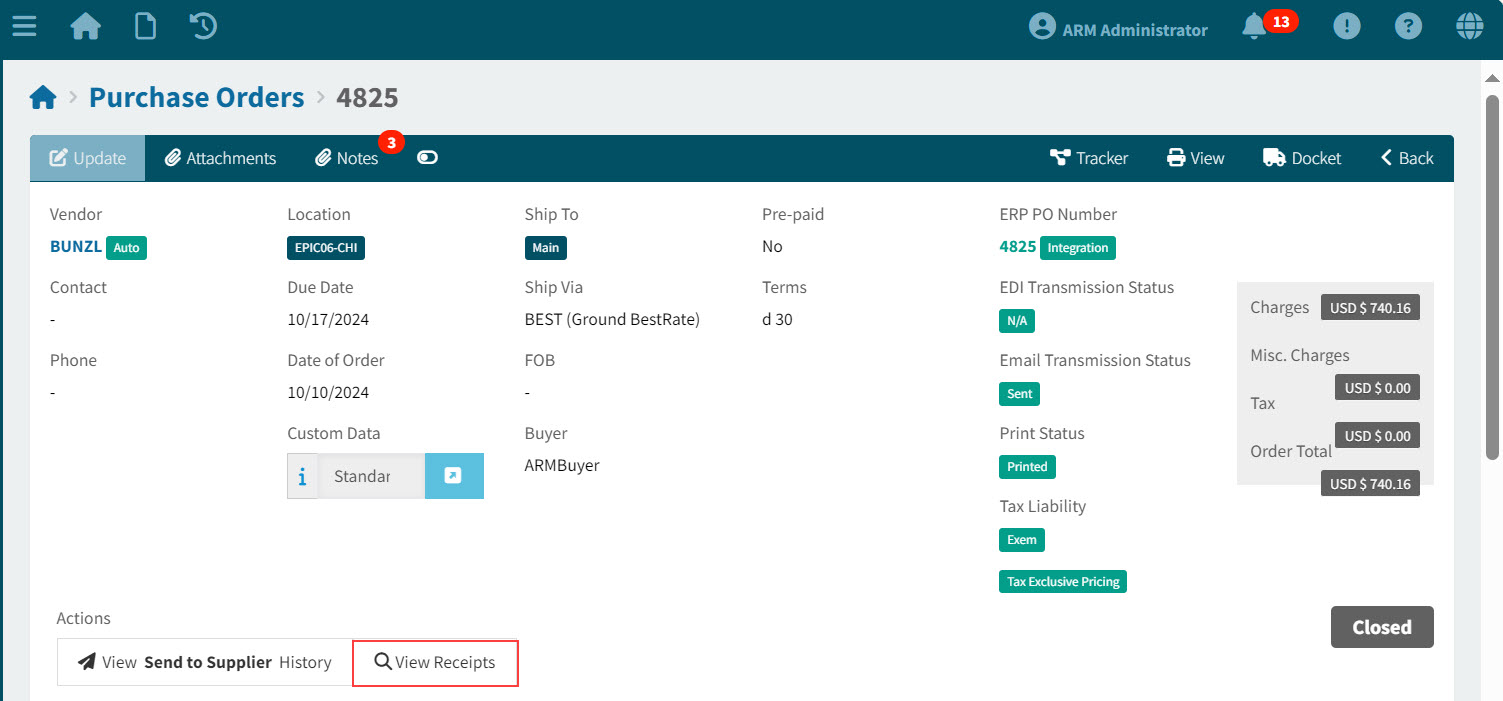
You can view Receipt Details on the Purchase Orders > [Line] page.
-
Open a Purchase Order from either the Purchase Orders page or the Purchase Orders > Receiving Page.
-
Click View Receipts in the Actions section.
View Detail
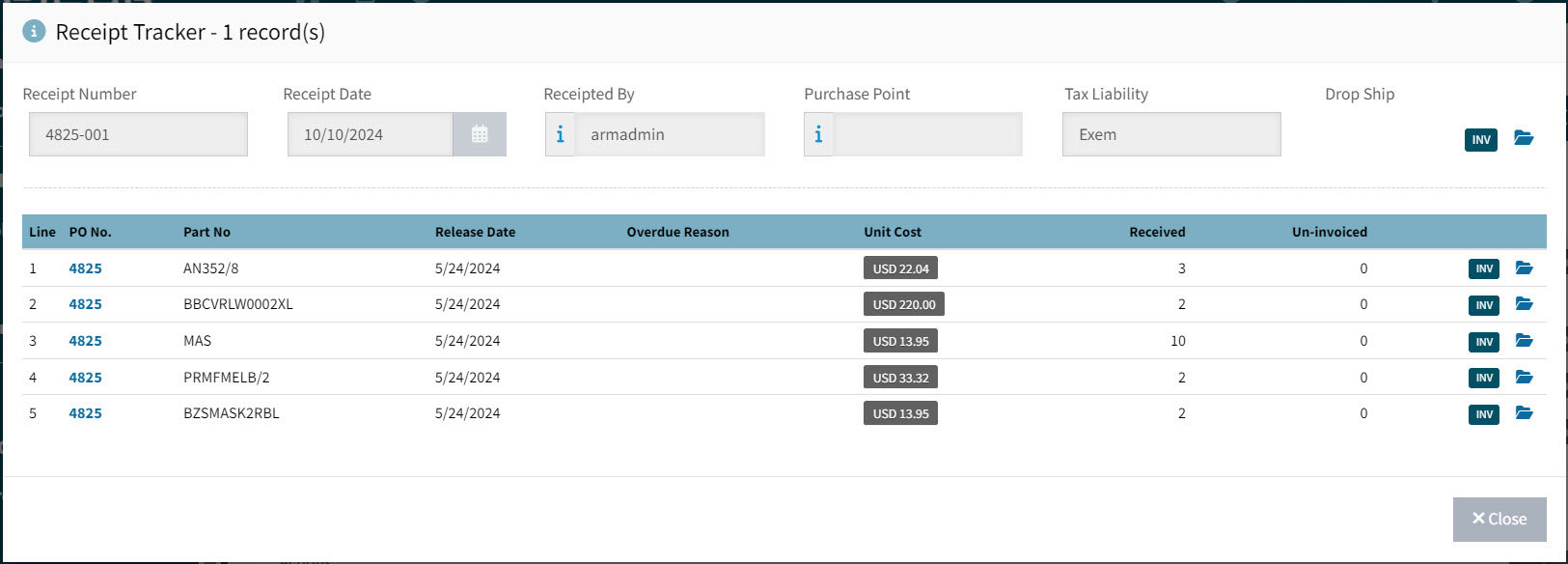
The Receipt Tracker pop-up opens, displaying receipts for any line items for the Purchase Order.
View Receipt Tracker pop-up
-
To add/view receipt header attachments, click on the folder
 icon alongside the receipt header.
 -
To add/view attachments for any of the receipt lines, click on the folder
icon alongside the line. -
Hover over the INV
 flag alongside the receipt header or lines, to view the associated invoice number(s).
-
-
Click Close to close the Receipt Tracker.
To view receipts for an individual line in the Purchase Order:
-
Click the View Receipts
 icon alongside the PO line item.
View Detail
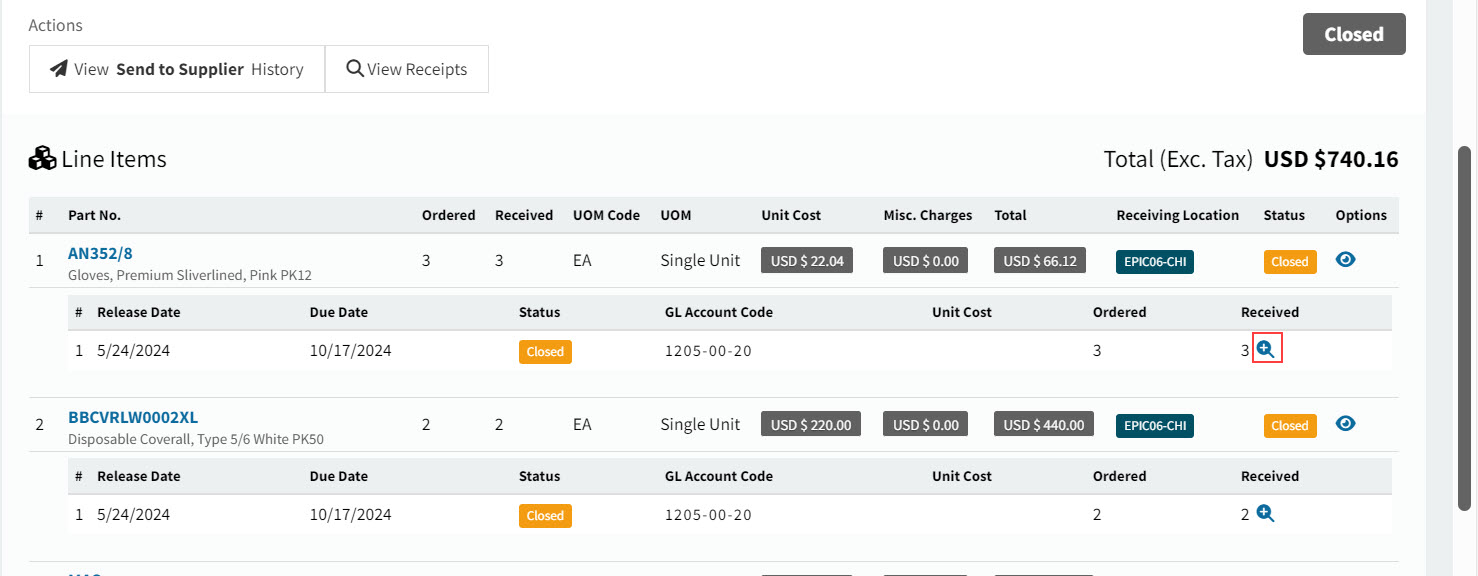
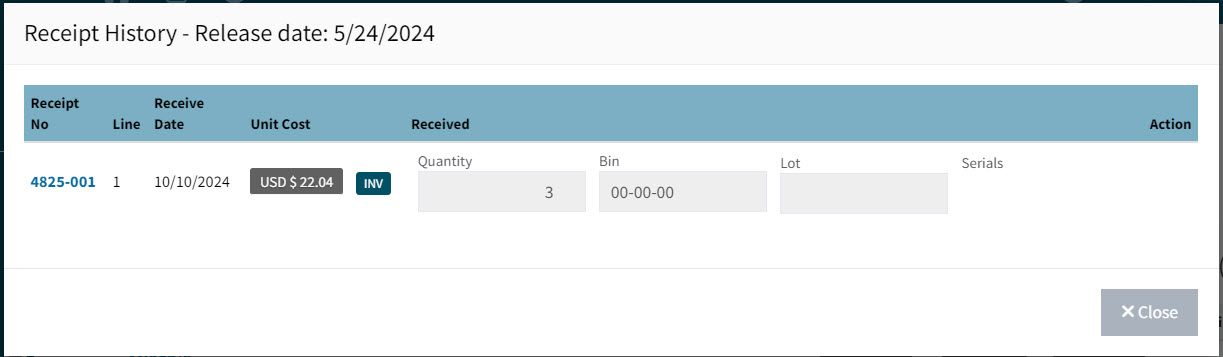
The Receipt History pop-up opens, displaying the receipt information for the line item.
View Receipt History pop-up
-
Click Close to close the Receipt History.
Viewing Send to Supplier History
-
To view Send to Supplier History, click View Send to Supplier History in the Actions section.
This opens the Purchase Order Send To Supplier History pop-up.
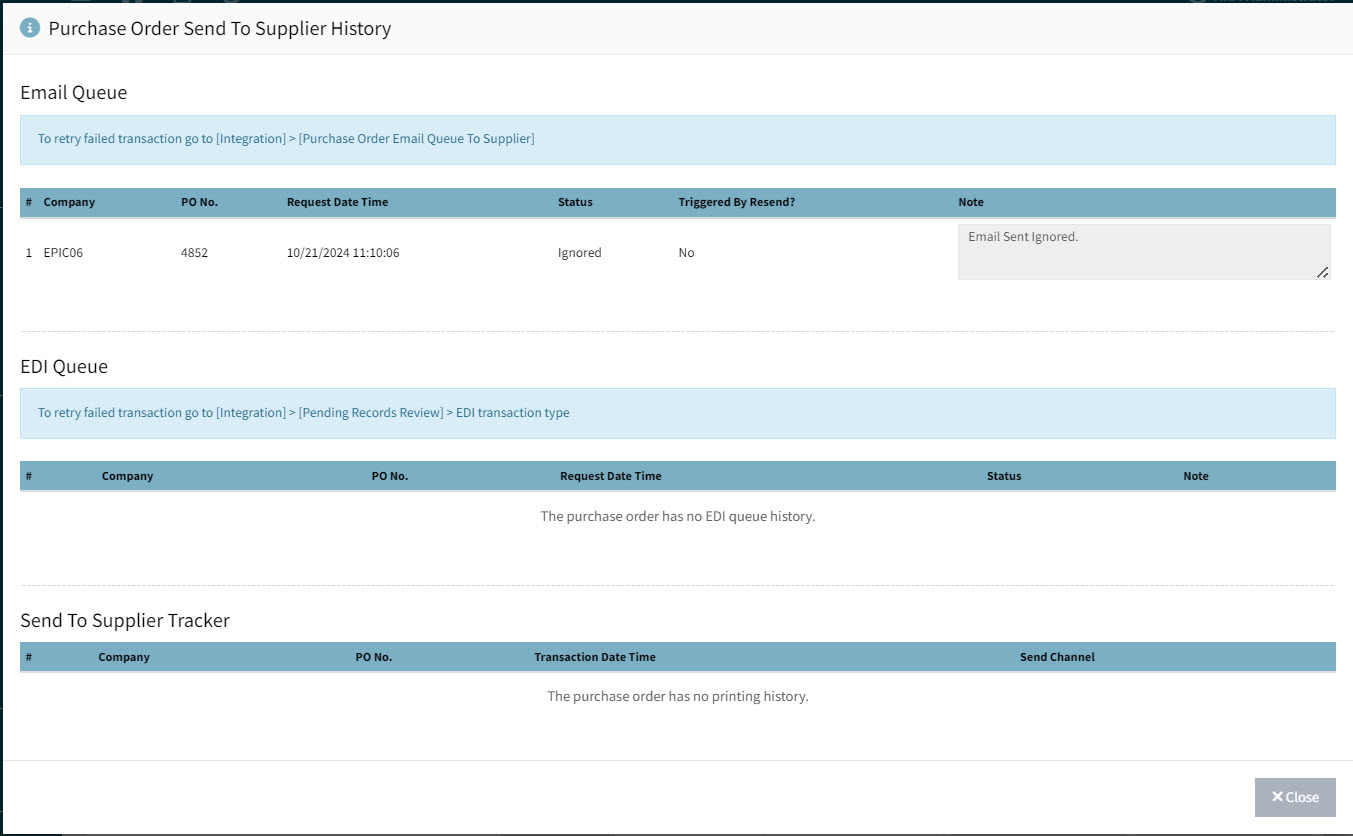
The Purchase Order Send To Supplier History is divided into three sections:
Email Queue An Administrator can retry failed transactions from Integration > [agent]> Purchase Order Email Queue To Supplier.
EDI Queue An Administrator can retry failed transactions from Integration > [agent]> [Pending Records Review] for the EDI Transaction Type.
Send To Supplier Tracker Shows the printing history if available.
-
Click Close to close the pop-up.
Receiving and Closing Multiple Purchase Orders
You can receive multiple purchase orders from the Purchase Orders > Receiving page, and then optionally close them.
-
Select the
Receiving menu item on the Side menu to open the Purchase Orders > Receiving page.The Purchase Orders > Receiving page opens.
-
Adjust the Search conditions.
See Details
-
Expand the filter conditions in the top section of the page to search for a specific Purchase Order or to narrow your search.
View filter conditions
-
Enter values in the edit boxes, or select from the search boxes. See the filter conditions, below.
Filter conditions
Company Select a Company.
Purchase Order No Limits results to the PO with this number.
PO Status Select one of the following status values from the drop-down list:
-
Any
-
Open
-
Closed
-
Hold
Draft Invoice Status Select one of the following status values from the drop-down list:
-
Any
-
None
-
Awaiting Receipts
-
Awaiting Matching
Vendor Code Limits results to PO’s for this Vendor.
Printed Limits results to PO’s with a matching Print Status.
Location Limits results to PO’s with this Location.
Assigned Locations Only Select this check box to filter on documents with Locations assigned to your User Profile.
Blanket Order Limits results to PO’s that are belong to a Blanket Order.
Pro-Forma Order No Limits results to PO’s originating from this Pro-Forma Order.
Requisition No Limits results to PO’s originating from this requisition number.
Part No Limits results to PO’s that include this part number.
Part Description Limits results to PO’s that include this part description.
Owner/Requisitioner The document owner.
Category Code Limits results to PO’s with a line that has that category code.
Price Exc. Tax From Limits results to PO’s with a Price Exc. Tax for at least this amount.
Price Exc. Tax To Limits results to PO’s with a Price Exc. Tax for up to this amount.
Custom Form Search for PO’s originating from a requisition with this custom form.
Notes/Custom Data Search for PO’s where a note or custom data contains this text.
Date Field Select Order Date, or Due Date, then select a date range with From and To dates. The PO Order Date/ the PO Due Date must fall within the date range.
ERP PO Number Limits results to PO with a matching ERP PO Number.
Receipt Number Limits results to PO with matching receipt number.
Invoice No Limits results to PO with matching invoice number.
Job Limits results to PO’s with a line that includes the job.
Project Limits results to PO’s with a line that includes the project.
Phase First select a Project. The Phase limits results to PO’s with a line that includes the project and phase.
-
Purchase Orders that match the search conditions are listed in the grid.
-
-
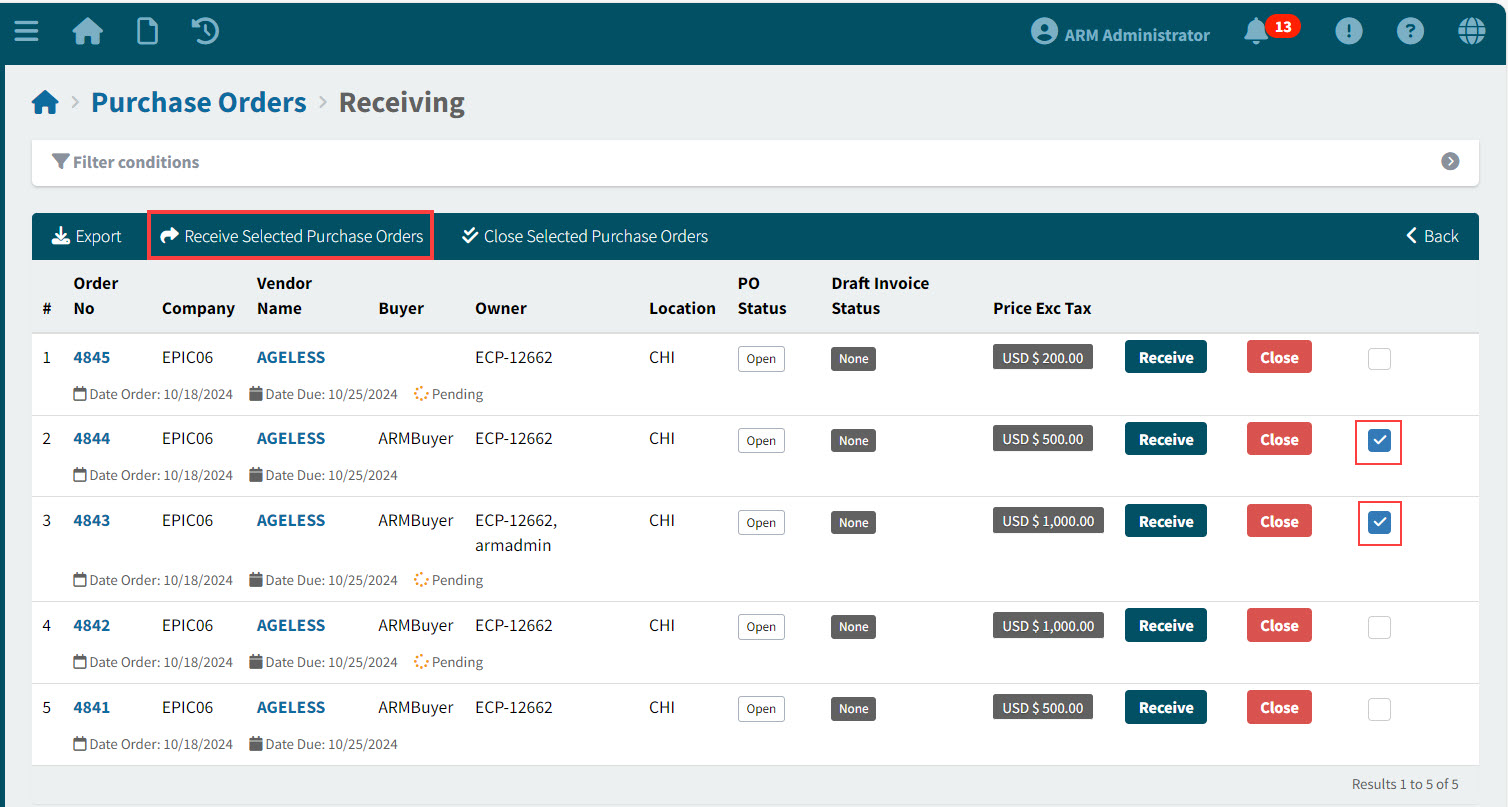
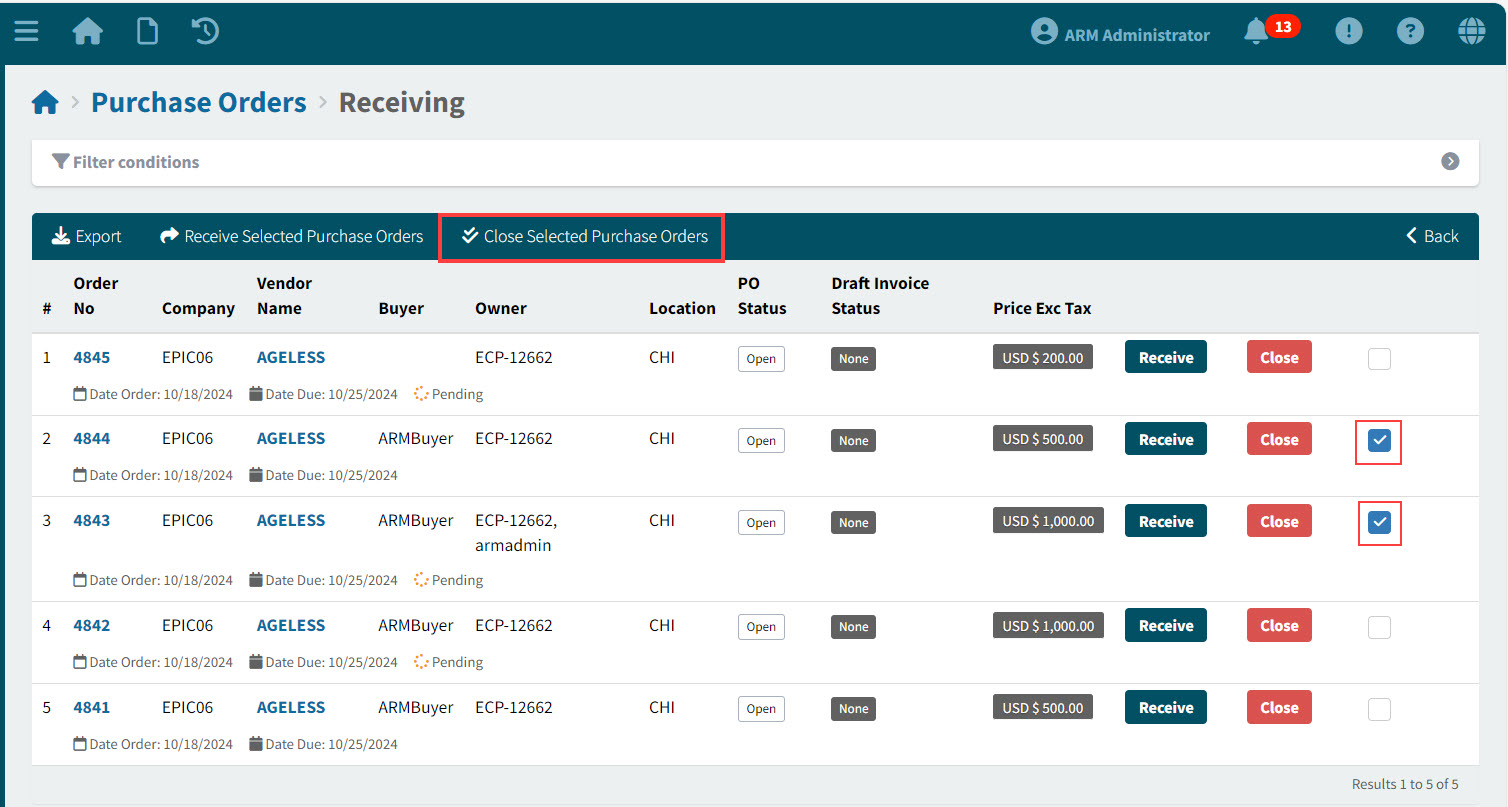
Select one or more of the Purchase Orders, using the check box on the right of each row.
-
Click Receive Selected Purchase Orders on the menu bar.
View Details
-
Click Yes on the confirmation dialog.
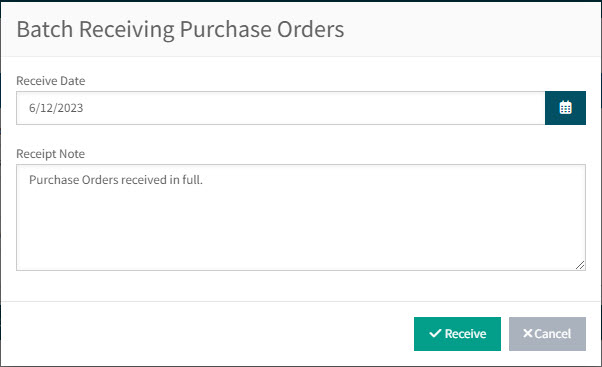
The Batch Receiving Purchase Orders pop-up dialog appears.
-
Pick a Receive Date.
The Receive Date may not be before the Earliest Apply Date.
Earliest Apply Date
The Earliest Apply Date values can be viewed in Company Settings.
When receiving a purchase order, ARM checks that Receive Date is:
-
not before the Earliest Apply Date Base and
-
not before the Earliest Apply Date For Inventory (if available) and
-
not before the Earliest Apply Date For Accounts Payable (if available)
-
-
Enter a Receipt Note.
-
Click Receive.
The selected Purchase Orders are received as a batch.
An error is raised if you attempt to receive with an invalid Receive Date. -
-
To close the selected Purchase Orders, click Close Selected Purchase Orders on the menu bar.
View Details
-
To export the selected Purchase Orders, click Export on the menu bar.
-
Choose a file format to export to (CSV, Word, or Excel).
All the selected Purchase Orders are exported to a file in the selected format.
When Purchase Orders are not Received
If one or more of the selected purchase orders is not received, note down the purchase order number(s), before closing the error pop-up dialog.
If you try to receive the failed purchase order receipts individually, you will get a detailed error message which you can address before re-trying.
Posting to GL
The Epicor Task Agent can be configured to post to the GL Accounts automatically.
The Precise Posting Service will check the database to see if the relevant records have been posted. If they have not been posted, the service re-submits the records to the Epicor Task Agent.
The Precise Posting Service configuration file has a value for how many times to carry out this check and re-submission, until the GL Accounts are posted. The value is stored against the "maxAttempt" key.
Searching for a Purchase Order Receiving
-
Select the
Receiving menu item on the Side menu to open the Purchase Orders > Receiving page.The Purchase Orders > Receiving page opens.
-
Adjust the Search conditions.
See Details
-
Expand the filter conditions in the top section of the page to search for a specific Purchase Order or to narrow your search.
View filter conditions
-
Enter values in the edit boxes, or select from the search boxes. See the filter conditions, below.
Filter conditions
Company Select a Company.
Purchase Order No Limits results to the PO with this number.
PO Status Select one of the following status values from the drop-down list:
-
Any
-
Open
-
Closed
-
Hold
Draft Invoice Status Select one of the following status values from the drop-down list:
-
Any
-
None
-
Awaiting Receipts
-
Awaiting Matching
Vendor Code Limits results to PO’s for this Vendor.
Printed Limits results to PO’s with a matching Print Status.
Location Limits results to PO’s with this Location.
Assigned Locations Only Select this check box to filter on documents with Locations assigned to your User Profile.
Blanket Order Limits results to PO’s that are belong to a Blanket Order.
Pro-Forma Order No Limits results to PO’s originating from this Pro-Forma Order.
Requisition No Limits results to PO’s originating from this requisition number.
Part No Limits results to PO’s that include this part number.
Part Description Limits results to PO’s that include this part description.
Owner/Requisitioner The document owner.
Category Code Limits results to PO’s with a line that has that category code.
Price Exc. Tax From Limits results to PO’s with a Price Exc. Tax for at least this amount.
Price Exc. Tax To Limits results to PO’s with a Price Exc. Tax for up to this amount.
Custom Form Search for PO’s originating from a requisition with this custom form.
Notes/Custom Data Search for PO’s where a note or custom data contains this text.
Date Field Select Order Date, or Due Date, then select a date range with From and To dates. The PO Order Date/ the PO Due Date must fall within the date range.
ERP PO Number Limits results to PO with a matching ERP PO Number.
Receipt Number Limits results to PO with matching receipt number.
Invoice No Limits results to PO with matching invoice number.
Job Limits results to PO’s with a line that includes the job.
Project Limits results to PO’s with a line that includes the project.
Phase First select a Project. The Phase limits results to PO’s with a line that includes the project and phase.
-
Purchase Orders that match the search conditions are listed in the grid.
-