UOMs
Units of Measure (UOMs) are maintained in Kinetic, and integrated into ARM.
- In Kinetic
-
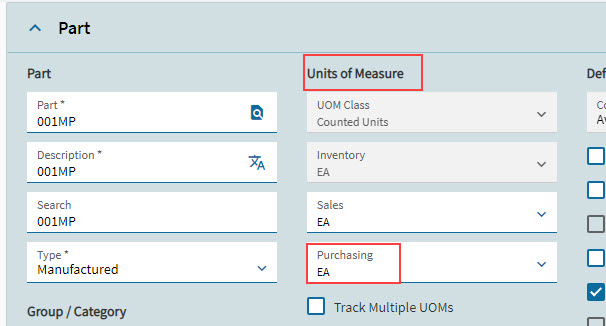
Maintain UOMs in Material Management > Purchase Management > Setup > UOM.
UOM in Kinetic
- Integration in ARM
-
The UOM job integrates the UOM.
Permissions
You require a role with the Edit UOM permission to access Units of Measure.
Other permissions relating to UOM are:
-
Edit Own Requisition Catalogue Item UOM - The user can edit UOM of a catalogue item in a requisition.
-
Edit Requisition Catalogue Item UOM On Approval - The user can edit UOM of a catalogue item in a requisition during the approval process.
-
Edit Requisition Non-Catalogue Item UOM On Approval - The user can edit UOM of a non-catalogue item in a requisition during the approval process.
See Permissions in ARM.
UOM Maintenance in ARM
Permissions
You require the Edit UOMs permission to access the Units of Measure option.
-
Select the UOM menu item on the Administration Page. See Administration Page.
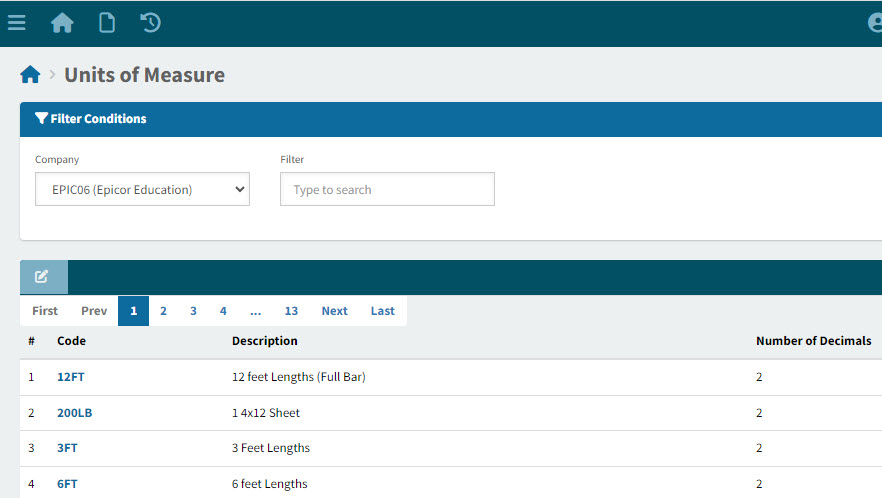
The Units of Measure page displays the list of UOMs integrated from Kinetic.
View Units of Measure
Custom Mappings
The purpose of UOM Mapping is to handle unknown or mismatched units of measurement (UOMs) from external systems or suppliers.
Custom Mappings are used to map values from another source (for example OCR or PunchOut) to an ARM UOM.
For example, if OCR reads 'one' it will map that value to 'EA' (a valid ARM UOM), provided 'one' is a custom mapping for 'EA'.
| Custom Mappings must be unique (a custom mapping cannot belong to more than one UOM). |
To add Custom Mappings to a UOM:
-
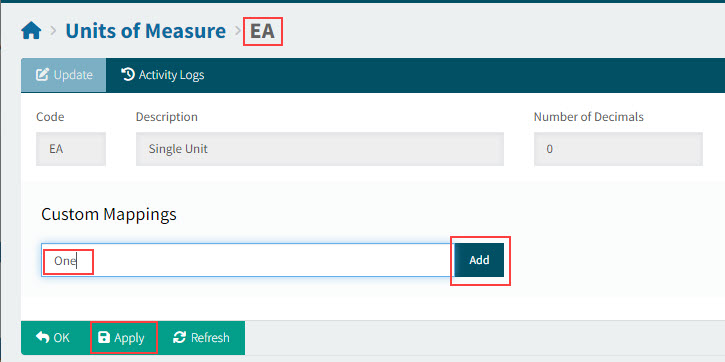
Search for then select a Code to open the Unit of Measure > [Code] page for that UOM.
-
Type in a mapping in the Custom Mappings edit box, then select Add.
-
Select Apply to save the new custom mapping.
View Detail
-
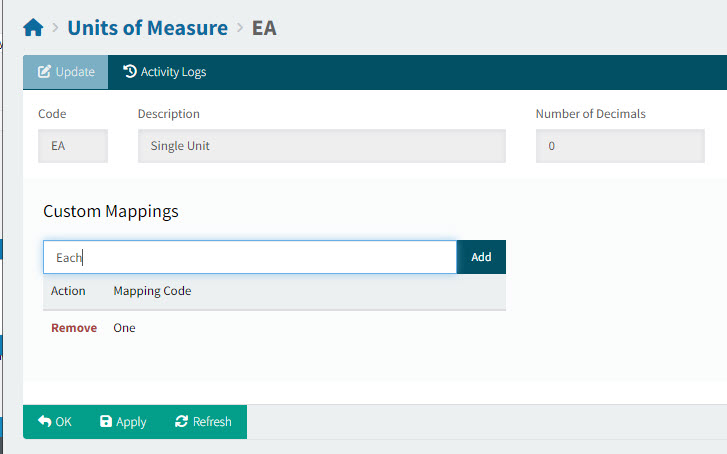
Continue to add custom mappings, as required.
View Detail
UOM Classes
In Kinetic, you can set up conversion factors for a UOM by adding that UOM to a UOM Class. Associate other UOMs with this UOM (the default UOM) and give them a conversion rate (for example 6 singles to a pack). Maintain UOM Classes in Material Management > Purchase Management > Setup > UOM Class.
Selecting Alternative UOM in ARM
In ARM, you can select an alternative UOM if it belongs to the same UOM Class, when editing a Line Item in a document.
UOM in Line Item
For a Requisition, you may select a different UOM from a drop-down list, when editing a catalogue line item, if you have the required permission (Edit Own Requisition Catalogue Item UOM). If the requisition is awaiting approval, you need the permission Edit Requisition Catalogue Item UOM On Approval to change the UOM.
The UOM drop-down list contains the UOM for Purchasing for the part (catalogue item), as well as any other UOMs that belong to the same UOM Class.
Default UOM Setting
The Default UOM setting sets the default UOM for a non-catalogue item.
See Default settings in Global Settings.