Saved Requisitions
The only requisitions that can be viewed here are Saved requisitions owned by the logged-in user.
-
Select
 Saved on the Side Menu. See Side Menu.
The Requisitions > Saved page opens.
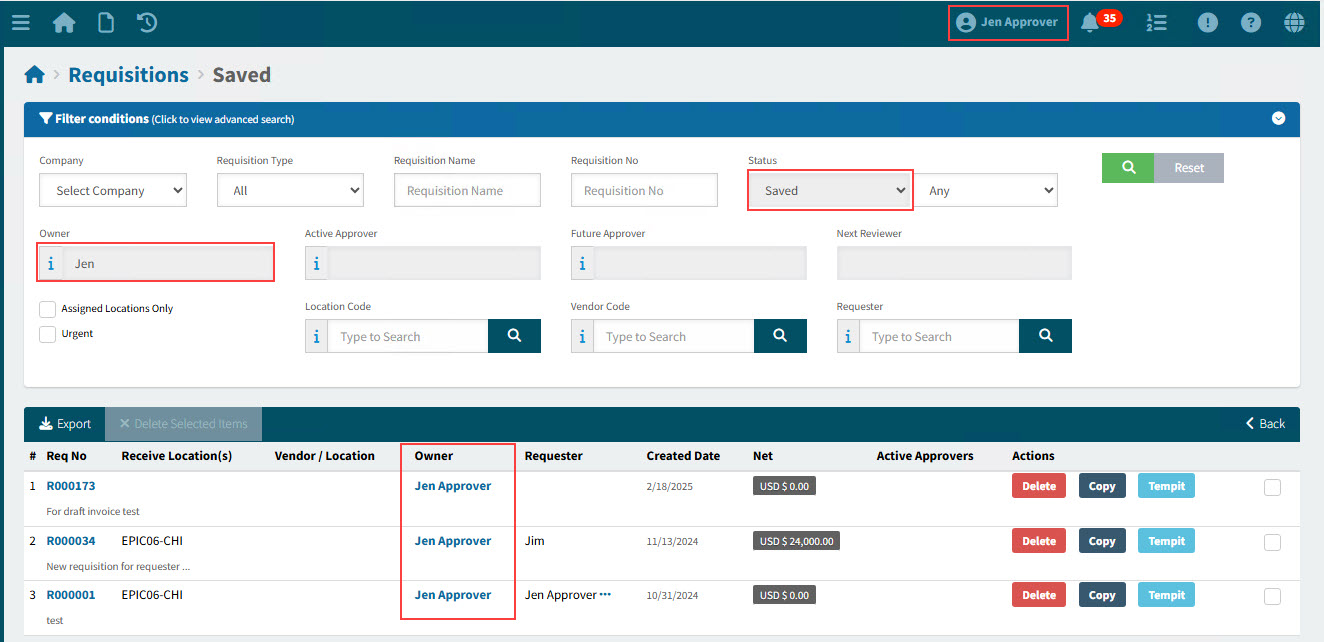
Req No The unique requisition number for this document. Click on the Req No to open the Requisition.
Receive Location(s) The receiving location on the document header. If there is more than one Location, you can click on the ellipsis (…) button to view all Locations in a pop-up box.
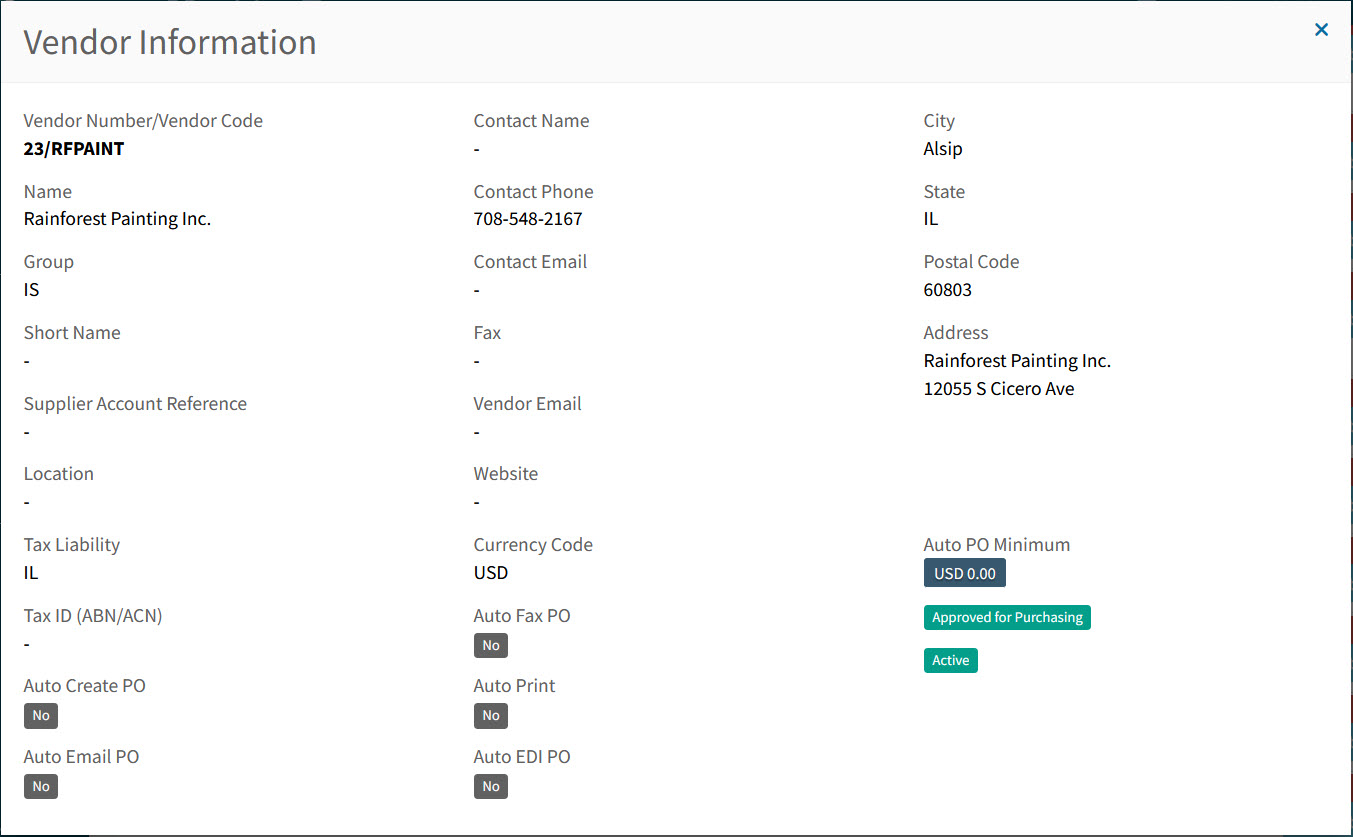
Vendor/Location The list of Vendor Codes and Supply Location Codes for the lines in this document. If the list has more than two Vendors/Supply Locations, an ellipsis (…) button appears. Click on the ellipsis to see the full list in a pop-up box.
Vendor Codes are in blue. Hover over a Vendor Code to view the full Vendor Name, or click on a Vendor Code to open the details in the Vendor Information pop-up screen.
Example
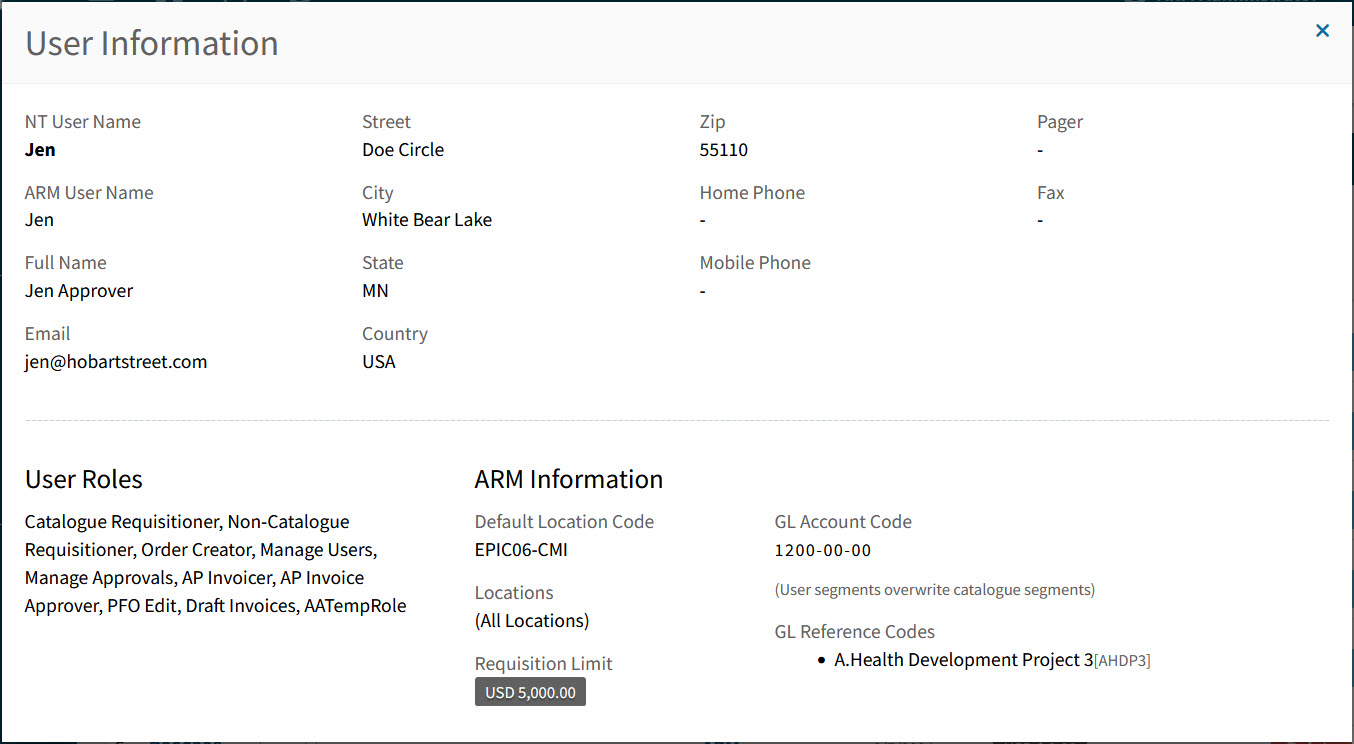
Owner The document owner. This is the User who created the document.
Owner Names are in blue. Hover over an Owner Name to view the full Name, or click on an Owner Name to open the details in the User Information pop-up screen.
Example
Created Date The date the document was created.
Net This label shows the net value (sum of all lines), excluding tax. The currency is included.
Active Approvers The Approver(s) at the current step in the approval workflow. An Active Approver can approve or reject a requisition.
Actions Saved requisitions are created by you. You are able to Delete, Copy, or Tempit (if you have the permissions). There is also a check box to select the row, before deleting one or more selected rows.
-
Adjust the Search conditions.
See Details
-
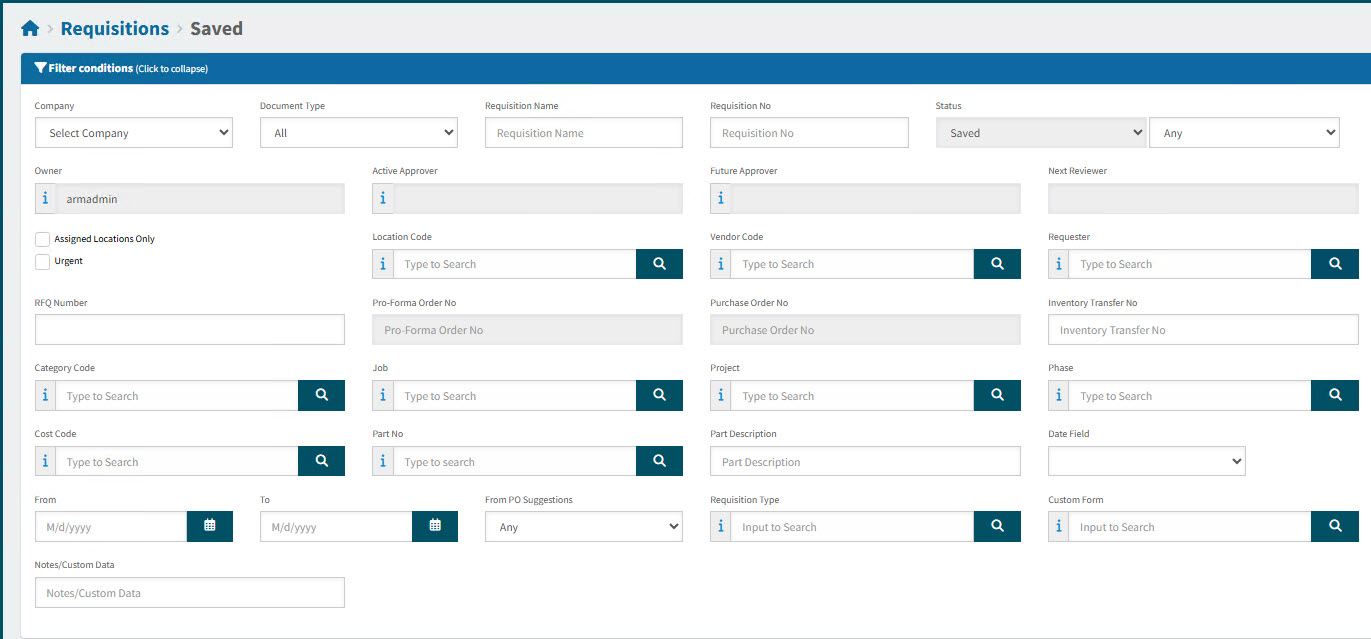
Expand the filter conditions in the top section of the page to search for a specific Requisition or to narrow your search.
View filter conditions
-
Enter values in the edit boxes, or select from the search boxes. See the filter conditions, below.
Filter conditions
Company Select a Company.
Requisition Type Select All, Standard, Standing Order, or Blanket Order from the drop-down list .
Requisition Name Enter a name or partial name followed by the % character to list all Requisitions with a name that contains those characters.
Requisition No Type in the Requisition Number if known, or do a partial search using part of the number followed by %. For example, R0001% will return all Requisitions starting with R0001.
Status The Status is locked to Saved.
Further refine the list by selecting Any, Not Suspended or Suspended from the adjacent drop-down list.
Pro-Forma Order No Where applicable, you can enter the number of a Pro-Forma Order linked to the requisition.
Owner Type in the User Name, or partial with the % sign, of the person that created the Standing Order, and click on a name from the displayed list.
Active Approver Select a user from the drop-down list. Filters for this user as an active approver for the requisition.
Future Approver Select a user from the drop-down list. Filters for this user as a future approver for the requisition.
Next Reviewer This field is disabled.
Assigned Locations Only If this check box is selected only documents for Locations assigned to the User in their User Profile will be displayed.
Location Code Select a Location Code to filter from.
Vendor Code Select a Vendor Code.
RFQ Number Type in the Request For Quote No if known, or do a partial search using part of the number followed by %.
Pro-Forma Order No The number of the pro-forma order originating from this requisition.
Purchase Order No The number of the purchase order originating from this requisition.
Inventory Transfer No Type in the Transfer Order No if known, or do a partial search using part of the number followed by %.
Category Code Select a Category Code and any Standing Order with a line that matches the value will be returned.
Job Select a Job Code and any Standing Order with a line that matches the value will be returned.
Project Select a Project Code and any Standing Order with a line that matches the value will be returned.
Phase Select a Phase (dependent on the value selected in the Project field).
Cost Code This is an independent field and can be selected against any Project when ARM is configured for use with Advanced Projects Management (APM).
Part No Type in a Part No, or click the field search icon
 to select a Part Number from the Search Catalogue page.
Part Description Type in the Part Description if known, or do a partial search using part of the description followed by %.
Date Field Select one of the following date values from the drop-down list:
-
Date Created
-
Date Modified
-
Date Submitted
-
Date Approved
Enter a date range, or just a From Date, or just a To Date.
From PO Suggestions Choose Any, Yes, or No.
Custom Form Select any of the Custom Forms if the ARM system is configured to use these.
Notes/Custom Data You can type in a whole or partial string to search values present within:
-
Internal and External note fields
-
Line note fields
-
Custom UDF value fields
-
Requisitions that match the search conditions are listed in the grid.
-