Copying a Requisition
Permissions
-
You require a role with the Requisitions permission to access Requisitions maintenance. See Permissions in ARM.
-
You require a role with the Can Copy Req and Template permission to copy a requisition from the detail page.
-
You require a role with the Can Fast Copy Req permission to copy a requisition from the summary page.
To copy a requisition:
-
Select
 All Requisitions on the Side Menu to open All Requisitions. See Side Menu.
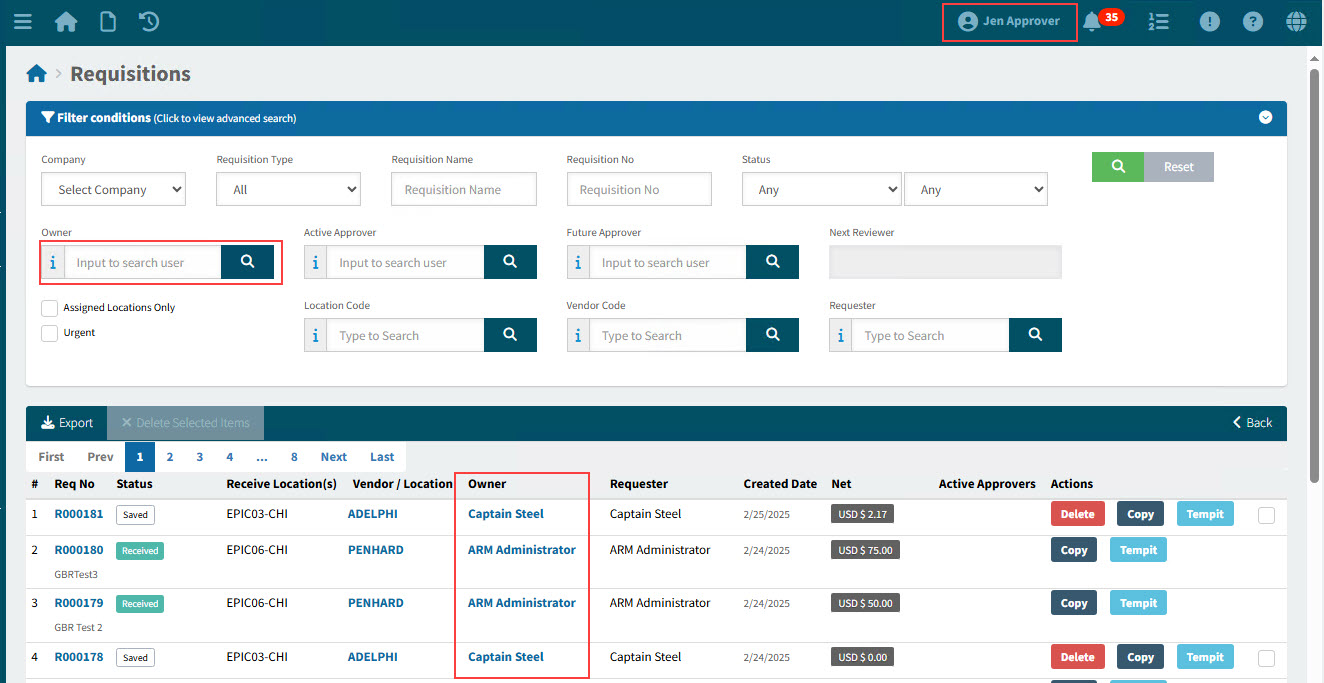
The Requisitions page opens.
-
Click Copy OR
Select a requisition to open the detail, then click the Copy button across the top right menu bar.
-
Select the Copy Options from the pop-up dialog, which has default settings from Global Settings.
Detail
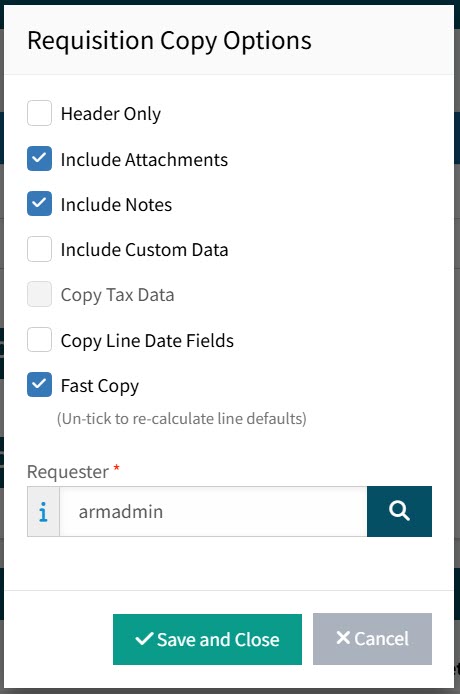
- Header Only
-
Only copy the header information, such as dates and payment type.
- Include Attachments
-
Include any attachments in the copy.
- Include Notes
-
Include any notes in the copy.
- Include Custom Data
-
Include any custom data in the copy. This option is only available if the Use Requisition Types Global Setting is set to Yes.
- Copy Tax Data
-
For each line, copy the Tax Liability and Tax Category.
- Fast Copy
-
Copy all details of each line. Without this option selected, the default values (not the edited values) for each line are used.
- Copy Line Date Fields
-
For each line, copy the dates.
- Requester
-
This is the default Requester on the new document. Either keep the Requester (which is the Requester linked to you, the logged-in user), or select a different Requester, from the list of Requesters that you can request for.
-
Click Save & Close.
The requisition is copied, according to the selected options.
-
On the Requisition detail page modify the requisition as required.
-
Click OK to save the requisition.
| If you delete an attachment from a copied requisition, the attachment is not removed from the original requisition. Likewise, if you delete an attachment from a requisition, this will not be removed from any copies of the requisition. |