Currencies
Currencies are maintained in Kinetic and integrated into ARM.
Currencies are used wherever an amount is used. For example, on a Requisition Line there is a Currency, and its symbol is used in the Unit Cost, Final Unit Cost and Extended Cost. The Base Currency is the one that is used by default.
Permissions
The Edit Requisition Currency Info permission allows you to edit the currency code and exchange rate on a requisition line.
The Edit AP Invoice Currency permission allows you to edit the AP Invoice currency and exchange rate.
See an example of selecting a currency on a requisition line item:
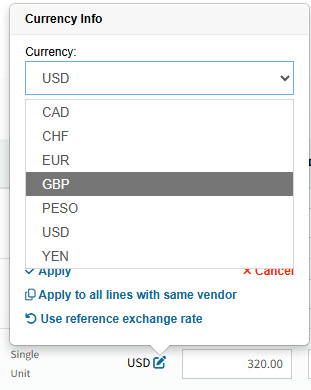
Before using currencies in ARM, ensure that each currency is mapped to an ARM currency. ARM currencies include an ISO code, a description, a symbol, and a precision. See Maintaining Currencies in ARM.
ARM Currencies and ISO Codes:
The International Standards Organization (ISO) establishes internationally recognized codes for currencies that include ISO Code, Symbol and Precision.
See more about ISO Codes:
Exchange rates that are published in newspapers or posted in banks use these ISO codes to avoid confusion with translated currency names or ambiguous currency symbols. ARM requires that Kinetic currency codes are mapped to ISO Codes because the ISO Codes are assumed to be the international standard. For example, the Euro currency might be configured in Kinetic as EURO, but the international standard is EUR.
Maintaining Currencies in ARM
The Administration > Currencies page displays a list of commonly used currencies with their profile according to the International Standards Organization (ISO).
ARM Currencies are maintained on the Administration > Currencies page.
Permissions
You require a role with the Maintain Settings permission to view or edit data on the Currencies page.
-
Select the Currencies menu item on the Administration Page. See Administration Page.
The Administration > Currencies page displays.
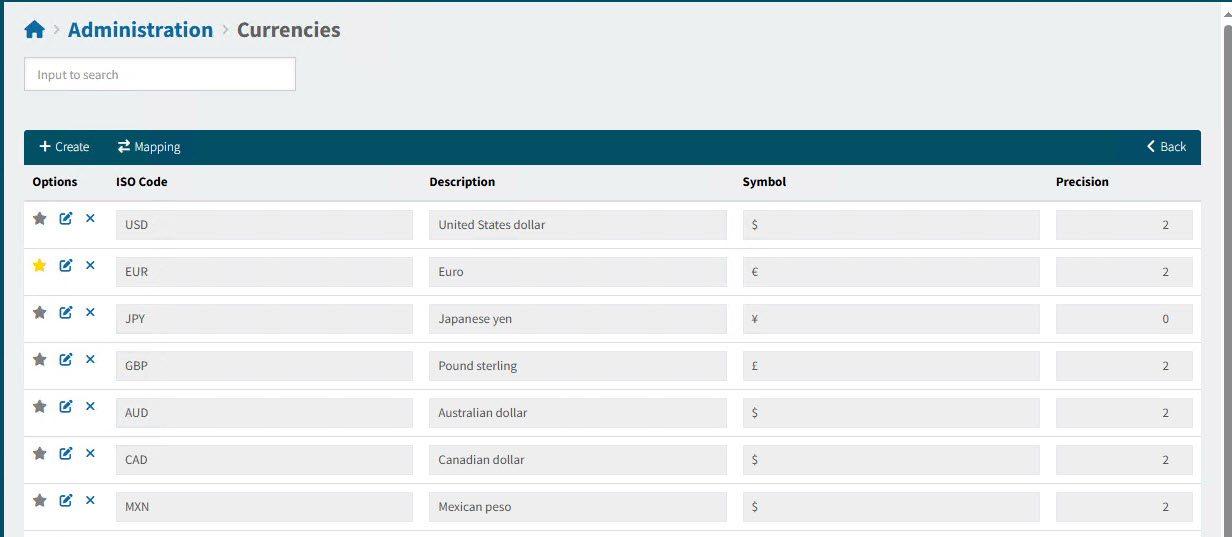
You can add, edit or delete an ARM Currency.
Adding an ARM Currency
-
Click
 Create on the menu bar to create a new ARM currency.
This creates a new row at the bottom of the list of currencies.
-
Enter an ISO Code. This must be unique.
-
Enter a Description.
-
Enter a Symbol.
-
Enter a Precision.
-
Click the Save
 button under the Options column.
The new ARM currency is added and can be mapped to a currency. See Mapping Currencies.
Editing an ARM Currency
-
To edit an ARM currency, click on the row’s Edit
 button under the Options column.
 -
Edit the Description, Symbol, or Precision fields.
-
Click the Save
button under the Options column.
Deleting an ARM Currency
To delete an ARM currency:
-
Click on the Delete
 button for that row, under the Options column.
 -
Click Yes on the confirmation dialog.
The ARM currency is deleted.
| You cannot delete an ARM currency that is used in the mapping. |
Mapping Currencies
Use this page to map Currencies (used in ARM) to ARM Currencies (with ISO Codes).
-
Open the Administration > Currencies.
-
Click
 Mapping on the menu bar.
The Administration > Currencies > Currencies Mapping page displays:
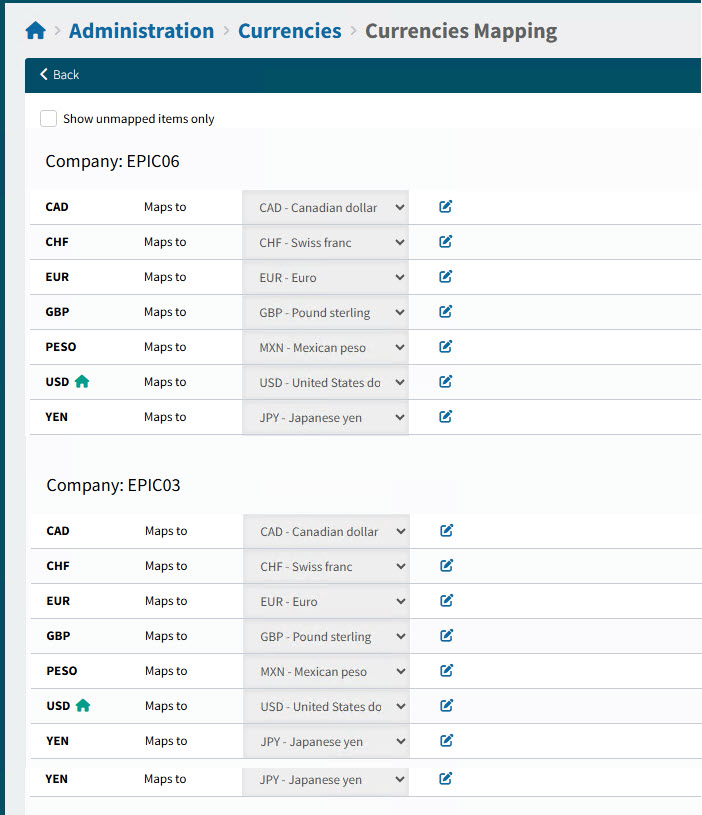
To edit a currency mapping:
-
Click the Edit
button alongside the mapping. -
Select an ARM Currency from the drop-down list.
Only ARM currencies that are not already mapped are available.
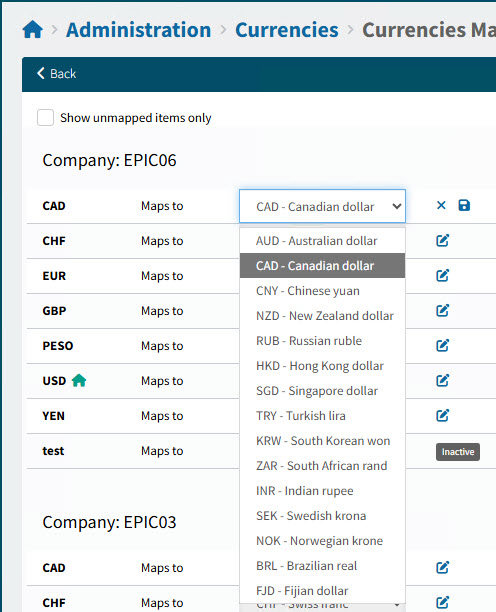
-
Click the Save
button alongside the mapping.The currency is now mapped to an ARM Currency and its ISO Code, Description, Symbol and Precision.