Approvals
When you submit a Requisition or an AP Invoice, the full approval workflow is determined for each line on the document.
Configurations and Rules
Configurations and rules are defined at multiple levels, in Approval Maintenance. These configurations collectively determine the behavior of an approval workflow, as well as rules and validation affecting each Document Type (AP Invoice and Requisition).
-
Document Type Configuration is applied to all the Approval Trees of that Document Type. The rules here define at what stage validation occurs, when a document can be edited, and so on.
-
Configurations defines a set of rules that can apply to one or more Approval trees. The rules here define the behaviors that are followed when an approval tree is in use, for example Skip Approval Steps Under Required Approval Amount (on or off).
-
Enabling Approval Trees defines which active Approval Trees are enabled for a Document Type. This is done in Approval Maintenance.
For each Company, only one Approval Tree per Document Type can be selected as the active tree for a Tree Type and then enabled (for example, approval tree Main Warehouse Approval Tree is the active, enabled Location Tree for Company EPIC06 for Requisitions).
-
Approval Trees have configurations that can be set at the node level, such as Number of Approvers required, and Can Approve Over Budget? (on or off).
-
The selected Criteria for a node in an approval tree determines whether it is an entry point for an approval workflow. See Approval Tree Criteria.
| For the full list of rules affecting the approval process, see Approval Process Rules. |
Requisitions and Workflows
As soon as a requisition is submitted, an approval workflow is created, using the active enabled approval tree(s) and starting from the entry node(s).
Missing Approval Entry Node
If a requisition is submitted, and there are requisition lines that do not have an approval entry point in the applicable Approval Tree, the approval is suspended. The document is automatically re-submitted once a suitable node exists.
Multiple Approval Trees in an Approval Workflow
Sometimes a requisition line meets the requirements for an entry node in more than one Approval Tree. In this case, there will be more than one approval path in the Workflow.
An example scenario is a requisition line that qualifies for Location criteria, as well as Category criteria. The Approval Sequence on the respective root nodes will determine which order the approval paths are followed (this can also be in parallel).
Users and Requesters in Approvals
User and Requester settings and permissions determine the behavior of an approval workflow for that user, as well as the permissions that user has in relation to approval maintenance.
Requester Settings Relating to Approvals
-
Requisition Limit: This setting works in conjunction with the Enable User Limit setting (when it is enabled). Amounts below this limit are auto approved.
User Permissions Relating to Approvals
-
Users with the permission Maintain Approval Hierarchy can maintain and enable Approval Trees, update configurations, set configurations for Approval Trees, and maintain Document Configurations.
-
Users with the permission Approve Requisitions can be added as Approvers on a Requisition Approval Tree.
-
Users with the permission Approve All Requisitions can approve all requisitions on a Requisition Approval Tree. Note that this is 'On' by default for the Administrator Role only. (Approval Limits do not apply.)
-
Users with the permission Approve All AP Invoices or Approve AP Invoices can be added as Approvers on an AP Invoice Approval Tree.
-
Users with the permission Approve Own Documents can approve their own requisitions or invoices, when assigned as an approver.
Approvals Process
When a document (Requisition or AP Invoice) is submitted, an approval workflow is created, based on the current enabled Approval Trees and the configurations that are applied.
The workflow is represented in a Workflow Diagram, which displays when you click the View workflow  icon on a submitted requisition line, or an AP Approval line. See Workflow Diagram.
Approval Process Rules
Several rules collectively govern the approval process. Some of these are detailed below.
Can Approve Over Budget
-
Set in Approval Tree Nodes (required in at least one tree node for a branch). See Create Approval Tree.
If this is selected on a node, approver(s) on this node are allowed to approve an amount that results in going over budget (GL Budget or Project Budget).
For a requisition that is over budget: If the requisition amount is under the Approval Authorisation Limit and the node has Can Approve Over Budget set, then approvers on this node can complete the approval.
If an approver can approve over budget but the requisition amount exceeds their approval authorisation limit, then they cannot complete the approval and it will need to go all the way up to the root.
At least one node in a branch (a root node and the nodes below it) must have Can Approve Over Budget selected.
| If GL Budget Checking is disabled, there is no Budget Checking and the Can Approve Over Budget setting becomes irrelevant. If GL Budget Checking is enabled but a user with Disable GL Budget Checking selected is the approver, then there is no budget checking at that point and the approver can be the final approver. |
Approval Authorisation Limit
-
Set in Approval Tree Nodes (required). See Create Approval Tree.
Each node in an approval tree has an Approval Authorisation Limit.
When an approver approves an amount that is less than the node’s Approval Authorisation Limit, and Can Approve Over Budget is selected for this node, the remaining nodes right up to the root are completed by that approver. The reason given is: 'Less than Approver’s Limit'.
| If the requisition is over Budget, then approvals will continue until approval takes place on the node Can Approve Over Budget. |
Example
|
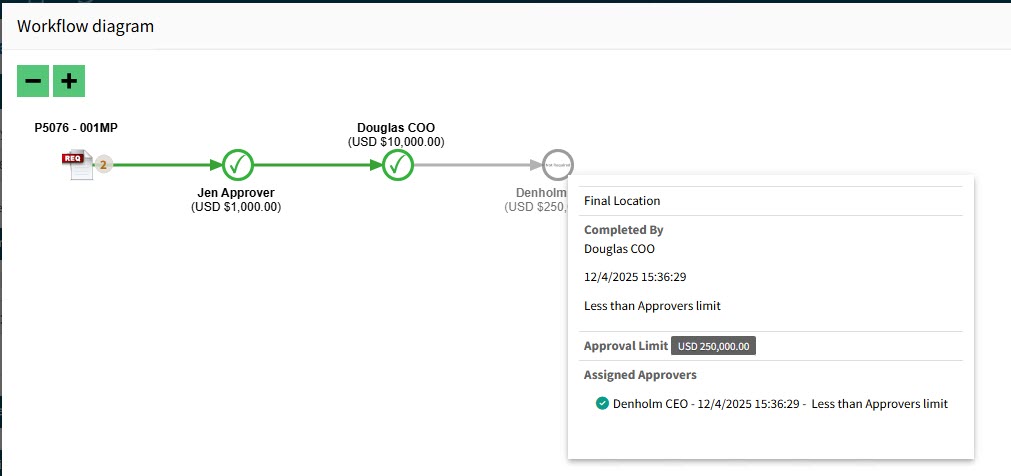
| If an approval tree is Required and the amount to be approved is above the Approval Authorisation Limit for all nodes, then the submitted document is Suspended. The document is automatically re-submitted when an approval entry point exists and approvals are reactivated. |
Note that the Approval Authorisation Limit is also used in the configuration setting Skip Approval Steps Under Required Approval Amount.
Requisition Limit
-
Set for a requester on the Requesters page on the Default Settings tab (required). Set for a requester group on the Requester Groups page on the Default Settings tab (required). See Requisition Limit.
Requisitions created and submitted where the total amount is under the Requisition Limit of the requester will be auto-approved on approval trees that are configured to Enable User Limit (set in the tree’s selected configuration). Each node is approved and the given reason is "Under owner’s requisition limit".
Example
|
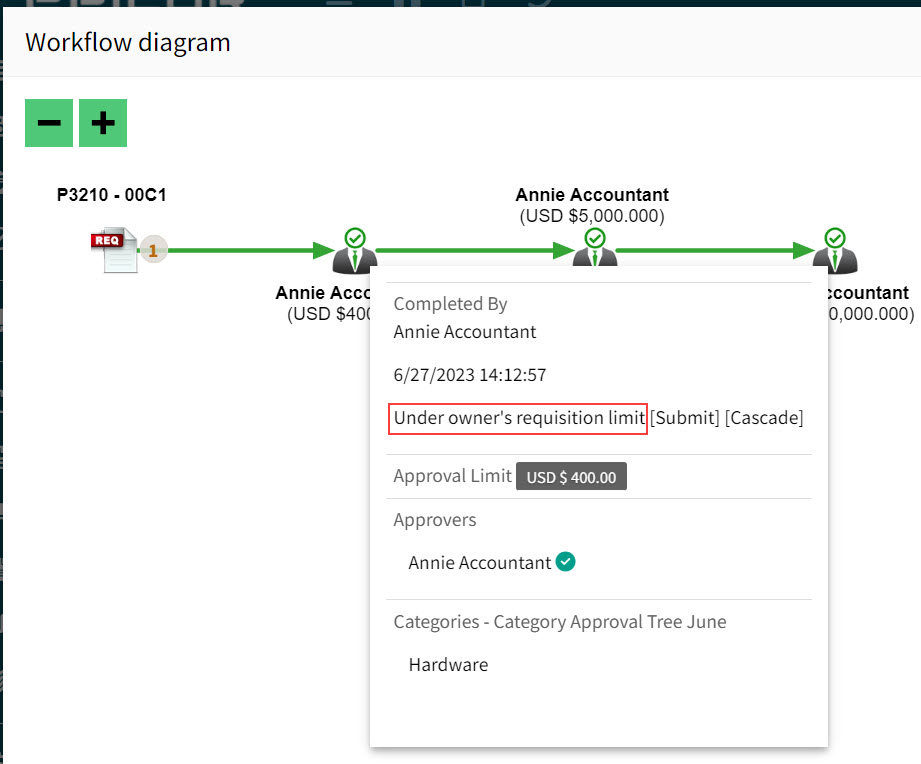
| If an approval node cannot be found and the tree is Required, then the submitted document is Suspended until an approval point exists in that tree. |
Approve Own Documents
-
An Assigned Permission for a user. See Permissions.
A user with this permission, when assigned as an approver, can approve their own requisitions or invoices.
Zero Amount Handling Rule
This rule specifies how requisition lines with a zero value are handled. See Document Type Configurations.
Task Node Handling Rule
This rule specifies how task nodes are handled. See Document Type Configurations.
Approve All Requisitions
-
An Assigned Permission for a user. See Permissions.
Permission Approve All Requisitions. Users with this permission can approve all (any) requisitions on a requisition Approval Tree. The user with this permission can approve a requisition line even if the amount exceeds the Approval Authorisation Limit on the approval node.
Minimum Approval Threshold
-
Set in Approval Tree Nodes (required). See Create Approval Tree.
Each node in an approval tree has a Minimum Approval Threshold.
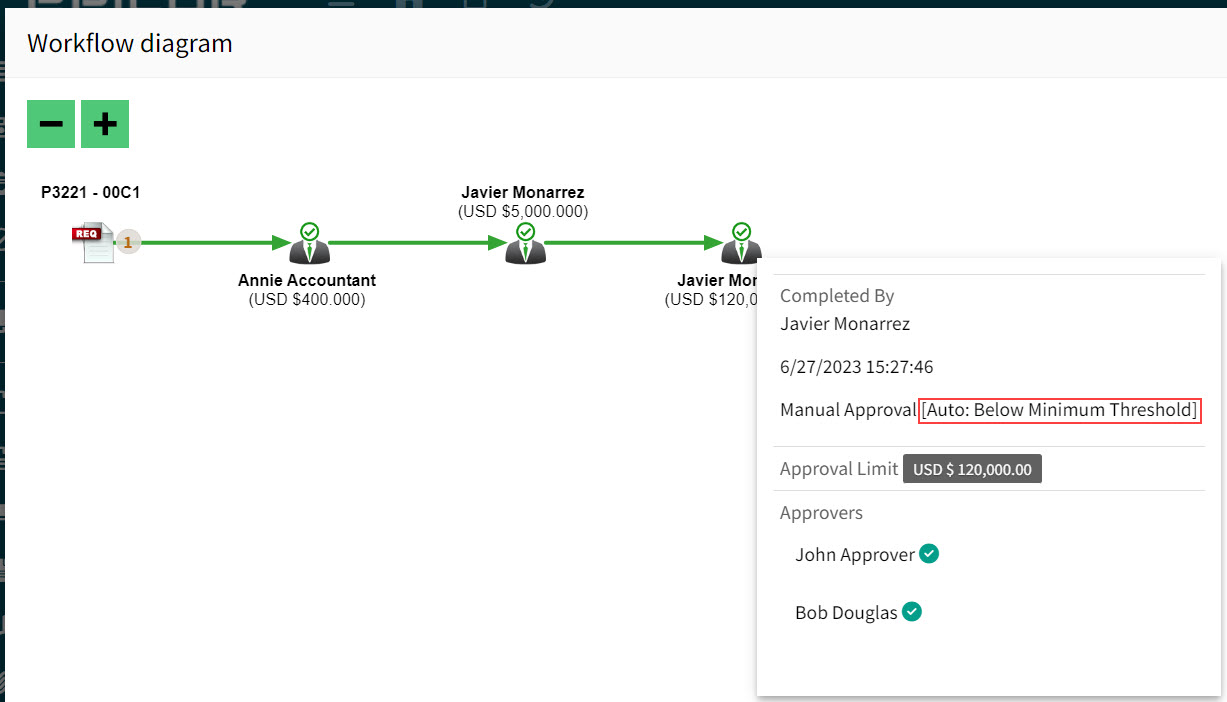
A requisition is auto-approved for nodes where the amount is below the Minimum Approval Threshold. The reason given is Auto: Below Minimum Threshold.
Example
|
Auto Approve
-
Set in Approval Tree Nodes. See Create Approval Tree.
There is an Auto Approve check box on each node in an approval tree.
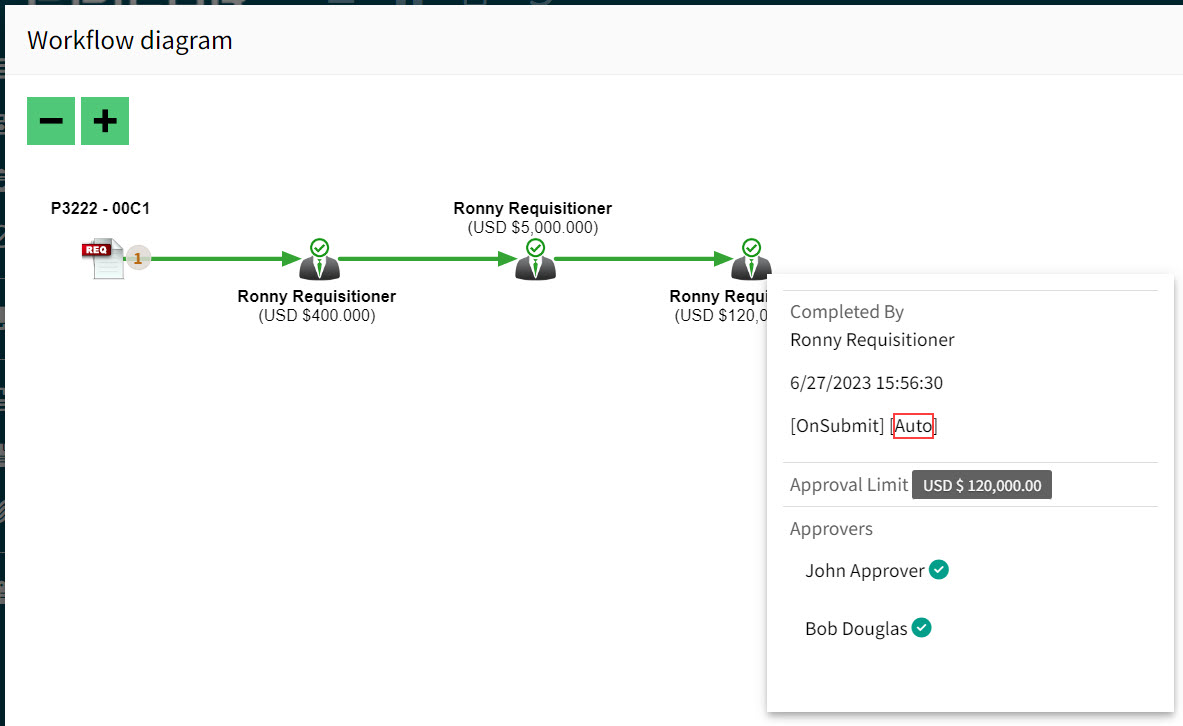
If selected, the node is auto-approved and the approvers for that node are not notified.
Example
|
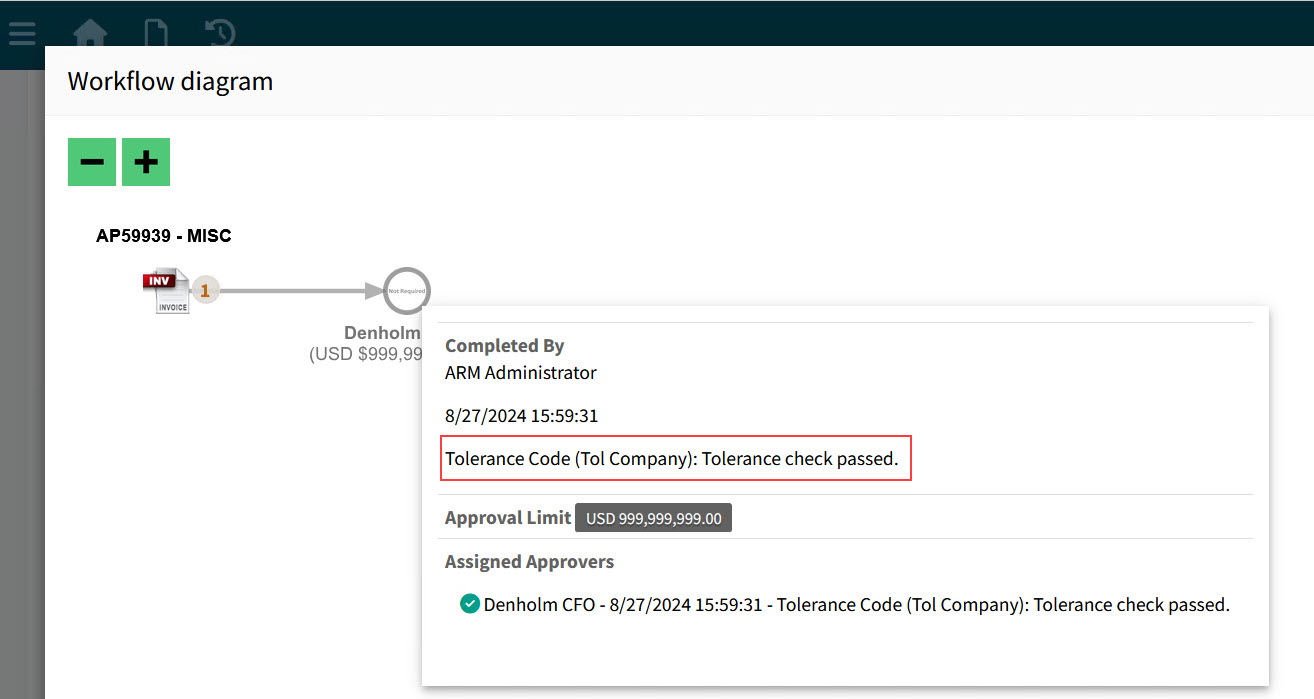
Approval Action in Tolerance Checking
The Approval Action can be selected in the Criteria for a Tolerance Code, which is maintained in Tolerance Settings. See Tolerance Settings.
If a line on a submitted AP Invoice or a Purchase Order Receipt passes Tolerance Checking that has an Approval Action, this passes the approval with the message: "Tolerance check passed".
Example
|
Criteria for an Entry Node
-
Set in Approval Tree Nodes. See Create Approval Tree.
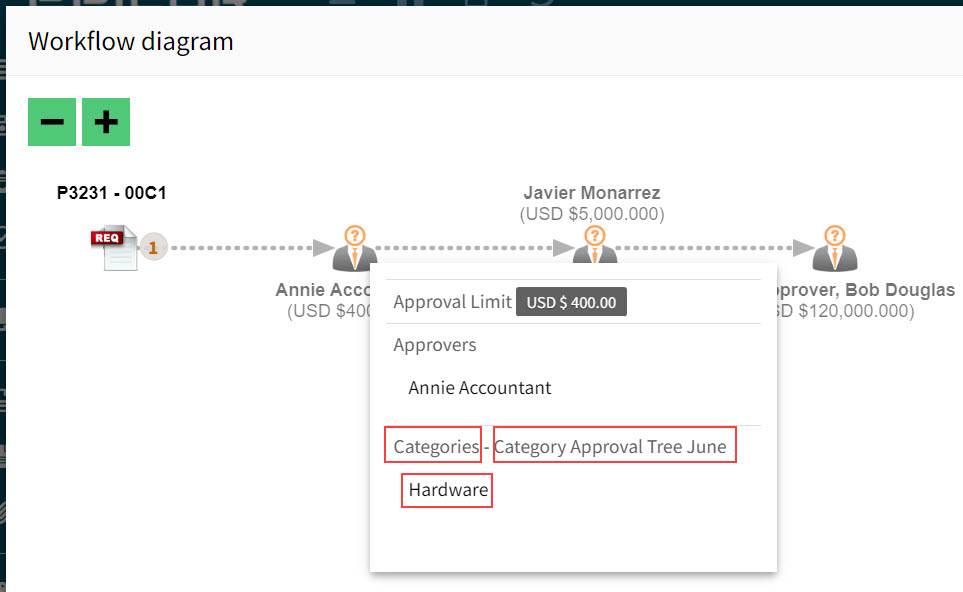
The point furthest from the root in an active, enabled approval tree at which the submitted document (Requisition or AP Invoice) first meets the criteria, is an Entry Node.
The approval workflow starts at this entry node and then continues up the approval tree until it is approved where the amount is less than the approver’s limit (the authorisation limit).
As well as the Minimum Approval Threshold (described above), there are other criteria which determine whether a node is included in an approval workflow.
Example
Here, the active Category Approval Tree, named 'Category Approval Tree June' has an entry node for the Hardware category.
|
Number of Approvers required
If more than one approver is added to an approval tree node, then the Number of Approvers required edit box displays. You can select any number (n) between 1 and the number of listed approvers.
The approval can only progress to the parent node after the node has been approved by n number of approvers.
Advance Approvals
-
User has the permission "Can Perform Advance Approval on Requisitions". See Permissions.
A user with this permission can perform requisition approvals in advance.
Requisitions can be approved in advance if the advance approver has a higher Approval Authorisation Limit and that user is higher up the Approval Tree. Approval nodes below this node will be skipped.
If you have approvals to approve in advance, these appear in a link in your Pending Items, on your dashboard.
Approval Sequence
-
Set in the root nodes of Approval Trees. See Create Approval Tree.
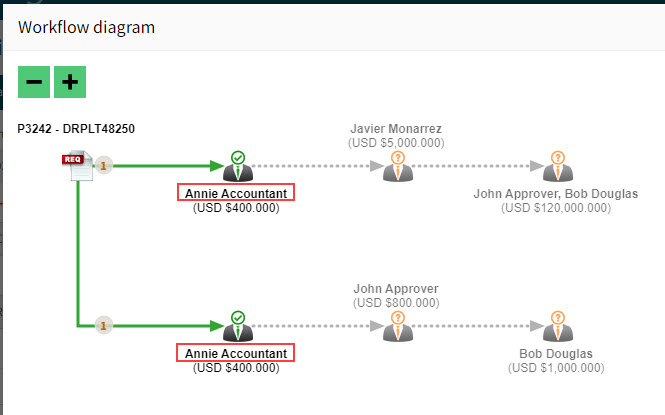
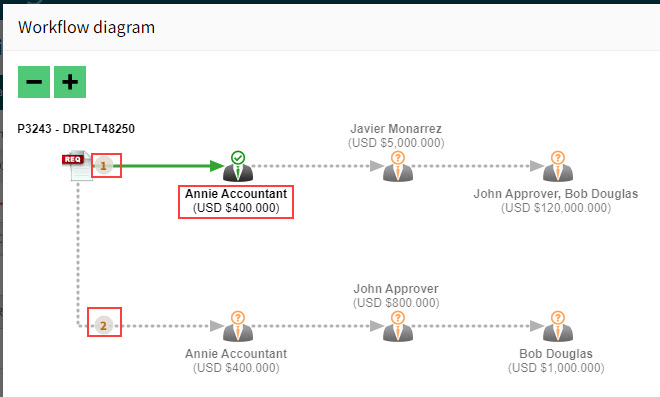
If a requisition line finds an entry point in more than one tree, the approvals will occur sequentially in the order defined in the tree sequence. If more than one tree is applicable and they have the same approval sequence, their approvals will occur in parallel.
When an Approver is on more than one Entry Node
When an approver is more than one Entry Node with the same Approval Sequence (that is, running in parallel), then their approval counts for both entry nodes.
Example - running in parallel
|
Example - running sequentially
Here the one branch root nodes has Approval Sequence 1, and the other has Approval Sequence 2.
|
Repeated Approver Behavior
This rule controls when to skip approval for an approver who appears more than once on an approval tree. See Document Type Configurations.
Approve Requisitions
-
An Assigned Permission for a user. See Permissions.
The user can be added to the approval hierarchy and approve requisitions.
If a user is listed as an approver on an Approval Tree but does not have this permission, they will not appear on a workflow for a requisition.
No Enabled Approval trees
If no approval trees are enabled, a document will be suspended.
Assess Approval Limit in Individual Lines
-
Set in Configuration, then applied to an Approval Tree. See Maintain Configurations.
The Approval Limit is compared to the amount on the individual lines, rather than on the requisition total.
Enable User Limit
Set in Configuration, then applied to an Approval Tree. See Maintain Configurations.
When this is enabled, the Requisition Limit is used. See how Requester’s Requisition Limit (described above) affects approvals.
Skip Approval Steps Under Required Approval Amount
-
Set in Configuration, then applied to an Approval Tree. See Maintain Configurations.
When this setting is enabled:
If the Approval Authorisation Limit on a node is less than the approval amount the affected nodes are not included in the approval workflow.
Skip Approval nodes where Document Owner is an Approver on the Node
-
Set in Configuration, then applied to an Approval Tree. See Maintain Configurations.
When the user who creates and submits a requisition is also an Approver on a node, that node is skipped.
| This applies to the nodes whose root node has the lowest Approval Sequence (for example, 1). |
Other Functionality and Permissions Relating to the Approval Process
Receive approval notification whilst own approval role is delegated
Assigned to an individual user on the User Detail page. See Delegating Roles.
Disable GL Budget Checking
GL Budget Checking is enabled or disabled at Company level, in Administration > GL Budget Settings.
If GL Budget Checking is enabled in GL Budget Settings, it can be enabled or disabled for an individual user (Disable GL Budget Checking), on the User Detail page. See Disable GL Budget Checking GL Accounts tab.
If GL Budget Checking is disabled, the Can Approve Over Budget setting is not available in the root node of an approval tree.
Replace Approvals
This features allows the Administrator to replace a user with a different user, on all approval trees, as well as on any current approvals.
The Replace Approvals button is on the footer menu of the User Detail page.