PO Creation
This page lists PFOs that are ready for Purchase Order creation.
| To read more about Pro-Forma Orders, see PFOs. |
-
Select
 PO Creation on the Side Menu (see Side Menu)
OR
-
Select Pro Forma orders ready for Purchase Order creation on your Dashboard (see Pending Items).
The Pro-Forma Orders > Creation page opens:
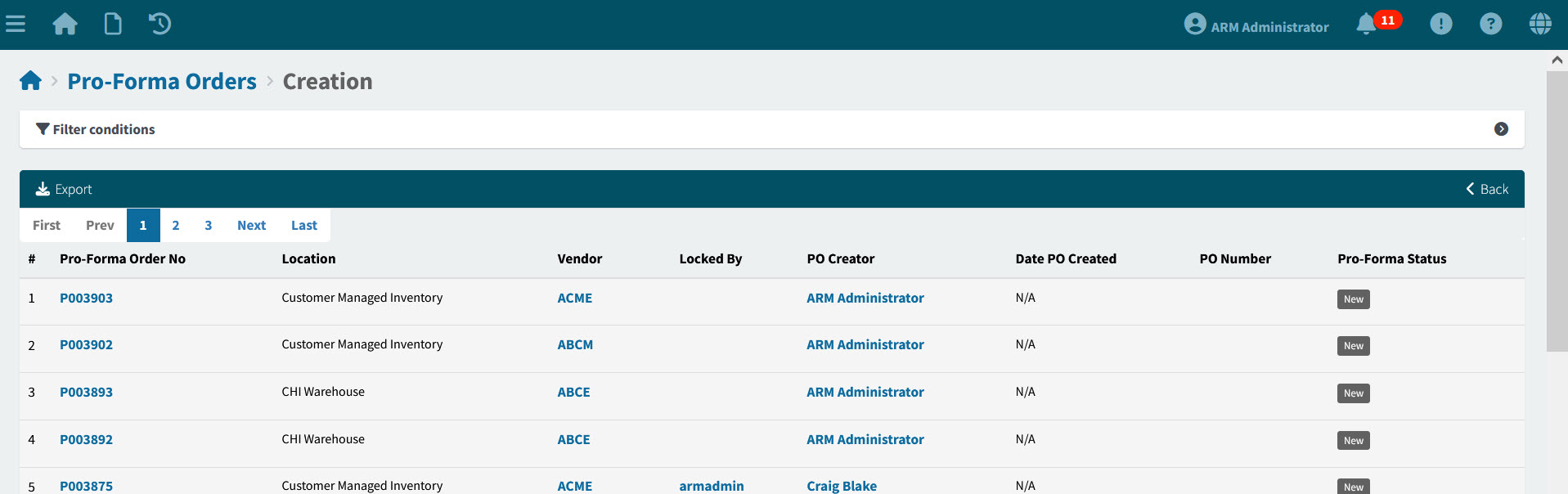
Pro-Forma Order No The order number for this document. Click on the Pro-Forma Order No to open the Pro-Forma Order.
Location The location on the document header.
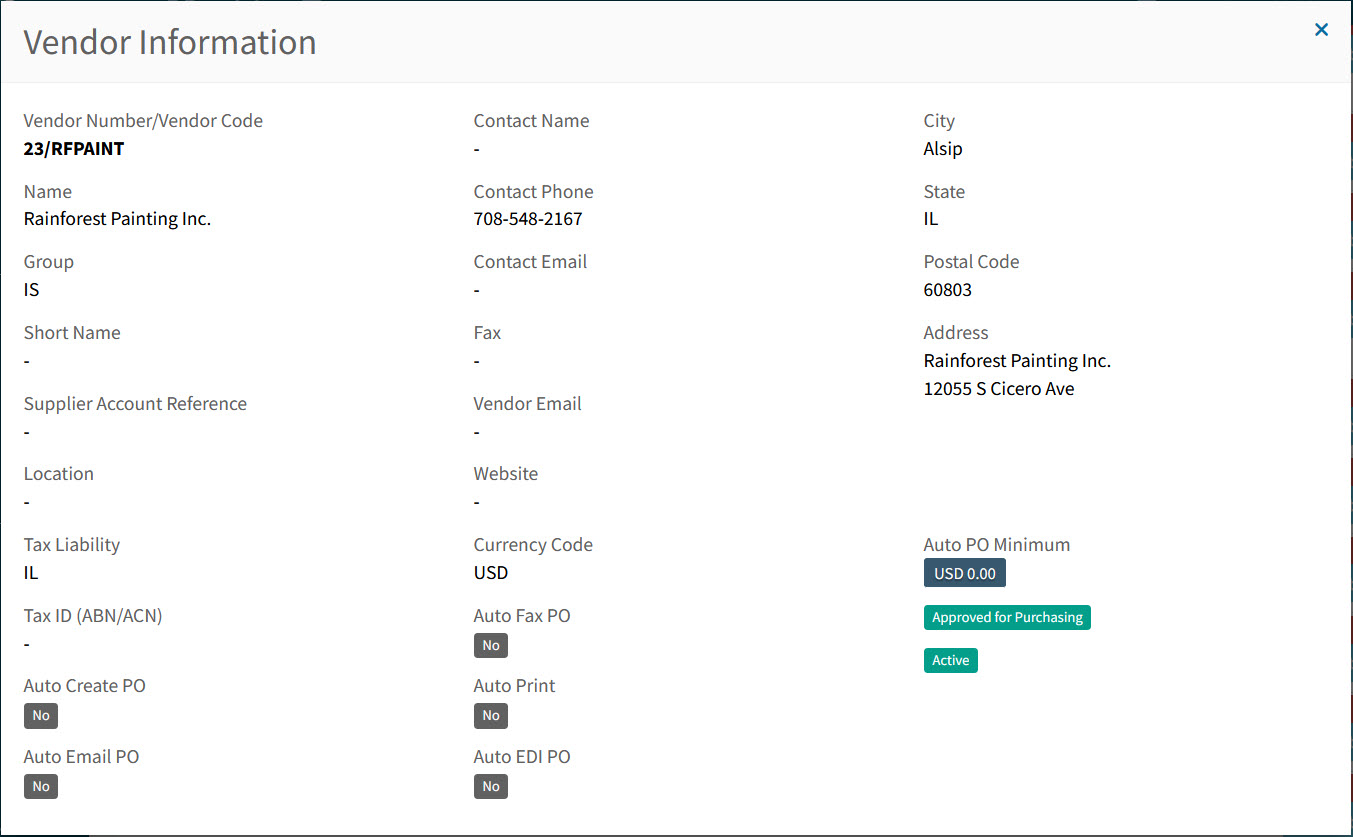
Vendor The Vendor Code for the lines in this document. Hover over a Vendor Code to view the full Vendor Name, or click on a Vendor Code to open the details in the Vendor Information pop-up screen.
Example
Locked By The User who locked the PFO (applicable to locked PFOs only).
PO Creator If a User created a PO from this document, then they are the PO Creator.
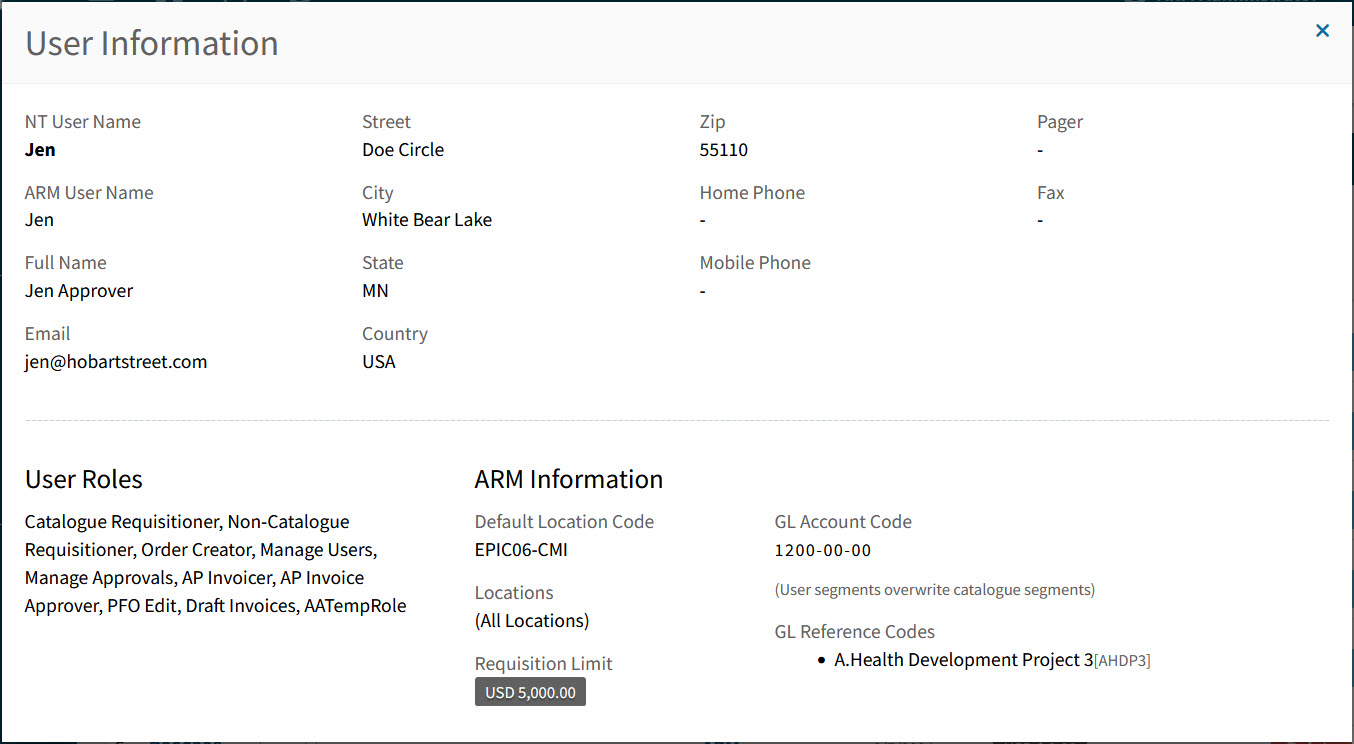
PO Creators are in blue. Hover over a PO Creator to view the full Name, or click on a PO Creator to open the details in the User Information pop-up screen.
Example
Date PO Created N/A as the PO has not been created yet.
PO Number N/A as the PO has not been created yet.
Pro-Forma Status The Pro-Forma Status is New on this page.
-
Adjust the Search conditions.
See Details
-
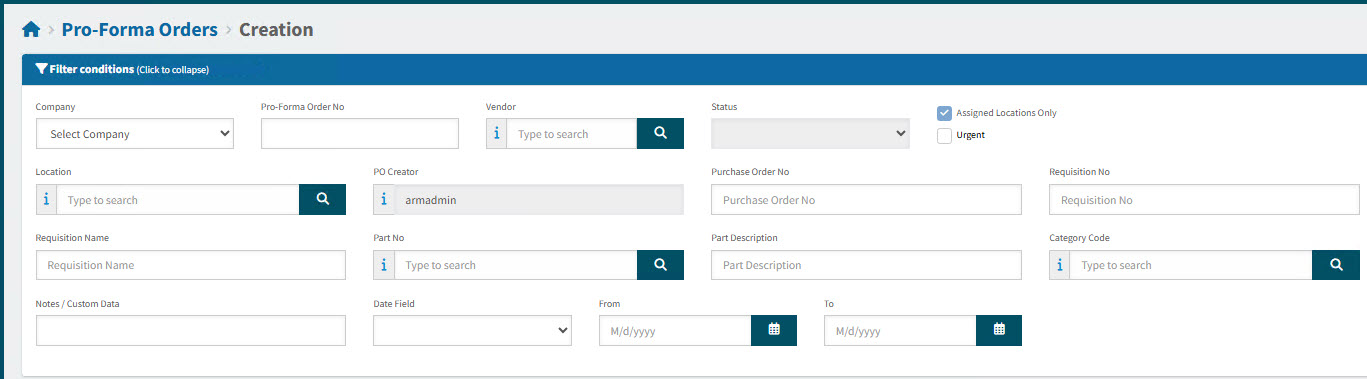
Expand the filter conditions in the top section of the page to search for a specific Pro-Forma Order or to narrow your search.
View filter conditions
-
Enter values in the edit boxes, or select from the search boxes. See the filter conditions, below.
Filter conditions
Company Select a Company.
Pro-Forma Order No Type in the Pro-Forma Order No if known, or do a partial search using part of the number followed by %.
Vendor Select a Vendor Code.
Status Select one of the following status values from the drop-down list:
-
Any
-
Rejected
-
New
-
PO Created
Assigned Locations Only If this check box is selected only documents for Locations assigned to the User in their User Profile will be displayed.
Location Code Select a Location Code to filter from.
PO Creator This field contains the name of the logged-in user and cannot be updated.
Purchase Order No Enter the PO Number, if known. Only applicable for PO Created.
Requisition No Limits results to PFOs originating from this requisition number.
Requisition Name Limits results to PFOs originating from requisitions with this name.
Part No Limits results to PFOs that include this part number.
Part Description Limits results to PFOs that include parts with this name.
Category Code Limits results to PFOs with a line that has that category code.
Notes / Custom Data Search on Notes / Custom Data.
Date Field Select Date Created, or Date Modified, or Date PO Created, then select a date range with From and To dates.
-
PFOs that match the search conditions are listed in the grid.
-
-
To create a Purchase Order from one of the listed PFOs, see Creating a PO from a Pro-forma Order.