Approving a Requisition
After you submit a requisition it usually needs to go through an approval workflow.
The approval workflow is built according to the active approval trees, as well as the requisition itself and the requisitioner. See Approvals.
If you are an Active Approver in an approval workflow you will be notified by:
-
Receiving an email notification (if the system is configured for this).
-
Notifications in Your Notifications. See Notifications.
-
Requisitions requiring your approval in your pending items on your Dashboard. See Pending Items.
You can also open the  Approval page from the Side Menu. See Side Menu.
| An approver receives a single notification email, listing their approval requirements for all related lines. |
As an Active Approver you can:
-
Approve or Reject Requisition Details. See Approving Requisition Details.
-
Approve or Reject Requisition Summary. See Approving Requisition Summary.
-
Mark a Requisition for Review. See Marking a Requisition for Review.
-
Review a Requisition, if it is assigned to you for review. See Reviewing a Requisition.
-
Revise a Requisition. See Revising a Requisition.
If you have permission to approve in advance ('Can Perform Advance Approval on Requisitions'), you can Approve in Advance. See Approvals in Advance.
Approving Requisition Details
You can approve a requisition from the Summary page, or you can approve line by line from the Requisition detail page.
To Approve a Requisition from the Detail
-
Open the requisition from one of the requisition summary pages, or from a link.
-
Click Approve in the Actions section.
The requisition status updates to Approval In Progress if there are still further approvals required.
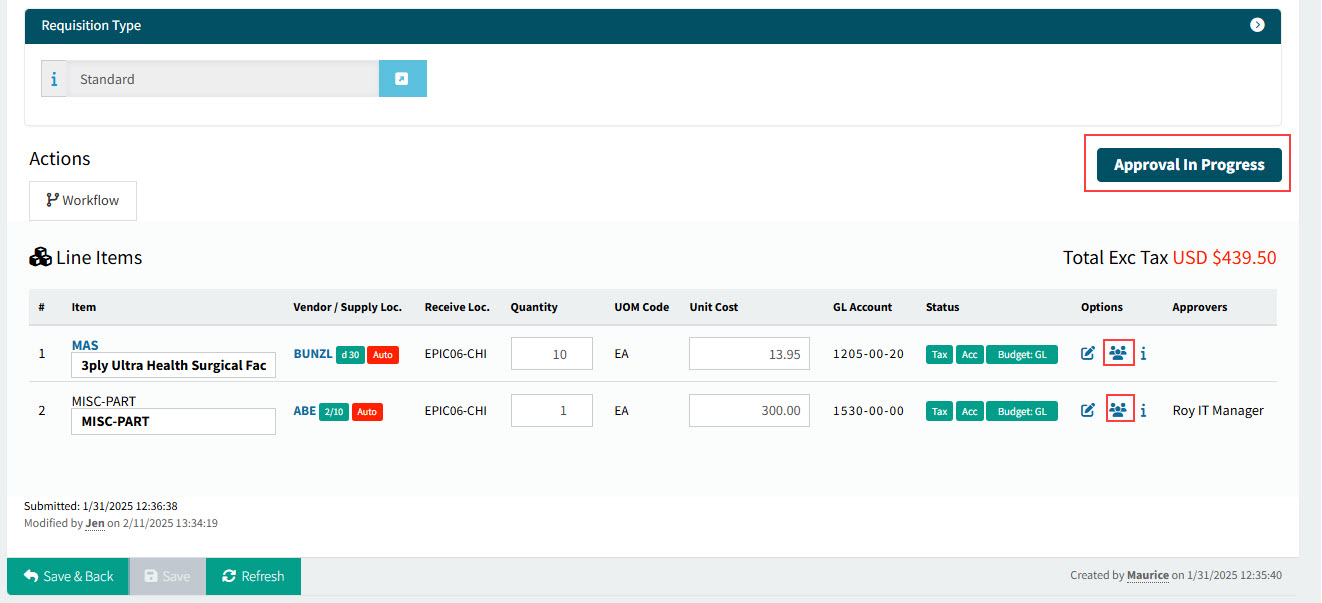
| If the Approval Workflow has been updated, you will be prompted to re-submit the requisition. To do this: Revise the requisition, then Re-submit. |
Requesting a Review
Before approving a requisition, you might want to request a review.
-
To request a review, click the Review button under the Workflow menu in the Actions section. See Marking a Requisition for Review.
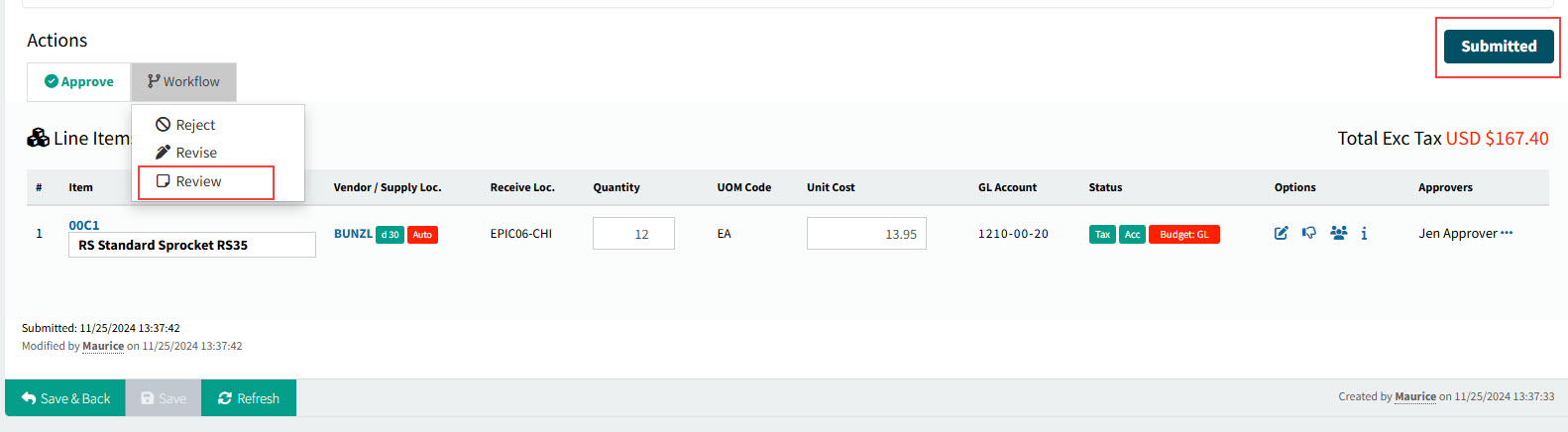
The requisition status changes to "Pending Review".
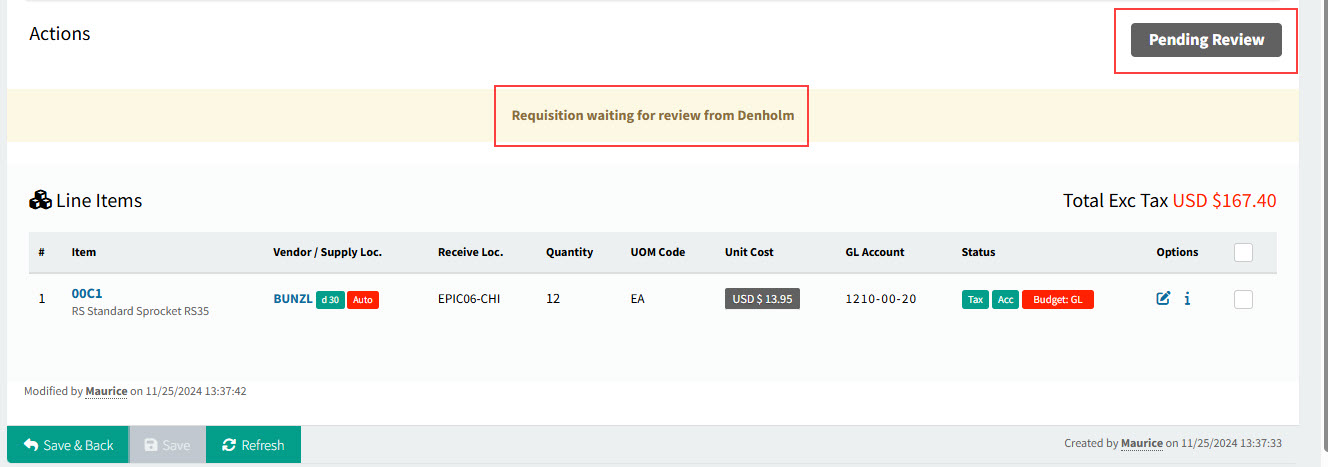
| You can also request a review after approving the requisition. |
Approving Requisition Summary
As an active approver, you can approve or reject a requisition from the summary page, in the search results grid.
To Approve a Requisition from the Search Results
-
Select the Approve button.
The Requisition is approved by you and disappears from the screen.
To Reject a Requisition from the Search Results
-
Select the Reject button.
-
In the Reject Requisition pop-up, enter a Reject Reason then select OK.
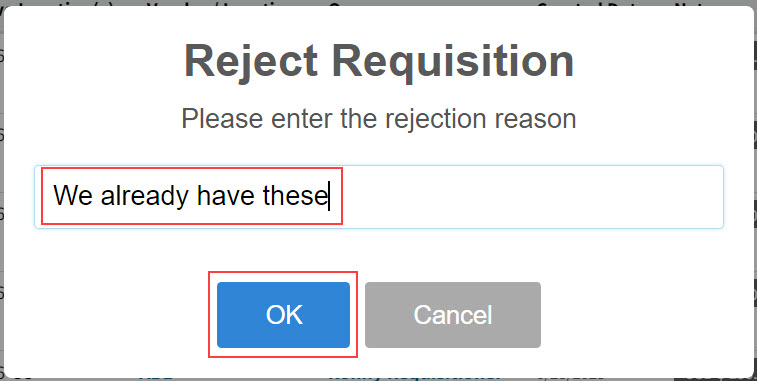
The Requisition is rejected and disappears from the screen.
You can view a rejected requisition in All Requisitions. See All Requisitions.
Marking a Requisition for Review
As an approver, you can suspend the approval workflow by requesting a review for the requisition.
| If you want to revise the requisition yourself, click the Revise button under the Workflow menu in the Actions section. See Revising a Requisition. You need the permission Can Revise Requisition to do this. |
-
To mark a requisition for review, click the Review button under the Workflow menu in the Actions section.
Details
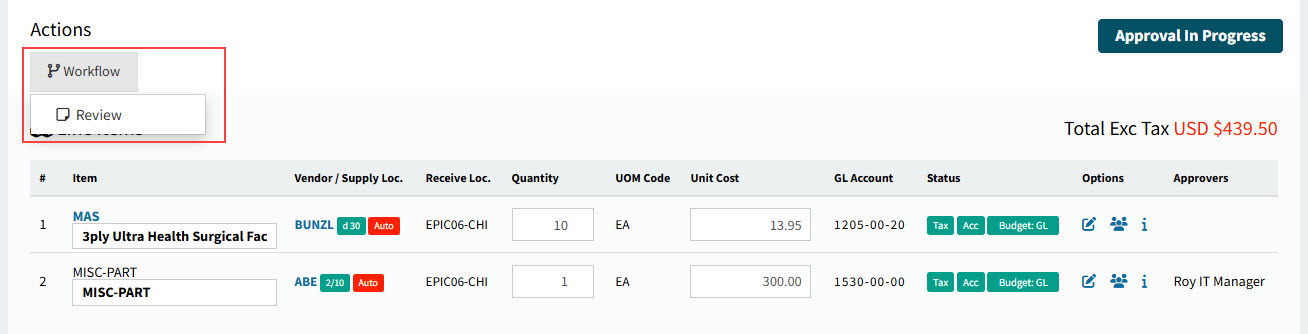
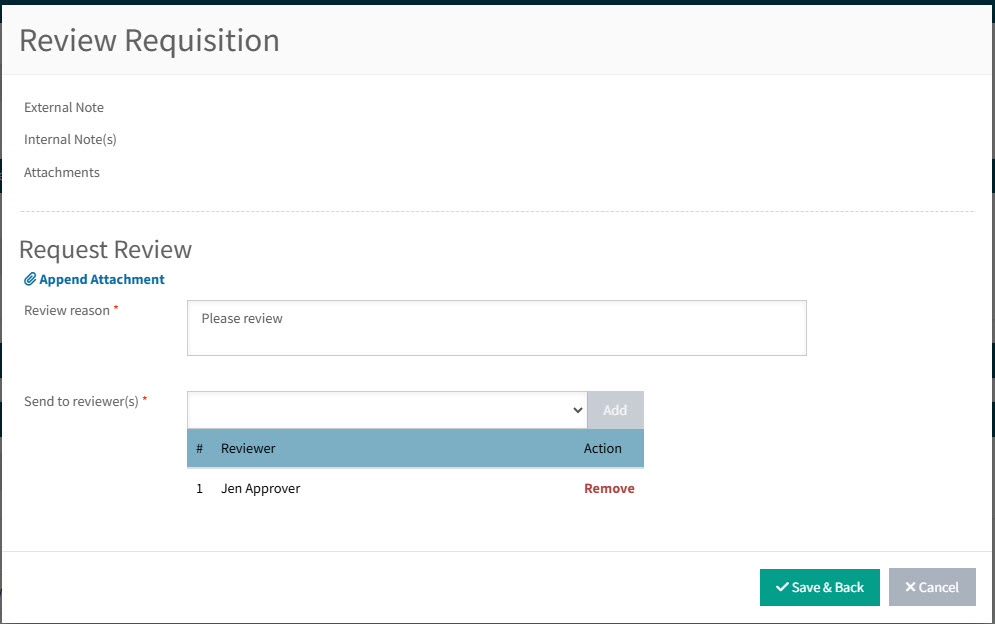
This opens the Review Requisition pop-up.
-
Fill out the Request Review form.
-
Append attachments, if required.
-
Enter a Review reason.
-
Select one or more Reviewers in the Send to Reviewer(s) box.
-
-
Click Save & Back.
The requisition status updates to "Pending Review", and the approval process is paused.
Reviewing a Requisition
When you review a requisition, it is in the Pending Review status.
This means it has been submitted, but somewhere within the approval process it has been suspended, while awaiting a review from one or more reviewers.
When you review a requisition, you may add notes, and you can also edit the requisition if necessary.
Permissions
-
You require a role with the Can Review Requisition permission to review a requisition.
Access requisitions awaiting your review from your Dashboard under "Requisitions pending your review".
To review requisitions:
-
Open your Dashboard.
-
Click on the link: "Requisitions pending your review".
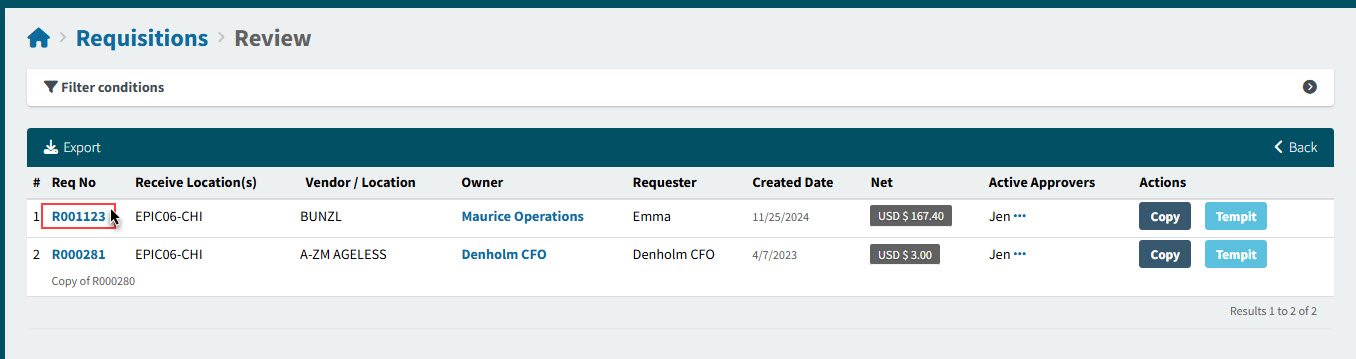
This opens the Requisitions > Review page.
-
Adjust the Search conditions.
Requisitions that match the search conditions are listed in the grid.
-
Click on a Req No to open the requisition.
The Requisitions > Review > [Req No] page opens.
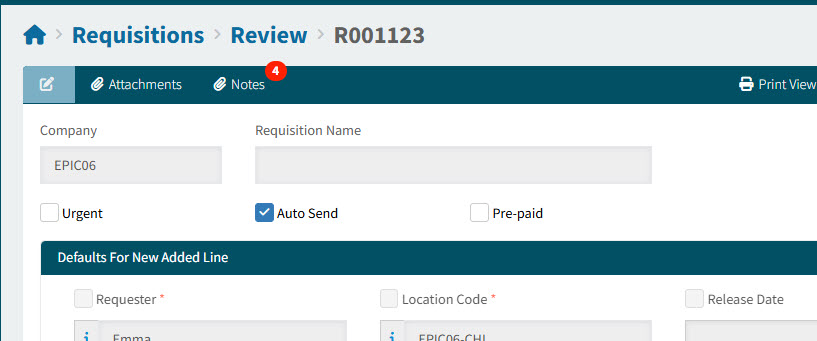
The status is Pending Review.
-
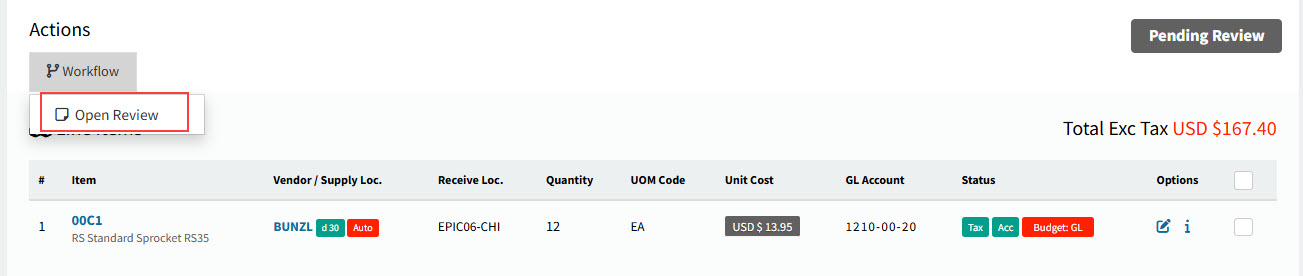
Click Open Review under the Workflow menu in the Actions section.
Details
-
Read the notes on the Review Requisition pop-up.
-
Enter a Review Note, and optionally add attachments.
-
Click Save & Back.
Details
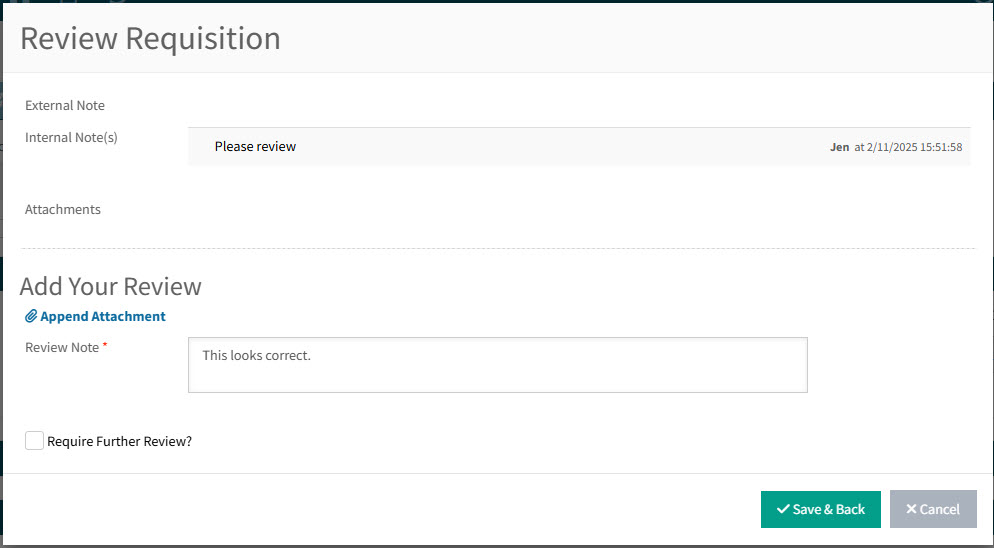
The review is complete, and the requisition status goes back to what it was before it was sent for the review - unless there are further reviews.
Note: You can send this for a further review at this stage. -
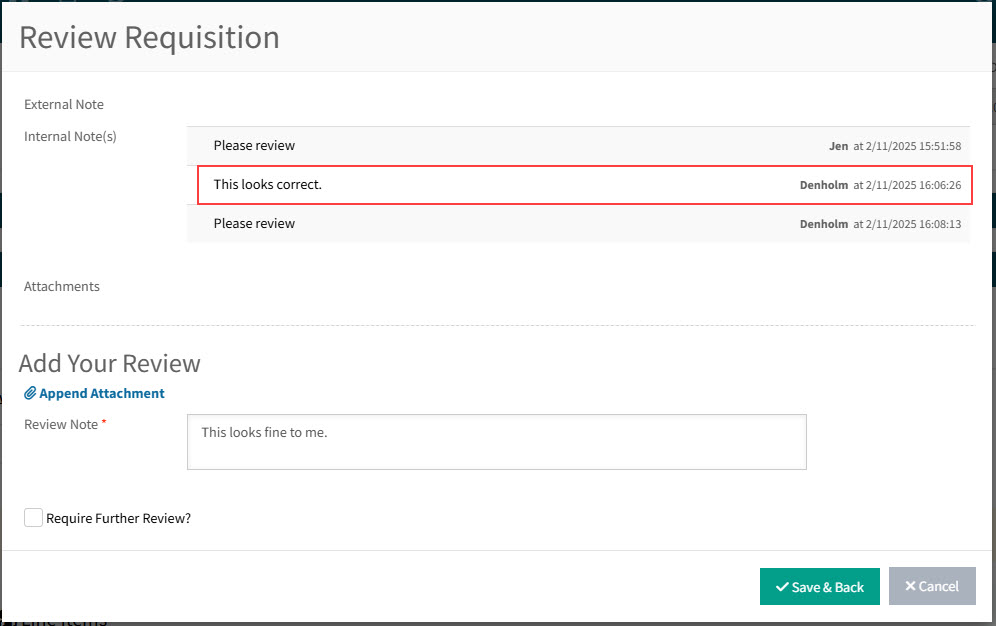
If a requisition has already been reviewed, there is a history of notes from earlier reviews.
Example
-
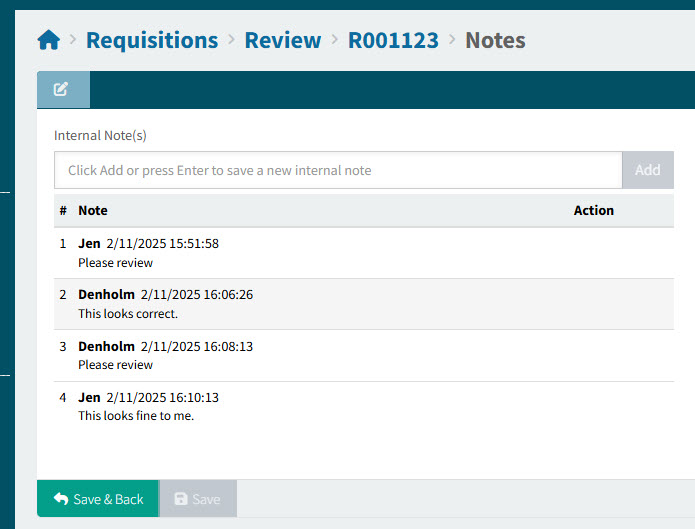
If the review request included multiple reviewers, then the status remains "Pending Review" until all reviews are complete.
-
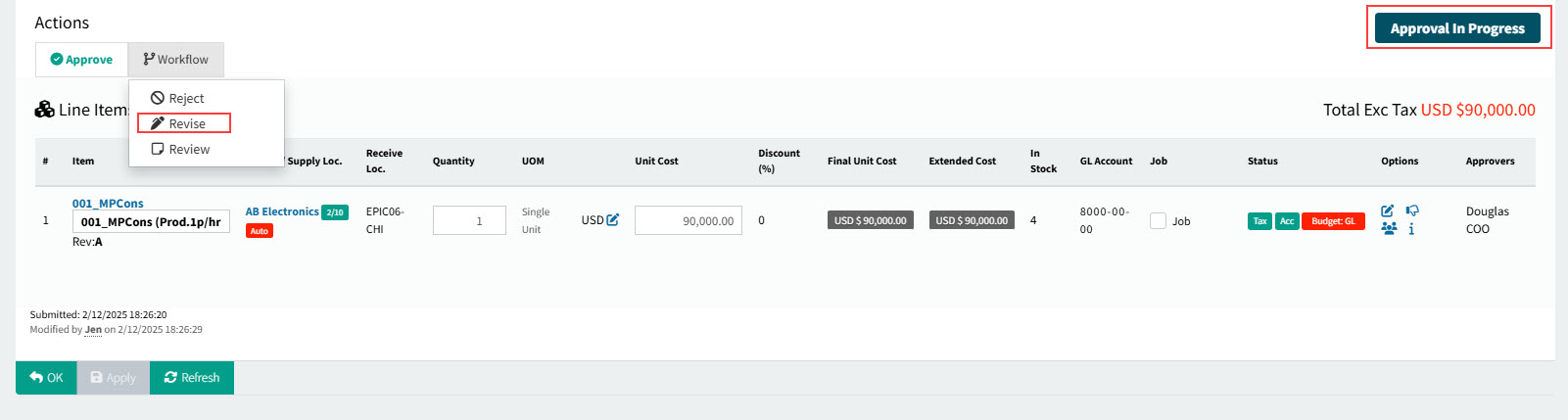
Revising a Requisition
A requisition that has been submitted for an approval can be revised, even after approvals have commenced.
| You do not need to be an approver for the requisition to revise it. |
Permissions
-
You require a role with the Can Revise Requisition permission to revise a requisition.
To revise a requisition:
-
Click the Revise button under the Workflow menu in the Actions section.
Details
-
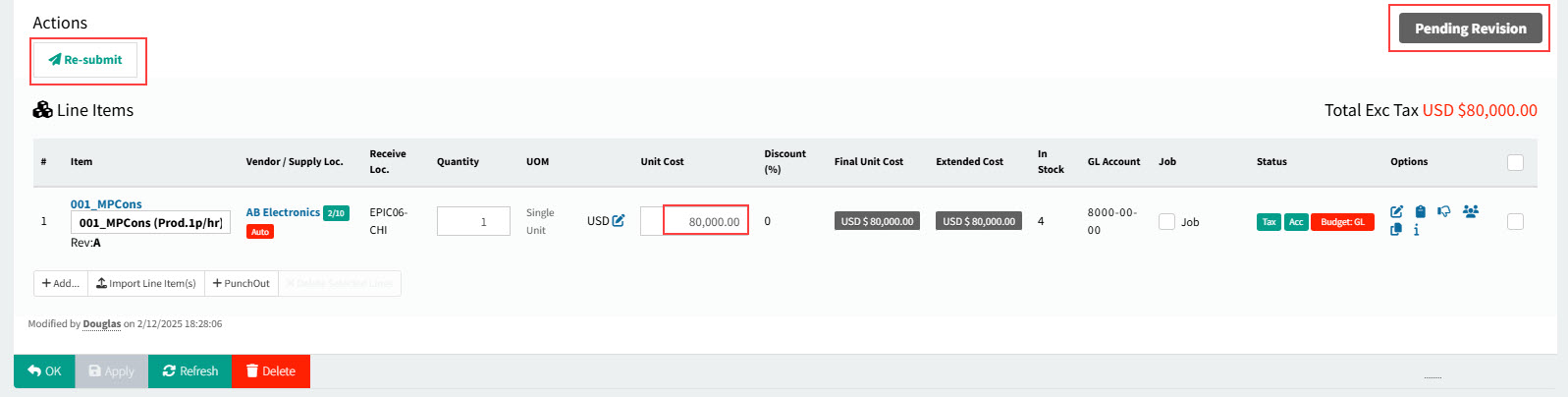
You may now edit the requisition header or lines. See Viewing and Editing a Requisition.
-
When you have finished editing the requisition, click Re-submit in the Actions section.
Details
-
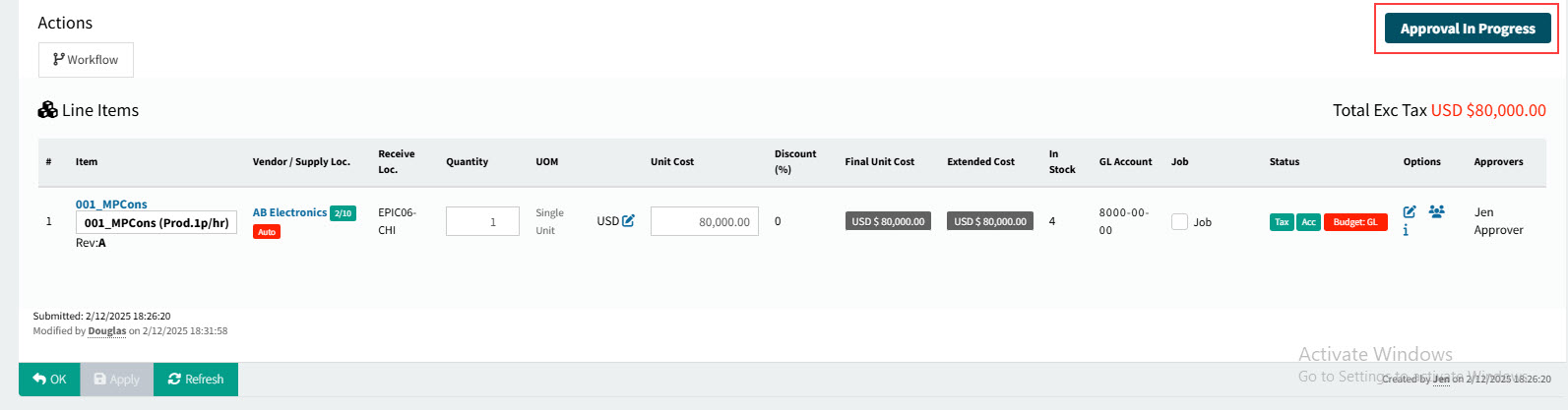
The revised requisition returns to the approval workflow.
Details
Approving in Advance
Requisitions can be approved in advance if the advance approver has a higher Approval Authorisation Limit than the active approver(s) and is higher up in the active approval tree.
The requisition can either be approved by an active approver, or by someone who can approve in advance.
Permissions
You require a role with the Can Perform Advance Approval on Requisitions permission to approve requisitions in advance.
Approvals in Advance
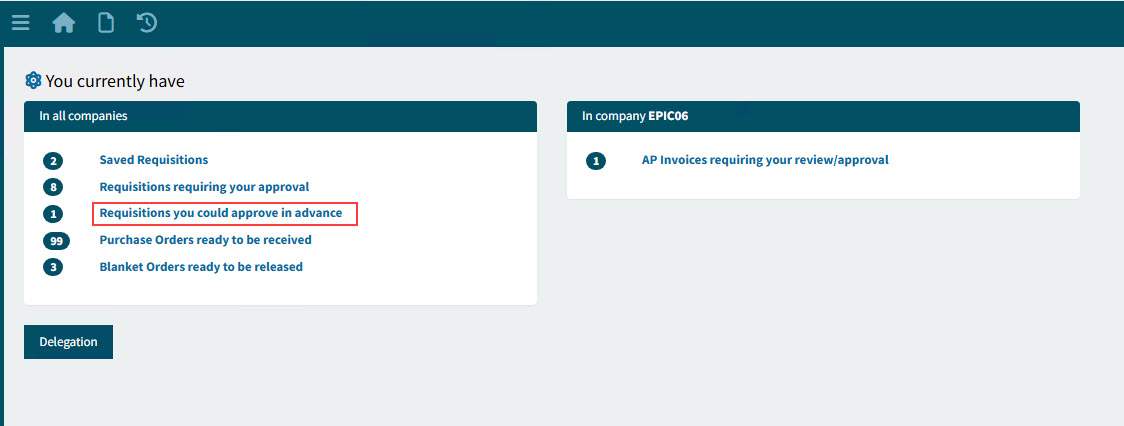
If there are requisitions you can approve in advance, these appear on your Dashboard. You will also receive a link in an email notification.
|
You can also view Approvals in Advance if you open your All Requisitions page. See All Requisitions. See Approvals in Advance in Requisitions page.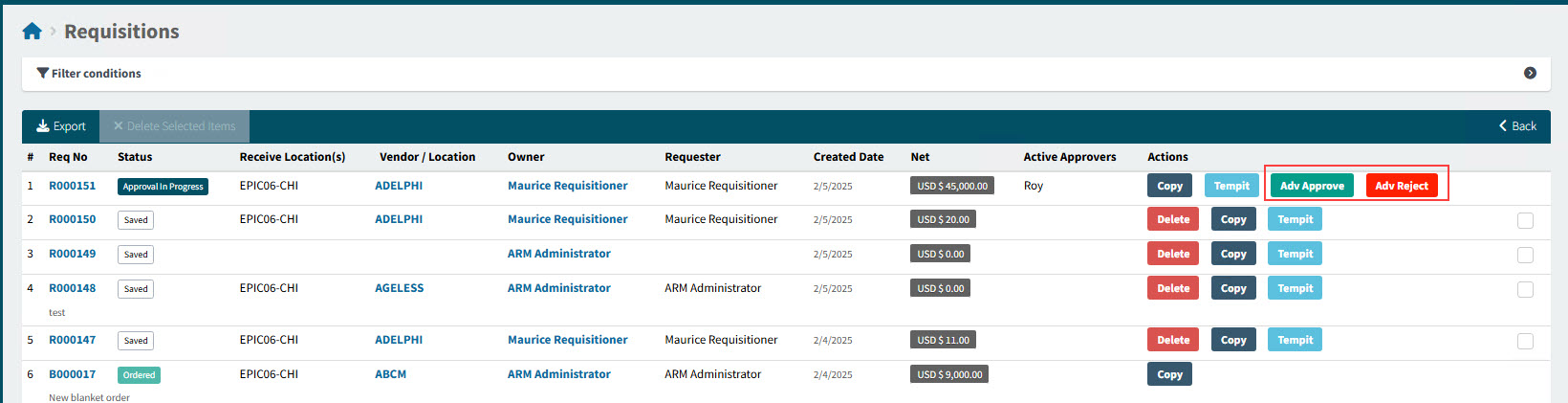
|
-
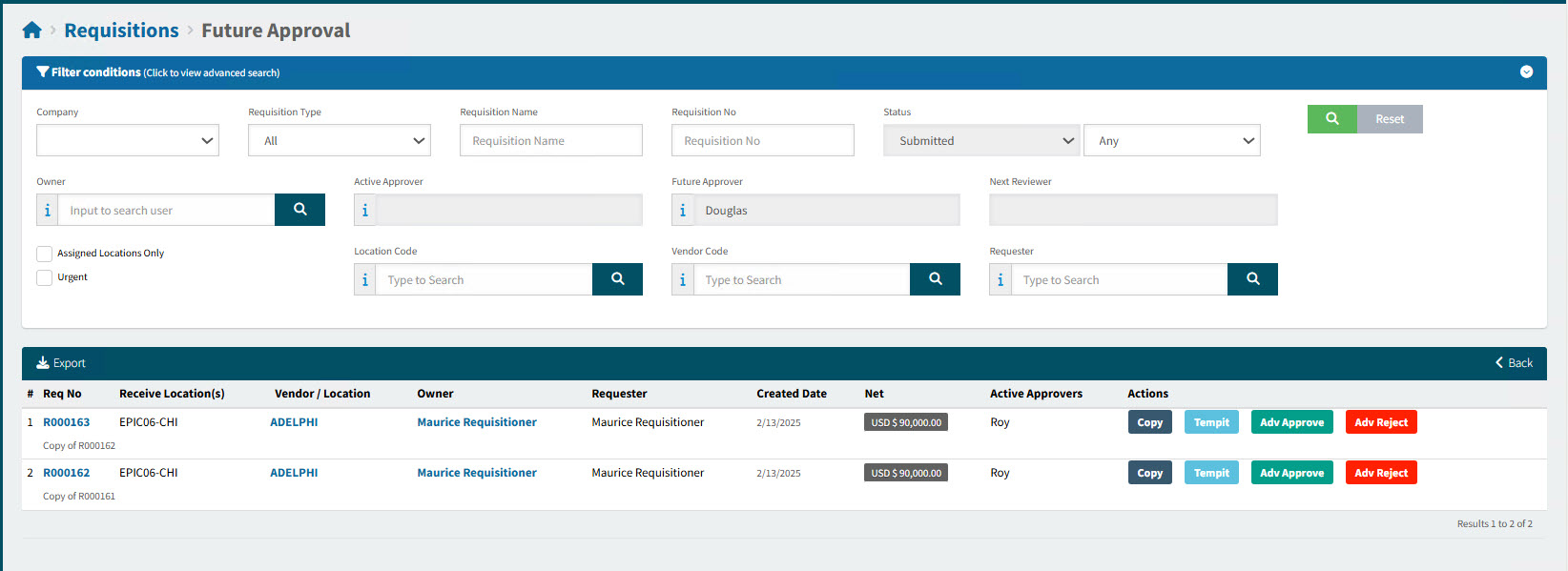
Click on the link on your Dashboard to open the Requisitions > Future Approval page.
Requisitions that you can approve in advance are listed on this page.
-
Click on Adv Approve to approve the requisition in advance, or Adv Reject to reject the requisition in advance.
Alternatively, you can click on the Req No to open the Requisitions > Future Approval > [Req No] page.
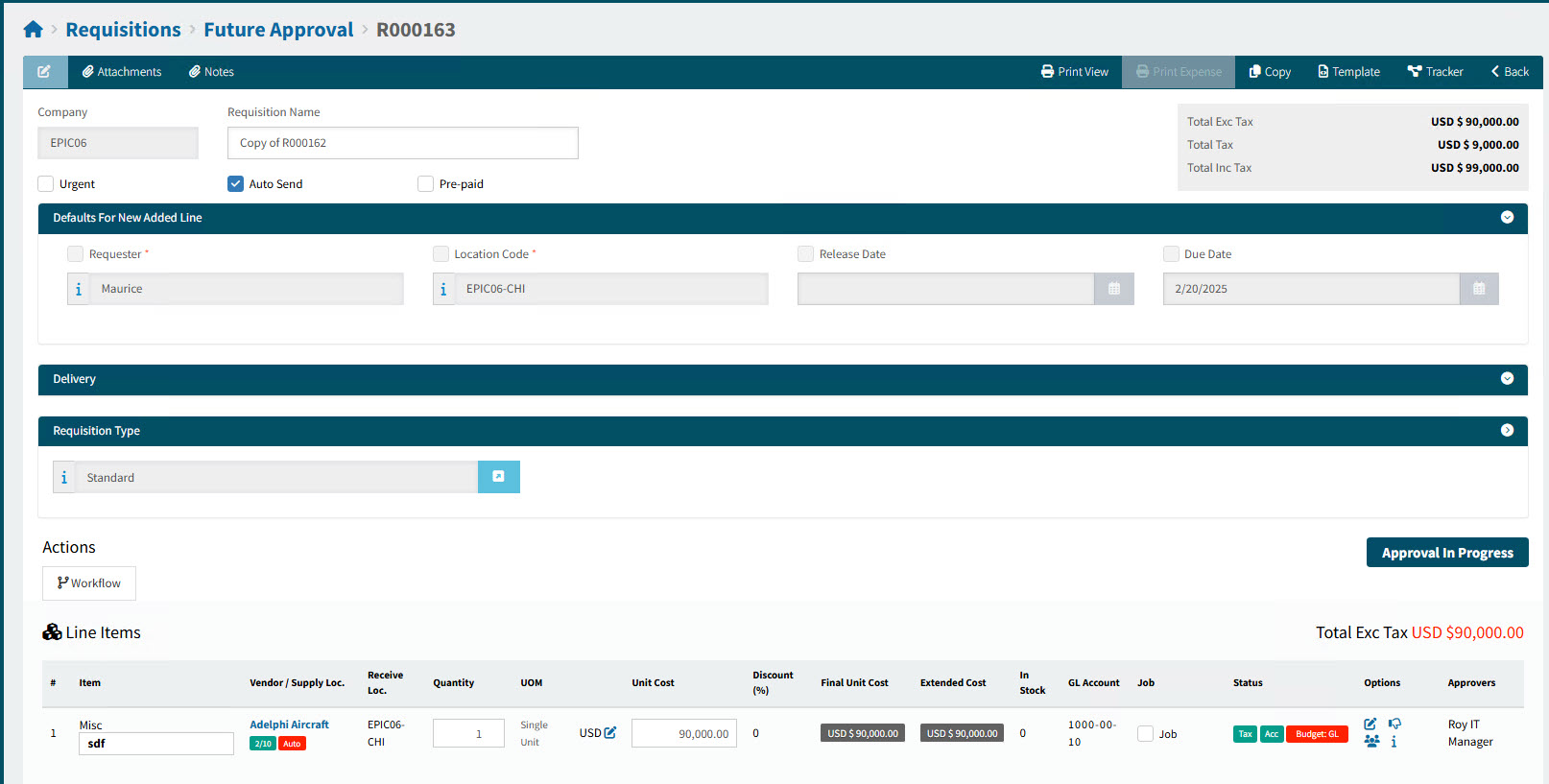
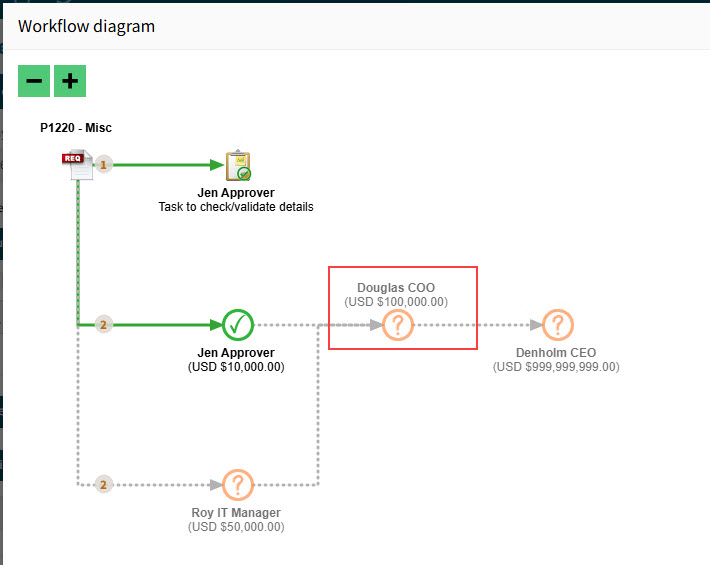
In this example, the currently logged-in user (Douglas COO) is able to Approve in Advance - ahead of the Active Approver (Roy IT Manager).
View Workflow diagram
-
To approve in advance, click Adv Approve on the Workflow menu in the Actions section.
Details
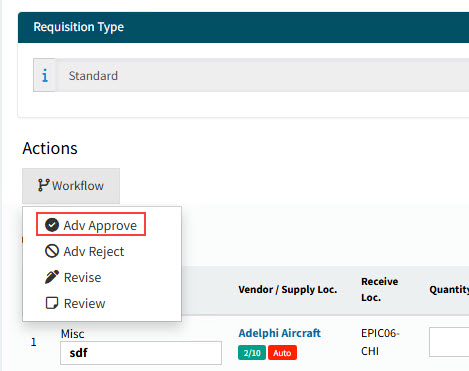
The requisition is approved.
-
To reject in advance, click Adv Reject on the Workflow menu in the Actions section.
Details
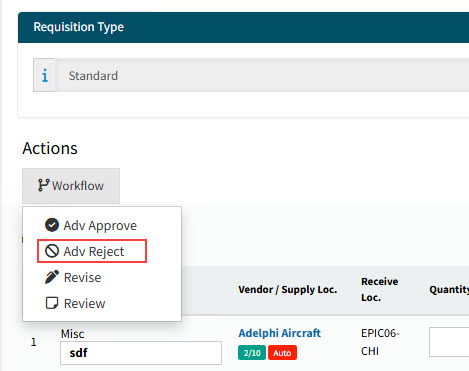
The requisition is rejected.