ARM Overview
Advanced Requisition Management (ARM) streamlines your requisition process by extending and integrating with the Kinetic Purchasing module.
Requisition Entry
Requisitions can be entered by any staff member (Requisitioner) who has the required ARM permissions. Requisitions can contain three different types of line items: Purchase lines which will become part of a Purchase Order; Transfer lines which will become part of a Transfer Order; or Expense lines which will result in an immediate Stock / Inventory Adjustment at the location specified once the Requisition has been fully approved.
Purchase Order Creation
Requisitions go through an approval process. Approvers will approve or reject the requisition.
If the requisition is approved, it is promoted to create a Pro-Forma Order which can be used to agree prices with Vendors.
If Purchasing Officers accept the Pro-Forma Order then a Purchase Order is created in ARM and integrated into Kinetic.
Transfer Orders (separately licensed) go through a similar process. A Transfer Requisition is raised and (if approved) a Transfer Order is created and integrated into Kinetic. Transfer prices do not need to be agreed with Vendors so the step of creating Pro-Forma Transfers is not normally required, but ARM can be configured to create these documents if necessary. See Transfer Orders.
Process Flow
High-level Process Flow Diagram

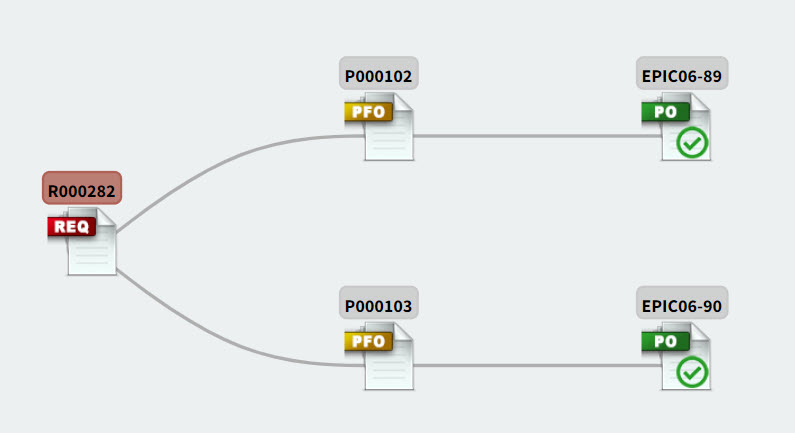
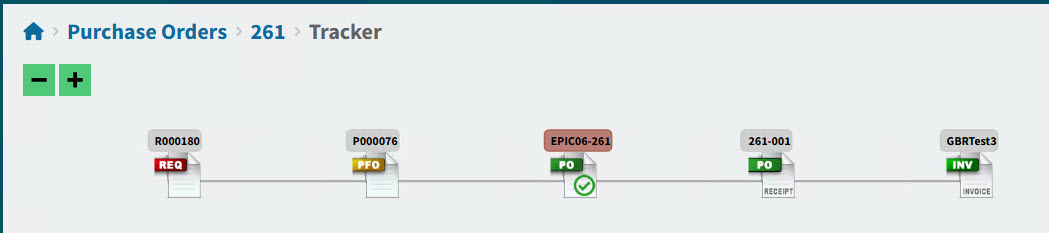
An example can be seen in a Tracker diagram
Here, a Requisition is split into two pro-forma orders (for two suppliers), and each of these becomes a purchase order.
|
This Tracker diagram shows the documents from requisition, to pro-forma order, then purchase order, receipt, and invoice.
Setting up ARM
The initial setup of ARM is usually a combined effort involving a Consultant, an on-site Database Administrator, and a Financial Officer of the organization.
Configuration and Settings
All of the system configuration is maintained by System Administrators. System Administrators are also responsible for adding and maintaining User details, and assigning permissions and access to these users. Access to all system configuration is through the Administration page.
System Administrators have access to all areas of ARM.
System Defaults
System Defaults are used throughout ARM, to streamline and provide consistency. In many instances, the user can override defaults.
Many of the system defaults are stored in the Global Settings or Company Settings. Others are stored in Vendor, Vendor Groups, Users and so on. Sometimes a default is derived through precedence and a calculation. For example, use Lead Time from Part Warehouse (if available), otherwise Lead Time from the Part Price (if available), otherwise the Global Setting, and offset against the current date.
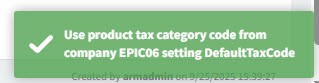
Viewing the source of a system default:
If you have permissions, you can select System Default check box to view the source for the System Default for a field. The source appears in a little info box on the bottom right of the screen.
Example:
Some of the System Defaults are listed below.
- Due Date for Requisitions
-
The Due Date for Requisitions is calculated as follows:
Add Lead Time to the current date. Lead Time is only defined if greater than 0 (zero).
The Lead Time, if defined, is used from (in order of precedence):
-
Catalogue Item Price (Supplier Price List)
-
Catalogue Item Location
-
Catalogue Item (header)
-
Category
-
Category Group
-
Vendor
-
Vendor Group.
-
-
If Lead Time is undefined in any of the above, add Due Date Days from Today from Global Settings to the current date to calculate Due Date.
- Due Date for Draft Invoices (OCR)
-
The Due Date for Draft Invoices is populated in order of precedence by:
- Using the OCR Due Date
-
The OCR Due Date is used, provided the confidence is above the low threshold setting for the Due Date field.
- Invoice Date Terms Code
-
The Due Date is calculated from the Invoice Date and the number of days from the terms.
- Blank
-
The User enters a value.
- Due Date Manually Created AP Invoices
-
The Due Date for AP Invoices is calculated from the Invoice Date and the number of days from the terms.
- FOB
-
The FOB defaults to the first available from:
-
The selected Vendor’s FOB value (from the Supplier record on Kinetic). The FOB specifies the free on board location for the supplier. This location indicates the point at which title of the shipped goods changes from the supplier to your company.
-
The Company Setting for Default FOB
-
- Purchase Point
-
The vendor’s primary purchase point.
- Ship Via
-
The Ship Via defaults to the first available from:
-
The selected Vendor’s Ship Via value (from the Supplier record on Kinetic).
Ship Via specifies the shipping method (for example, FedEx, or Company Truck) that the supplier uses to ship purchased materials to your shipping location.
-
The Company Setting for Ship Via
-
- Terms
-
The Terms defaults to the first available from:
-
Supplier (Vendor), if available, otherwise
-
Company settings
-
- Tax Liability
-
The Tax Liability defaults to the first available of:
-
The Vendor’s Tax Liability, if available, otherwise
-
The Company Setting Default Tax Liability (Tax Region) Code.
-
- Tax Category
-
For Catalogue items, the Tax Category defaults to the first available of:
-
The Tax Category for the Catalogue item for the Location matching the Receiving Location Code
-
The Tax Category for the Catalogue item
-
The Tax Category for the Catalogue’s Category
-
The Default Product Tax Category Code defined in Company Settings.
For items not in the Catalogue, the Tax Category defaults to the Default Product Tax Category Code defined in Company Settings.
-
- Category
-
For Requisition Lines:
- For Catalogue and Non-Catalogue Items
-
The category defaults to the first available of:
-
The Category for the Catalogue item (catalogue items only)
-
The Default Category for the Vendor
-
The Default Category for the Vendor Group
-
Default Category in Company settings
-
<blank>
- For PunchOut Lines
-
The category defaults to the first available of:
-
The PunchOut line Category
-
The Category that maps to the PunchOut item’s UNSPSC code
-
The Category for the Catalogue item that maps to the PunchOut item
-
The Category for the PunchOut configuration - see Maintaining PunchOut.
-
-
The Default Category for the Vendor
-
The Default Category for the Vendor Group
-
Default Category in Company settings
-
<blank>
- Category
-
For Draft Invoice and AP Invoice Miscellaneous Lines the category defaults to the first available of:
-
OCR (for Draft Invoices only)
-
The header value if it is defined and the line is manually added
-
The Default Category for the Vendor
-
The Default Category for the Vendor Group
-
Default Category in Company settings
-
<blank>
-
- UOM
-
This defaults to the catalogue item’s (part) UOM. The available UOM’s in the drop-down list are those that belong to the same UOM group.
When a Vendor is selected and there is a Price for this Vendor, then the UOM for the Vendor Price for this Catalogue Item overrides the Catalogue Item’s UOM.
When a line is added from Job Material, the UOM defaults from the Job Material UOM, overriding the Part UOM.
For non-catalogue requisition line items and AP Invoice Misc lines, the UOM defaults to the company’s Default UOM defined in Company Settings.
- GL Account Code
-
See GL Account Mask Sequence for an explanation on how the GL Account Code is derived as a system default.
- Apply Date
-
This enters the current date into Apply Date.
For AP Invoices, the date at final approval will be recorded against the invoice.
- HS Commodity Code
-
The HS Commodity Code defaults from (in order of precedence):
-
The HS Commodity Code for the Catalogue Item, if available,
-
the Default Commodity Code in Categories, if available.
This applies to Requisitions, Draft Invoices, and Accounts Payable.
-